

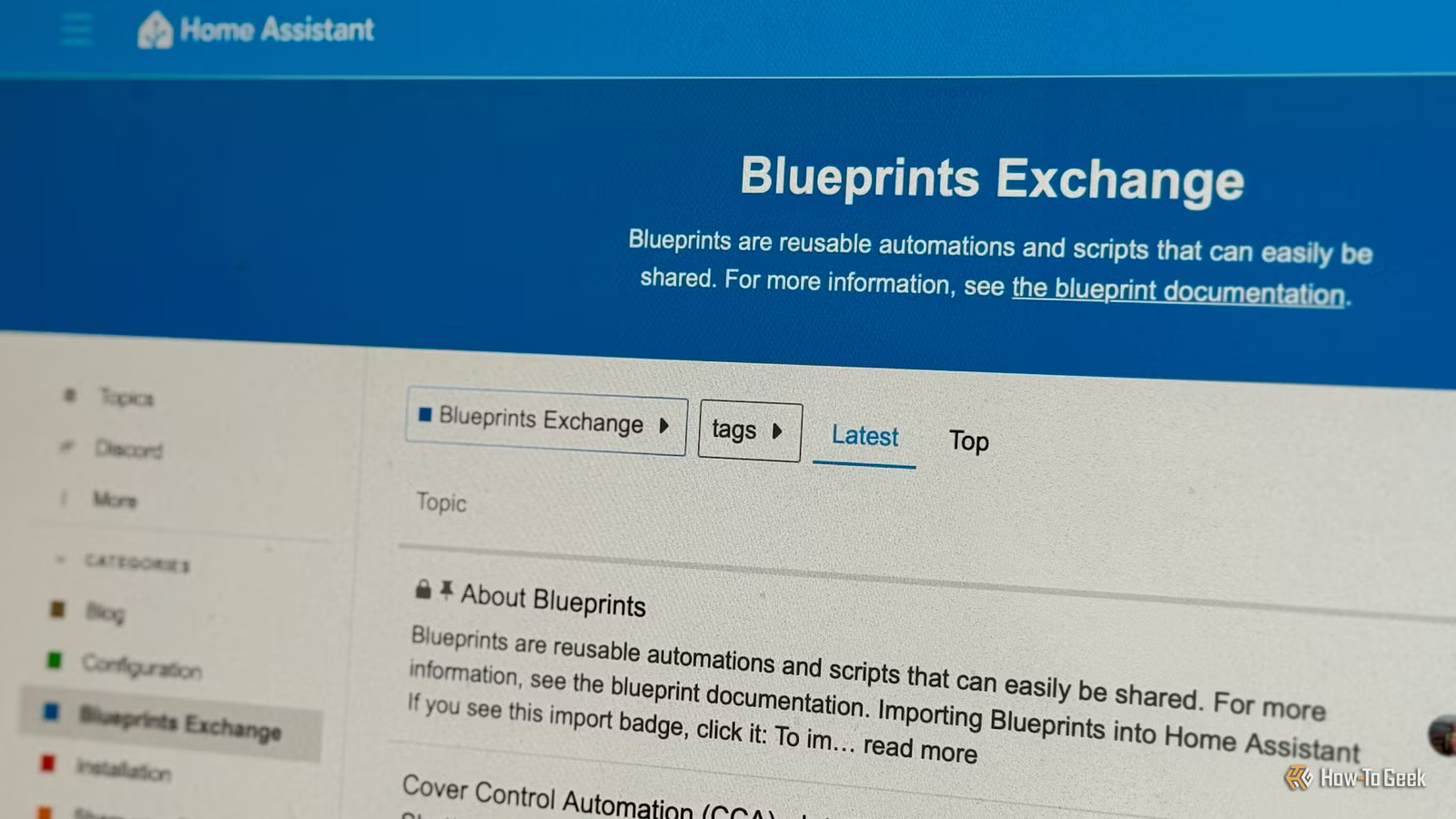
Creating automations in Home Assistant can be a long and time-consuming process. You don’t have to reinvent the wheel, however. There are some useful blueprints that you can use to create complex automations in next to no time.
Low battery notifications and actions
Battery-powered smart home sensors that communicate using low-energy protocols such as Zigbee and Z-Wave can be really useful in your smart home. For example, a battery-powered humidity sensor can be placed anywhere in your bathroom without having to worry about where the nearest outlet is. One downside of battery-powered devices, however, is that no matter how little power they use, the batteries will eventually run out.
Many sensors will expose the current battery level to Home Assistant. You can use these battery entities to create automations that notify you when a battery is running low. If you have a lot of sensors, however, creating the automations yourself can be a pain, and you’ll need to update them every time you add a new battery-powered device to your home.
The Low battery level detection & notification for all battery sensors blueprint in the Home Assistant Blueprints Exchange saved me a huge amount of time. It automatically checks the level for any sensor with the device class “battery”, meaning that when you add a new device, it will be included when the blueprint next runs.
The blueprint will send a notification including the names of any sensors with batteries that are below the level you set in the blueprint. This gives you plenty of time to replace batteries before the sensors completely die.
Related
These Are the 7 Best Ways to Run Home Assistant
Find the best hardware for your smart home hub.
Send a camera snapshot when motion is detected
This is another really useful blueprint that can save you a lot of time and effort creating manual notifications. Having a smart camera or video doorbell send you a notification when motion is detected is useful, but it’s far more useful to be able to see what triggered the automation in the first place. Including a snapshot from the camera is a quick and easy way to see exactly what was moving.
The Send camera snapshot notification on motion blueprint lets you select a motion sensor, the camera that will take the snapshot, and the device you want to send your notification to. Whenever motion is detected, it will take a snapshot from the selected camera, attach it to your notification, and send it to your chosen device. You can then see instantly what triggered the motion detection.
Turn calendar events into notifications and actions
You can add calendars to Home Assistant using integrations such as the CalDAV integration or the Google Calendar integration. While having calendar entries in Home Assistant is useful, it’s even more helpful if you can use them to trigger actions or to fire notifications. That’s exactly what the Calendar Notifications & Actions blueprint does.
You select the calendar that you want to use, include any trigger keywords from the calendar event summary or description, and choose the devices that you want to notify or the actions that you want to run. At the start time of the appropriate event in your calendar, the blueprint will run, and the notification or action will be triggered.
You can add an offset if you want to get a notification an hour before an event, for example, and also use the end times of events to trigger notifications or actions. It turns your calendar events into powerful triggers in just a few minutes.
Send a notification when an appliance finishes
Smart plugs that include energy monitoring can be incredibly useful. You can use them to determine which devices in your home are using the most power or to see which devices are running up your electricity bill when they’re on standby. Another great way to use them is to determine when appliances such as washing machines have finished.
When a power-hungry device starts running, the draw through the smart plug will rise significantly, and when it finishes, it will drop back down again. You can use this information to determine when the device has stopped running.
The trouble is, devices such as washing machines will often stop temporarily and then start up again during their cycle. At these points, the energy use will drop, which could trigger your automations incorrectly.
The Notify or do something when an appliance like a dishwasher or washing machine finishes blueprint may have a ridiculous name, but it makes it quick and easy to create automations or notifications that only fire when the device has completely finished. You set the power thresholds that you want to use to indicate that the appliance has finished. Crucially, you then add a time duration, so that the automation won’t trigger until the appliance has remained below your threshold for the duration you specify.
You may need to monitor your smart plug while the appliance is running to determine the optimal values to use in the blueprint. Once you do so, however, it can be impressively accurate.
How to add blueprints to Home Assistant
Adding these blueprints to Home Assistant is simple to do. You just need to paste in the blueprint’s URL, and the relevant blueprint should be installed.
Go to Settings > Automations & scenes and select the “Blueprints” tab. Click the “Import blueprint” button and paste the URL of the blueprint you want to import. Click “Preview” to check that the correct blueprint is found, and click “Import blueprint.” You can then set up the blueprint however you want.
One of the best things about Home Assistant is the community. If you have an idea, there’s a significant chance that not only has someone else thought of doing it first, but that they’ve also shared their method. Using these blueprints has saved me a huge amount of time, and many of the other blueprints have inspired me to create automations that I wouldn’t have otherwise considered.
