

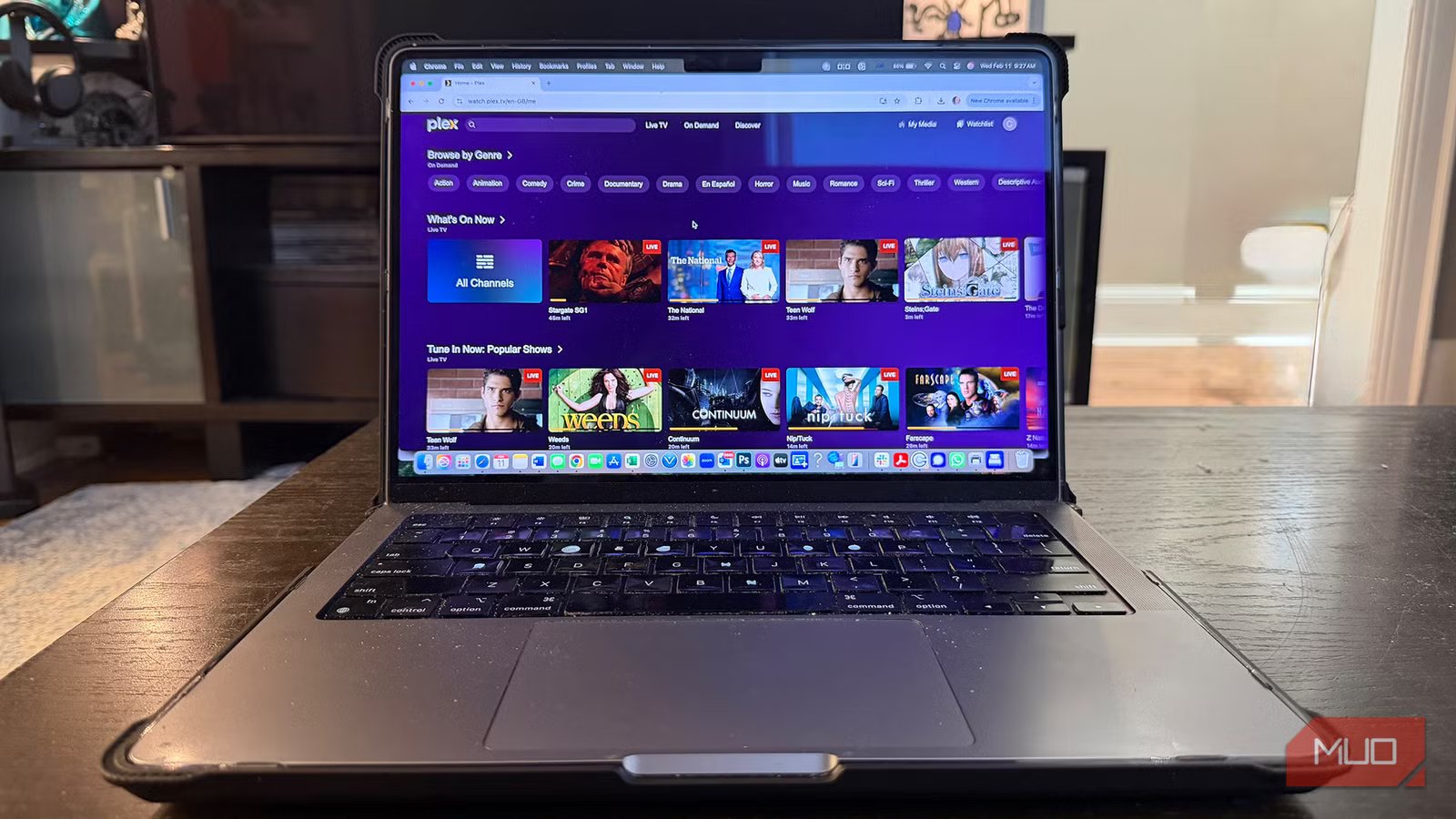
Plex is a streaming service that brings together all your favorite movies, shows, and music from your own collection and pairs it with a ton of free, ad-supported content. Whether you’re on your smartphone, laptop, or TV, Plex works smoothly across all your devices. The interface is clean and intuitive, making it easy to stream remotely, download content for offline viewing, and keep your media neatly organized. Plus, it doesn’t let you compromise on quality either. You can enjoy 4K resolution, HDR, and even Dolby Vision for a true cinematic experience with impressive audio.
So, if you’re someone who spends a lot of time on Plex like I do, tweaking a few settings can make a world of difference. It will give you the smoothest, most enjoyable streaming experience.
Related
Here Are My 5 Tips for Setting Up Plex Like a Pro
Take your Plex server to a whole new level.
Begin by refining the video quality
Every detail counts
Brady Meyers/MakeUseOf
If you want Plex to deliver the best possible streaming experience, the first thing to focus on is video quality. It’s about watching your shows and movies exactly the way they are meant to be seen. For home streaming, choose either Maximum or Original. Doing this ensures Plex won’t unnecessarily compress or downgrade your videos, so binge-watching your favorite series remains crystal clear as well as immersive.
For maximum remote quality, set it to Unlimited. This setting allows high-resolution files, whether 4K, 8K, or high-bitrate content, to play smoothly without Plex needing to transcode them, as long as your server’s upload speed and your device can handle it. In short, it unlocks the full potential of your media without any compromises.
To adjust these settings, open your Plex app, go to the Settings icon, and scroll down to Video Quality. Both the Home Streaming and Maximum Remote Quality options are right there, ready for you to fine-tune. This will definitely change the Plex experience and make it sharper, smoother, and much more cinematic.
Remove ads to enjoy Plex at its best
When suspense stays suspenseful
Credit: Shimul Sood / MakeUseOf
Ads can really ruin the flow of your shows. Imagine watching a tense thriller, just as the suspense reaches its peak, when an ad pops up, completely breaking the mood. On Plex, removing ads transforms your viewing into a smooth, uninterrupted experience, letting you enjoy every scene without something getting in your way.
To do this, you’ll need a Plex Pass subscription. It unlocks three ad management options: Disable, Manually and Automatically.
- Manually lets you skip ads with a button that appears below the player whenever an ad starts.
- Automatically is the easiest option, letting Plex handle it for you so you can watch without lifting a finger.
- Disable turns ads off entirely for a completely clean experience.
To change this setting, open the Settings icon in Plex, scroll down to Player Experience, and you’ll see Skips Ads in Recorded Content icon. Adjust it accordingly and enjoy the best experience.
Do this to make every scene cinematic
Glide through every scene like butter
Credit: Christine Persaud / MUO
Plex’s refresh rate switching automatically adjusts your TV or display’s refresh rate to match the frame rate of the video you’re watching. Essentially, it ensures your screen is perfectly in sync with the content, reducing or eliminating the tiny stutters and judders that can make fast-moving scenes look uneven.
Turning this feature on gives you a smoother, more fluid, and accurate picture, especially noticeable in action-packed movies or high-frame-rate videos. You may notice a 1–2 second blackout when starting playback. This is completely normal, as your display switches to the correct refresh rate. Once the video ends, Plex automatically returns your screen to its default refresh rate.
To enable it, open the Settings icon in Plex, go to the Advanced tab, and simply switch it on. Once activated, your viewing experience becomes far more cinematic and enjoyable.
Every sound should hit just right
No more jump scares for your ears
Credit: Shimul Sood / MakeUseOf
Volume leveling on Plex keeps your listening and watching experiences smooth and balanced. It automatically adjusts the audio so the quiet parts, like soft dialogue or gentle music, are easier to hear, while loud bursts, such as explosions or high-energy tracks, are tamed to a comfortable level. This prevents those sudden spikes or drops in volume that can be jarring, especially when switching between different movies, shows, or songs in a playlist.
This feature is particularly handy for music playlists while some tracks are recorded louder than others or for action-packed films where the difference between a whisper and an explosion can be extreme. With volume leveling turned on, your ears get a consistent, enjoyable sound experience from start to finish, without having to constantly adjust the volume yourself.
To enable it, open the Settings icon on Plex, go to the Audio tab, and switch Volume Leveling on. Once activated, every scene, song, or soundtrack plays just at the right level.
Related
4 Simple Ways to Fix Plex Streaming Issues
Flip a few switches, turn a couple of knobs, and Plex will be up and running in no time.
The adventure of Plex just got real
If Plex isn’t your go-to app on your smart TV, it’s time to change that. With a Plex Pass subscription, the app doesn’t just stream your favorite movies and shows; it actually transforms your entire experience. There are a lot of features waiting to be explored, and what I’ve covered so far is only the tip of the iceberg.
Start by tweaking these settings and paying attention to the difference. Once you see how much smoother, sharper, and more cinematic your Plex experience becomes, you’ll want to explore even more customization options. The more you jump into the Plex hole, the better it gets.
OS
MacOS, Linux, Windows, iOS, Andriod
Plex is a powerful media management and streaming service that centralizes your personal media—like movies, music, photos, and TV shows—into one easy-to-access library. It also offers free streaming of movies, TV, and live channels, making it a versatile entertainment hub for all your content.
