

We’ve all been indoctrinated to the cult of “there’s an app for that.” It’s to the point that even as our built-in, OS-level features get better and better, we end up heading to our respective app stores to grab a third-party app instead of looking for the functionality on our own devices.
Gboard, the default keyboard on Pixel phones and many other handsets, has been adding features to its capabilities that used to require these extra apps, but no longer. Same goes for Samsung Keyboard and many others. If you’re looking for a clipboard manager, a translation keyboard, a text expander, and dictation tools, you can get them right on your phone now, without having to sort through the Play Store. Because the honest truth is that your built-in OS does more than you think. Here are four of the best features built right into your Android keyboard.
Related
I went looking for an app to record my screen, but Android has a better option built in
Quick Settings had me covered the whole time
Clipboard management
Gboard remembers everything you’ve copied — if you know where to look
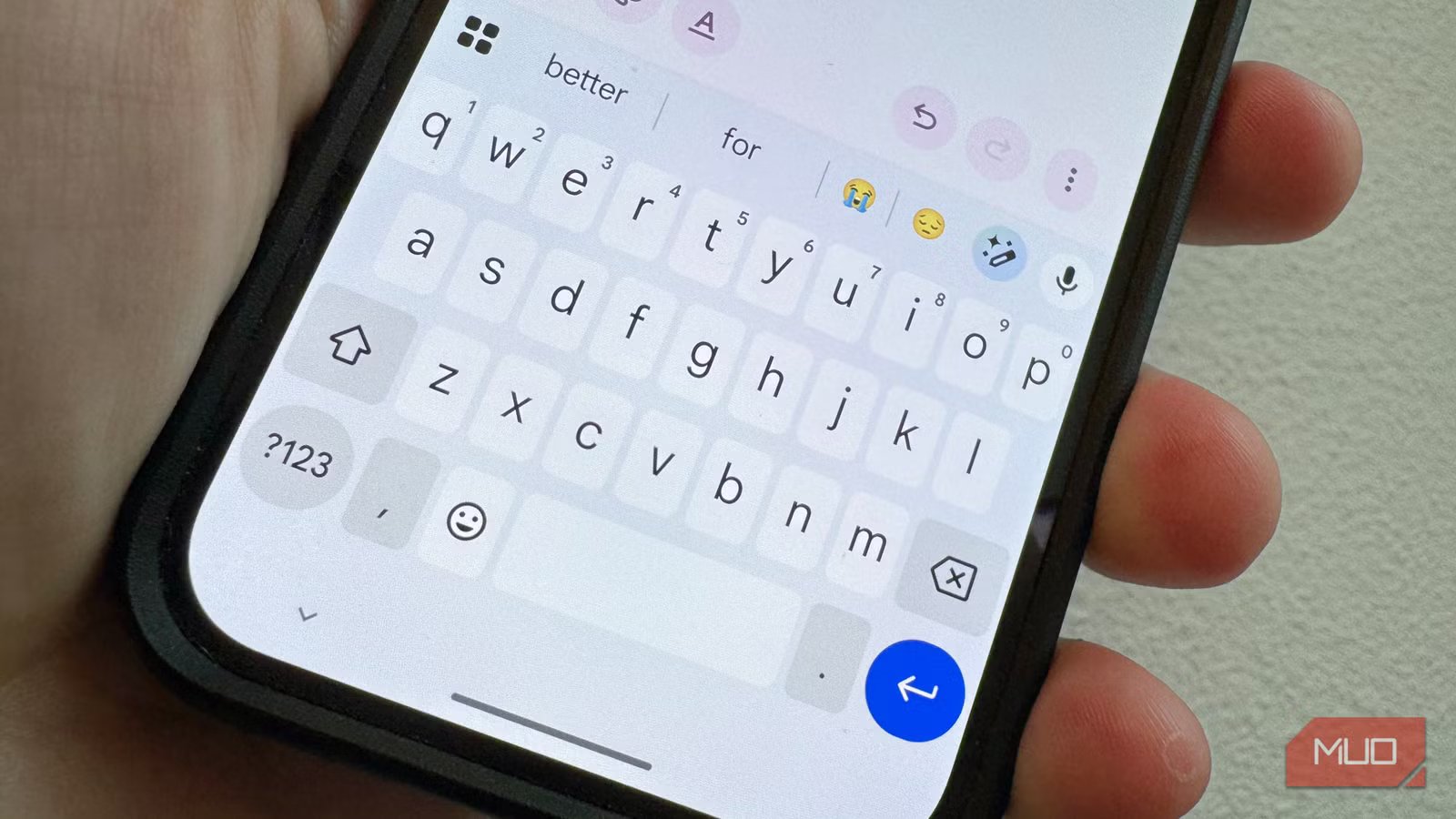
Every time you copy something on Android, Gboard keeps track of it. It can handle text, images, and even screenshots (once you give it permission to keep track of those). It’s super easy to access: just tap the little clipboard icon in the keyboard toolbar. It’s just above the “U” key on my Pixel and just over the “T” and “Y” keys on my OnePlus Open. Once you tap it, it will bring up anything you’ve copied within the last hour. Beyond that time limit, you’ll need to pin it (long-press on the clipping, then choose Pin. Even Samsung has a clipboard panel, so no need to trawl the Play Store.
To find the keyboard toolbar while you’re typing (it can get covered by the auto-suggestions), simply tap the little four-square button to the far left.
Text translation
You can type in another language without ever leaving the conversation
Gboard’s translate mode converts everything you type in real time into the language you target before its sent. You don’t need to download a second app, pop over to Google on the web, or anything. Just type and it will translate.
My Pixel rolls the Translation into a keyboard setting. Open the keyboard toolbar and then tap the little Translate button. If it’s not in the toolbar, tap the little four-square icon again and drag the Translate button up. I put mine next to the gif button for easy access. Then, once you’ve hit the translation button, type into the new text field, choose your to and from languages just above, and then you’ll see the translation wherever you were typing in the first place.
Google promises hundreds of languages for its Gboard translation tool, which is likely enough for most conversations you might have.
Text shortcuts and snippets
A few keystrokes can expand into anything you type constantly
This trick is built into Android itself, but it works when you type using Gboard. Just like Apple’s own text replacement system, Android lets you create custom shortcuts to help with stuff you type all the time, or at least long strings of text you don’t want to have to keep typing out long-form. Things like “On my way!” can come from “On my way!” or “addy” can turn into your actual address.
To access Android’s Personal dictionary, head into Settings > System & update > Keyboard & input method > Personal dictionary (on an OxygenOS phone), or Settings > System > Keyboard > Personal dictionary on a Pixel.
Tap the plus sign in the upper right corner of your screen and then type in the word and the shortcut you want to use. Now in any text app — Messages, Keep, Facebook, whatever — those shortcuts will expand to the longer version.
Voice typing/dictation
Gboard’s microphone has gotten good enough to replace a dedicated dictation app
Gboard’s voice input has gotten pretty darn good lately, with fast, on-device processing that’s aware of how pauses translate into punctuation. It’s easy to use right from the keyboard toolbar; simply tap on the microphone icon and speak. You’ll see the dictation fill in to your text field right away in real time. If you’ve used iPhone speech recognition, you’ll feel right at home here. It works the same on my Pixel as it does on my OnePlus. No more voice dictation or speech-to-text apps needed.
Skip the Play Store and try these functions
Your Android keyboard is already a multi-function toolkit; you don’t need to search for apps anymore if you want to manage your clipboard, translate languages, use shortcuts, or dictate. Your Gboard already has it covered; give these a try and stop downloading so many apps. And, if you’re super interested in more that it can manage, tap the Settings icon just above your keyboard; there are a ton of cool things in there that most people don’t even bother with.
