

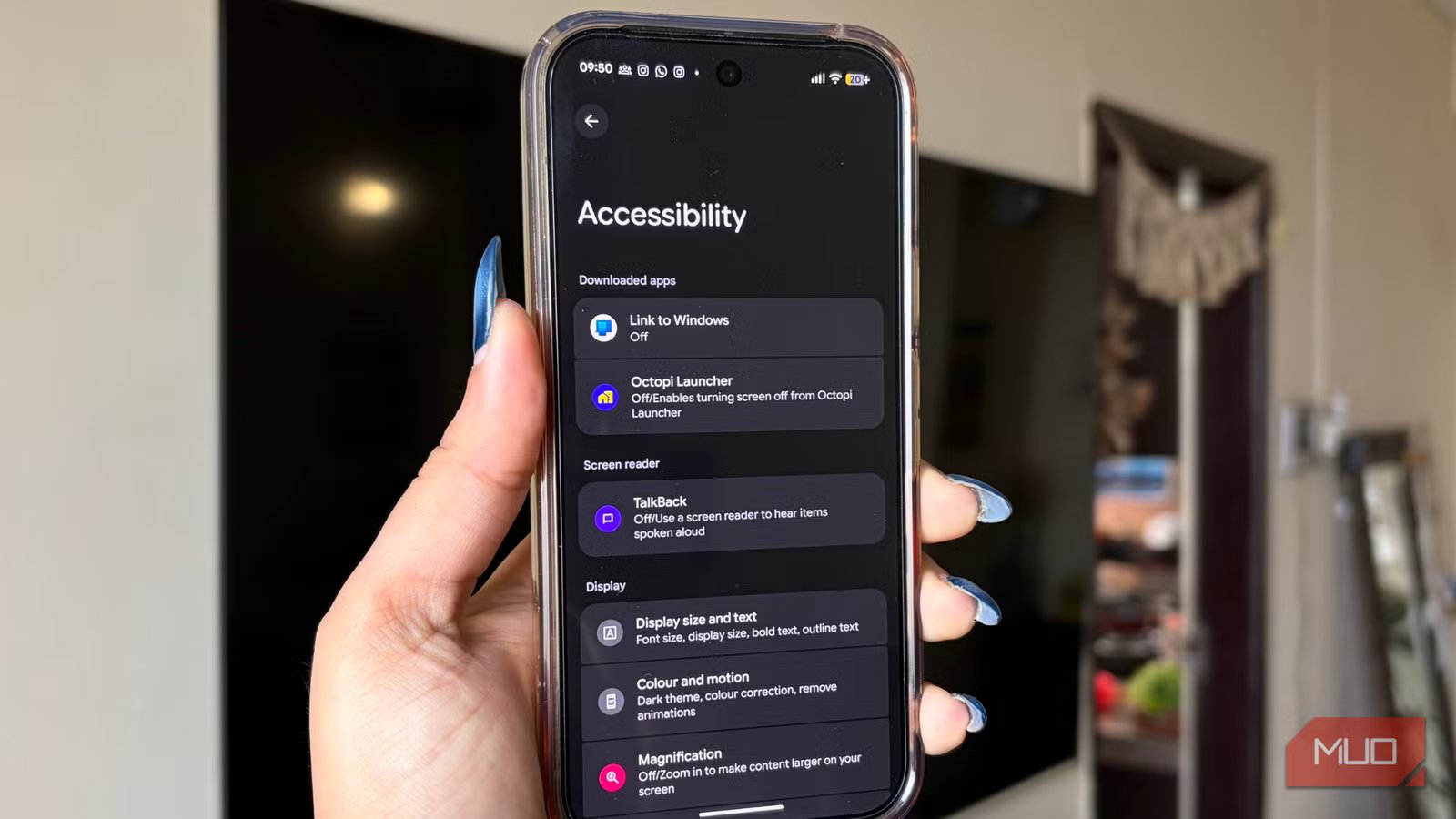
Android’s accessibility features quietly house some of the most useful tools on the phone. These settings span vision, hearing, mobility, dexterity, interaction, and general system controls. While they are primarily designed to help users with disabilities navigate their devices more comfortably, their usefulness goes well beyond that.
Several built-in accessibility features can genuinely change how you interact with your Android phone on a daily basis. Simple tweaks can make navigation smoother, controls more responsive, and everyday tasks easier to manage. Whether it is reducing unnecessary animations, improving readability, or adding smarter ways to interact with your device, these settings can make your smartphone feel more intuitive and great to use.
That is precisely why accessibility features shouldn’t be optional. They can improve the overall experience for everyone, regardless of how you use your phone.
Easy on the eyes
A tiny setting with big relief
I recently found out that I have extremely dry eyes. According to my doctor, my eyes don’t produce enough tears to stay properly lubricated, which can lead to discomfort, a burning sensation after long screen sessions, and blurred vision over time. The problem is often made worse by prolonged screen use, especially when blinking rates drop or when the display is too bright for the surrounding lighting.
Like many of us, I often find myself doom-scrolling through reels or reading on my phone late at night, with the brightness turned all the way up even when the lights are off. That’s a perfect recipe for eye strain. Over time, it became clear that being easy on the eyes is a necessity.
Thankfully, Android offers a simple setting that changes how you view your phone. Adjusting brightness for sensitive eyes helps reduce strain and makes screen time far more comfortable. If you experience eye discomfort, have dry eyes, or wear spectacles, enabling this feature can genuinely improve how your phone feels to use. To turn it on, follow these steps:
- Open the Settings app on your Android phone.
- Scroll down and tap Accessibility.
- Under the Display section, find Adjusting brightness for sensitive eyes.
- Toggle it on.
Even if you don’t experience eye problems, turning this on can still be milder on your eyes and help reduce unnecessary strain during daily use.
Words that work for you
Keeping up, even on mute
Enabling Live Caption on your Android phone lets your device automatically detect spoken audio and convert it into on-screen captions in real time. This means you can follow along with what’s being said in a video even if you can’t turn the sound on. It’s especially useful when you’re watching something important in a public place, traveling, or simply don’t have your earphones handy. With Live Caption enabled, you can understand most videos without relying on audio at all.
To enable Live Caption on your Android phone, open the Settings app, scroll down, and tap Accessibility. Under the Captions section, tap Live Caption. You can fine-tune it to suit your needs. You can choose the languages you want the captions for, adjust the caption size and style for better readability, and enable Expressive Captions. Enabling this helps convey tone, labels, and non-speech sounds. There’s also an option to hide profanity. So, you’re not just switching Live Caption on, you’re customizing it to work exactly the way you want.
Keep in mind that live captions can increase battery usage, and they don’t support song lyrics.
Just flashing through for notifications
Let there be light (for alerts)
I tend to zone out when I am working, and while that’s great for focus, it also means I occasionally miss important notifications that pop up during the day. That’s where Flash Notifications come in handy. This feature uses visual cues instead of sound, triggering either the camera flash or the screen to light up when you receive a notification or when an alarm goes off. It feels a bit like the notification LED from back in the day, just updated for modern Android smartphones.
You can choose between the camera flash, the screen flash, or both to make absolutely sure nothing slips past you. I personally stick with the camera flash since I usually keep my face down on the desk. That said, the camera flash can be quite intense in darker environments, so it’s worth keeping that in mind if you’re working in low light.
To enable this, open the Settings app and go to Accessibility. Under the Audio section, tap Flash notifications and turn on either the flash or both. If you’re using the screen flash option, you can even customize the flash color to suit your preference.
Hear things more clearly
Turning up the clarity
The sound amplifier is designed to make audio clearer on your Android device, especially when you’re using your headphones. Once enabled, it enhances the sounds around you or coming from your phone by reducing background noise and improving overall quality. Whether you’re trying to follow a conversation in a noisy environment or simply want better control over what you’re hearing, the feature offers a noticeable upgrade. It gives you finer audio control, helps highlight speech, and improves listening in comfort in challenging sound conditions.
You can choose what type of audio you want to enhance. This could be sound picked by your phone’s microphone for real-world listening, or media audio playing directly from your device. After selecting your preference, connect your headphones, and you should start noticing the difference.
One thoughtful aspect of Sound Amplifier is its balanced volume. It boosts softer sounds without making louder ones overwhelming, which helps protect your ears while still improving audibility.
To enable it, head to Accessibility in the Settings app. Under the Audio section, tap Sound Amplifier, select Open Sound Amplifier, choose your preferred audio source, and begin with your headphones connected. Both wired and wireless headphones are supported, so you can use whichever you prefer.
Use your voice to get things done
Just say the word
With Voice Access enabled, you can control your Android device entirely hands-free using spoken commands. Instead of tapping through menus, you can use your voice to open apps, press buttons, scroll through pages, type messages, and perform a range of everyday actions. It’s especially useful when your hands are occupied, when you want a quicker way to navigate your phone, or when you prefer to interact by voice.
Once turned on, Voice Access listens for commands and overlays helpful labels on your screen, making it easier to reference and select items. This gives you a more accessible, efficient way to navigate your device without constant physical interaction. At present, this feature supports English, French, Italian, German, and Spanish.
To enable it, open the Settings app on your Android phone and go to Accessibility. Under the Interaction controls section, tap Voice Access and toggle on use Voice Access to get started.
Related
These Built-in Android Features Help Me Stay Productive
Android devices are packed full of features to boost your productivity.
The little things that change everything
Android’s accessibility features reshape how you interact with your smartphone. While they’re thoughtfully designed to support users with disabilities, many of these tools are just as useful for anyone looking to simplify everyday tasks or make their device more intuitive to use. From improving how you see, hear, or navigate, they solve small daily friction points in ways that often go unnoticed until you try them.
That said, this isn’t a one-sided conversation. Android offers plenty of practical solutions, but iPhones aren’t exactly sitting on the sidelines either. Apple’s ecosystem has its own set of accessibility features that are equally capable of enhancing usability and convenience.
