

There are plenty of great PDF apps for Windows, including PDFgear and my personal favorite, SumatraPDF, which also doubles as an eBook, comic book, and CHM document reader. However, if you are a heavy Microsoft Word user, like I am, you can get by without using a PDF editor and rely on the Word app for your PDF needs.
From editing existing PDFs to creating password-protected ones, Word quietly handles tasks that most people assume require dedicated PDF software. I’ve been using these features for a while now, and they’ve saved me from installing yet another app on my PC.
Edit PDF files
Open and modify PDFs like any other document
image credit – self captured (Tashreef Shareef) – No Attribution Required
If you didn’t know already, you don’t need a dedicated PDF app to open a PDF, as even a web browser handles that just fine. The real challenge comes when you need to make changes to the document, and that’s where dedicated PDF editors typically step in, but even they aren’t perfect. Most PDF editors struggle to retain fonts, some mess with the formatting, and the editing experience never feels as fluid as working in a proper text editor.
Related
This Is the Only Way to Edit a PDF Without Losing Its Fonts
Your PDF fonts shouldn’t vanish when you edit.
Word works different to conventional PDF editors. Instead of editing the PDF in its native format, it converts the file into an editable Word document, thus allowing you to make changes more freely and without breaking the format. To do this, right-click any PDF, select Open with, and choose Word. You’ll see a prompt warning that Word will convert the file, which may cause some layout changes. Click OK, and your PDF opens as a fully editable document.
Post conversion, Word preserves the layout, paragraphs, and tables as closely as possible. Fonts are retained in most cases, and the editing experience feels natural since you’re working in Word’s familiar interface. It’s not perfect for every PDF, because complex layouts with lots of graphics or columns may not convert cleanly. But for everyday edits like fixing a typo or updating a date, this is faster and smoother than firing up a separate app.
Create PDF/A-compliant files
Archive-ready PDFs that last decades
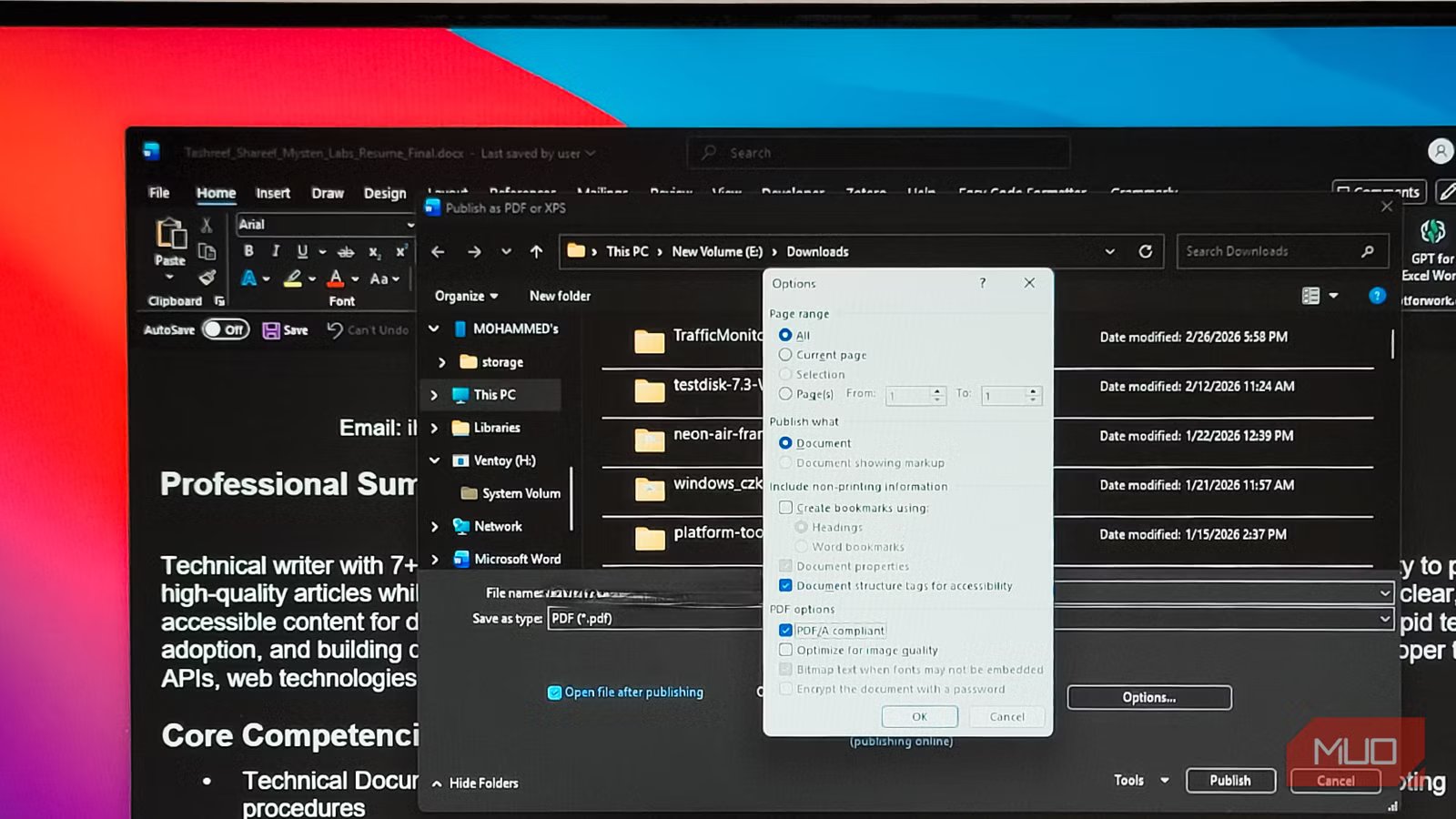
PDF/A is a specialized version of PDF designed for long-term archiving. Unlike regular PDFs, a PDF/A file embeds everything, including fonts, color profiles, and images, directly into the document and often without external dependencies, JavaScript, or encryption. The idea is that a PDF/A file created today should look exactly the same when someone opens it in 2050 or beyond.
This matters more than you’d think. Government agencies, courts, and financial institutions often require PDF/A for official records. And Microsoft Word handles this natively. Go to File > Export > Create PDF/XPS Document, click Options, and check the box for ISO 19005-1 compliant (PDF/A). I’d also recommend enabling Document structure tags for accessibility and setting optimization to Standard rather than Minimum size, since the minimum option can compress things in ways that break compliance.
Create accessible PDFs
Make your PDFs work with screen readers
image credit – self captured (Tashreef Shareef) – No Attribution Required
While we’re in the export options, there’s a related feature that’s easy to overlook. Accessible PDFs are different from PDF/A files, though they share some overlap. Where PDF/A focuses on preserving visual appearance for archival, accessible PDFs focus on making documents usable for people with disabilities—through screen readers, keyboard navigation, and other assistive technologies.
The key is starting with an accessible Word document. Use proper heading styles instead of just making text bold and big. Add alt text to images. Write descriptive link text instead of “click here.” Then, run Word’s built-in Accessibility Checker under File > Info > Check for Issues to catch problems before exporting.
When you’re ready to export, use File > Export > Create PDF/XPS Document and click Options. Make sure Document structure tags for accessibility are checked—this embeds the tagged structure that screen readers need to navigate the document. You can also enable Create bookmarks using Headings for easier navigation. Critically, don’t use Print to PDF or the basic Save As PDF option—these strip out accessibility information entirely.
If you need both archival compliance and accessibility, Word lets you check both the PDF/A and accessibility tags boxes during export. That gives you a PDF/A-1a file, which is the gold standard for documents that need to be both archive-ready and screen reader-friendly.
Embed PDF objects
Bundle PDFs inside your Word documents
image credit – self captured (Tashreef Shareef) – No Attribution Required
The ability to embed PDF objects in Word is one of those features that most people don’t even know exists, but is plenty useful. Instead of attaching PDFs separately or linking to them, you can embed actual PDF files inside a Word document as objects. The PDF travels inside the .docx file, and anyone can double-click it to open the full document in their default PDF viewer.
To do this, go to Insert > Object > Create from File and select your PDF. Word embeds a full copy inside the document. You’ll see either an icon or a thumbnail of the first page. Double-click it, and the PDF opens in whatever reader you have installed.
This is useful when you’re creating a project report that references vendor quotes, test reports, or certificates. Instead of sending five separate files, everything travels in one .docx. I’ve also seen this used in academic theses where signed approval letters or published papers are embedded as appendices.
There are some trade-offs, though. For example, embedding multiple large PDFs will bloat your file size significantly. The feature also works most reliably on Word for Windows, while Mac users may run into issues opening embedded objects. For large collections, hyperlinking to external PDFs is usually the safer approach.
Add password protection
Encrypt PDFs directly during export
image credit – self captured (Tashreef Shareef) – No Attribution Required
If you need to share a confidential document as a PDF, Word can encrypt it with a password during export. The PDF uses AES encryption, the same standard used by banks and government agencies.
To do this, go to File > Save As, set the file type to PDF, and click Options before saving. Check Encrypt the document with a password, click OK, and enter your password. The resulting PDF will prompt anyone who tries to open it for the password before showing any content.
Most people password-protect the Word document itself through File > Info > Protect Document, then export to PDF, expecting the protection to carry over. It doesn’t, as the password only protects the .docx file. So, you have to apply encryption during the PDF export step specifically.
There’s also an important limitation. You can’t have both PDF/A compliance and password protection in the same file. The PDF/A standard requires documents to be openly readable, which directly conflicts with encryption. If you need archival preservation, skip the password. If you need confidentiality, skip PDF/A. You could maintain separate versions for each purpose, but they can’t coexist in one document.
Word isn’t a full PDF editor, but it doesn’t need to be
To be honest, Word won’t replace a full-featured PDF editor for every scenario. If you need to turn any PDF into a conversation using NotebookLM, annotate pages with drawings, merge multiple PDFs, or do heavy form work, you’ll still need dedicated software.
But for the tasks most people actually perform with PDFs, which is editing text, creating archive-compliant files, adding password protection, and bundling documents, Word handles all of it without an extra app. These features have been available in Word for years, and if you’re already paying for Microsoft 365, you’re paying for a surprisingly capable PDF toolkit hiding in plain sight.
