

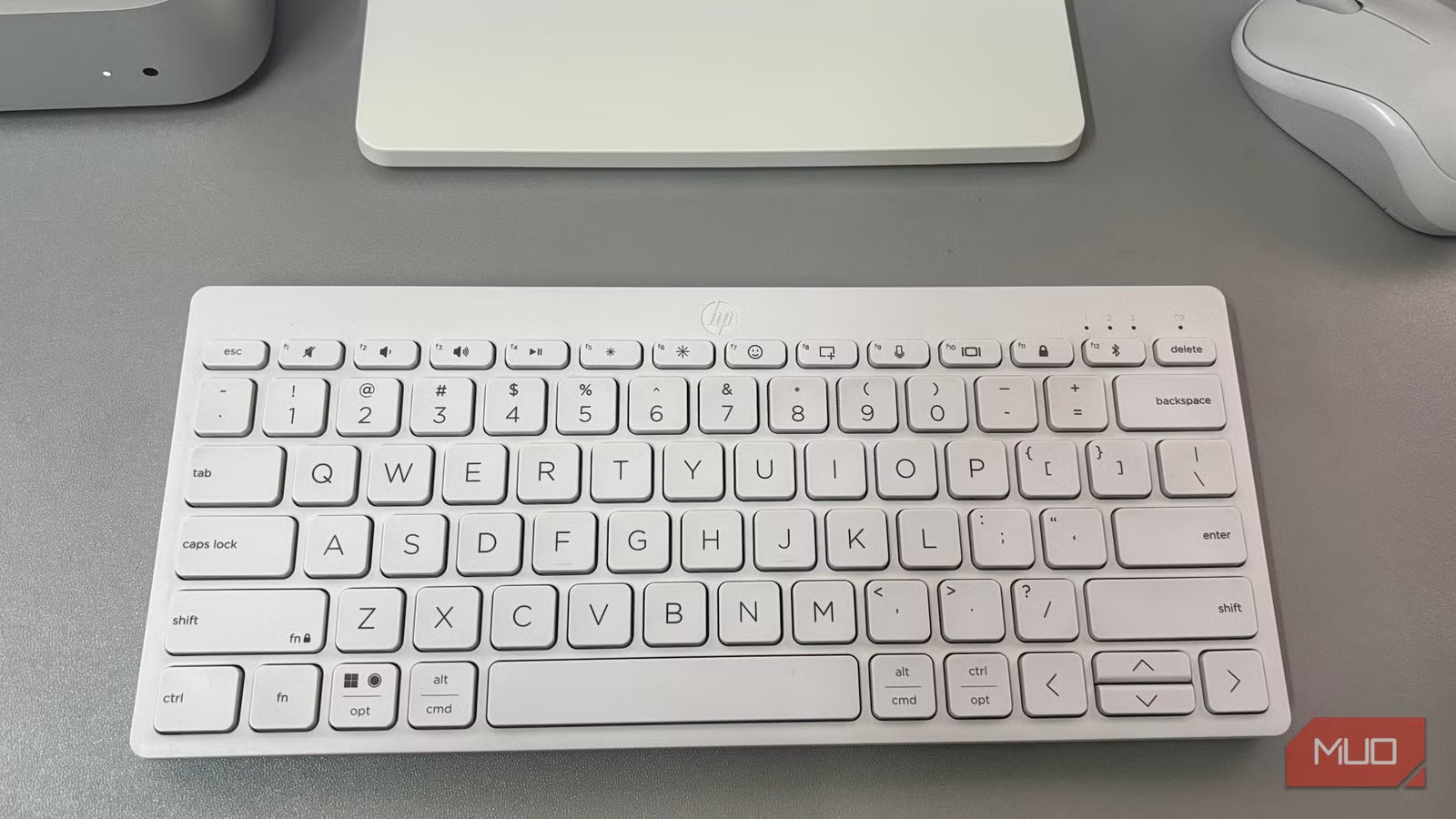
I use plenty of app-specific shortcuts, but a few keyboard commands work almost everywhere on my PC. It doesn’t matter if I’m in a browser, a document editor, or File Explorer. The same keys handle basic actions.
Since these shortcuts come from Windows itself, they stay consistent across most apps. I don’t have to rethink the basics every time I switch apps, and that makes moving between them feel more natural.
Alt + Tab / Cmd + Tab
Jump between open apps instantly
Digvijay Kumar / MakeUseOf
Switching between open apps is constant on a computer, and using the mouse adds extra steps. Each time you reach for the cursor, you have to pause typing, locate the right window, and click back into place.
Alt + Tab on Windows opens the app switcher and shows every running app in a row. Hold Alt and tap Tab to move across them, then release Alt to jump straight to the one you want. On a Mac, Cmd + Tab works the same way. It opens the app switcher so you can move through open apps and pick the one you need.
Related
6 Fun Tricks You Can Do in Windows Command Prompt
It might look boring, but Command Prompt does have some fun tricks up its sleeve.
Ctrl + C / Ctrl + V (Cmd on Mac)
Move text and files anywhere
Digvijay Kumar / MakeUseOf
Copy and paste is one of the most used keyboard shortcuts on any computer. Ctrl + C copies selected content, while Ctrl + V pastes it. On a Mac, the same actions work with Cmd instead of Ctrl. These shortcuts work in nearly every app that handles text or files. You can copy from a browser, paste into a document, then move the same text into an email or notes using the same keys each time. There’s no need to learn different controls for each app.
Windows also includes Clipboard history, which lets you store multiple copies at once. Press Win + V to open the clipboard panel and choose from recent copies whenever you need them. Instead of losing previous items, you can return to them and paste again. You can also sync the clipboard across Android and PC, so copied text stays available on both devices when you need it.
MacOS includes a clipboard viewer as well, but it stores only the most recent copy. You can open it from the Finder’s Edit menu under Show Clipboard. Each new copy replaces the last one, so it works as a quick check rather than a full history.
Ctrl + Z / Cmd + Z
Bring back what you removed
Digvijay Kumar / MakeUseOf
Undo is one of the shortcuts that can instantly fix a mistake. A wrong keystroke, an accidental delete, or a file dragged into the wrong place can be undone with Ctrl + Z on Windows or Cmd + Z on a Mac.
This shortcut works in most places where changes can be made. In documents, it restores text or formatting you just altered. In file managers, it can reverse a move or bring back something removed by accident. Many editing apps also allow multiple undo steps, so you can step back through several recent actions instead of only the last one.
If you go back too far, use Redo to move forward again. That’s Ctrl + Y or Ctrl + Shift + Z on Windows, and Cmd + Shift + Z on Mac. Using both shortcuts makes it easier to correct mistakes without starting over.
Ctrl + F / Cmd + F
Search for anything on a page
Digvijay Kumar / MakeUseOf
Searching for a specific word or line on a long page can be slow. That’s where the Find shortcut helps. Press Ctrl + F on Windows, and a search bar appears inside the app you’re using. Type a word or phrase to jump straight to each match. On a Mac, Cmd + F does the same.
This shortcut works in most browsers, documents, PDFs, and notes apps. Instead of scrolling through an entire page, you can go directly to what you need. It’s especially useful when reading long guides, checking names or numbers, or locating one detail in a large block of text.
Alt + F4 / Cmd + Q
Close what you’re done with
Digvijay Kumar / MakeUseOf
Closing an app from the keyboard is usually faster than moving the cursor to the close button. Press Alt + F4 on Windows to close the active window. If it’s the only window open, the entire program closes. On a Mac, press Cmd + Q to quit the app completely, even when multiple windows are open.
Sometimes you don’t want to close everything, just what’s currently visible. In that case, use Ctrl + W on Windows or Cmd + W on Mac. It closes the active browser tab or current document while keeping the rest of the app open.
These shortcuts help you manage open tabs and apps. One closes the current tab or window, while the other exits the app entirely, all without leaving the keyboard.
Shortcuts you’ll keep using
Most of these shortcuts aren’t new, and you’ve probably used many of them before. Using the same few keys across every app makes them far more useful. When you step away, lock your screen with Win + L on Windows or Ctrl + Cmd + Q on Mac. A short list you actually use beats a long one you don’t.
