

Even though Linux systems are quite stable, daily use can trigger certain errors. Several Linux distros include GUI tools, but the most reliable fixes happen in the terminal because it gives you more precise control over repairs.
After a couple of years fixing a lot of these Linux problems, I’ve built a stack of terminal commands that help me through almost any problem I encounter. These aren’t just commands you run on fresh systems and forget; they’re an everyday toolkit.
Repair broken packages before they cascade
Fix dependency errors and incomplete installs the right way
Afam Onyimadu / MUO
On Linux, entire packages may become unstable when an update or software installation is interrupted, or if certain dependencies fail to resolve. This often causes existing applications not to launch, and sometimes new installs will fail.
To fix this, I run the commands below in sequence:
sudo dpkg –configure -a
sudo apt –fix-broken install
sudo apt clean
sudo apt autoremove
The above commands are Debian/Ubuntu-specific (APT/dpkg). On Fedora, use sudo dnf distro-sync; on Arch, use sudo pacman -Syu.
I run them in this order so I can restore a broken package system without reinstalling the OS. Any of the following may be my cue to run the above commands:
- Software installs failing with dependency errors
- Updates stopping halfway through
- The package manager reporting broken packages
- Applications failing after a system update
I use the first command to complete the installation of any incomplete package. The –-fix-broken command resolves unmet dependencies by downloading and installing whatever is missing. The clean command removes cached package files, while the autoremove command removes unneeded packages that were automatically installed to satisfy dependencies for another package.
Find what’s silently filling your disk
Expose storage hogs the terminal reveals instantly
Afam Onyimadu / MUO
In my experience, disk space issues are quite common on Linux. These issues may be triggered by gradually piling up logs and temporary files. They can also be caused by a large cache. For me, the common culprits are usually my Docker images and containers, old kernels, and application caches.
If Docker is responsible for filling up your drive, you can safely remove stopped containers by running the command docker system prune. The command will also get rid of untagged images not used by any container and unused build cache. To reclaim more space by removing all unused images, add the -a flag: docker system prune -a
Any of these symptoms may be a reminder to check your disk usage:
- Drives filling faster than expected
- System updates refusing to install
- Slow file operations
- Low disk space warnings
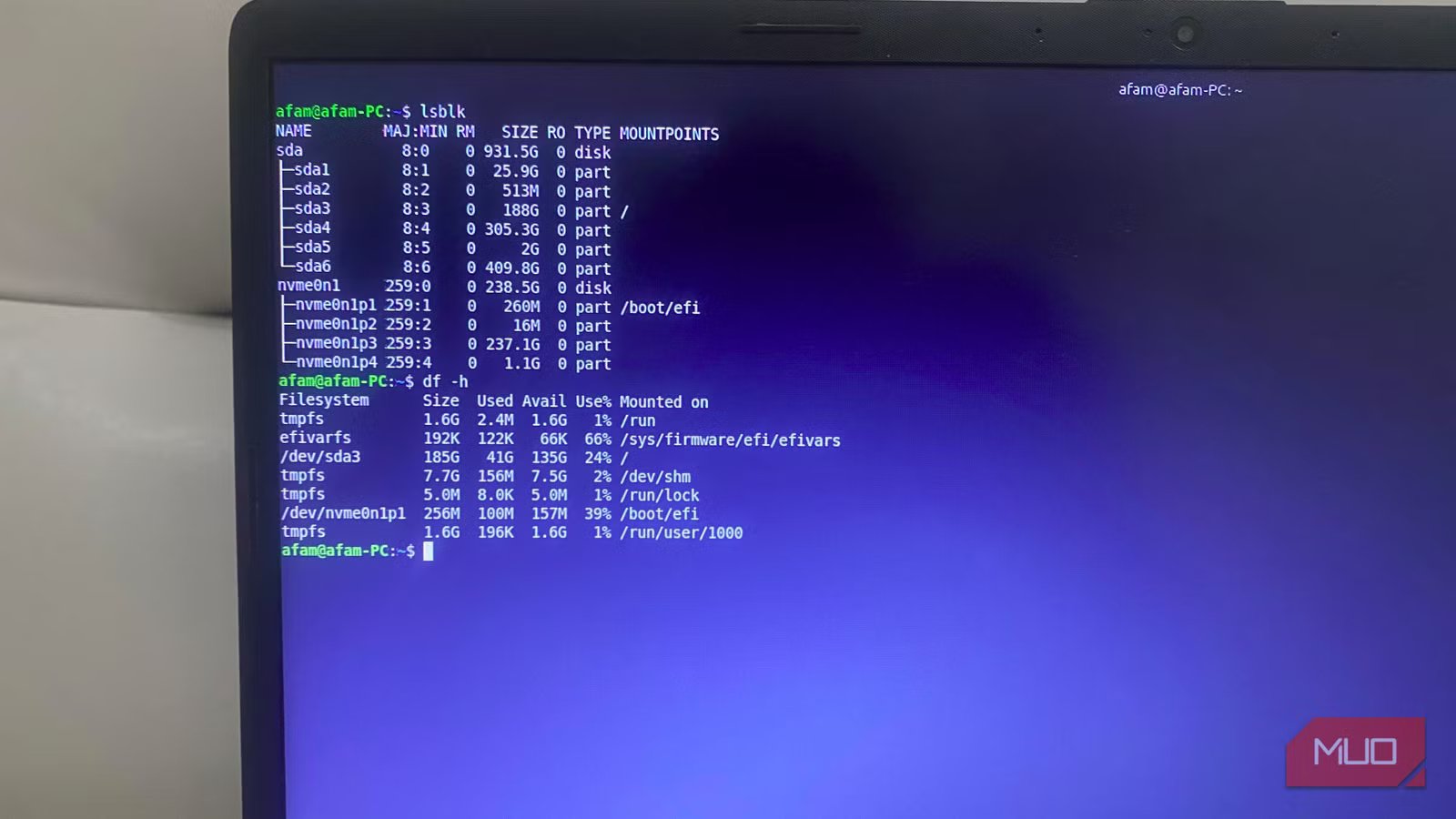
I run df -hto show overall disk usage. To locate large directories, I run:
sudo du -sh /* 2>/dev/null | sort -rh | head -20
Once that is done, I can narrow my search to specific directories to locate what is hogging space, and I may use the command ncdu / just to have an easier, interactive view. Once I start from this root directory, it’s easier to see system-level issues that would typically not surface in graphical tools.
Before you run the ncdu command, it needs to be installed on your computer. You may use this command: sudo apt install ncdu
Reset networking without rebooting your system
Flush DNS, restart interfaces, and verify connectivity
Afam Onyimadu / MUO
Quite often, network problems originate from your computer, not a router or internet provider. Common triggers are stale DNS entries, nonresponsive network services, or interface glitches. There are several commands that I use to eventually fix the problem, and my cue to try these commands is any of the following:
- Web pages stalling or partially loading
- “Temporary failure in name resolution” errors
- Interrupted downloads or uploads
- Other devices are working normally while my system is offline
The first step is to identify the network interface. This command helps with it: ip link show. Next, I run this command to clear my DNS cache: sudo resolvectl flush-caches.
On older systems, you might instead run the equivalent command:sudo systemd-resolve –flush-caches
Next, run the two commands below to reset the network interface:
sudo ip link set down
sudo ip link set up
Finally, you may use a ping command to test connectivity:
ping -c 4 google.com
On systems running NetworkManager, using ip link directly can cause NetworkManager to override your changes. The nmcli commands below will apply a persistent reset through NetworkManager.
nmcli networking off
nmcli networking on
Stop guessing why your system feels slow
Rank CPU, memory, and disk usage instantly
It’s not uncommon for your computer to feel slow occasionally. However, it’s worth checking out, especially when the slowdowns do not happen under heavy tasks. I have noticed that often a runaway process, memory pressure, or high disk activity can cause slowdowns. The moment I notice any of the symptoms below, I start to investigate the problem:
- Applications freezing or lagging
- High fan activity
- Frequent CPU spikes
- Slow desktop responsiveness
First, I use the top command to see live system resource usage. Then I run this command: top -b -n 1 | head -20 to capture a snapshot of active processes. Next, I run this command to identify what processes are consuming memory: ps aux –sort=-%mem | head -10. If you need to monitor disk I/O activity, run this command: iostat -x 1 3.
If iostat isn’t installed, install the sysstat package (for example, sudo apt install sysstat on Debian/Ubuntu).
You can also use the htop command if you prefer a more interactive process viewer. Once you find a misbehaving process, note the PID and first try terminating it cleanly with kill , which sends a SIGTERM signal and gives the process a chance to save data and exit gracefully. If the process does not respond, terminate it using the command: kill -9 as a last resort.
Repair filesystem errors before they cause data loss
Run fsck safely and verify disk integrity
Afam Onyimadu / MUO
When using a computer, expect system errors. Sudden power loss, hardware faults, or improper shutdowns are easy triggers. However, the real problem is that these errors may accumulate and cause files to disappear. In some cases, the computer may stop booting properly. The common symptoms I see before repairing system files are:
- Files failing to open
- Unexpected read or write errors
- Filesystems switching to read-only mode
Before going into any major fixes, run the command below to identify the partition: lsblk
Run fsck only on unmounted partitions; running it on mounted filesystems can cause severe data corruption.
I typically run a read-only scan before I apply any automatic repairs using the command below:
sudo fsck -n /dev/sdX
If I detect any errors that I need to run automatically, I run the command below (the -y flag implements fixes without further prompts):
sudo fsck -y /dev/sdX
It’s safe to run fsck from a live USB environment when you need to check the root filesystem. Also, I use tools like smartctl to detect failing drives.
A few commands can solve most Linux problems
I recommend certain general commands for everyday use. However, for troubleshooting common Linux issues, these five groups of commands will be your best bet. They take just a few minutes to resolve many issues. You can troubleshoot from the GUI, but the terminal enables more advanced troubleshooting.
Related
Is It Hardware or Software? How I Diagnose My Computer Issues Easily
If your computer doesn’t work, there are a few ways to figure out if it’s the software or hardware causing the issue.
