

Home Assistant is a Linux-based smart home operating system with a very low barrier to entry. In addition to being completely free, its minimum system specifications mean it works on most computers produced within the last 10 to 15 years (plus humble single-board computers).
The more devices you add and tasks you entrust to your server, the more resources are required to keep the show running. At some point, an upgrade might be necessary.
You’re experiencing performance issues
Like any computer or smartphone, performance is the number one indicator that it’s time to upgrade. If things are starting to become sluggish, particularly in the main web-based user interface, your Home Assistant server might be struggling.
Beyond this, device and accessory performance may begin to suffer, too. If a light takes a second or more to turn on, that’s an issue. Things might slow down even more when triggering multiple devices at once using scenes and other automations. Wireless performance can definitely have an impact (the further a device is from your server, the longer it’s going to take to respond). All of my Zigbee devices trigger within half a second, and Wi-Fi should be even faster.
To get a handle on how your server is performing, open your Home Assistant web interface in a browser and head to Settings > System > Hardware. You’ll see two graphs appear, one for CPU usage and another for RAM usage. If your server is hovering anywhere near the top of these, say 90% or more, you should seriously consider an upgrade.
Stability isn’t what it used to be
Stability and performance go hand in hand. If Home Assistant is routinely hitting the upper limits of what your server is capable of, stability can suffer. Running out of RAM in particular can spell disaster, though you should also be listening to your Home Assistant logs if you’re hoping to troubleshoot the problem.
Credit: Corbin Davenport / How-To Geek
Sometimes, it’s not Home Assistant itself but the underlying infrastructure causing problems. I’ve recently had some issues with VirtualBox crashing, which is what I use to run my own Home Assistant server on an old Mac mini. I’ve updated VirtualBox (a manual process), and things seem to have settled down; no upgrade necessary.
You’re still running off an SD card
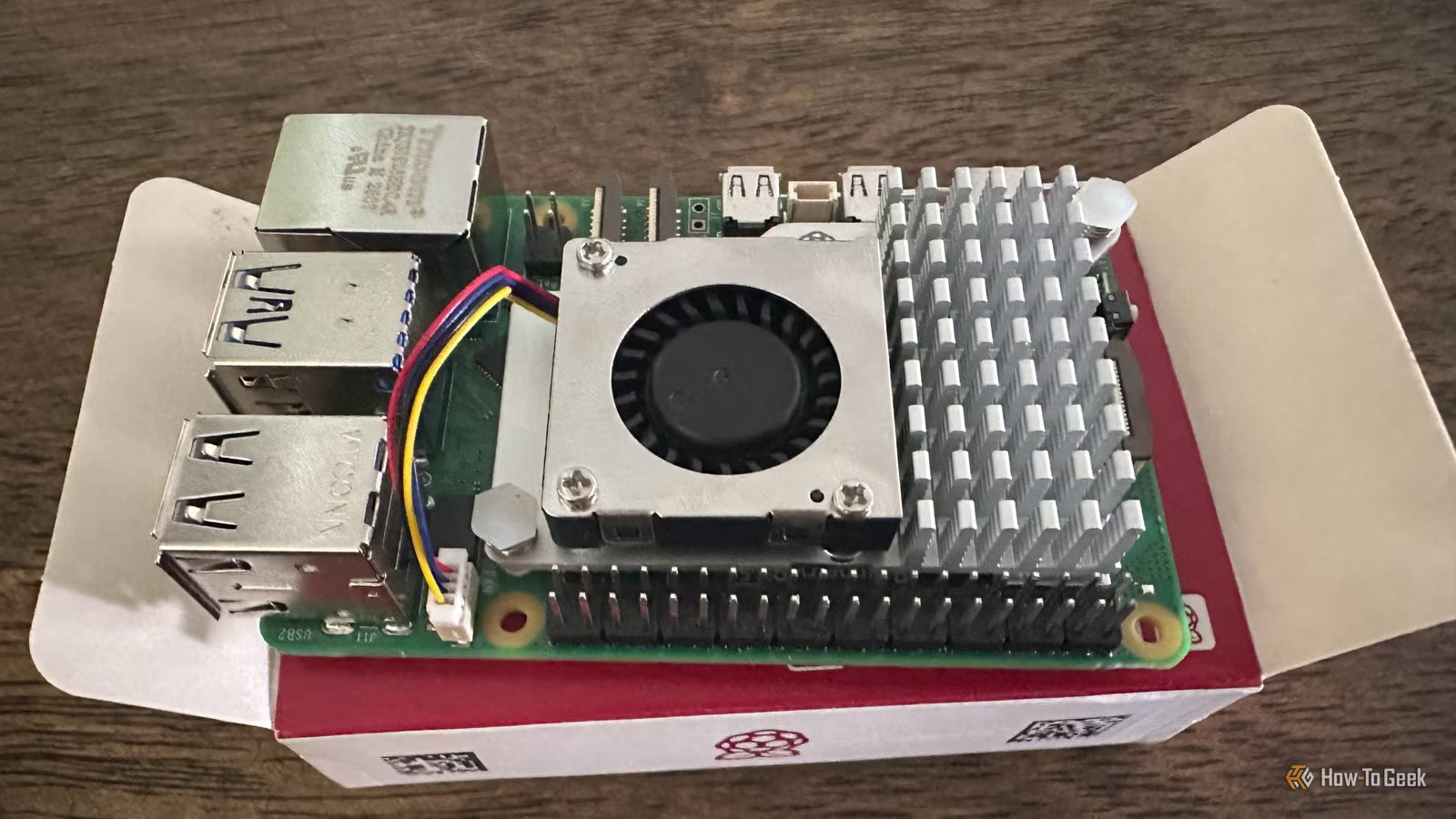
The Raspberry Pi is one of the most popular choices for a Home Assistant server since it’s power-efficient, small, and relatively cheap. Though it can seem like the perfect use for an old Raspberry Pi, there is one major drawback: a reliance on removable flash memory (micro SD or plain old SD) for storage.
Credit: Corbin Davenport / How-To Geek
Though some of the concerns about running Home Assistant have been alleviated in a 2025 update, it’s still fair to say that you’re taking a risk by doing so. This type of storage is not designed for constant read and write operations, so it’s very possible that your SD card will fail and take your Home Assistant server down with it.
Whatever hardware you’re running, an accessible Home Assistant backup is essential. If you want to move away from an SD card, consider adding an M.2 HAT+ to your Raspberry Pi 5 or shifting your installation to a mini PC or similar.
You’re unable to update Home Assistant
In 2025, Home Assistant said goodbye to the 32-bit architecture and some of the more hacky install methods. If you’re still using a deprecated setup, you’ll find that your last available version is Home Assistant 2025.12. At the time of writing, there has only been one update since this cut-off (2026.1), so if you’re unable to access it, then you might want to consider an upgrade path.
While I’m very much subscribed to the “if it ain’t broke, don’t fix it” school of thought, you’re probably going to want access to future Home Assistant versions. This includes new features and major overhauls to the platform, like new methods of creating automations. Many updated integrations also rely on newer versions, which could mean that you’ll lose out on support for devices (like IKEA’s new not-quite-Zigbee lineup)
You want to run more services alongside Home Assistant
Home Assistant really doesn’t require a lot of resources to run on its own, being a lightweight Linux distribution that doesn’t even include a desktop environment. If a smart home server is all you’re hoping for, this is fine.
But if you’re thinking that it would be nice to run a few more services alongside Home Assistant, you might find that an underpowered single-board computer or ancient laptop doesn’t quite cut it anymore. For example, you might want to set up a DNS sink in the form of a Pi-hole and self-host your own cloud storage or other software that can save you money.
Credit: Goran Damnjanovic / How-To Geek
If you’re adding security cameras to your Home Assistant server, you might want to run software like Frigate to store and analyze footage. This requires quite a bit more processing power than your current server might possess. Streaming media over your local network with a streaming solution like Jellyfin is something else you might want to configure, and for best results, a machine that is capable of hardware transcoding is best.
FYI: Running Home Assistant in a VM? Upgrade in a few clicks
If, like me, you are running Home Assistant in a virtual machine, upgrading is a simple case of changing a few settings. As long as you have the resources available on the host machine, allocating a bit more RAM or CPU cores is a matter of stopping your server, moving a slider, and starting it up again.
Just be careful resizing virtual disks if you’re running out of storage space, since I accidentally killed a server by doing that once.
If you haven’t got major performance issues, stability problems, or a desire to run more services alongside Home Assistant, you’re probably good for now. You might be better off spending your money on a reliability upgrade instead.
