

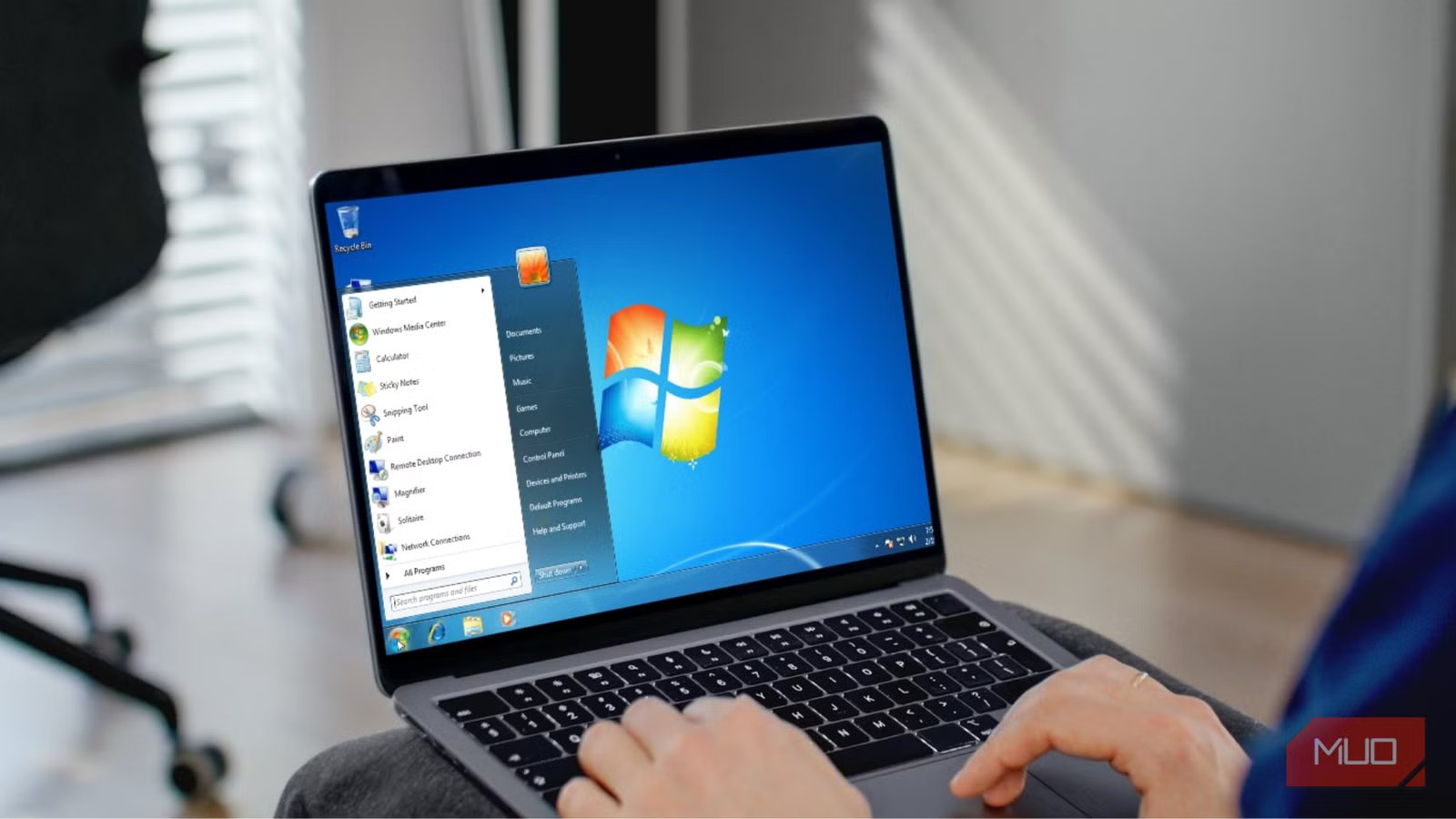
Many people don’t upgrade their laptops as often as they would upgrade a smartphone. Over the years, the accumulation of temporary files, too many background and startup apps, fragmented hard drives, outdated software, etc., has made the Windows laptop slow. The once snappy machine starts to drag, with simple tasks feeling like a burden.
Thankfully, you don’t have to throw away your old Windows laptop, as there is a bunch of software that I have personally tried to reverse the aging process. Software includes deep cleaners for interface overhauls, and some are available for free.
Flow Launcher
Search and open your favorite app from anywhere, anytime
Since we are trying to fix an old Windows laptop and make it fast, any software that you install on it needs to be fast. And the launcher that we are referring to, called the Flow Launcher, is actually quite fast. For this guide, I tried a bunch of launchers, and Flow Launcher satisfies almost all of my needs. It instantly opens when its corresponding keyboard shortcut (the default is ALT + Space) is pressed. It also plays soft audio indicating that the launcher is ready for searching for apps.
You type, and the apps containing those terms show up, also giving you an easy preview of your chosen app. Not only apps, but you can also use Flow Launcher to search for any file, browse the internet with your favorite search engine, search for bookmarks, system and shell commands, and calculate. To further extend its capabilities, you can install different types of plugins, such as controlling Spotify, Steam search, and GitHub notifications straight from the Flow Launcher.
There are different themes and sounds; better yet, you can build your own as well. Flow Launcher is available for free, and frankly, there is so much stuff you can do with it that you have to try it yourself.
OS
Windows
Price model
Free
Related
Your New Windows PC Is Already Sluggish—Here’s the First Thing to Do
Tired of your new Windows PC feeling so slow? Try debloating it.
Open Shell
Give the Windows 11 interface a retro look
Yes, the Windows 11 interface is fresh and modern, and the Start menu is something that I haven’t found to be the best change, per se. It lacks Windows 10’s live tiles folder grouping; there is awkward blank space under the “Recommended” section, and it also misses out on customization options. Thankfully, Open Shell gives you all the Start menu personalization options back and more.
It is a free application that works with Windows 7, 8.1, 10, and 11. My need was to get the old Windows Start menu back, and Open Shell gave me that. You get to choose the Start menu from Windows 7, 8.1, Windows XP, and even Windows 95 (true nostalgia). Speaking of customization, you get a ton, and literally tons of options, right from which apps and folders show up in the Start menu to changing the size of apps, icons, and lists.
For many, StartAllBack could be a better choice for Start menu personalization; OpenShell offers everything that I need. Though the dense number of options may overwhelm you, at least you get to control everything on your Start menu.
OS
Windows
Developer
Open Shell
Microsoft PC Manager
Official all-in-one tool to effectively manage your PC
If you have an old Windows laptop, it is highly likely that there isn’t much internal storage space on offer. One common reason old Windows laptops stutter or lag is the limited storage space available to run important tasks. Up until now, I had to rely on third-party cleaners or Windows tools such as Disk Cleanup and Storage Sense to clean my laptop’s internal storage. Fortunately, Microsoft has a tool called PC Manager that offers that and more and saves you time.
Using Microsoft PC Manager, you can clean storage with just a click. Additionally, pressing the Boost button on the PC Manager home page clears RAM and removes temporary files. After installing it on my old PC, I was able to delete around 20GB of unwanted files, including some duplicates. There is a built-in pop-up blocker that blocks those pesky ads from certain apps. You can also test and troubleshoot network issues with the PC Manager.
There is also a Toolbox section in the tool that provides you with access to features such as screenshots, captions, a calculator, a currency converter, and even image search. The best part is that this app comes straight from Microsoft, so there is no issue of its authenticity, and you get an instant boost with just a single click.
OS
Windows
Price model
Free
Bulk Crap Uninstaller
It literally does what it says, quite effectively
I relied on the Windows uninstaller for removing unwanted applications. But the thing with the Windows uninstaller is that for plenty of apps, it leaves behind their fragments, which, in turn, occupy unnecessary space. These files are sometimes quite rigid and can’t be deleted, one of the reasons why my old Windows laptop was so sluggish. After extensive research, I installed Bulk Crap Uninstaller and loved it so much that I now use it on my latest laptop.
Firstly, I like free apps that do what I am looking for, and Bulk Crap Uninstaller fits the bill. Apart from scanning the Windows programs list, this app also looks for all installed apps. Thanks to this, all portable apps and broken installers get detected. You can simply tick all the unwanted programs and remove them simultaneously. It also performs a post-uninstall scan to make sure that no trace of the uninstalled app remains on your PC.
So, if sticky apps and files that just won’t uninstall are your problem, then you should get the Bulk Crap Uninstaller and give your old Windows laptop a breather.
OS
Windows
Price model
Free
PowerToys
Powerful utilities to improve productivity on your old Windows laptop
One of the first apps I would install on my old Windows laptop is PowerToys. This tool comes from Microsoft and, as per the name, is meant for power users. It gives you granular control over features and utilities on a Windows machine. You get features such as advanced paste, window pinning, an image resizer, a keyboard manager, a command palette, and much more.
PowerToys allows you to assign keyboard shortcuts to your most repeated actions so that you can access them in a matter of seconds. While the image resizer is the most used feature of PowerToys that I use, I recently enabled thumbnail preview inside File Explorer. And now, I can preview files for different file types, including PDF. You can also use the peek feature that lets you view the file even without opening it.
I deal with many images throughout the day. Taking screenshots, marking them, and related tasks are my daily job. Apart from batch resizing, the batch renaming feature is something that has made me addicted to PowerToys. So, whichever laptop I am using, this tool is a must-have.
OS
Windows
Developer
Microsoft Corporation
Process Lasso
Small tool that optimizes how much CPU is used by each app
Frankly, Process Lasso is not something that I’ve been using for a long time. I happen to have read so much about Process Lasso that, to fix my old Windows laptop, I decided to give it a shot. And that has proved to be quite effective. The main problem with old laptops is that they become sluggish and take an eternity to open any app or perform any function. The reason? The CPU is too occupied by unnecessary apps and services.
This is where Process Lasso comes in: it limits how much CPU an aggressive app can use. Because of this, apps that are currently used perform better. There are certain predefined modes available in the app, such as ProBalance, SmartTrim, IdleSaver, and Performance Mode, that will instantly show improvements. There is also the option to manually disable or prioritize CPU cores and threads.
Since I use my old Windows laptop for backing up my personal data, I use Process Lasso to prioritize the backup utility so it runs without hiccups and other apps and services don’t overlap with it.
Revive your old Windows laptop
Of course, these are just a few apps that can help breathe new life into your old Windows laptop. While you will see a considerable performance difference in the laptop after installing the above apps, hardware upgrades are what will make it feel brand new.
For instance, you can replace your laptop’s old HDD and install an SSD. You will notice faster file transfer and reduced boot times. Additionally, installing more RAM will provide a better and smoother multitasking environment. However, if you don’t want to spend money on hardware, these apps are a great way to enhance the performance for free.
