

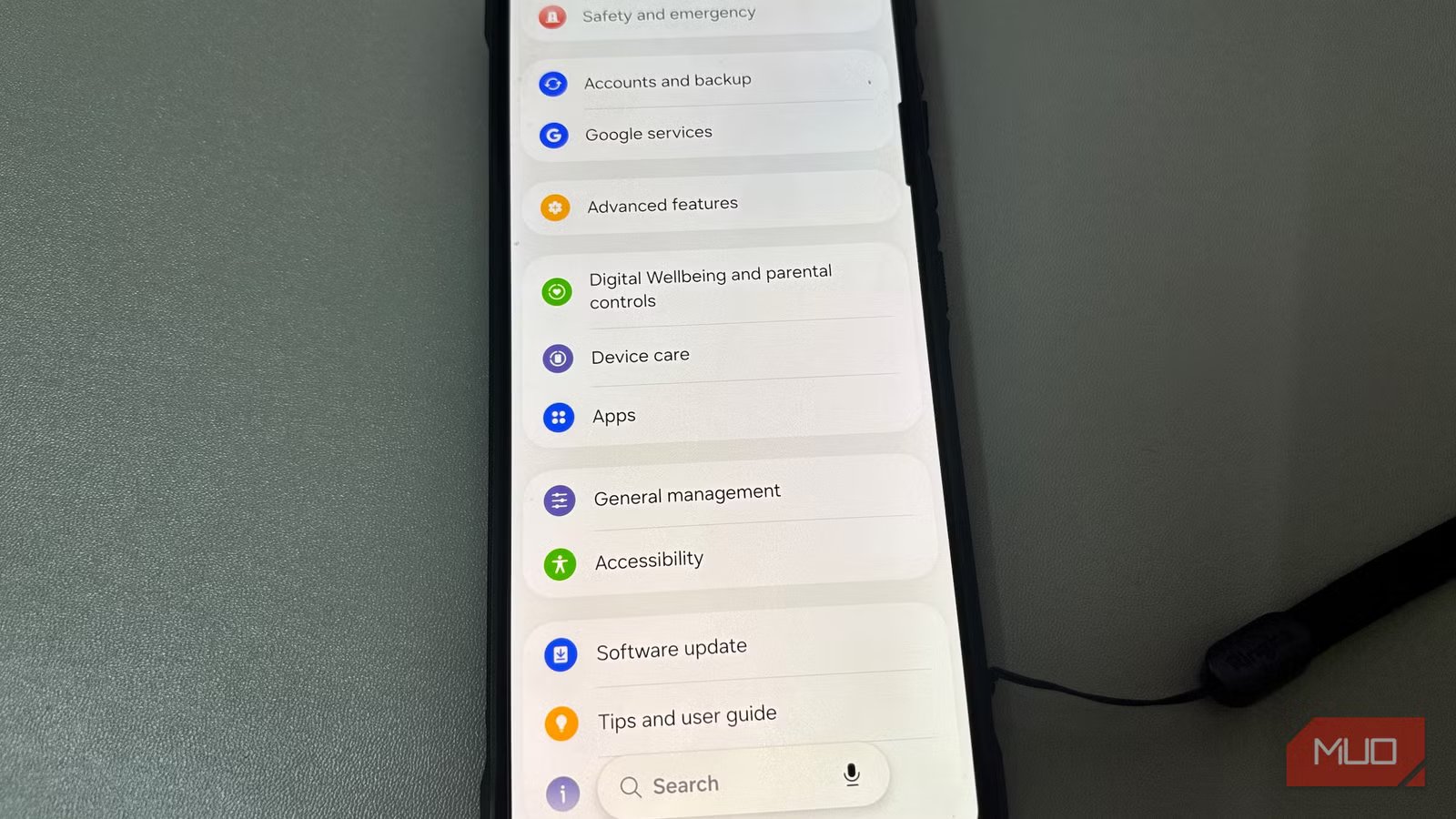
Whenever you want to change anything on your smartphone, you would always head to the Settings app. Well, that’s what most people do. The Settings app is packed with display settings, privacy options, notification management, and much more. That being said, there are some useful Android features that you won’t find directly in the Settings app. Instead, they are tucked into quick menus, gesture menus, or hidden behind long presses.
If you haven’t discovered these features yet, you’re missing out on some surprisingly useful Android tools.
Pin an app to your screen
No more snooping risks
Credit: Brandon Miniman / MakeUseOfCredit: Brandon Miniman / MakeUseOfCredit: Brandon Miniman / MakeUseOf
When you hand over your phone to someone, be it your friend, child, sibling, or teammate, you might not want them to browse through your other apps and personal data. For such situations, Android has an app pinning feature, which locks your device to a single app until you unlock it again. It’s a security feature that maintains your privacy when someone else is using your phone.
Here’s how to pin an app:
- Open the app you wish to pin.
- Swipe up to open the Recents screen.
- Tap the app icon at the top of the preview and choose Pin.
Once an app is pinned, the user won’t be able to switch apps or access your notifications and personal data until you unpin that app.
Split screen for multitasking
Watch and chat without app switching
Android has supported the split-screen multitasking feature for years, but many people still don’t use it because they can’t find it in the Settings app. This feature lets you use two apps simultaneously, side by side or one above the other. So, you can easily multitask on your phone. For instance, you can watch a video and reply to messages, or browse the web and take notes without switching between apps.
Here’s how to use split-screen on Android:
- Open the first app you wish to use.
- Open the Recent Apps screen and tap the app icon above the app preview.
- Select Split screen or Open in split screen view.
- You can choose the second app from the recent apps or app drawer.
You can now use both apps simultaneously and adjust the screen space for each of them.
Use Live captions for any audio
Transcribes audio in real-time
Android also offers a powerful accessibility feature called Live Caption, which generates real-time subtitles for any audio playing on your device, like videos, podcasts, social media clips, and voice messages. This feature works entirely on-device, so you don’t have to rely on an internet connection.
To enable Live Caption on your Android phone, you just have to press the Volume button and hit the Live Caption icon below the slider. This feature is especially useful when you’re listening to audio in loud environments or simply want to read the captions for better understanding.
Share Wi-Fi with a QR code
Skip long passwords
Credit: Brady Snyder / MakeUseOf
I’ve always found it annoying to type long passwords, especially when my friends and relatives want a quick connection to my Wi-Fi. If you’re also like me, you’ll surely love this Android shortcut that lets you instantly share your Wi-Fi using a QR code.
- Open your Wi-Fi settings.
- Tap the network you’re currently connected to.
- Select Share and a QR code will appear on your screen.
When someone scans this code, their phone will automatically connect to the Wi-Fi without having to type a long string of characters.
Hidden app shortcuts
Jump straight to what you need
Screenshot by Anindra Z. Siqueira (original post author)Screenshot by Anindra Z. Siqueira (original post author)Screenshot by Anindra Z. Siqueira (original post author)
Many Android apps offer shortcuts to enjoy faster navigation and access hidden menus. These shortcuts appear when you long-press the app icon on the home screen. They will reveal some hidden menus or take you directly to specific features inside the app.
When you long-press Google Maps, you will see shortcuts like Work and Nearby Places. Similarly, Chrome has shortcuts for New Tab and New Incognito tab. If you want, you can also drag these options to your home screen and create shortcuts for your frequently used actions.
Once you start experimenting with long-presses, you’ll surely discover some useful features across your installed apps.
Pin your go-to apps for after sharing
Screenshot by Yasir MahmoodScreenshot by Yasir Mahmood
Android’s Share menu offers a fast way to send content between apps. I use it all the time to send photos to my friends and share links to my favorite apps. Over time, the Share menu gets cluttered with a long list of options. Fortunately, Android lets you pin your most-used or favorite apps so they always appear at the top of the Share menu.
- Open the Share menu from any app.
- Long-press the app you want to pin.
- Tap Pin.
You can pin up to four apps in the top row, and they will appear in alphabetical order. If you often share content via WhatsApp or any other specific app, pinning it will save you several unnecessary taps.
Developer options
Take control of your phone
Tashreef Shareef / MakeUseOfCredit: Tashreef Shareef / MakeUseOf
Developer options have some of the most powerful hidden tools on Android. It might sound like this feature is primarily made for developers, but it also offers some really useful features that can help you unlock buttery smooth performance on your phone.
Developer Options live inside the Settings app. But it’s hidden by default, and that’s why most people won’t use it. You can enable Developer mode by going to Settings -> About Phone and tapping the build number seven times.
Developer Options will now show you advanced features like adjusting animation speed, USB debugging, background process limits, Force peak refresh, and more. It’s worth knowing that some of these tools are designed especially for developers, so you must change these settings carefully.
Related
8 Android Features I Wish I Knew Sooner
I’ve been missing out, maybe you have, too.
Android has more hidden features than you think
Of course, the Settings app is the main control center for Android, but it doesn’t reveal every useful feature that your phone offers. Therefore, tools like app pinning and split-screen multitasking are easy to miss if you don’t know where to look. Once you start exploring, you’ll realize that your Android phone offers a lot more powerful features than you were using. These tools have changed the way I interact with my phone. They have helped me save time and cut down on unnecessary hassle. If you try a few of them, you’ll wonder how you ever lived without them.
