

I’ve been using Obsidian for several years now, and I’ve always been interested in tracking my life’s progress. The problem was that my setup was fragmented. My work tasks lived in one place, my personal goals in another, and my fitness tracking in a completely separate tool. Every morning, I opened Obsidian and had to jump between multiple dashboards just to create entries. It wasn’t a problem at first, but over time the small amount of friction added up and made me inconsistent with my daily logs.
What I wanted was a single place where I could write things down naturally and have everything organize itself without extra effort. That is what pushed me to create one Obsidian template that combines daily notes, weekly summaries, and monthly overviews into a single connected system. It became the first setup that actually stuck, and it quietly brought every part of my life into one clear and unified view.
Here’s how it works
Understanding the workflow from capture to clarity
The workflow is simple. In the morning, I open today’s daily note. The template gives me three checkboxes under Tasks, a bullet point under Wins, and a section for Notes. At the top, I fill in my energy level with a number from 1 to 5 and my focus area as either Work, Wellness, or Growth. Throughout the day, I add tasks, check them off when I finish, and jot down wins when something goes well.
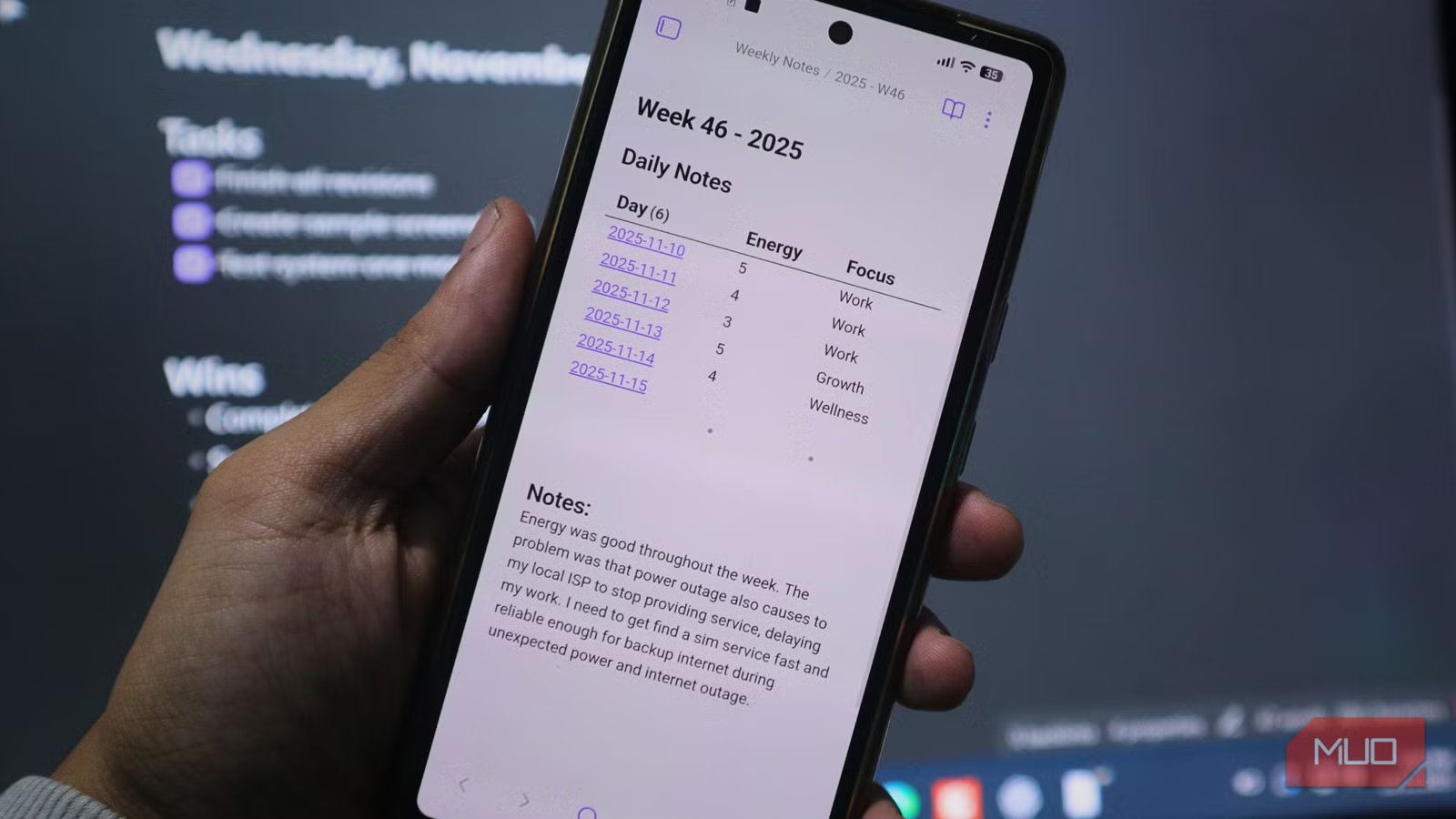
When Friday comes, I open the weekly note and it has already built itself. I see a table with all my daily notes from the week. Each row shows the day, my energy level, and what I focused on. The table makes patterns obvious at a glance.
At the end of the month, I open my monthly note. The first line shows my task completion across all days. Something like 21/24 tasks which counts for how many days I spend on work, wellness, and growth. Below that sits a list of my weekly notes. One compact view of the entire month with no manual assembly required.
Setting up your own system step by step
Installing the required plugins
To have a similar setup to mine, you’ll need to install three community plugins. Open Obsidian and go to Settings. Select Community Plugins and enable installation if it is still off. Search for Dataview by BlackSmithGu and install it. This plugin searches through your notes and displays information automatically. Then, install Periodic Notes by Liamcain. This creates your daily, weekly, and monthly notes on a schedule. Finally, install Templater by SilentVoid13. This plugin runs automation templates when you create new notes, making it one of the best plugins for making Obsidian smarter.
Creating your folder structure and templates
After installing the plugins, make four folders in your vault. Name them “Templates”, “Daily Notes”, “Weekly Notes”, and “Monthly Notes”.
Then create three notes in your Templates folder. Name them “Daily Template”, “Weekly Template”, and “Monthly Template”.
The Daily Template is your main input. It has properties for date, energy, and focus_area at the top. Fill in energy with a number 1-5 and focus area with Work, Wellness, or Growth. Here’s the core template for daily notes:
—
date:
energy:
focus_area:
type: daily
—
#
## Tasks
– [ ]
– [ ]
– [ ]
## Wins
–
## Notes
The Weekly Template pulls your daily notes automatically using Dataview. It creates a table showing each day with its energy level and focus area. Paste this on your Weekly Template:
—
date:
week:
type: weekly
—
# Week –
## Daily Notes
“`dataviewjs
let wk = dv.current().week;
let yr = wk.substring(0,4);
let num = parseInt(wk.substring(6));
dv.list(dv.pages(‘”Daily Notes”‘).where(n => n.date && dv.date(n.date).year == yr && dv.date(n.date).weekNumber == num).sort(n => n.date));
“`
## Notes
The Monthly Template shows your task completion stats and lists all your weekly notes. It gives you a quick overview of the entire month at a glance. Here’s the code block to paste on your template:
—
date:
month:
type: monthly
—
#
“`dataviewjs
let p = dv.pages(‘”Daily Notes”‘);
let t = 0, d = 0;
for (let n of p) { if (n.file.tasks) { t += n.file.tasks.length; d += n.file.tasks.where(x => x.completed).length; }}
let w = p.where(n => n.focus_area == “Work”).length;
let e = p.where(n => n.focus_area == “Wellness”).length;
let g = p.where(n => n.focus_area == “Growth”).length;
dv.paragraph(d + “https://www.makeuseof.com/” + t + ” tasks | W:” + w + ” E:” + e + ” G:” + g);
dv.list(dv.pages(‘”Weekly Notes”‘).sort(n => n.week, ‘asc’).map(n => n.file.link));
“`
## Notes
Configuring your plugins
Now in Dataview settings, enable JavaScript queries.
In Templater settings, set Template folder location to Templates. Under Folder Templates add three mappings. Set Daily Notes folder to use Templates/Daily Template.md. Set Weekly Notes folder to use Templates/Weekly Template.md. Set Monthly Notes folder to use Templates/Monthly Template.md.
In Periodic Notes settings, enable Daily Notes with the format “YYYY-MM-DD” in folder Daily Notes. Enable Weekly Notes with the format “YYYY-[W]ww” in the Weekly Notes. Enable Monthly Notes with the format “YYYY-MM” in the folder Monthly Notes. And you’re done!
To use the setup, simply press Ctrl/Cmd + P and type “Open today’s daily note” to start. Fill in the template every day. After a week, you can then press Ctrl/Cmd + P and type “Open this week’s weekly note.” The template automatically shows all your daily notes in a table with your energy levels and focus areas visible at a glance. The same process goes with the monthly notes.
Expanding your setup
Once the core system is running, you have room to expand. Some people turn their Obsidian notes into charts for a visual overview. Obsidian Canvas lets you arrange your weekly and monthly notes on a single board so you can see everything at a glance.
You can also further enhance the templates and add custom properties. Instead of just tracking energy level and focus area, you might add stuff like exercise, meals, or ongoing projects. While it may take some effort to get used to templating, learning to write and use your own templates is probably one of the things you’d wish you had known sooner when creating your Obsidian vault. Plus, this allows you to really make this setup your own.
A simple system that grows with you
Sticking to a planning system is easier when it feels natural, not forced. This setup works because it blends into your day. You write your daily notes like you always have, and the rest builds itself in the background. Your weekly and monthly pages stay organized without any extra effort, and you get a clearer picture of your life without chasing different tools. Start with the basic templates and use them for a week. If it works for you, expand it. If not, adjust it. The goal is a system that supports your life’s interests, without struggling to maintain a complicated system.
