

Mechanical keyboards provide a unique appeal for typists and gamers alike, providing a durable, tactile, and responsive experience. After switching from chiclet membrane keyboards to mechanical options, many users report improved typing speed and less wrist fatigue. I’ve spent years trying out the best mechanical keyboards from brands like Logitech, NuPhy, Lofree, and others, but none of them have managed to stay on my desk for more than a few weeks. Eventually, I go back to a “regular” keyboard — for me, that’s the Logitech MX Keys S or the Apple Magic Keyboard (for Touch ID support).
Save for building a fully-custom mechanical keyboard from scratch (which is on my list), I’ve tried everything to successfully make the switch. Yet, chiclet and membrane keyboards still win me over. The Logitech Wave Keys ergonomic keyboard has been on my desk for a year, and it’s the best of both worlds for my use case. The keyboard has the deep travel and large keycaps I love from mechanical options, while retaining the smooth glide and quiet operation of a membrane keyboard.
Why mechanical keyboards didn’t satisfy me
I typed slower, with more typing errors and wrist pain
Credit: Brady Snyder / MakeUseOf
Mechanical keyboards, in theory, are the best option for everyone because they’re incredibly customizable. If you don’t like the loud feel of clicky switches, you can switch to linear or tactile switches. Those who prefer shorter or longer key travel can pick a custom switch that suits their exact preference. There are an infinite number of keyboard layouts available, because it’s possible to build mechanical keyboards from scratch that are tailor-made for your needs.
The problem? If you’re used to membrane chiclet-style keyboards, there can be a massive learning curve when switching to a mechanical keyboard. It’s not uncommon for membrane keyboard users to switch to mechanical and find their typing speed to be slower and their work more error-prone. Sometimes, it’s tricky for new users to learn to lift their finger off a key once it reaches its actuation point, rather than press the key all the way down.
With enough time and customization, I’m confident all of these mechanical keyboard pain points can be overcome. However, for the average user, spending hours and a bunch of money on mechanical keyboard parts might not make the most sense. After trying out multiple switch types and keyboards, I eventually realized that membrane keyboards simply meet my needs better than mechanical ones, and that’s perfectly fine.
Logitech’s Wave Keys provide better ergonomics
Without feeling too different from the keyboards you’re used to
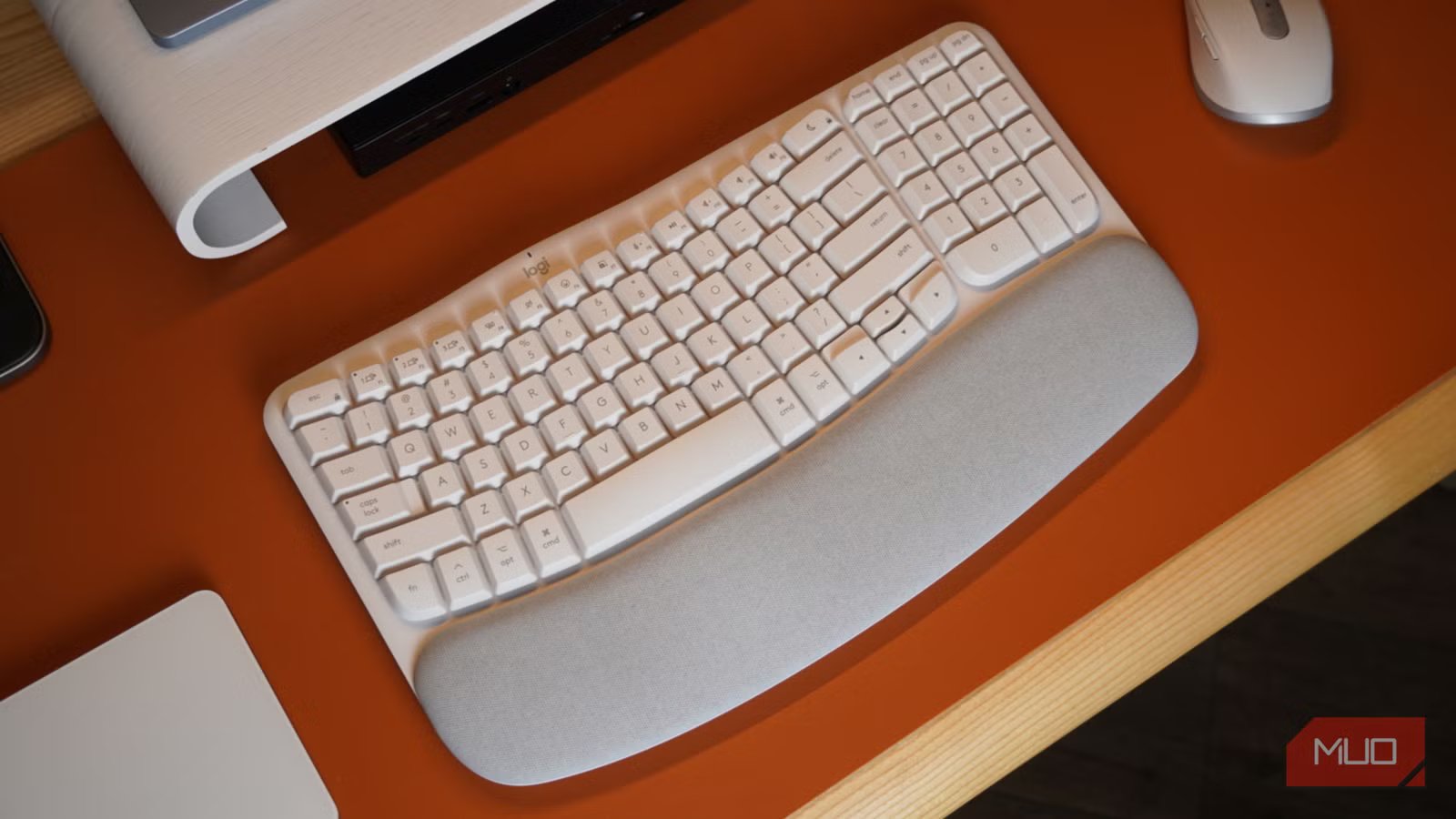
The Logitech Wave Keys checks a lot of boxes, starting with its 101-key layout that includes a numpad. The name isn’t just a marketing gimmick — the keyboard actually flows upward near the center, with central keys elevated to form a “wave” shape. While not split or aggressively angled like other ergonomic layouts, the Wave Keys have a curve toward each end.
This helps put your hands in the proper position to actuate most, if not all, keys without moving them. This demonstrates the versatility of the Logitech Wave Keys, because it’s a good fit for touch typists and hunt-and-peck typists alike. The former can type while keeping their hands, wrists, and forearms in positions that reduce strain and fatigue, while the latter can still make use of the wave shape and built-in palmrest.
Whichever typing method you use, the elevated wave at the center of the keyboard puts more keys within your reach, improving speed and accuracy. Since it’s still a membrane keyboard with a standard ANSI layout, there’s a minimal learning curve. The Logitech Wave Keys is also affordable, retailing for around $70. Anyone can switch to this keyboard without the same time and monetary investment that is required when switching to a premium mechanical or ergonomic keyboard.
Credit: Brady Snyder / MakeUseOf
The soft palm rest is spacious and provides ample room for your wrists. I vastly prefer a built-in palmrest, as it moves with your keyboard and is always in the right position. The keyboard offers two kickstands near the top that elevate it about a half inch above your desk for better ergonomics.
That’s not to say the Logitech Wave Keys is a perfect keyboard — I’d like to see backlit keys, a rechargeable battery, and a USB-C port in a future revision. I can forgive these omissions considering the price point of this keyboard.
For what it’s worth, the included AAA batteries might power your keyboard for up to three years, according to Logitech. I haven’t had to replace mine after a year of use, and stunningly, my computer estimates the Logitech Wave Keys has only used 5% of the AAA batteries’ charge in that time.
Logitech made the perfect keyboard for casual typists
It isn’t a mechanical, or truly ergonomic keyboard, but that doesn’t matter
Credit: Brady Snyder / MakeUseOf
Like mechanical keyboards, ergonomic key layouts can be challenging for casual typists. They can include split keyboard layouts, vertical shapes, and contoured keycaps positioned in a way that encourages the use of all your fingers and thumbs. Although the Logitech Wave Keys adds an elevated curve and integrated palmrest for enhanced ergonomics, it’s not radically different from a run-of-the-mill office keyboard.
These characteristics make the Logitech Wave Keys easy to adjust to, but they also make it an imperfect option for those looking for a true mechanical or ergonomic keyboard. Getting large keycaps, deeper travel, and some auditory and tactile feedback out of a membrane keyboard was enough to sway me, and the ergonomic layout with a built-in wrist rest sealed the deal.
Brand
Logitech
Wireless
Yes
Backlight
No
Battery
2x AAA
Num Pad
Yes
The Logitech Wave Keys is an ergonomic membrane keyboard with a “wave” shape to its key layout and a built-in palmrest. Unlike other ergonomic keyboards, the Wave Keys do not utilize a split keyboard layout, which makes it an attractive option for beginners. The keyboard features multi-device wireless pairing and runs on dual AAA batteries.
