

Samsung phones come with a lot of pre-installed apps, and not all of them are useful. For the longest time, Samsung Notes belonged to that “useless” category for me, as I was comfortably using Google Keep. But when I finally tried it out of curiosity, I was blown away by how much better it was than pretty much all the note-taking apps I had tried.
Besides the usual note-taking features, Samsung Notes also offers features like note summarization, automatic formatting, and built-in PDF editing. These extras are hard to pass, especially for a free app. What seals the deal, though, is how it integrates beautifully with other Samsung apps I use every day, like Reminders and Calendar.
Capture ideas instantly
Screenshot by Pankil Shah — No attribution requiredScreenshot by Pankil Shah — No attribution requiredScreenshot by Pankil Shah — No attribution required
When it comes to note-taking, less friction is always better. And one of the first things that made me fall in love with Samsung Notes is that I don’t even need to unlock my phone to take a note.
I can simply pull out the S Pen and start writing. Samsung Notes captures everything I jot down and automatically saves the note. The app also has a built-in OCR feature, which lets me convert my handwritten words into text. This is useful, as it makes my notes searchable.
If my phone is already unlocked, I usually rely on the Edge panel to create a note quickly. If you are not a fan of the Edge panel, you can set up the back tap feature to create a new note. And like most note-taking apps, you can even add a home screen widget if you prefer that.
Beyond text, I can also sketch and use Galaxy AI’s drawing assist feature to turn them into a realistic image. It’s not something I use all the time, but it’s handy when I want to create diagrams or a simple illustration.
Automatic formatting, note summaries and easy translation
Let AI do the boring stuff
Most note-taking apps offer plenty of formatting options, so you can organize information better. This includes headings, bullet points, text alignment, highlights, and a lot more. The problem is that you usually have to do all the formatting yourself. With Samsung Notes, that’s not the case.
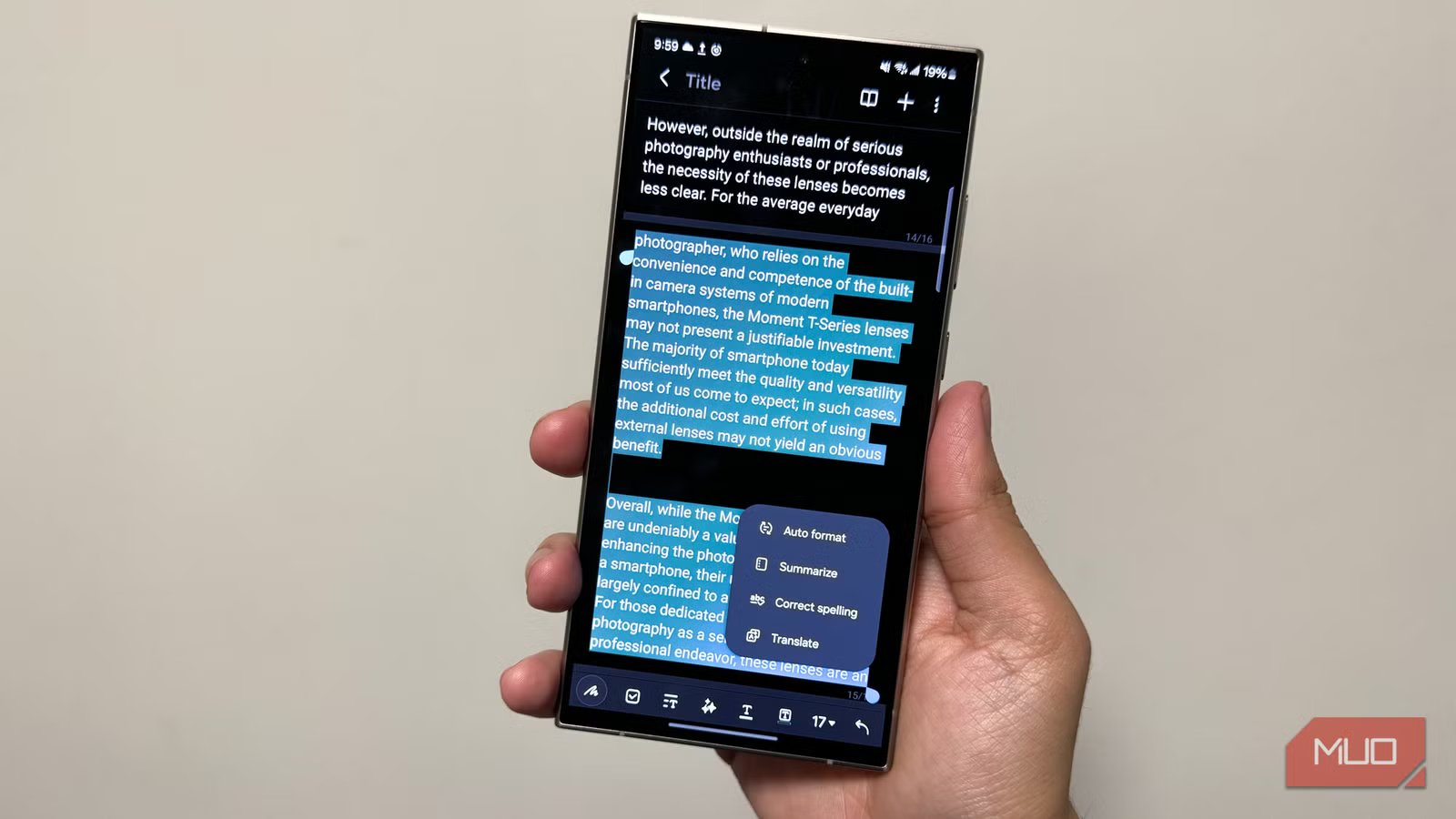
I can tap the Galaxy AI button and select Auto format. In seconds, the app organizes my note in a few different layout options. From there, I can pick the style I want and save my notes. This saves me a lot of time and keeps my notes clean and readable.
There’s also a built-in spelling and grammar check feature that checks the text for any silly mistakes. I don’t always need this, but it’s useful when I’m sharing notes with someone else.
My favorite AI feature, though, has to be note summarization. I use it whenever I come across long meeting or lecture notes taken months ago. Instead of glancing at every paragraph, I can use AI to create a short summary. If needed, I can also ask for a detailed summary.
Finally, there’s the translation feature. I find it useful when I’ve copied a snippet from an article written in my local language. I do this mainly to keep the content of the note searchable.
Shared notes and easy exporting
Collaboration without the complexity
Screenshot by Pankil Shah — No attribution requiredScreenshot by Pankil Shah — No attribution requiredScreenshot by Pankil Shah — No attribution required
Unlike before, the Samsung Notes app is not short of collaboration features. You can create a shared note or a notebook and invite others to work on it. This is great for things like shopping lists, trip planning, or keeping track of group tasks. Everyone invited can make changes to the note and changes sync in real time.
The only downside is it only works with people who have a Samsung account. Thankfully, if you just want to share a note for reference, there are plenty of export options to choose from. You can convert it into a Word file, PDF document, PowerPoint presentation, image, or even plain text.
8 Google Apps I’ve Ditched for Samsung’s Better Alternatives
Google’s got gaps. Samsung filled them.
A handy PDF viewer and editor
Handle PDFs without extra apps
Screenshot by Pankil Shah — No attribution requiredScreenshot by Pankil Shah — No attribution requiredScreenshot by Pankil Shah — No attribution required
Samsung Notes has also replaced Adobe Acrobat on my phone. And no, it’s not limited to just viewing the document. I can highlight text, annotate pages, add comments, and even insert drawings. Heck, I can even sign documents using my S Pen.
What’s really impressive is that Galaxy AI features work with PDFs too. I can use the summarization tool to create a short summary or even translate it into a different language. That pretty much covers pretty much everything I need to do when working on a PDF on my phone.
Samsung Notes doesn’t get the attention it deserves, mainly because it’s not available on non-Samsung phones. While that’s a big miss, the above features are just too good for me to ditch the app for an alternative.
