

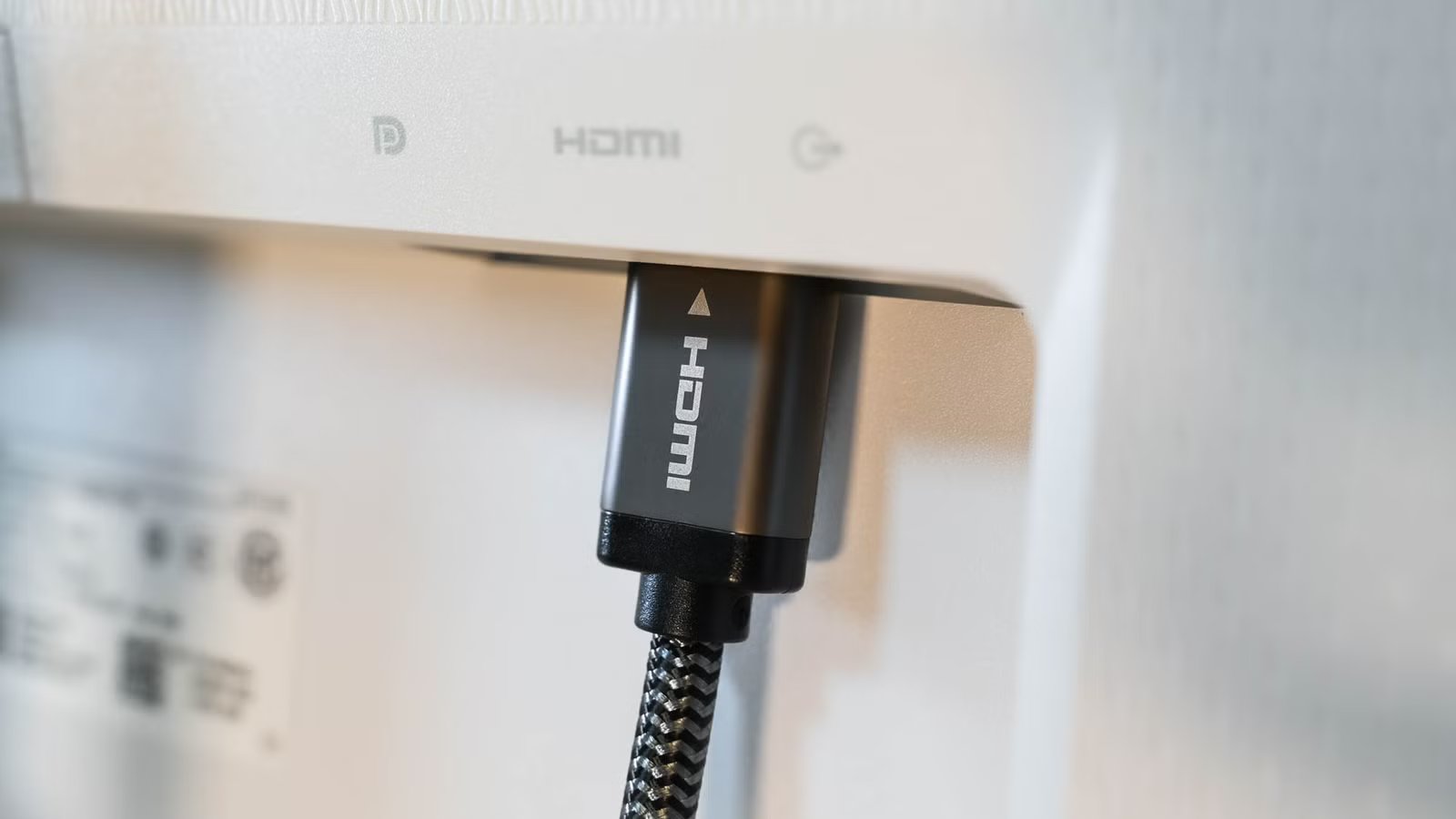
If your monitor is connected to your PC via HDMI, you might want to consider switching to DisplayPort. While the two can be functionally the same if your monitor and graphics card both support HDMI 2.1, DisplayPort is often a better option.
DisplayPort is generally a better option for PCs than HDMI
Credit: Dan74 / Shutterstock
The DisplayPort standard was made with PCs in mind. Even older versions of DisplayPort, starting with DisplayPort 1.2a, support both G-SYNC and FreeSync.
On the other hand, only HDMI 2.1 supports NVIDIA G-SYNC on monitors without proprietary G-SYNC hardware. In other words, if your monitor has an HDMI 2.0 port but isn’t a native G-SYNC monitor—meaning it doesn’t include a G-SYNC chip—you can use G-SYNC only via DisplayPort. If you have an HDMI 2.1 monitor or a TV, you may be able to use G-SYNC even if you GPU only supports HDMI 2.0, but only if you own an NVIDIA Turing (RTX 20 and GTX 16 series) GPU or newer.
If your monitor has DisplayPort 1.4 and HDMI 2.0 ports, you should use DisplayPort instead of HDMI, as it offers a higher data rate than HDMI 2.0—DP 1.4 tops out at 32.4Gb/s, while HDMI 2.0 maxes out at 18Gb/s. Even DP 1.2 (21.6Gb/s) and DP 1.3 (32.4Gb/s) offer higher bandwidth than HDMI 2.0. If you’ve got such a monitor, using HDMI will give you lower bandwidth and may even prevent you from running the display at its native refresh rate.
Credit: NVIDIA
Note that you won’t be able to use the full HDMI 2.1 bandwidth even if your monitor supports it if your GPU doesn’t—only NVIDIA RTX 30 and AMD RX 60 GPUs or newer support HDMI 2.1—or if you’re using an inadequate cable.
Credit: HDMI Licensing Administrator
The catch is that many HDMI 2.1 cables can’t actually carry the maximum HDMI 2.1 bandwidth. To use HDMI 2.1’s full data rate, you need an HDMI 2.1 cable with the “Ultra High Speed” label. Conversely, any newer DisplayPort cable supports the maximum DisplayPort 1.4 bandwidth.
Length(s)
6.6 feet
Materials/Construction
Zinc Alloy, Braided
Available in lengths of 6 feet and longer, the UGREEN HDMI 2.1 Certified Cable is perfect for gaming as it adheres to all HDMI 2.1 specifications.
Own an AMD GPU and use Linux? You should use DisplayPort because the HDMI Forum, the group that controls the HDMI standard, doesn’t allow AMD to implement the HDMI 2.1 standard in its open-source Linux drivers.
There’s a workaround for this limitation with a DisplayPort-to-HDMI adapter, but it’s much easier to simply use DisplayPort if your monitor supports it. Using an adapter can trigger various issues with the X11 Window System, ranging from visual artifacts to VRR issues to not being able to use refresh rates above 60Hz. Unlike HDMI, DisplayPort is an open standard, and AMD GPUs support its full feature set on Linux.
You should be fine if you’ve got an NVIDIA or an Intel GPU, but if you run into issues with an HDMI 2.1 connection, just switch to DisplayPort; it should work flawlessly.
Credit: Lucas Gouveia/How-To Geek | Nitchakul Sangpetcharakun/Shutterstock
While DisplayPort supports daisy-chaining monitors, allowing you to connect multiple monitors to your GPU with a single cable instead of plugging each monitor individually into the GPU (you still have to connect monitors to each other with DisplayPort cables), HDMI doesn’t.
That said, you need a monitor with a DisplayPort output to do this. If you’re interested in daisy-chaining multiple monitors via DisplayPort, make sure they all have DisplayPort outputs before buying them.
Related
I Won’t Buy a Monitor Without These 5 Features
Don’t neglect your eyes.
DisplayPort is also a better option than HDMI for newer laptops
Credit: Sydney Louw Butler / How-To Geek
Owners of newer laptops with an HDMI output, coupled with either USB-C with DP Alt mode or Thunderbolt/USB 4 ports, should stick to DisplayPort. DP is usually the right way to go with laptops since you can get a USB-C-to-DisplayPort cable, which is much easier to plug into the laptop than a bulky HDMI cable.
If your monitor comes with a USB-C DP alt port, you can plug the laptop into it with any USB-C cable that supports DP alt mode, and even charge it if the monitor’s USB-C port offers USB Power Delivery.
Most modern graphics cards only include a single HDMI port
Credit: PNY
As DisplayPort is an open standard, GPU manufacturers don’t have to pay a royalty fee for each DisplayPort connector on their graphics cards. By contrast, implementing HDMI requires paying a fee for every physical port.
As a result, many modern GPUs feature multiple DisplayPort outputs and only a single HDMI port. Since TVs rely exclusively on HDMI, it’s better to reserve that HDMI port for the TV rather than use it for a monitor.
Similarly, if you plan to use a gaming console on your monitor, you’ll have to use HDMI because that’s the only standard supported by current consoles.
If you’ve been using HDMI on your PC, haven’t encountered issues, and can drive your monitor’s native refresh rate, there’s no reason to switch to DisplayPort. But in many situations, DisplayPort is simply a better option than HDMI.
