

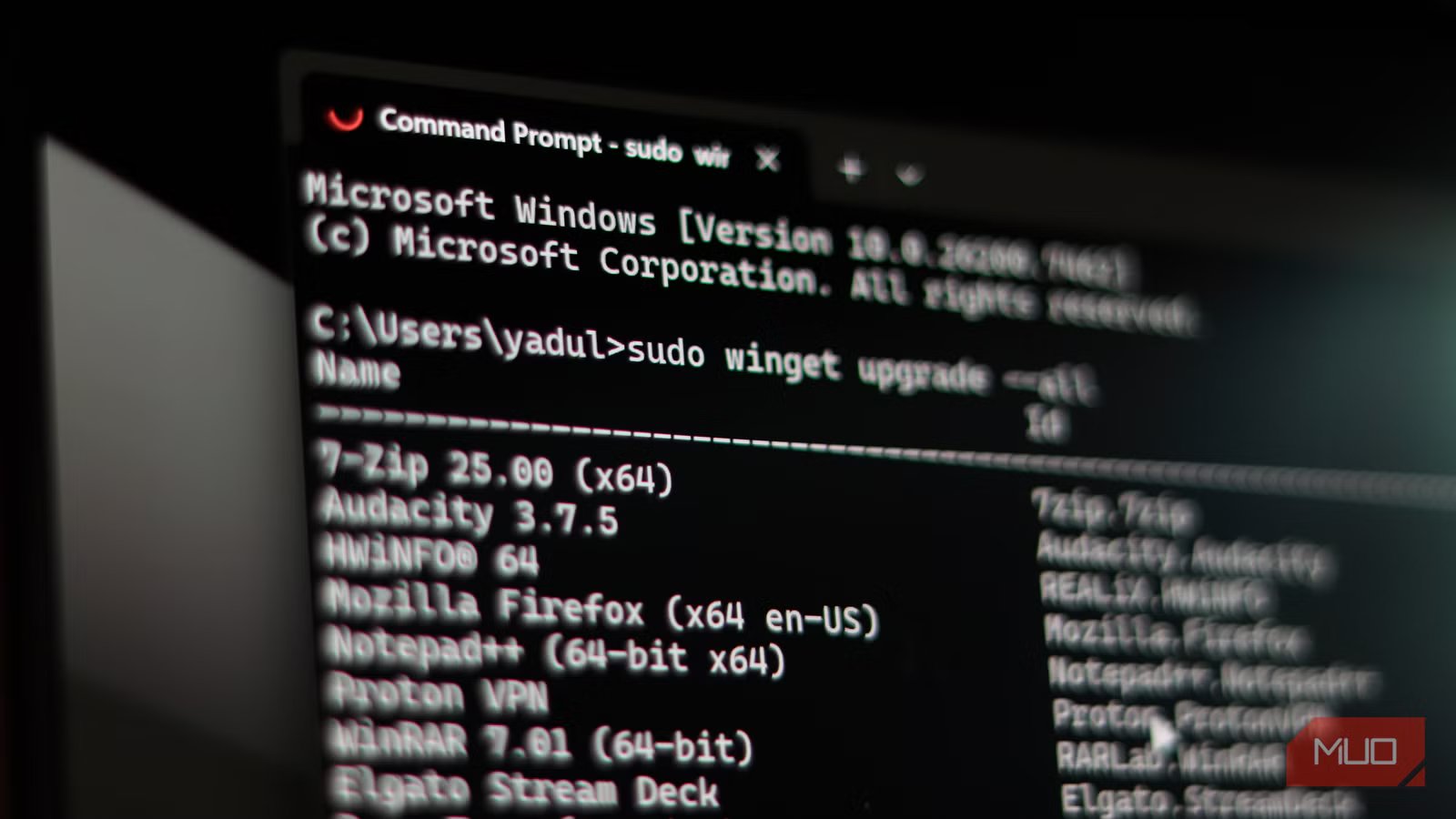
When Microsoft announced native sudo support for Windows 11, I was excited about the promise of Linux-like functionality on Windows. Having built my dream developer setup on Windows, this feature was going to save me a lot of time and hassle—until it didn’t.
After two decades of right-clicking run as administrator or juggling multiple terminal windows, the idea of simply prepending sudo to any command seemed great. I enabled it assuming I’ll retire Gsudo. However, Microsoft’s implementation, while technically functional, isn’t close to what the open-source Gsudo offers.
The promise of sudo on Windows
Microsoft borrows a power-user staple from Linux
Microsoft’s sudo implementation comes with genuine good intentions. It offers three configuration modes:
- New window: Similar to traditional run behavior
- Input disabled: Runs with administrator privileges in the current window but won’t take inputs
- Inline: Closes to Linux sudo, runs elevated commands in your current console session.
The inline mode is what most Linux users expect. You type sudo followed by a command, and it runs with administrator privileges in your current terminal. You get results without leaving your workflow or juggling multiple terminals. Using sudo on Windows turned out to be more useful than I thought.
But the limitations become apparent immediately. Windows sudo only supports elevation to administrator, meaning you can’t run commands as different users like you can with Linux sudo. There’s no sudoers file for control over who can do what. Every elevation also triggers a UAC prompt, which makes sense for security but breaks the seamless experience Linux users get with password caching.
Yadullah Abidi / MakeUseOfCredit: Yadullah Abidi / MakeUseOf
The feature itself is buried deep in the Windows Settings app. You’ll find it in the For Developers section in the System settings. This suggests Microsoft sees it as developer convenience rather than a core system utility.
Gsudo does what sudo can’t
The open-source implementation that inspired Microsoft’s addition is still better
Yadullah Abidi / MakeUseOfCredit: Yadullah Abidi / MakeUseOf
Gsudo, the open-source alternative by Gerardo Grignoli, has been providing sudo features on Windows long before Microsoft decided to take action. It has been in development and use longer, which means it’s a more mature implementation. With Microsoft’s Windows Terminal updates quietly making it incredible, it deserves a proper sudo implementation.
For starters, it offers credential caching, so you won’t constantly by clicking UAC prompts. You can configure it to remember elevation for a configurable timeout period as well.
The feature gap is also substantial. Gsudo works on Windows 10 and older Windows 11 builds, not just 24H2. It supports both gsudo and sudo commands (though on 24H2), though you’d want to stick to gsudo on Windows 11 24H2 to avoid confusion. Gsudo also integrates cleanly with PowerShell, CMD, WSL, and Windows Terminal. You can even use it to elevate entire shell sessions or create admin tabs in Windows Terminal with simple profile modifications.
OS
Windows
Developer
Gerardo Grignoli
Price model
Free, Open-source
gsudo is an open-source Windows utility that lets you run commands with elevated privileges using a Linux-style sudo workflow.
Where the open-source gsudo still pulls ahead
Faster workflows, better feedback, and fewer surprises
Even the installation process varies between the two. You can enable sudo on Windows via settings or by running the following command:
sudo config –enable normal
That’s it. No customization and no advanced options. Gsudo, on the other hand, installs with a single Winget command as follows:
winget install gerardog.gsudo
Once installed, it offers extensive configuration via command line options and even a JSON settings file that you can us to replicate your setup across systems.
In terms of user experience, Microsoft clearly states that sudo’s inline mode can be an “escalation-of-privilege vector” if misused. The input disabled mode is more secure, but defeats the purpose of an interactive shell. Gsudo’s approach feels more mature as it uses the same UAC mechanisms but adds sensible defaults and caching that don’t sacrifice security for convenience.
Yadullah Abidi / MakeUseOfCredit: Yadullah Abidi / MakeUseOf
Microsoft’s implementation is more secure in theory because it doesn’t cache credentials. But it creates a friction point that leads to bad habits. Gsudo’s caching is configurable and time-limited, striking a better balance. Additionally, Gsudo is transparent about its security model, while Microsoft’s warnings about privilege escalation in inline mode feel like they’re covering design limitations.
Why I ended up switching back
Small frustrations that add up during daily use
Yadullah Abidi / MakeUseOfCredit: Yadullah Abidi / MakeUseOf
Microsoft’s sudo implementation represents important progress. For casual users who occasionally need to run ipconfig /flushdns or command line tools when Windows breaks, it’s perfectly adequate and requires no third-party software. The fact that it’s built-in and enabled through a simple toggle makes it accessible to everyone.
But accessibility isn’t the same as power. Gsudo understands that command line users build muscle memory around their tools. It respects that sometimes you need to elevate an entire pipeline, not just a single command. It acknowledges that entering your password five times in two minutes isn’t security—it’s an annoyance that trains users to disable security features.
Related
You need to start using this hidden Windows Terminal feature
Stop wasting clicks. This hidden Windows Terminal feature lets you open the terminal instantly, no matter what you’re doing.
Additionally, the open-source nature of Gsudo means it evolves with user needs, not corporate timelines. When the community needed better PowerShell integration, it appeared. When WIndows Terminal became more popular, Gsudo adapted. Microsoft’s sudo implementation feels like a checkbox feature at the moment, technically present but inadequate for serious users.
Windows sudo still feels unfinished
A promising feature that needs more polish
If you’re a casual user curious about sudo on Windows, try the built-in version first. It’s a safe introduction to privilege escalation without leaving your comfort zone. But if you live in the terminal—if your workflow involves constant switching between user and admin contexts, if you script deployments, if you manage systems—skip the experiment and install Gsudo. Your muscle memory will thank you, and productivity will improve.
Sometimes, the open-source community still understands user needs better than the platform vendor. Open-source software may not always be the better pick, but in this case it absolutely is.
