

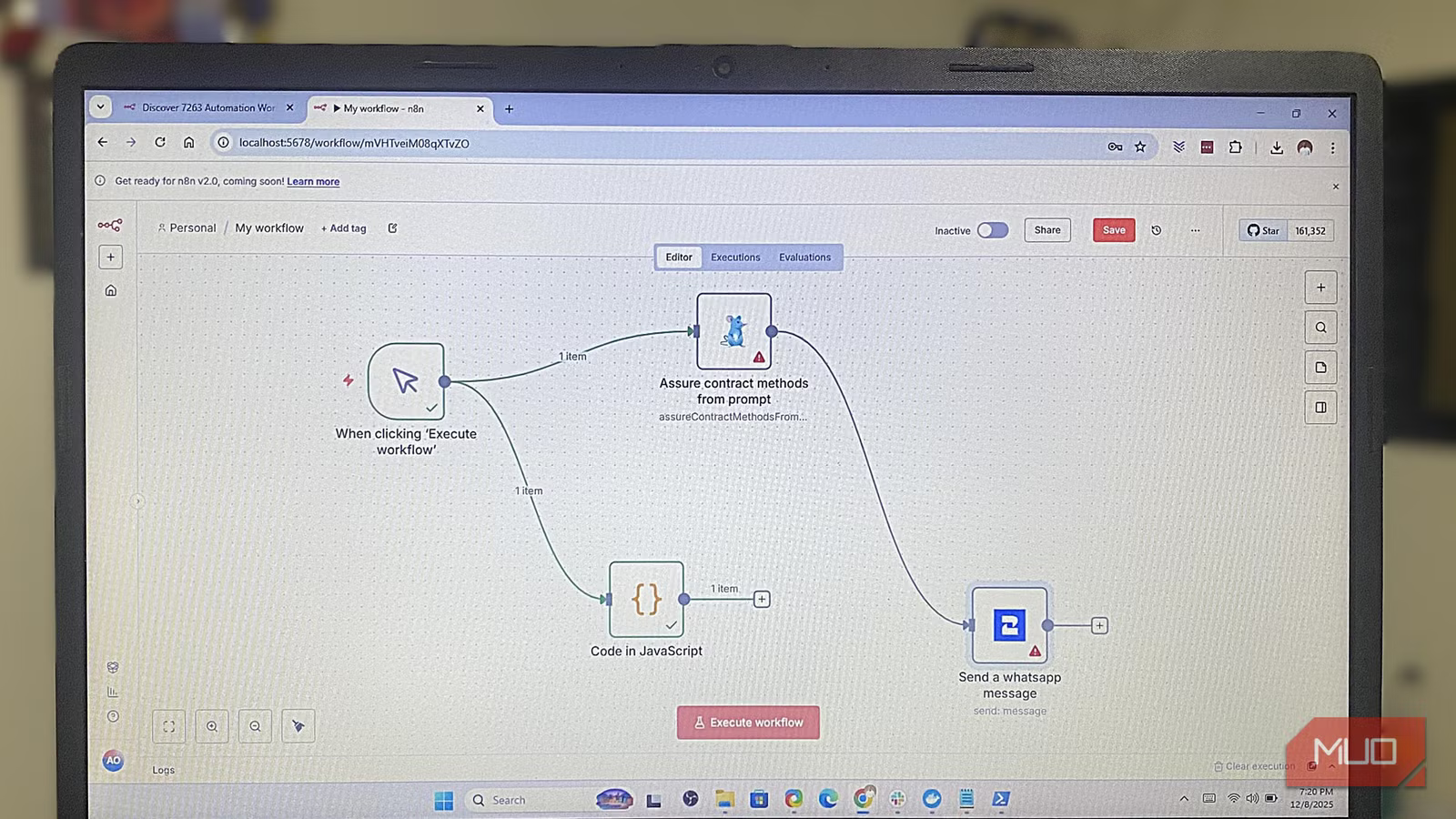
I can’t imagine what my workflow would look like without my self-hosted automations. The ability to streamline and manage my personal productivity by connecting my favorite apps and services saves me a massive amount of time. Not only that, but it also significantly reduces errors. Unfortunately, things break, and my workflow gets interrupted. Luckily, I found a way to prevent this by using containerized, self-hosted automation tools.
This solution lets me set up my automations easily without worrying about cloud service updates, dependency conflicts, or sudden API changes. It’s an excellent shield against external disruptions. At the same time, it offers extensive customization while reducing the burden of constant maintenance. Best of all, by self-hosting, I own all the resilient and long-lasting automations I build.
Docker is a must-have for this to work
Docker provides the reliability that self-hosted automations need
While there are many solutions for self-hosting apps, I consider Docker to be the best. Docker is software that allows you to run containerized versions of apps. This means that applications are packaged into a container, along with all their dependencies. You don’t have to worry about compatibility issues.
I use Docker Desktop on my Windows computer, but it’s also available for Mac and Linux. Wherever you choose to use it, just know Docker will eliminate the headache of managing dependencies. So whether the app you need requires Node.js, Python, or other libraries, it doesn’t matter. Docker handles everything.
This is a good thing because automation software relies on multiple services working in harmony. Installing and managing them yourself can be challenging, especially if you’re not technically minded. One thing I like most about Docker’s containerization is that it makes the setup reproducible across environments—I just need to copy the container’s configuration.
The easiest way to set up long-lasting automations
With Docker laying the foundation, the next step is finding the right automation platform to build those self-hosted automations. For me, this is n8n. It’s a low-code solution that lets me design workflows using a node-based drag-and-drop interface.
Related
I automated half my PC tasks without learning to code — here’s the tool
A simple Windows tool turned repetition into effortless automation.
Unlike proprietary platforms such as Zapier, Make, and Power Automate, n8n is open source. Furthermore, self-hosting means my automations are not at the mercy of external providers.
Setting up n8n within Docker is quite simple since it can be done with the following command:
docker run n8nio/n8n
The command pulls the latest image of n8n and starts running the container. I can also pull a specific version of n8n using the command below:
docker run n8nio/n8n:2.2.3
Once running, you can access n8n by navigating to http://localhost:5678 in your browser (assuming the container maps to port 5678). Creating workflows in n8n is straightforward. It involves connecting triggers and actions across various apps and services. I often use n8n’s library of templates and customize them to fit my needs. It’s simple, intuitive, and requires no coding whatsoever.
Preventing automations from breaking
Watch out for those updates
n8n is actively developed by the open-source community and receives constant updates. This is beneficial if you value the latest features, performance improvements, and security fixes. However, Docker doesn’t automatically update containers to the latest image, even if you use the latest tag when pulling the image.
docker run n8nio/n8n:latest
This is both a good and a bad thing. The downside is that you typically need to update the containers manually. Updating a container involves pulling the latest image, deleting the current container, and starting a new container using the updated image and your original configuration. On the upside, the container won’t update overnight and break your automations.
To prevent your automations from breaking, avoid updating your automation tool’s container the moment an update is released. However, be aware that you’ll miss out on new features and security updates if you stick to an older version.
Related
This gorgeous terminal UI changed how I use Docker on Linux
Manage Docker containers faster with a visual terminal UI.
Luckily, there is a safer way to test whether a new update will break your container. This involves duplicating your container using the Docker command docker commit to save the container as an image. Here’s the syntax
docker commit container_id_or_name new_image_name
This is how the command would look in practice:
docker commit c5a24953e383 myclone:latest
Simply navigate to the Images tab in Docker Desktop and run the image. Once the container is running, access n8n and check if anything broke. This gives you an opportunity to fix issues and test changes without affecting the original data.
Resilient, self-hosted automations make life simpler
Self-hosting automations with Docker and n8n isn’t just about preventing breakage — it’s about peace of mind. When you control the environment and the tool, you eliminate the uncertainty of external updates or service changes. Your workflows become reliable companions, quietly handling repetitive tasks without demanding constant attention.
