

Are you looking at buying a NAS, but have no idea what a NAS even is? A NAS can be many things, but here, I’ll break down what a NAS is, what it isn’t, and whether you actually even need one.
So what is a NAS?
The definition is way simpler than you might think.
Credit: Patrick Campanale / How-To Geek
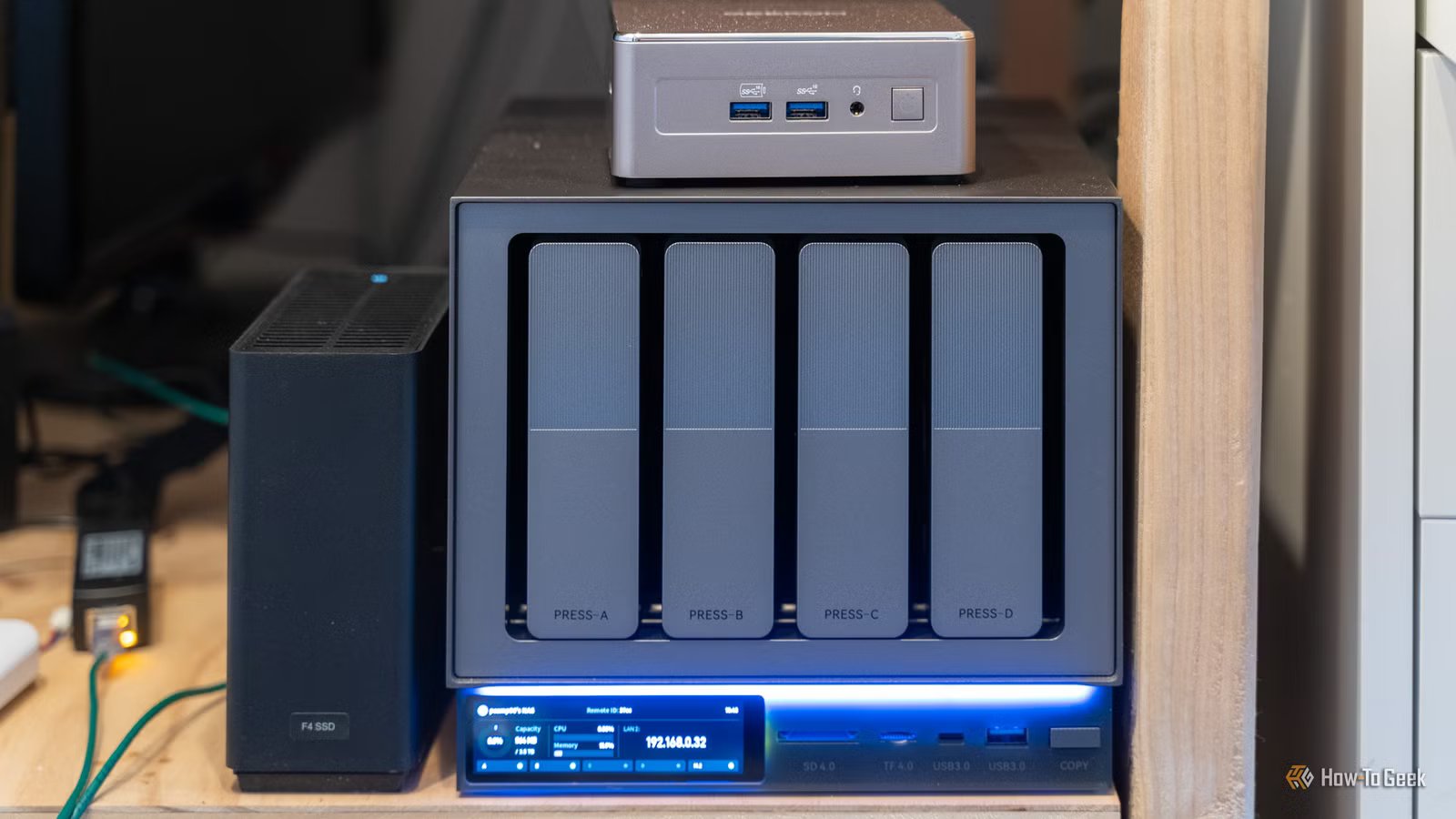
You’ve probably seen the term NAS used quite often around here, but what exactly is it? NAS stands for network attached storage. Most often, “a NAS” refers to a network attached storage server. This can be a single hard drive attached to your network, like the Synology BeeStation, or a full-on enterprise appliance like I run in my homelab.
The simplest definition of a NAS is any type of storage that is accessible over the network. If you can access the storage without being plugged directly into it using the network, then you’re running a NAS.
How does a NAS differ from a USB HDD or SSD?
Network access baby.
Credit: Patrick Campanale / How-To Geek
You might already have a few USB HDDs or SSDs lying around, and think, “How is a NAS any different from what I have?” This is actually a conversation I had with a childhood best friend recently. She’s a wedding photographer and buys about 10 to 15TB of USB SSDs per year for her photography business.
With a USB storage drive, the drive has to be plugged into your computer to access it. You also have to worry about bit rot on the drive if they stay unpowered long enough. While USB HDDs, and, more specifically, USB SSDs, are very convenient to take with you places, they’re no replace for a NAS.
With a NAS, your data is accessible anywhere on your network without having to plug in a drive. For instance, in my free time, I do woodworking and laser engraving, and I even run a YouTube channel around it. There are times when I am in my workshop and want to work on editing a video. Because I keep all of my footage on my NAS in the office, I can just remotely download the files from the NAS to my MacBook Pro in the shop and start working on my video.
When I’m done, I just push the files back to the NAS, and then they’re no longer on my laptop. If I used a USB drive for this, I’d have to leave the shop, find the USB drive, bring it to the shop, do the data transfers that way, and it’s all just a headache. A NAS makes this such a smoother experience.
A NAS also delivers much more storage than USB storage drives can. My primary storage server has 60TB of storage, and it’s no where close to maxed out. If I was to fill it with 24TB drives (which would cost a fortune, but is still possible), I’d have a total of 240TB of storage with two drive redundancy, or 264TB with single drive redundancy.
There’s no single USB storage drive on earth, at least, available to consumers or known to this man, with that type of storage capacity. A NAS is simply the best solution if you need mass storage at your house, plain and simple.
Can’t you just plug a HDD or SSD into your router?
Technically, yes.
Credit: Hannah Stryker / How-To Geek
So, you have a 8TB external hard drive and want to plug it into your Wi-Fi router to make it network accessible, and therefor, a NAS? That’s entirely fine, and yes, that does constitute as a NAS, but let me tell you why that’s not always the best idea.
With a dedicated NAS server, like a Synology, QNAP, UGREEN, or any of the other brands, you have built in redundancy. I just talked about that with my big 12-bay monster, but it applies with smaller 2-, 4-, or 6-bay NAS systems too.
Your hard drive or SSD that’s plugged into your router is a NAS. It’s network attached storage. However, if that drive fails, you have no backup. The data is gone.
With a dedicated NAS server, you can set it up so that way you are redundant to one, two, or more drive failures. While this is not a backup, it is a plan that can help prevent data loss. The way RAID (or parity, depending on the system you use) works is to distribute the data so that way if a drive dies, the other drives can emulate that data until you can install a new drive.
This redundant functionality is what separates a NAS from a normal USB hard drive or SSD, and it’s why a dedicated NAS appliance is better than just plugging a drive into your router.
However, if you’re tight on funds and all you have is a USB hard drive and a router with a USB port that handles file sharing? That’s a great place to start! Down the road you can migrate those files to a dedicated NAS and possibly even shuck the hard drive out of its shell to add it to the NAS array.
Do you really need a NAS?
It really depends.
Credit: Jordan Gloor / How-To Geek
It’s hard for me, a writer on the internet, to tell you if you actually need a NAS. My photographer friend spending $2,500 per year on 10 to 15TB of external SSDs? Yes, she needs a NAS (and she’s going to be buying one very soon). My friend who runs a small 3D printing and CNC manufacturing business, on the other hand, does not need a NAS, because his files are small enough that he just stores them in Google Drive.
A NAS is really only good if you have a lot of data to store. My NAS has 60TB of usable storage on it, with about 70% of that storage in-use right now. There’s no possible way that I could have that much cloud storage for any reasonable amount of money. Plus, having it in the cloud wouldn’t do me much good when I try to access it at home, if I had to wait for it all to download from the cloud instead of just move across my network.
So, do you need a NAS? It’s going to come down to your own use cases. Do you need to store a lot of data at home with drive failure redundancy and the ability to expand that storage in the future? If so, then yes, you do need a NAS. Do you just need a little more storage than your MacBook came with, but you don’t need access to that storage anywhere on your network? If so, just get a portable SSD like the Crucial X10.
A NAS is a great tool when you have a use for it, but it’s a waste of money if it’s going to sit relatively unused in your setup.
Brand
Synology
CPU
Intel Celeron J4125
This four-bay NAS works great for home and small office use, and it comes with a three-year warranty from Synology.
