

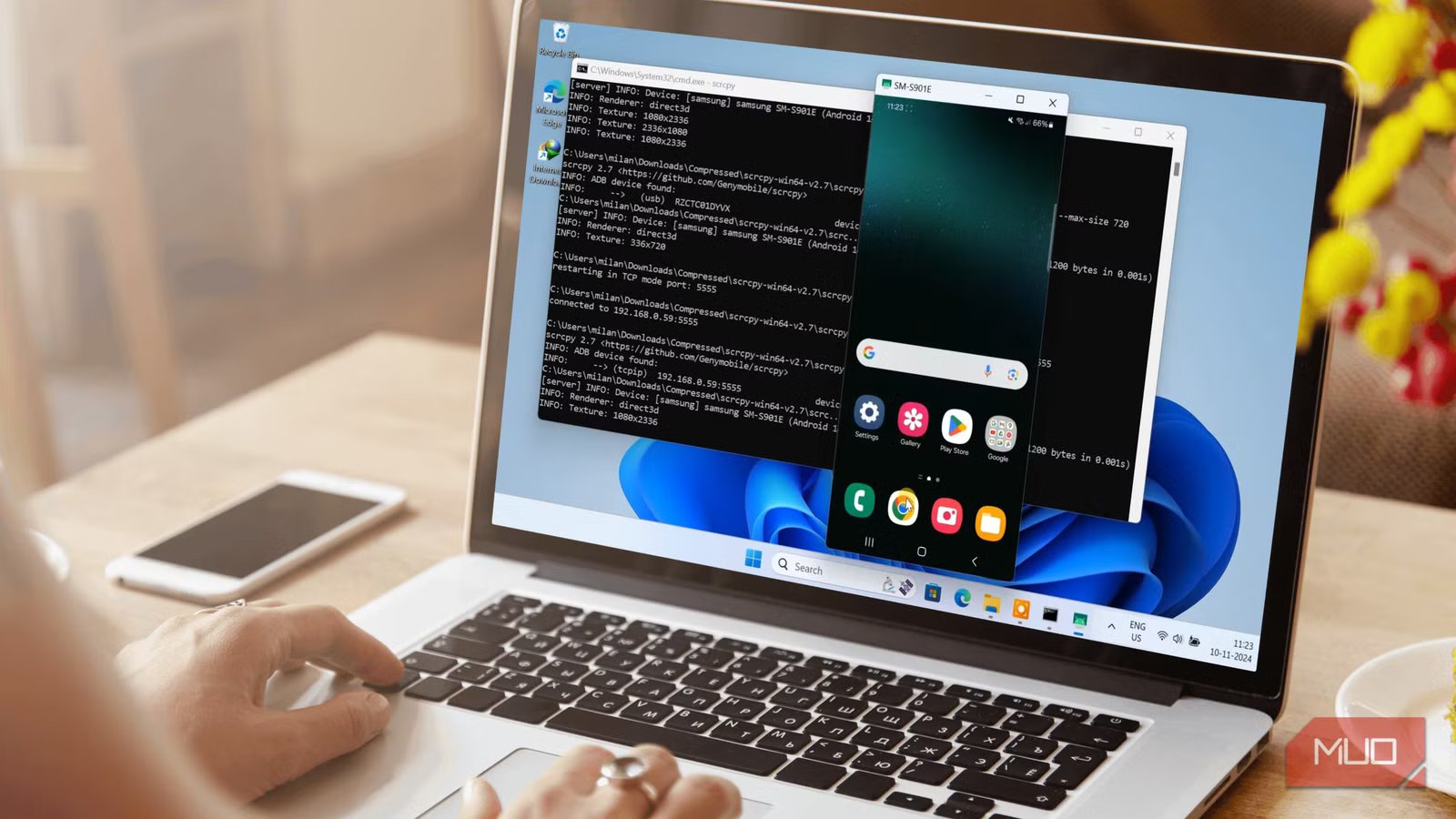
Screen mirroring is a convenient way to replicate your phone’s screen on a big screen, let’s say a TV or a computer. However, most screen-mirroring methods are either laggy, degrade video quality, or just disconnect midway. Also, they require you to install apps that are filled with ads on both the primary and target devices, which is another inconvenience.
After my research, I found a couple of ways to mirror your Android screen to Windows with no lag, no quality loss, and, best of all, no apps required. They make use of built-in settings and the option to cast your Android’s screen onto the PC. Let us check them out.
Related
How to Connect Your iPhone to a TV (Wirelessly)
Stream your favorite content from your iPhone to your TV easily.
Screen mirroring using built-in options
No apps, no installation, just your phone and your PC
There are a couple of ways to mirror your Android phone’s screen on your Windows PC or laptop. The first method involves using your phone’s and laptop’s built-in features. Android phones and Windows PCs come with the Miracast feature. This technology is often branded differently by brands, such as Smart View on Samsung, Cast on Google Pixel, or Wireless Display on Windows PC.
Before we begin, ensure both your Android phone and your Windows PC or laptop are connected to the same Wi-Fi network. Then, follow the steps below:
- Open Windows Settings by pressing Win + I.
- Search for Projection Settings in the search bar at the top.
- In the first drop-down menu titled “Some Windows and Android devices can project to this PC,” when you see it’s OK, select the “Available everywhere” option.
- In the Ask to project this PC drop-down, select First time only.
- In the last drop-down titled Require PIN for pairing, choose Never. Of course, you can set a PIN for more security.
You can also rename your PC if you want to make it easier to recognize. Once all these options are selected, simply tap on the Launch the Wireless Display app to project to this PC link button. You will see a blue full-screen show up on your laptop, confirming that your PC is ready to connect to your Android phone.
On your Android phone, you need to follow the steps below to start mirroring:
- Swipe the notifications panel down and tap on the cast button. On my Samsung Galaxy S24 Ultra, it is called Smart View.
- Upon tapping Smart View, you will see your Windows PC’s name show up.
- Tap on your PC name, and your Android phone will be successfully mirrored to your PC.
This is one of the easiest ways to mirror your phone on your Windows laptop without installing any app on either your phone or your PC. However, there is another way, more popular among power users who want to control the quality and smoothness of mirroring, which we discuss in the next section.
Use Scrcpy to mirror your Android screen on a Windows PC
Go beyond basic controls with built-in file management and screen recording
There is an open-source tool called Scrcpy that is quite popular among power users for mirroring their Android phone’s screen on their Windows PC. It lets you perform wired mirroring using a USB cable and also wireless mirroring. In my test, the connection via USB cable was pretty smooth, and I experienced zero lag.
Scrcpy not only supports Windows but other OS as well, including macOS and Linux. Staying true to our title, this does not require you to install any app on your Android phone. Scrcpy isn’t just a normal mirroring tool; it offers more than that.
With this tool, you can easily manage all of your phone’s files, use your phone’s camera as a webcam, and even screen record, which is good if you want to explain anything to someone. It also gives the user the option for high-resolution mirroring, meaning you can mirror your phone’s display in its native resolution.
Here is what you will need to start mirroring using the Scrcpy tool:
- Download the Scrcpy tool from the GitHub page.
- A USB cable to connect your phone to the PC, if you opt for a wired connection.
- An Android smartphone or tablet with USB debugging enabled.
In case you are wondering, we have a full guide explaining what USB debugging is. For this process, we only need to enable it. Simply follow the steps below to enable USB debugging mode on your Android phone or tablet:
- Open Settings on your phone.
- Scroll all the way down and tap on About phone > Software information.
- Tap on Build number multiple times until you see a message saying Allow development settings?
- Tap on OK. You will see a toast message: You are now a developer.
- Head back to Settings, and you will see Developer options unlocked right at the bottom.
- Tap on Developer options, locate USB debugging, and tap on it.
- Tap OK in the Allow USB debugging window.
Do note I am using a Samsung Galaxy S24 Ultra. So, the settings and menus may differ on your Android device, based on the make and the Android version it is running.
How to mirror Android screen on PC
After you have enabled the USB debugging mode on your Android phone, follow the steps below to mirror your phone’s screen on your PC:
For a wired connection
- Connect your phone to the PC via USB cable. Prefer the official USB cable that came with your device.
- Extract the Scrcpy tool onto your computer.
- Run the Scrcpy executable file.
- After opening, Scrcpy will automatically detect your Android phone.
For wireless connection
- Connect your phone to the PC via USB cable.
- Open the open_a_terminal_here.bat file in the Scrcpy folder.
- Type adb tcpip 5555 in the command prompt.
- Unplug the USB cable.
- Locate the IP address of your network on your phone by heading over to Settings > Connection > Wi-Fi.
- Tap on your network and find IP settings.
- In the command prompt, type adb connect : 5555
- You will see connected to your IP address.
- Then type scrcpy in the command prompt to start screen mirroring.
If you wish to reduce the mirror quality, then you need to type scrcpy –video-bit-rate=4M. This will give you a smoother stream. To limit resolution, type scrcpy –max-size-=1024. To start screen recording, type scrcpy –record file.mp4.
Android screen mirroring made easy
The above methods give you different ways to mirror your Android screen to a Windows PC. The wireless connection method via Scrcpy may seem a bit lengthy, but it lets you screen record and set the quality to your preference. You don’t need to install any apps, navigate through pesky ads, or buy a subscription to unlock features. These free methods seamlessly connect your Android device to your Windows laptop.
