

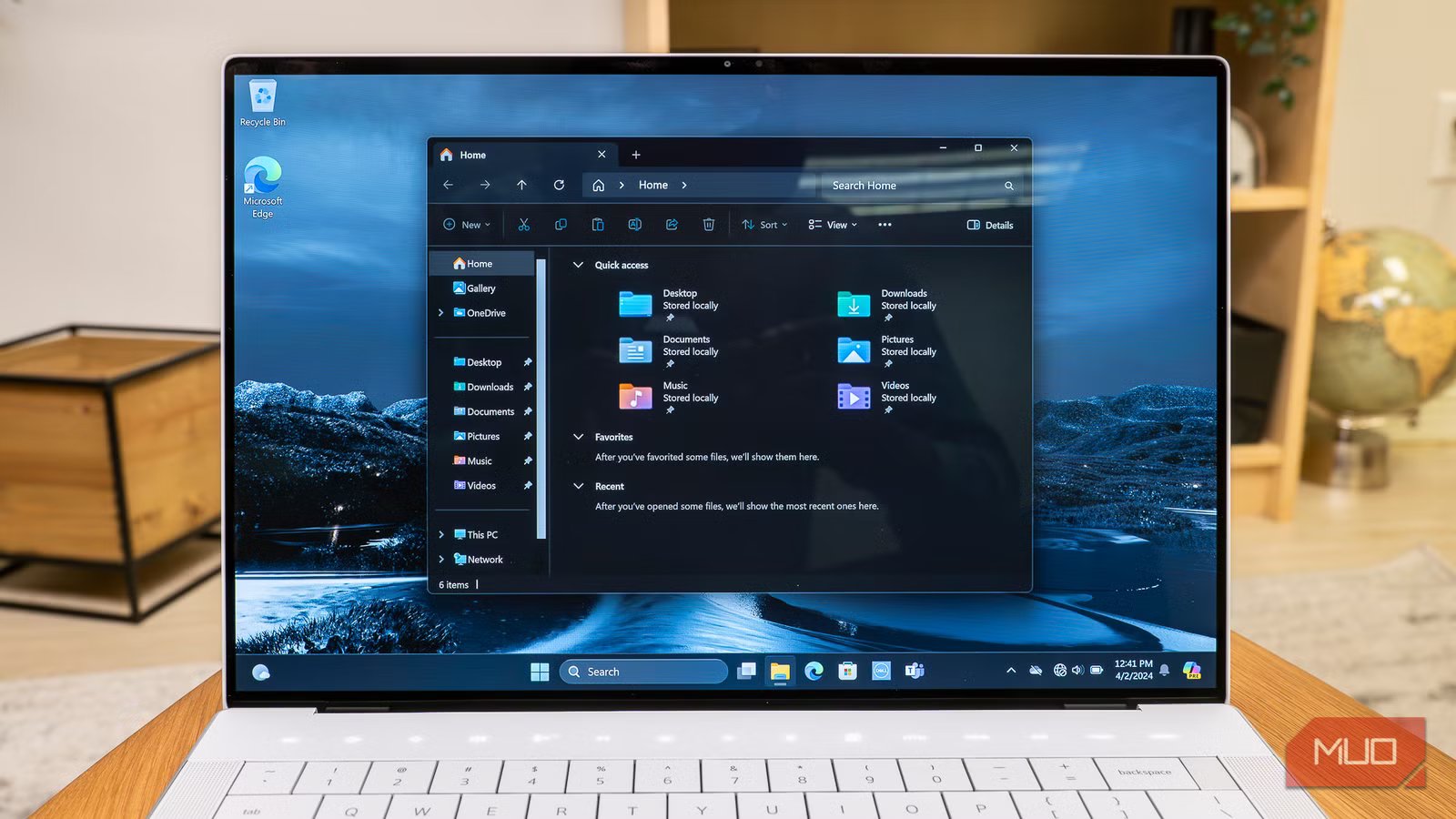
If there’s one feature that I still can’t believe Windows doesn’t have in 2026, it’s the ability to lock files and folders. Sure, your Windows account is already protected by a PIN or password, but that isn’t always enough.
When most people think about locking files on a PC, they immediately turn to dedicated tools. They usually work great, but it’s yet another tool you have to pay for. So instead, I use 7-Zip’s built-in encryption. It lets me lock just about any file or folder, and it doesn’t cost me a thing.
OS
Windows
Price model
Free
7-Zip makes locking files and folders is easy
The easiest way
7-Zip is a free, open-source compression app that can also double as a tool for locking files and folders. It has a built-in encryption protocol that lets you wrap your files inside a password-protected archive that no one can open without the key.
The process itself is quick and easy. Once you have the file or folder you want to lock, right-click it and select 7-Zip > Add to archive. From here, set the compression level to 0 – Store and tick the Delete files after the compression checkbox. Then, enter the password for the file or folder under Encryption and hit OK.
Once you do this, 7-Zip will create a ZIP file that can only be extracted with a password. It will also delete the original file, so you don’t have to do it manually. Now, anyone who tries to open that ZIP file will have to enter the password first.
The file remains locked even when you try to open it on a different device. This makes it ideal for sending locked files safely without buying dedicated software.
The best part is that you don’t even need 7-Zip on the other computer to unlock the file. You can also do it with WinRAR or other similar file compression tools, as long as you have the password. In fact, WinRAR can also be used to lock files and folders in a very similar way.
It’s not foolproof, but it’s good enough for most people
The trade-offs you should know about
Image credit: Pankil ShahCredit: Pankil Shah/MakeUseOf
I’ll be honest, this method of locking files and folders with 7-Zip is not foolproof. While the encrypted archive remains locked, it doesn’t stop someone from simply deleting it from the PC if they get access to your system.
Also, if a person has enough time, skill, and motivation, they can eventually break into it. So no, it’s not ideal for highly sensitive files that absolutely cannot be compromised.
There is one more small downside. Every time you want to access those locked files, you have to extract the archive first. That’s not a big deal for small folders, but it can get annoying with large ones.
But none of this really applies to my use case. I only use this method for personal documents and folders that I don’t want anyone to peek at, and for that purpose, 7-Zip is more than good enough. It’s free, easy to use, and does exactly what I need. Another thing I love is that the locked archive doesn’t scream for attention. It looks like any other normal ZIP file, which usually doesn’t spark curiosity.
Related
How I Encrypt My Files Before Uploading to the Cloud (and Why I Bother)
It only takes a moment to make your files much more secure.
There are other file-locking options too
If 7-Zip is not for you, try one of these
Screenshot by Pankil Shah — No attribution required
While 7-Zip is my go-to workaround, you don’t have to stick with it if you’re not okay with its downsides. There are plenty of other ways to lock files and folders on Windows.
For instance, if you’re working with a Word document, an Excel spreadsheet, or a PowerPoint presentation, Microsoft Office already lets you encrypt those files directly. All you have to do is head to File > Info > Protect document > Encrypt with Password.
If you already use OneDrive on Windows, it also comes with a feature called Personal Vault, which lets you protect files and folders with a PIN. Since OneDrive is already integrated with File Explorer, you can access those locked files directly from your PC.
There are also dedicated third-party tools, such as Easy File Locker that lets you lock files and folders. These can be handy if you have a lot of items to protect and don’t want to repeat the same steps for each one.
Finally, if you have the Pro edition of Windows 11, it’s also possible to create a virtual drive and encrypt it with BitLocker. The setup takes a bit of time, but you only need to do it once. After that, you can move files in and out of the virtual drive whenever you need.
Windows may still be missing a simple “lock” button for files and folders, but that doesn’t mean you are out of options. You just have to pick the one that fits your needs best, whether that’s a file compression tool, a dedicated app, or even an encrypted virtual drive.
