

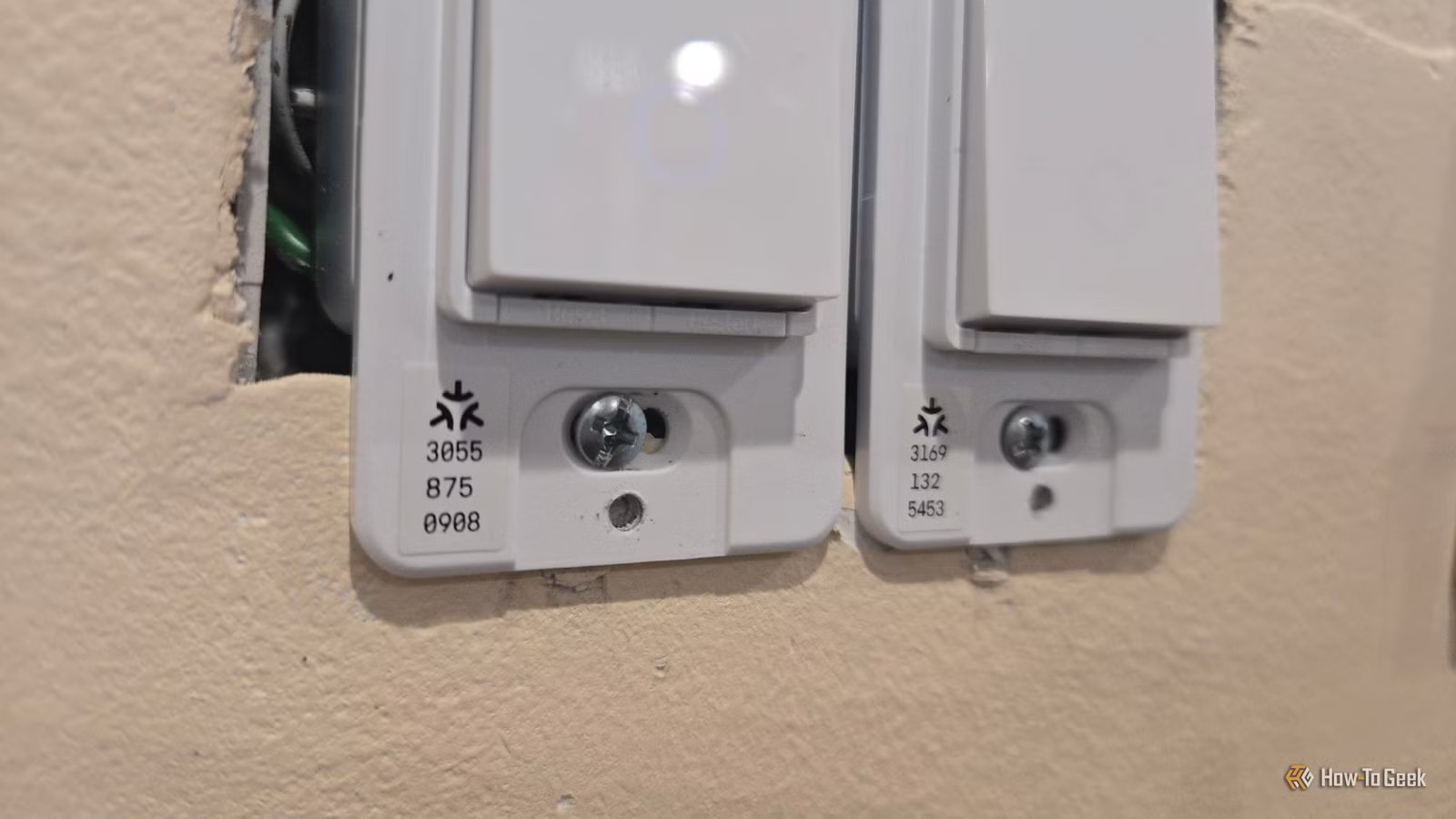
I only started creating a smart home last year, so nearly all of my devices communicate via Matter. For the most part, things have just worked. As I try out different smart home hubs and troubleshoot the occasional issue, there’s only one simple thing I wish I did from the beginning that would have saved me a lot of frustration—write down my Matter pairing codes.
You need your original Matter pairing code to reset devices
This is the QR code and number that came with your device
Every Matter device comes with a Matter pairing code that you need to enter when setting up the device in your smart home platform. You can either enter this code by hand or by scanning a QR code. Typically, it consists of 11 digits.
Credit: Bertel King / How-To Geek
When all goes well, you only need to interact with this code once. Afterward, your smart home knows how to communicate with your product, and you’re left with little reason to think of those numbers again. Like an IP address, this number is a component of networking infrastructure that largely happens invisibly behind the scenes.
Even if you want to add a Matter device to Google Home after originally setting it up in Samsung SmartThings, it’s a quirk of Matter that if you want to control a Matter device from two smart home platforms at once, you don’t use the original pairing code a second time. Instead, you must generate a new one. It’s only when resetting your device that you need the original code.
Thing is, resetting devices is something that comes up often enough to make it vital that you don’t lose that original code.
This code isn’t always in a convenient place
Where did they place that number again?
Most Matter products come with the pairing code placed somewhere on the device. My two Govee floor lamps have theirs on a tag wrapped around the power cord. My Umbra Cono portable smart lamps have theirs physically etched into their legs.
Some codes are more of a pain to get to. My Tapo S505 smart switches have their codes visible behind the wall plate. This plate can be a pain to pry off, and since I swapped out the factory wall plate for an alternative from Lowe’s, I also have to remove a screw before I can get to the pairing code. Considering I’ve bought nearly 50 smart switches for my home, that’s a lot of physical labor if I want to reset my lights and swap out my original smart home platform for another.
I started with Samsung SmartThings because that was the most accessible for me, as someone with a Samsung Galaxy phone. While SmartThings does a better job supporting Matter than alternatives like Google Home and Amazon Alexa, that doesn’t mean I want to stick with it as the foundation of my smart home forever.
Saving your codes keeps them accessible
Prevent yourself from having to search for them yet again
Now that I’m in the process of transitioning my Matter devices away from a cloud-based platform, I’m taking this time to write down each of my Matter pairing codes as I go along. This way, in the future, if I run into any issues and need to reset a device, or I simply want to port all of my devices again, I know exactly where to look, and I have to exert far less physical effort.
At the same time, it’s also helpful to make note of how to put each device in pairing mode. The process isn’t always obvious, even when it seems like it should be. My light switches have a button labeled “Reset,” but it doesn’t actually take effect unless I hold the button down long enough for the light the switch controls to flicker. The power button on my portable smart lamps needs to be tapped three times, with my finger staying in place on the third tap until the light turns red. The Tapo smart bulb in my bedroom needs to have the power switched flipped on and off several times until the bulb blinks. With such wildly different ways of getting devices ready to pair, even if you have your Matter codes on hand, you’re still not good to go unless you also know how to reset your device.
You have a backup if you lose the original
Numbers can fade with time
Many devices come with the Matter pairing code printed on a separate piece of paper, in addition to being located somewhere on the product itself. Thing is, some of these devices become part of your home. They live long enough that ink can fade and even etching in plastic may rub off to the point where certain digits become illegible. Having a backup on hand saves you from having to replace a device not because it stopped working, but because you have no way to reconnect it to your smart home hub again.
Where and how you write down your Matter pairing codes doesn’t matter, as long as it’s somewhere you aren’t likely to lose. For now, I’m jotting mine down in Samsung Notes. I may export the note as a PDF and back it up somewhere or even print out a copy. A plain text file works just as well. So does writing on paper and taking a photo. All that matters is that you create a durable record and keep it somewhere safe.
