

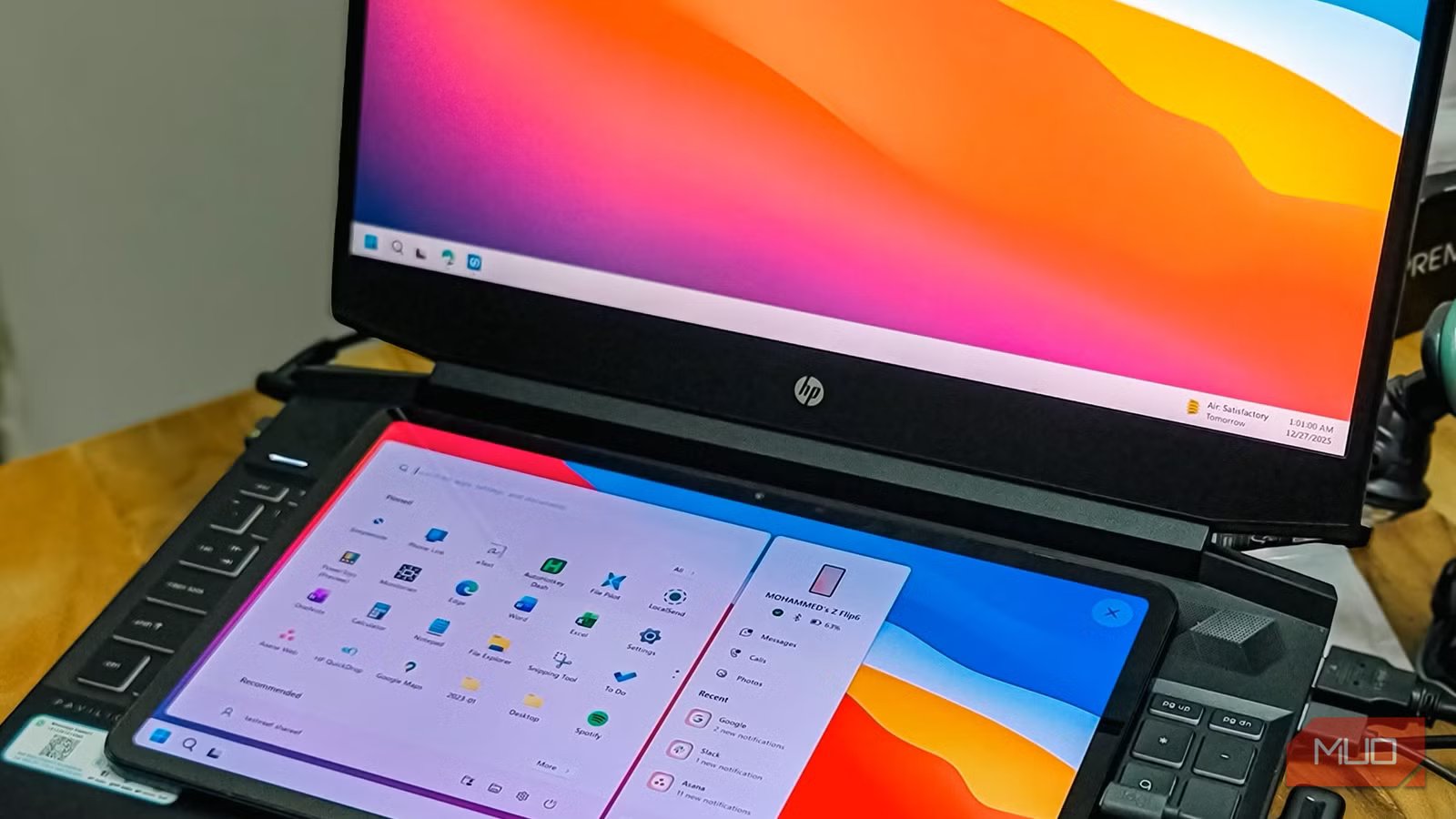
A second monitor is easily one of the best ways to boost productivity, especially if you’re using a laptop with a small display. However, adding another display usually comes with a price tag. If you’re not sure whether a second display is worth it for your setup or simply don’t want to spend on one, turning your Android phone or tablet into a second monitor is a solid option.
spacedesk is a free app that makes this possible. It’s ridiculously easy to set up and works flawlessly on both wired and wireless connections. So if you have a spare Android device lying around, this is a great way to give it a second life.
OS
Android, iOS, Windows
Price model
Free
Spacedesk is a free app that lets you turn any phone, tablet, or even laptop into a computer monitor over Wi-Fi and cable connection.
Setting up spacedesk only takes a few seconds
The fastest way to add another display
Screenshot by Pankil Shah — No attribution required
The best thing about spacedesk is how easy it is to use. There is no complicated setup, no accounts to create, and no pairing codes to deal with.
To get started, download and install spacedesk on your PC. Once done, open the spacedesk DRIVER Console using the search menu. Next, install the spacedesk app on your Android phone or tablet and launch it.
If both the devices are connected to the same Wi-Fi network, your PC will show up as an available device right away. Select it, and Windows will duplicate the screen to your Android phone. That’s it. You now have a second display.
From here, press Win + P to choose how you want to use the second screen. You can mirror your main display or extend your desktop so you can drag windows between screens like you would with a real monitor.
If you don’t have Wi-Fi, you can also opt for a cable connection. All you have to do is connect your Android to the PC with a USB cable and allow spacedesk to use the wired connection by heading to USB Cable Driver Android > USB Cable Android. Finally, accept the USB connection request on your Android.
I tried both methods, and the cable connection was slightly better. Either way, the setup is fast, painless, and surprisingly smooth.
You’ll need to configure it to get things right
Simple adjustments for smoother use
While spacedesk makes it easy to turn your Android into a second monitor, you’ll notice it doesn’t look perfect right away. Everything will appear smaller, which makes it difficult to tap the on-screen items.
To fix this, head to Settings > System > Display and choose the monitor. Then, use the Scale drop-down menu to select a higher percentage. This will make apps, icons, and text feel comfortable to read and use. You can also select the display orientation from the same menu. Landscape works best for most Android phones and tablets, but you can always experiment.
You’ll also find a few performance settings inside the spacedesk app itself. Increasing image quality gives you sharper visuals, while boosting the FPS can make everything appear smooth. Of course, your connection plays a big role, and pushing both settings too high can make the display a little less responsive.
One of my favorite features, though, is being able to use my phone’s speakers for audio instead of the PC. It’s a small thing, but I find it useful since my laptop’s built-in speakers aren’t that great.
Related
I dug out my old Android tablet, and it replaced 3 expensive gadgets
I dusted off an old Android tablet and it quietly replaced three gadgets I was ready to spend serious money on.
What makes spacedesk so good
The features that make it a winner
Screenshot by Pankil Shah — No attribution required
By default, spacedesk doesn’t require any pin or passcode for pairing. But you can enable password protection if you are on shared networks or in public areas, where you don’t want random devices trying to access your screen.
Now, spacedesk isn’t the only app that lets you use your Android as a second monitor. There are other options like Duet Display, SuperDisplay, Splashtop Wired XDisplay, and a few others. But none of these other options are free unlike spacedesk. You might get a free trial, but once that runs out, you need to pay every month just to keep using your extra screen.
Using Android as a second screen
Real-world benefits
Pankil Shah / MakeUseOfCredit: Pankil Shah / MakeUseOf
Using your Android phone or tablet as a second monitor sounds weird, but it feels quite natural once you get the hang of it. Windows treats it like any other display, so you can drag apps, browser windows, or chat boxes onto your phone or tablet with a simple swipe.
One of my favorite parts is the touchscreen support. My laptop doesn’t have touch input, so being able to interact with Windows with a tap feels nice. Also, using the touch input is slightly quicker than moving the mouse to the second screen. And if you have a stylus, that works too.
Since spacedesk works on Wi-Fi too, it opens up some fun and practical possibilities. I can move around my house and still interact with my PC or keep an eye on it from another room. It’s a small thing, but quite convenient.
For something that costs nothing and takes minutes to set up, spacedesk adds a huge boost to productivity. I wouldn’t recommend using it as your primary device for this, but yes, it works great as a small, portable monitor.
