

Do you ever have the nagging feeling that your PC isn’t quite right? Like, there is something holding it back from its full performance, but you can’t quite put your finger on what it is?
For a year or so after building my PC, I had that feeling. Although it booted reliably, games ran well enough, and day-to-day work never felt painful, I always had a faint sense that something wasn’t quite right, especially when I compared performance to similar systems online.
It turns out I was right. Something was holding my PC performance back, but it wasn’t what I expected. At least, it wasn’t the whole story. I tried adjusting BIOS settings, tweaking XMP/EXPO profiles, and fiddling with anything that could be fiddled with. But in reality, the fix for my problems was far simpler than I could have imagined.
I bought RAM that looked fine on paper
But you can’t put paper in a RAM slot
I originally bought two sets of the HyperX FURY Black 16GB (2x8GB) DDR4-3200 CL16 kit. (I built this PC in mid-2020 in case you were wondering why it’s not DDR5, which only launched in mid-2020).
At the time, it was exactly the kind of RAM most people would be perfectly happy to drop into a mid-range PC build. The speed was sensible, the timings were fine, the brand was reputable, and it ran without obvious crashes. There was no reason to suspect it would be the source of ongoing performance weirdness.
But from the start, something felt off. XMP was inconsistent, memory behaviour was unpredictable, and I spent far too long poking around BIOS settings trying to get things to behave properly. I tried different profiles, adjusted settings manually, and convinced myself that maybe this was just what running Ryzen systems was like if you weren’t a hardcore tweaker. It never fully broke, which is part of why I ignored it for so long—but it also never felt quite right.
I’d made a vital mistake when buying my RAM
A small but painful error
What I didn’t understand at the time was how much motherboard compatibility actually matters when it comes to memory. Most people assume that if the specs match—DDR4, correct speed, decent timings—then everything else is just marketing.
But that’s not actually the case, and I’d basically overlooked RAM and motherboard compatibility. Motherboards typically have what’s known as a Qualified Vendor List (QVL), and I’d neglected to really consider it when buying my memory. On closer inspection, the HyperX memory kit I’d bought wasn’t on the QVL for the MSI MPG X570 Gaming Plus motherboard.
Now, that doesn’t mean the RAM won’t work. As I found out, my computer booted, games loaded, and I could get on with my life. But what I found was that at times, it wouldn’t register all of my memory, and when it did, it wouldn’t allow the memory to run at its rated speeds.
I bought officially supported RAM and made some BIOS tweaks
Everything clicked into place
Once I realized what I’d done wrong, I replaced the memory with two Kingston FURY Beast 16GB (2x8GB) DDR4-3600 CL17 kits that my motherboard officially supports.
And, yes, the difference was immediate.
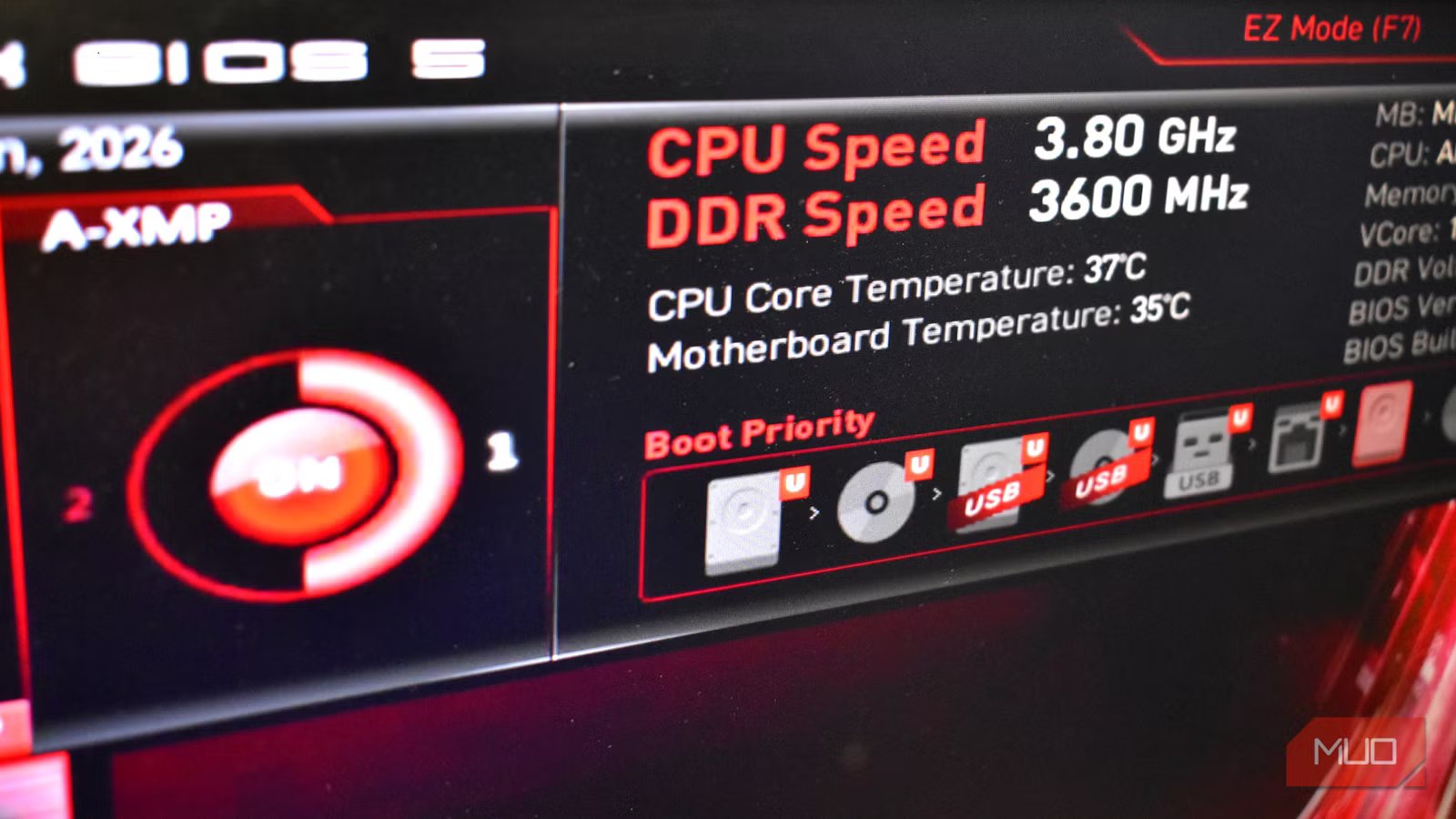
One of the biggest changes was that I noticed Windows immediately registered all of the RAM properly, which was a great start. Then, I opened the BIOS on my PC and enabled the correct EXPO profile for the memory, and saw the clock speed jump from 3200MHz to 3600MHz. Tiny jump, but completely stable, and the speed the memory is rated for.
But the real difference was in how my system felt. Those small stutters, little pauses, and so on were all gone. General responsiveness improved, minimum frame rates in games were more consistent, and the entire PC felt smoother under load. Some of that comes from the small jump in speed from 3200MHz to 3600MHz, but most of it came from something more important—everything was finally behaving as it should have been all along.
Related
How to Enable XMP Profiles and Overclock Your RAM
Did you know you can adjust XMP settings to squeeze more performance from your system memory?
Check your memory profiles
There are some other BIOS tweaks that’ll boost your performance
So, enabling memory profiles on your motherboard is just one way to boost your system performance—there are a few other BIOS tweaks you should consider to squeeze some extra clock cycles and frames per second from what you’ve already bought.
BIOS tweak
Why it’s useful
Enable XMP / EXPO / DOCP
Ensures your RAM actually runs at its rated speed instead of defaulting to slower stock settings like 2133MHz or 2400MHz. Without this enabled, you’re often leaving easy performance on the table.
UEFI boot mode (instead of Legacy/CSM)
Improves boot reliability, enables modern features like Secure Boot, and is required for full Windows 11 compatibility. It can also slightly improve boot times and system stability.
Resizable BAR (if supported)
Allows the CPU to access the GPU’s full frame buffer at once instead of in small chunks, which can improve performance in some modern games and GPU-heavy workloads. Gains aren’t universal, but when it helps, it’s essentially free performance.
Fan curves / smart fan control
Many systems run hotter and louder than necessary by default. Adjusting fan curves can reduce noise, improve cooling under sustained load, and help your CPU or GPU maintain higher boost clocks.
Update BIOS (when there’s a clear reason)
BIOS updates often improve hardware compatibility, fix stability issues, and can significantly improve memory behaviour—especially on Ryzen systems. You shouldn’t update constantly, but staying reasonably current can prevent weird issues.
As you’ve probably gathered, some settings won’t apply to your system or can only be accessed with certain hardware, such as Resizable BAR. Others have different names but do the same thing, like Intel’s XMP and AMD’s EXPO, both of which tweak and optimize your memory profile.
Either way, I have one final piece of advice: make a BIOS update USB before you start making any changes. It’s saved me on more than one occasion, and it’ll save you, too.
Related
I thought my CPU was maxed out until I tweaked these BIOS settings
A few BIOS tweaks made my PC feel brand new without a hardware upgrade.
I learned my lesson, but it sure took a while
At the end of the day, this is a user-error. I didn’t take enough time to research my hardware properly, and it cost me performance, time, and effort in the long run.
Thankfully, it wasn’t a situation that caused any lasting damage to my hardware, and I sold the other memory for around the price I bought it. If only I’d kept it, I could have made another mortgage payment on my house.
