

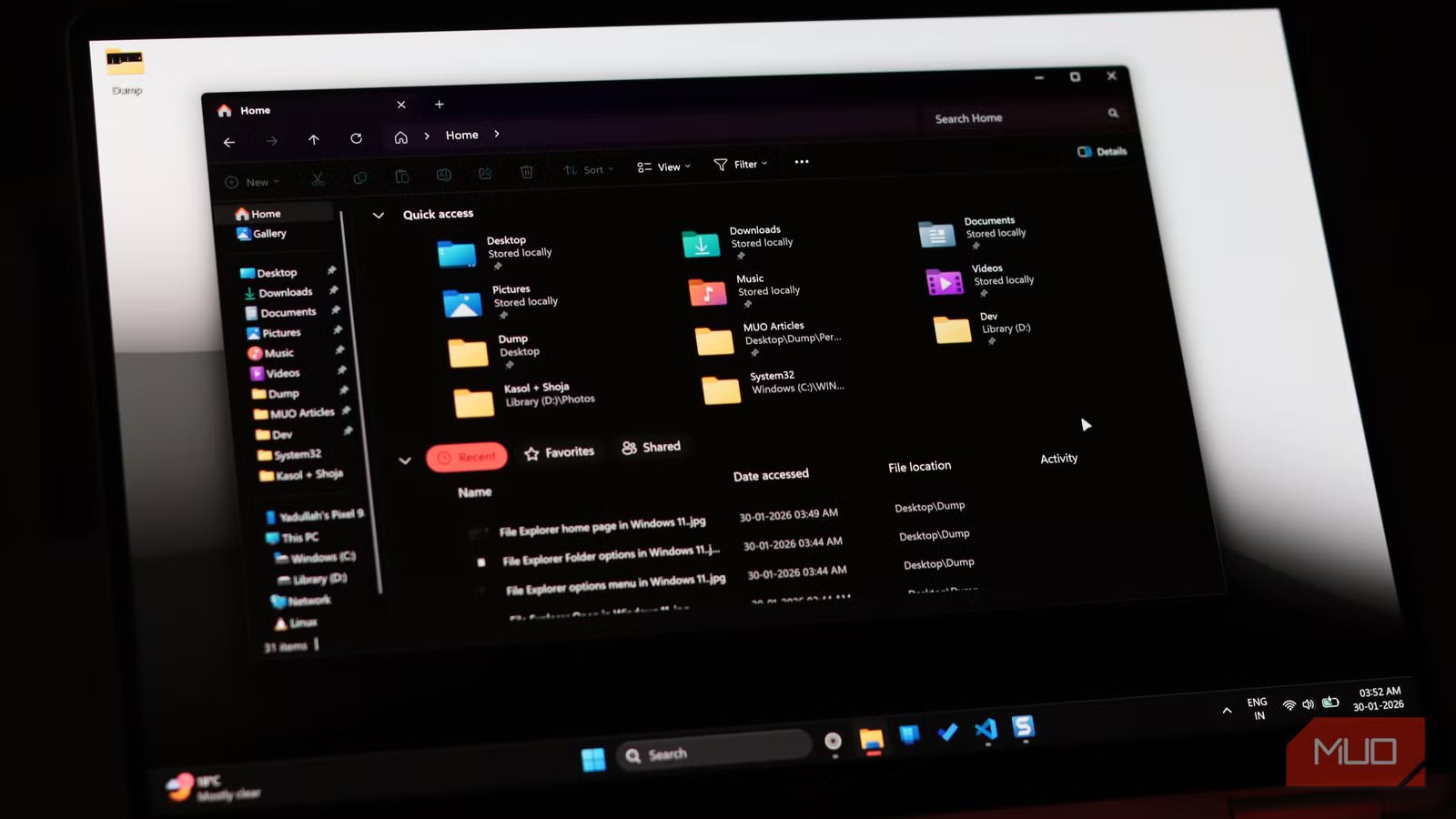
If you’ve been using Windows 11, you know the frustration. You click on File Explorer, expecting it to pop open instantly as it did back in the Windows 10 days. Instead, you wait and watch that spinning cursor mock you while the app slowly crawls to life.
Well, just like you can make your Start menu instant with a registry fix, there’s a similar manual tweak to make File Explorer faster.
File Explorer’s speed fix was hiding in plain sight
Why Microsoft’s “preloading” never quite delivers in the real world
Yadullah Abidi / MakeUseOfCredit: Yadullah Abidi / MakeUseOf
Microsoft announced a feature called preloading to get File Explorer to launch more quickly. As the name suggests, this involves loading File Explorer in the background when Windows starts up. The feature can be toggled on or off in Folder Options under the View tab, where you’ll find a checkbox labeled Enable window preloading for faster launch times. Keep in mind that this option may or may not be available in your version of Windows 11.
It sounds great in theory, but even with preloading enabled, the Windows 11 File Explorer is slower than its Windows 10 version. The feature also slightly increases File Explorer’s RAM usage. And while that might not be a dealbreaker on modern systems, it’s frustrating that you need to sacrifice additional resources for what amounts to a marginal speed improvement at best. There are Windows File Explorer alternatives you can try, but at this point, Microsoft should have figured out the built-in option.
The reason why preloading doesn’t fully solve the problem is simple. Microsoft rebuilt File Explorer using the modern WinUI framework while keeping the legacy Win32 core underneath. This means that every time you launch it, the app needs to initialize modern UI components, load shell extensions, sync cloud icons, and communicate with OneDrive or Microsoft 365 services. All of that takes time, especially when you open File Explorer for the first time after booting up.
Home is the real bottleneck
Home is where the heart of the problem lies
Screenshot taken by Yadullah Abidi | No attribution required.
The slowness isn’t evenly distributed across File Explorer. The primary bottleneck in most cases is the Home view—the default landing page Microsoft insists on showing you when you open File Explorer.
The Home view displays your recent files, favorites, and increasingly, recommended content pulled from OneDrive and Microsoft 365. Every time File Explorer opens to this view, it needs to query these cloud services, sync online content, and populate those sections with data. This is why you see that loading message for several seconds before anything appears.
This also means that folders synced with OneDrive or SharePoint might be particularly sluggish. The cloud integration that Microsoft touts as a productivity feature actually might be the one grinding File Explorer to a halt.
One setting that instantly makes File Explorer feel new
Switching from Home to This PC takes seconds
Thankfully, the fix is to simply change the default startup location in File Explorer from Home to This PC. Here’s how:
- Open File Explorer and click the ellipses menu at the top right.
- Click Options.
- Under the General tab, find Open File Explorer to.
- Change the setting from Home to This PC.
- Click Apply, then OK.
That’s it. No registry hacks required, although they exist too if you want to completely remove the Home page from the navigation panel. However, once you make this change, you don’t quite need to do anything else.
The difference is immediately noticeable. Apart from being more useful and letting you get straight to your storage drives as a file explorer should, opening to the This PC screen means no cloud syncing, no online recommendations, and no waiting for remote services to respond.
Preloading isn’t useless, just badly applied
The optimal configuration requires some manual tweaking
Yadullah Abidi / MakeUseOfCredit: Yadullah Abidi / MakeUseOf
If you’re wondering why the preloading feature still matters, considering the real fix is to change the File Explorer’s launch page, hold your horses. The preloading feature is beneficial even when using This PC.
Preloading means the app’s core components and the UI framework are already loaded into memory before you actually click to open File Explorer. This eliminates the initial startup delay entirely, making File Explorer launch instantly.
The optimal configuration is combining both tweaks: enable preloading for instant launch and set File Explorer to open to This PC to avoid cloud-related slowdowns. This approach gives you performance that actually rivals what you remember from Windows 10. And if you want to go further, you can fix Windows 11 File Explorer lag by disabling old services.
File Explorer finally feels fast again
No registry hacks, no tools—just the way it should’ve shipped
Microsoft has been making other improvements to the File Explorer in recent updates. These include code optimizations that made the Home tab load faster, even if you choose to keep using it. Extraction speeds for archives and loading times for folders containing lots of media files have also improved.
Regardless, Microsoft’s approach continues to go around the problem instead of addressing it. Rather than fundamentally fixing the performance issues caused by the WinUI framework and cloud integration, they’re adding workarounds and optimizations that mask the symptoms.
Related
This File Manager Is So Fast You’ll Never Use Windows File Explorer Again
Gotta go fast.
For now, the best experience comes from taking matters into your own hands. Disable the home view, enable preloading when it becomes available on your system, and you’ll finally have a file explorer that doesn’t feel like it’s wading through molasses every time you need to open a folder.
Microsoft’s fix is real, but it’s only half the story. The other half requires you to flip a simple switch they’d rather you didn’t know about.
