

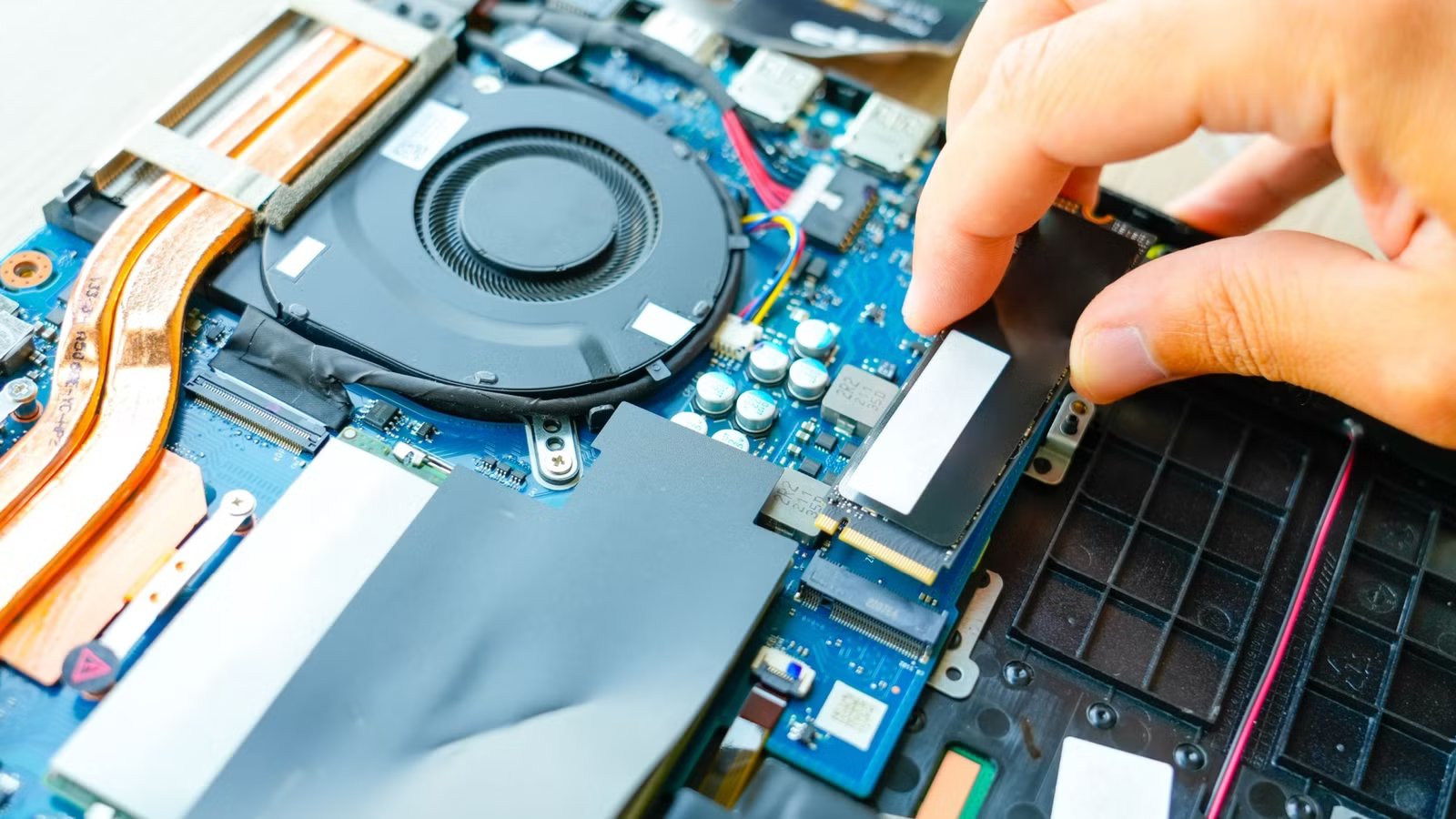
I recently lost my gaming laptop’s secondary SSD, and the most likely cause was sustained overheating and throttling. Which means that I was now in the market for a new drive, and unlike before, I was now keenly aware of the thermal situation when it came to my SSDs.
Now, as many of you rightly pointed out in that original article I have no definitive way to prove that heat specifically was the culprit. I just deduced this from the drives very premature death, signs of performance issues I stupidly ignored, and a clear error in my installation when it came to cooling. This time, I’m doing it right.
Why I wanted to see real temperatures, not just specs
The only reason I can’t definitively say my old drive didn’t die of heat is because I never checked how hot the drive got under load. After getting my new drive and installing it, my literal first order of business was to check the drive’s temperature readings.
By stressing it out, and subjecting it to my normal usage that it will face on a daily basis going ahead, I can verify that the drive is staying within spec. What are those specs? In the case of my specific Teamgroup 1TB SSD, that maximum is 70C. If the drive does not exceed this temperature, then it should reach its rated lifespan and there should be no throttling.
The tool I’m using to check the drive’s temperature is CrystalDiskInfo which shows you plenty of important stats, but also the current temperature of your drives.
Using CrystalDiskMark to force sustained load
The other tool I’ll be using is CrystalDiskMark, which is used to check the reading and writing speeds of your drives. Not only will this show me if my new drive is performing as advertised, it’s a good way to stress the drive and see how much it heats up.
If you run the full test suite, the drive will be subjected to smaller and smaller, more randomized reads and writes. You can also increase the size of the test file to make the test last longer. For me, I only ran the standard test battery at first, to represent what medium-length burst of peak drive activity would do, but it’s a good idea to try larger test file sizes to give your drive a real thrashing if you want to be sure.
Large file copies expose thermal behavior benchmarks miss
After using CrytalDiskMark to run the drive through artificial benchmarks and verifying that it did not in fact melt, my next step was to initiate a large, high-speed file transfer. Steam games are the perfect candidate here, and so I used the Steam storage page under settings to move 500GB of game data from my primary SSD to my new secondary SSD. My primary SSD is a much faster drive, so it absolutely saturated the new SSD, and it took a few minutes to move all that data.
My reasoning is that I’ll rarely be filling 50% of the drive in a single copy operation at maximum speed, so if the drive doesn’t overheat during a sustained copy like this, it’s probably OK.
Gaming shows how the SSD behaves in normal use
This SSD is meant for gaming, and so the best real-world test of temperature and performance is to actually play some games! In CrystalDiskInfo, you can set the maximum safe temperature on a per-drive basis, and then if your drive reaches that temperature there’s an audible alarm letting you know. You can also just run the app on a second display, or play your game windowed.
Credit: CD Projekt Red
So, all I had to do was load up a game like Cyberpunk 2077 or any modern big open-world game for current-generation consoles, and play for a few hours. These types of games are constantly streaming in assets as you traverse the world, which continuously stresses your SSD. Other types of game might only load data in chunks and then, once it’s in RAM, the drive goes idle. That can mask thermal issues, because the drive is never stressed long enough to really heat up.
So, I had to go through the “chore” of playing my favorite open-world games for a few hours to see if my new SSD reached its safe limit.
What I learned about my SSD’s cooling and limits
The good news is that, in my case, the drive idles around 40C and never exceeds 70C under full sustained load or normal use, as I would use it. If, however, I did get the drive to reach its throttling limit, there would still be options. Since this is a laptop installation, I can’t really count on secondary cooling from case fans to help that much, but adding a heatsink with a thin enough profile is possible.
Credit: Sydney Louw Butler/How-To Geek
Teamgroup has these graphene stickers that apparently help with heat dissipation and, clearly, the drive is running within spec, but heatsinks for SSDs are cheap, so I might get one anyway. Certainly, my PS5 requires a heatsink for guaranteed speed and longevity, and that has more airflow than my laptop’s SSD slots, so a few dollars to ease my paranoia might be worth it. However, at least now I know that my drive’s temperatures are safe.
