

You may have noticed sudden RAM spikes on your Windows 11 device that even show up when you’re not rendering video, compiling code, or opening several browser tabs. This abnormal Windows 11 behavior is often followed by a brief lag that seems to disappear almost as quickly as it surfaced.
When it became a recurring issue on my computer, I first took time to rule out the common suspects: browsers, background apps, and even drivers. It was then that I realized these spikes occurred when there was background activity from the Connected User Experiences and Telemetry Windows service. It’s now one of the Windows services I disable to keep my computer functioning properly.
The service most users never knowingly agree to run
What Connected User Experiences actually does
Afam Onyimadu / MUO
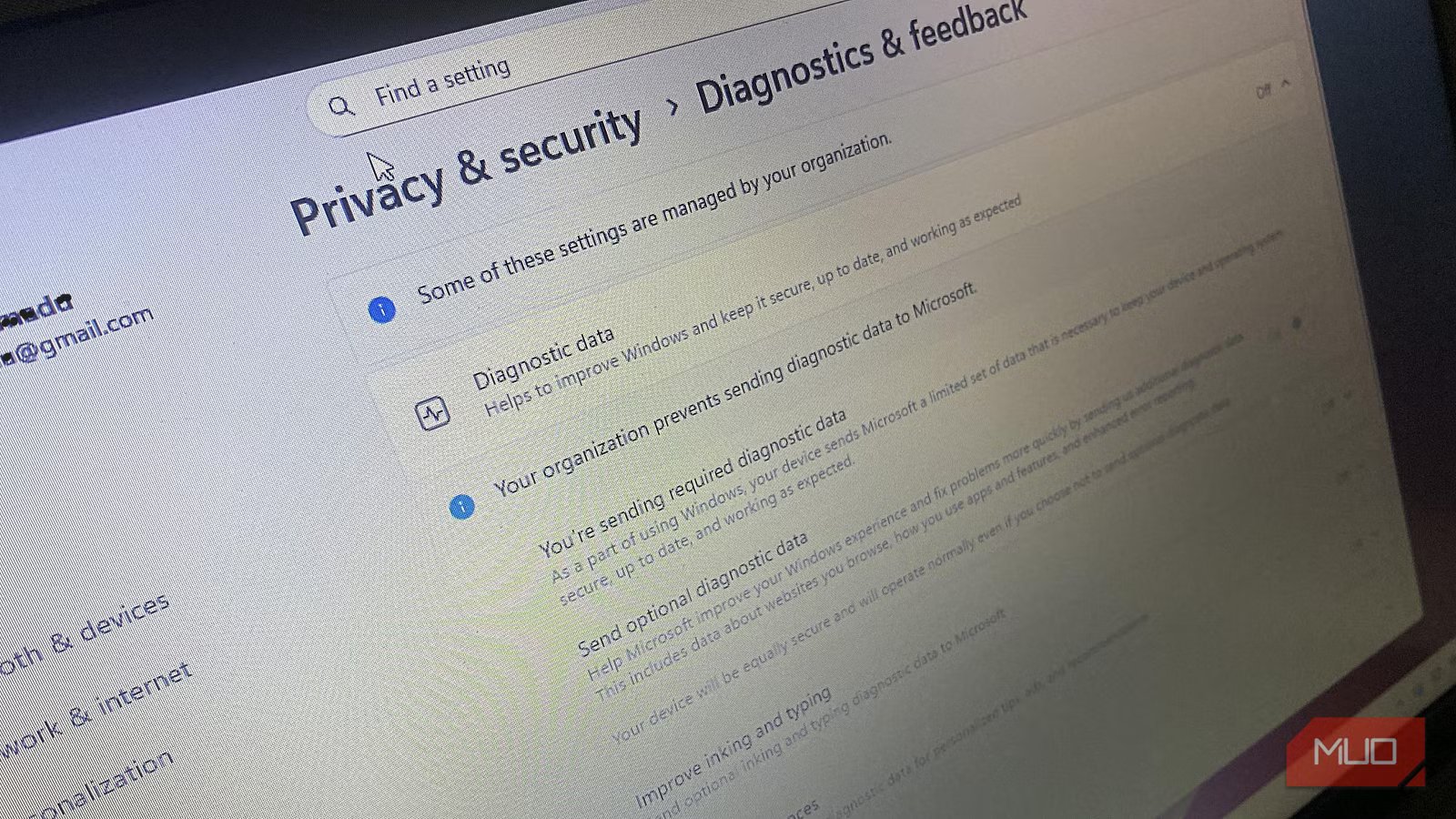
Microsoft collects diagnostic and usage data, and Connected User Experiences and Telemetry is the core Windows 11 service that collects it. The data it sends helps Microsoft know if a device is compatible with future updates, and it also tracks how reliable the device is. Although Connected User Experiences and Telemetry isn’t new, Windows 11 relies on it more than earlier Windows OSes.
On Windows 11, this service also gathers system events and stores diagnostic artifacts locally. It’s also responsible for pushing deeper analysis when needed by handing over certain workloads to companion components. Microsoft uses this architecture because it enables the system to gather telemetry without running all processes concurrently.
However, this is an implementation that makes it hard to spot the service until it misbehaves. It doesn’t constantly leave a trace in Task Manager; it only appears when the OS decides something needs checking. In theory, it’s an efficient implementation, but in reality, it creates spikes out of the blue.
Telemetry is event-driven, not passive
Afam Onyimadu / MUO
Connected User Experiences constantly monitors your system and responds to certain events, including Windows updates, driver changes, and application installations. In some cases, it also reacts to idle maintenance windows.
It causes spikes because the service ramps up quickly once it’s triggered, allocating memory to process collected data and releasing it once the task ends. So, even without visible active applications, you get a spike one moment, and it’s gone the next. If your system has a lot of free memory and fast storage, you probably wouldn’t notice anything.
Windows 11 telemetry work may run within shared Service Host processes, without attributing memory usage to any clearly labeled service, making these spikes tricky and easily misinterpreted. Your minor slowdown may actually be a telemetry workload you didn’t catch.
The compatibility scanner that quietly does the heavy lifting
Where CompatTelRunner fits into the picture
CompatTelRunner.exe is one of the most resource-intensive components of Windows telemetry. This executable is a compatibility assessment tool that scans installed apps, drivers, and system files to determine whether a device meets the requirements for future updates.
This is a major process where CompatTelRunner.exe checks version data and reads large numbers of files to compare the results against Microsoft compatibility rules. It leads to memory spikes, which are more severe when the system has a long update history or several installed programs.
CompatTelRunner is typically activated after Windows updates, when there are significant system changes, or during background maintenance. Other times, it’s idle and easy to overlook. Running it on a computer that’s up to date and stable doesn’t offer any concrete benefits, but it consumes a lot of memory.
Why the spikes are hard to trace in Task Manager
Telemetry doesn’t always show up under its own name
Afam Onyimadu / MUO
The Connected User Experiences service runs inside svchost.exe (Service Host process), which groups its activities with other Windows components, making it hard to track. So when these spikes occur, you’ll see rising memory usage in Task Manager, but you wouldn’t be able to identify telemetry as the problem.
It’s even trickier because manually ending tasks won’t fix it, since telemetry on Windows 11 is a persistent system function. This means scheduled tasks and service triggers will automatically restart the Connected User Experiences service. Rebooting the computer also won’t help, since the services restart when the OS deems it necessary.
It’s this persistent nature that makes it feel random. Solutions that work for other memory spikes only stall it at best. You also cannot associate a specific action with the spike, since the service doesn’t respond to user input. If you don’t check Services, scheduled tasks, or system logs, you’d assume it’s triggered by unrelated apps or Windows 11 inefficiency.
Related
6 ways to free up RAM in Windows when your PC starts slowing down
Freeing up vital memory on Windows only takes a moment, and your computer will feel much faster once you’re done.
What disabling the service actually changes
When you disable Connected User Experiences, Windows stops gathering and sending most diagnostic and usage data. This means compatibility telemetry, feedback metrics, and certain crash-related reports will no longer be sent from your system. It’s one of the ways you can safeguard privacy on Windows 11.
It doesn’t stop Windows Update, device activation, Microsoft Defender, or core system functionality. So the only difference is that your system stops waking up for compatibility scans or batch diagnostic processing during idle periods. I finally have a system with predictable and stable memory usage. However, if you rely on preview builds, frequent troubleshooting, or Microsoft feedback tools, this isn’t a fix you should consider.
