

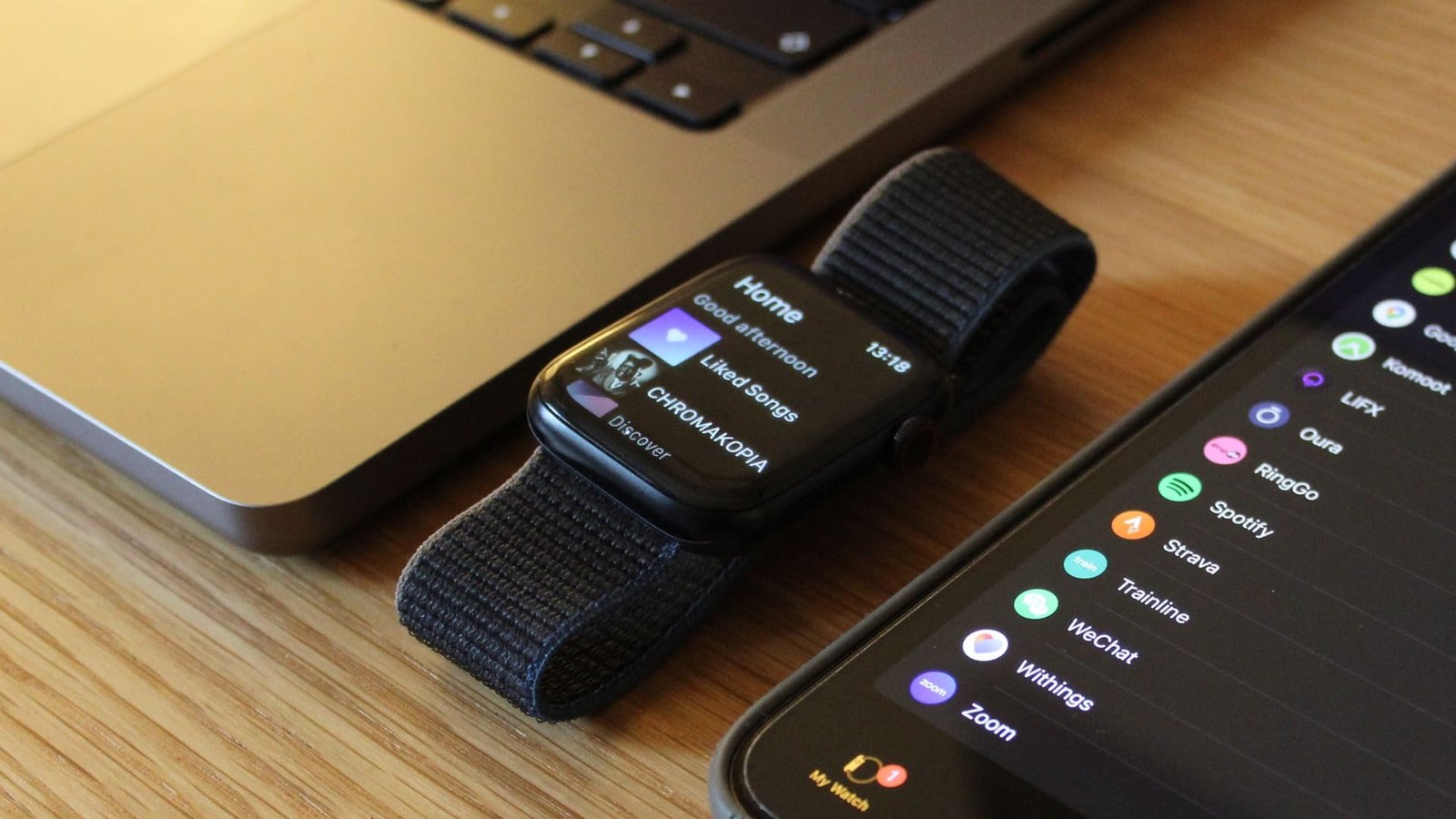
Learn how to download music for offline listening, troubleshoot issues, and more
Spotify subscribers with an Apple Watch can download playlists, podcasts, albums, and tracks straight to the smartwatch for offline listening.
You can also access Spotify Connect and control playback via LTE or Wi-Fi directly from the wrist, creating a seamless listening experience. If you own the Apple Watch Series 11 or Apple Watch Ultra 3, you can even use the speaker to play Spotify tunes out loud.
This guide explains these tricks in detail, helping you make the most of the Spotify Apple Watch app.
How to download the Apple Watch Spotify app
(Image credit: Wareable)
Advertisement
Before we get into our set of tips on mastering the Spotify app on Apple Watch below, let’s cover the basics.
How to download Spotify to the Apple Watch
- Open the Apple Watch app on your iPhone.
- In the ‘My Watch’ tab, under the heading ‘Installed on Apple Watch’, check if Spotify is already downloaded. If it isn’t installed on your Apple Watch, scroll down to the ‘Available Apps’ section and hit ‘Install’ on Spotify.
- On your Apple Watch, open the app grid and find Spotify. The app will also open automatically when you start playing music from your iPhone.
Don’t forget that most models won’t play music out loud. Instead, you’ll need to learn how to connect Bluetooth headphones to the Apple Watch.
1. Download Spotify content for offline listening
(Image credit: Wareable)
You can easily download Spotify content to your Apple Watch, allowing you to listen on the go without requiring a phone connection or LTE.
In addition to an active Spotify Premium subscription, there are a few requirements.
Advertisement
For Spotify on the Apple Watch to work, you need an Apple Watch Series 3 or later running watchOS 7 or later, an LTE or Wi-Fi connection, and an iPhone running iOS 12 or later.
Follow these steps to download Spotify content to your Apple Watch:
- Make sure you’re running the latest version of the Spotify app on your phone or tablet; this will ensure your Apple Watch is up to date as well.
- In the Spotify app on iPhone, open a playlist or album you want to download, tap the three-dot menu, and select ‘Download to Apple Watch’.
- In the Spotify Apple Watch app, swipe right to find the ‘Downloads’ folder.
- Downloaded content will be indicated by a green arrow if successful.
2. Browse Spotify playlists and tracks
(Image credit: Wareable)
The Spotify app on the Apple Watch provides comprehensive playback and browsing controls.
Swiping right opens the ‘Home’ dashboard, similar to the smartphone or desktop app, showing your recent listens and Spotify recommendations. You can scroll through the page using your finger or the digital crown.
Advertisement
You can also swipe left to open ‘Your Library,’ and view saved playlists, podcasts, artists, and albums, or browse its contents and play any track you want.
3. Quickly add songs to your Spotify library
(Image credit: Wareable)
You can add music to your library directly from the Apple Watch screen.
The prominently placed tick can be tapped to turn green, and the track will be added to your account’s Liked Songs.
As on other devices, retapping the tick will remove it from your library and Liked Songs.
4. Go phone-free and stream over LTE
Spotify allows users to stream music without their iPhone nearby, but they will need an LTE connection if the playlist, song, album, or podcast hasn’t been downloaded to the Apple Watch beforehand.
Advertisement
If you have a cellular plan set up for your Apple Watch, the smartwatch’s Spotify app will stay connected even when you’re away from your iPhone, giving you full control over it. You don’t need to do anything.
5. Control Spotify on Apple Watch using Siri
Spotify provides hands-free control via Apple’s smart assistant, Siri, offering easier access.
To have Siri play something from your Apple Watch, just ask it to assist you with the following:
- Play your favorite songs, playlists, podcasts, artists, and albums
- Adjust volume, play/pause, and skip tracks
- Play Discover Weekly
- Add songs to your library by ‘liking’ the current track
6. Control playback on other devices
(Image credit: Wareable)
Advertisement
You can automatically control playback on your linked account from your smartwatch, whether you’re listening through your phone, a wireless speaker, or a gaming console.
Even if you’re playing something from your phone, the Apple Watch Spotify app will automatically open when you raise your wrist – providing you do the following things:
- Ensure you have the latest version of the Spotify app downloaded on your Apple Watch, phone, laptop, or tablet
- Ensure your Apple Watch and the device you’re trying to control are connected to the same Wi-Fi network
Reinstall the Spotify app if you encounter issues
(Image credit: Wareable)
Diagnosing issues and bugs with the Spotify Apple Watch app can be tricky—and, thankfully, in our experience, they don’t occur too often.
However, on the few occasions it has stuttered over the years, we’ve learned that the only reliable fix is to uninstall and reinstall the app.
Advertisement
The most common issue we encounter is offline downloads getting ‘stuck’. As shown in the example above, our ‘On Repeat’ playlist wouldn’t progress past 17/30 downloaded tracks for a few days, and we also couldn’t download anything else, like a podcast episode.
In a situation like that, a quick reinstall—done via the Apple Watch’s on-device App Store—has always resolved our issues.
Of course, checking the obvious—such as whether the Apple Watch is connected to your iPhone via Bluetooth or the Wi-Fi connection is stable—is also a good first step before proceeding.
