

Every fresh Windows install involves removing bloatware, turning off telemetry, and digging through settings menus to get things the way you want them. It’s tedious, and the time adds up when you do it across multiple machines. Chris Titus Tech’s WinUtil is a free, open-source PowerShell utility that wraps all of this into a single interface.
It debloats Windows, fine-tunes privacy and performance settings, and even bulk-installs your essential apps. I run it on every Windows PC I set up, and at this point, it’s as much a part of the process as removing unnecessary pre-installed Windows programs.
What WinUtil is and why it’s worth your time
This free, open-source script handles what Windows won’t
WinUtil is a PowerShell-based utility created by Chris Titus Tech and maintained on GitHub. You can use it to debloat Windows, tweak system settings, install programs in bulk, and configure updates, all without touching a single registry key yourself.
What makes WinUtil worth using is that it consolidates hours of manual work into one place. It works on both Windows 10 and 11, and because it’s open-source, you can inspect every script it runs before applying anything. That transparency matters — especially when a tool is modifying system-level settings. I wouldn’t grant that level of access to a closed-source app, but WinUtil’s code is public and regularly reviewed by its community.
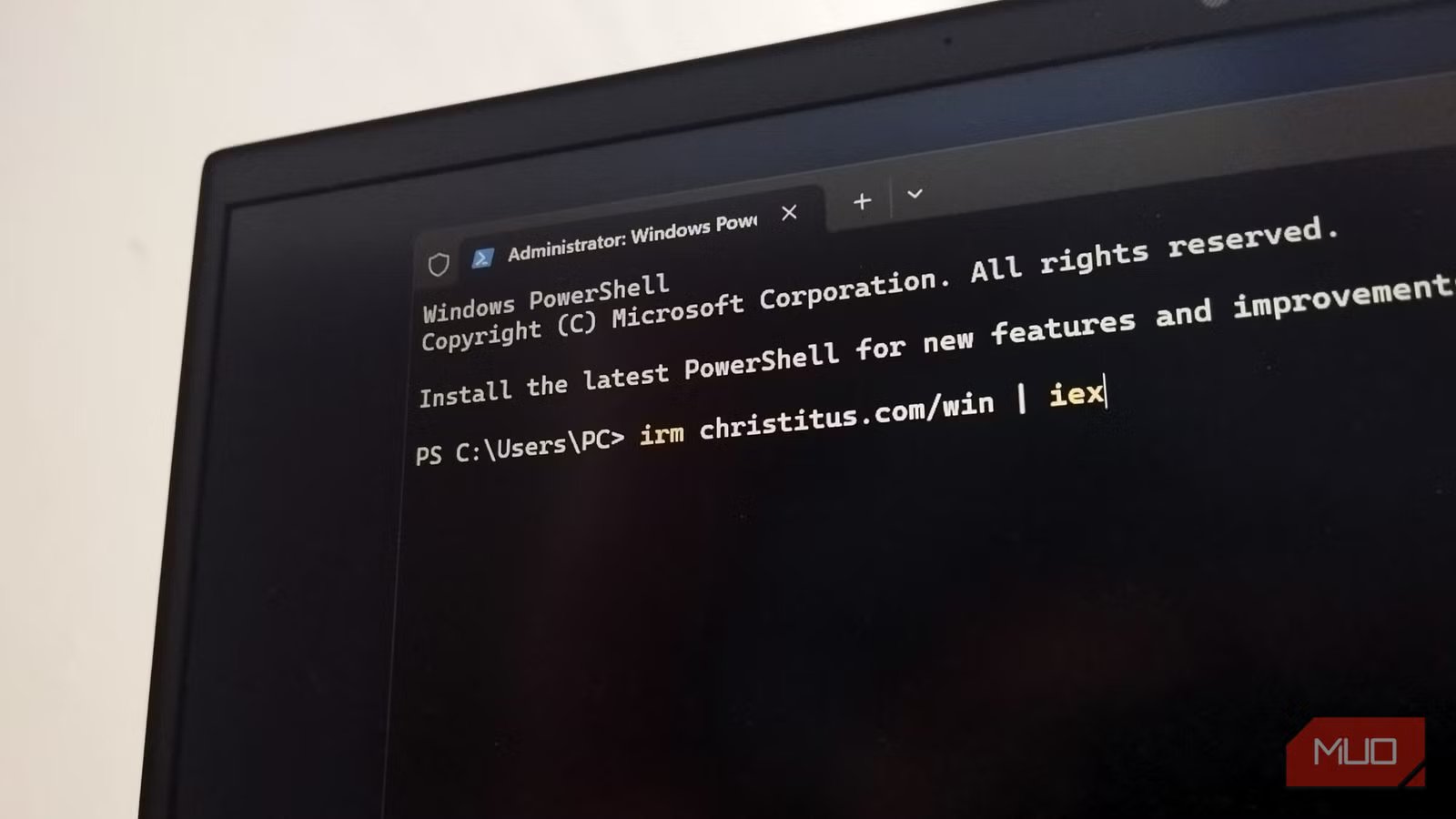
It’s not a traditional app you install — you launch it with a single command in an elevated PowerShell window:
- Press Windows + S and search for PowerShell.
- Right-click Windows PowerShell and select Run as administrator.
- Type irm christitus.com/win | iex and press Enter.
Running the command opens a full graphical interface. The tool is also actively maintained with frequent updates. That’s a big deal, because Windows changes with every major update, and tweaks that worked six months ago might not apply anymore. WinUtil keeps pace with those changes, which means you’re not relying on outdated advice. There are also other open-source tools for stripping bloatware out of Windows, but WinUtil covers more ground than most.
Debloating Windows has never been this easy
WinUtil strips out the apps and services you don’t need
The Tweaks tab is where WinUtil earns its keep. It lists optimizations under two categories, Essential Tweaks and Advanced Tweaks, with checkboxes next to each one. You can pick individual tweaks or use the preset buttons at the top (Standard, Minimal, or Clear) to apply a curated batch at once. I usually go with Standard, which covers the most common annoyances without being too aggressive.
Essential Tweaks include options like Disable Telemetry, Disable Consumer Features, Disable Activity History, and Delete Temporary Files. These are changes most people want on a fresh install, but would otherwise have to hunt down across multiple Settings menus and registry paths, which is one of the biggest reasons you should remove Windows bloatware in the first place. Here, you check a few boxes and hit Run Tweaks.
The Advanced Tweaks section requires more caution. Options such as disabling background apps, blocking Adobe’s network connections, and turning off IPv6 are labeled with a “CAUTION” header for good reason — they can break specific workflows. I’d recommend reading each tooltip before applying anything from this list.
On the right side, a Customize Preferences panel lets you toggle things like Bing Search in the Start Menu, Snap Assist suggestions, and file extension visibility. Small changes, but they noticeably improve the daily experience.
Best of all, the Undo Selected Tweaks button at the bottom lets you reverse individual changes without restoring your entire system. That safety net makes experimenting far less intimidating.
The privacy and performance tweaks alone make it worth running
You can fine-tune telemetry, background services, and more
Windows collects a lot of data by default — telemetry, activity history, location tracking, and diagnostic information all run quietly in the background. Individually, disabling each one requires navigating through Privacy & Security settings, Group Policy Editor, and sometimes editing the registry. WinUtil puts all of these behind single checkboxes, so you can shut them off in seconds rather than spending an afternoon on it.
On the performance side, options like Set Services to Manual, Run Disk Cleanup, and Disable GameDVR make a tangible difference, especially on older or budget hardware. Setting services to manual mode means Windows runs them only when needed, rather than keeping them active at all times, which frees up system resources.
I also like that WinUtil separates its Customize Preferences toggles from the deeper tweaks. Disabling things like Recommendations in the Start Menu, removing the Settings Home Page, and turning off mouse acceleration aren’t privacy or performance fixes in the traditional sense. Still, they strip away distractions that slow you down in a different way.
The point here is straightforward. Windows ships with settings that prioritize Microsoft’s data collection and feature promotion over your experience. WinUtil flips those defaults in your favor.
WinUtil also handles Windows updates and system configurations
Managing updates and fixing system issues is built right in
The Updates tab gives you three straightforward options for how Windows handles updates. Default Settings keeps everything as Microsoft intended. Security Settings delays feature updates by 365 days while installing security patches after four days — a balanced approach that keeps you protected without forcing half-baked feature rollouts on your machine. The third option turns off all updates, but WinUtil flags this with a clear warning: your system will be vulnerable without security updates.
The Security Settings option works best on Windows Pro editions, since it relies on Group Policy.
The Config tab is equally handy, though for different reasons. It provides quick access to legacy Windows panels, Control Panel, Network Connections, Power Panel, and System Properties, which Microsoft has been slowly burying behind the modern Settings app. If you’ve ever wasted time searching for a specific setting that used to be two clicks away, this panel solves that problem.
Config also includes a Fixes section with options like Reset Network, System Corruption Scan, Reset Windows Update, and WinGet Reinstall. These are common troubleshooting steps that normally require typing commands into PowerShell. Having them as one-click buttons is convenient, especially when you’re diagnosing issues and don’t want to look up the differences between CHKDSK, SFC, and DISM every time.
A few things to keep in mind before running WinUtil
It’s powerful, but you should still be careful
WinUtil modifies system-level settings, so creating a restore point before running any tweaks is a good idea. The tool actually includes a Create Restore Point checkbox under Essential Tweaks, so there’s no excuse to skip this step.
Also, not every tweak applies to every setup. If you rely on OneDrive for syncing, don’t turn it off. If you use Xbox features, leave GameDVR alone. WinUtil gives you control, but that means the responsibility of knowing what you actually use falls on you. When in doubt, stick with the Standard preset and leave the Advanced Tweaks section for when you’re more familiar with what each option does.
