

Cleaning up storage on my devices is oddly satisfying. Recently, I managed to recover nearly 5GB of system storage on my Android device using a free open-source tool, and a hidden Android menu helped me free up even more space. My MacBook, however, did not offer the same obvious options. That is when I started digging around and realized just how many duplicate files were quietly piling up.
These files do nothing but quietly eat up your storage, and no one wants their laptop running out of storage space because of clutter they did not even know existed. I knew my music folder, in particular, was guilty of housing far too many duplicates. That is when this free tool came to my rescue. It did just identify duplicate music files; it helped me clean up duplicates across my entire system. It is an easy way to reclaim a significant chunk of storage without any hassle.
Related
Here’s how I deep clean my Windows PC
I spend one day each year to keep my Windows PC running like new.
A closer look at this duplicate finder
Smart enough to spot copies
Credit: Shimul Sood / MakeUseOf
dupeGuru is a free utility that scans your system for duplicate files across folders like Photos, Music, and general folders. Once the scan is complete, it does not rush into deleting anything. Instead, it shows you every duplicate it finds and lets you decide exactly what to do with them. For instance, if your music library has the same song saved multiple times, dupeGuru compares metadata such as track name, artist, and album tags to identify duplicates. This is especially helpful if you have imported music from different sources over the years and ended up with multiple copies of the same track.
When it comes to photos, the approach is slightly different. Rather than relying solely on file names, dupeGuru uses fuzzy matching to scan images. This means it can surface photos that look almost identical, like multiple shots of the same scene taken seconds apart or maybe edited versions of the same images. If two photos feel more or less the same to you, you can choose to delete one. If they are actually different or important, you can simply keep both.
It also offers several safe actions, such as marking files, moving them to another folder, deleting them, or even creating links to those files. These options make it easier to separate original files from duplicates without accidentally losing something important. In short, dupeGuru surfaces all potential duplicates, but the final call is always yours. Nothing is removed without your approval.
This tool works on macOS, Windows, and Linux. I am currently using this free utility on my MacBook.
A careful way to spot and sort duplicate files
The first step is to download this open-source tool on your laptop. dupeGuru offers separate downloads for macOS, Windows, and Linux, so make sure you pick the correct version for your system.
On my MacBook, the app did not open immediately. macOS flagged it with a warning saying the app could not be checked for malicious software and might pose a risk to privacy or system security. If you see a similar message, do not panic. Simply head to System Security, then go to Privacy & Security, scroll down, and click Open Anyway to launch dupeGuru. This app is widely considered safe, and its open-source status adds an extra layer of transparency and trust.
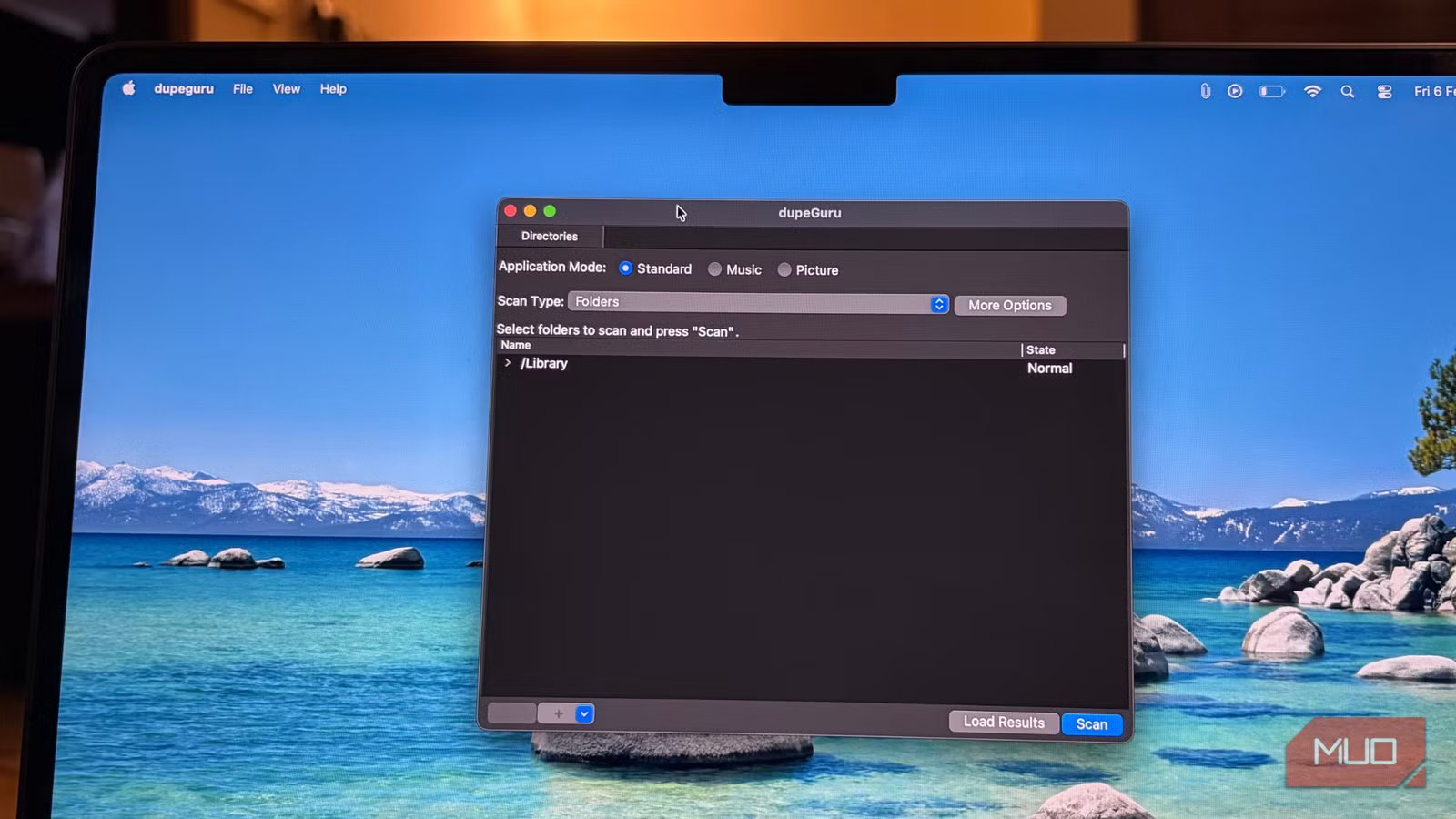
Once the app is up and running, open it, and you will see three different modes: Standard, Music, and Picture. Each mode is designed to handle a specific type of file more intelligently.
Start with the Standard mode. Select the scan type, choose the folders you want to scan, and click Scan in the bottom-right corner. If you want more control, click on More Options to fine-tune the scan. For instance, I chose to mix the file kinds, ignore files smaller than 10KB, and select specific locations for moving or copying files. You can also adjust what appears on the display to keep the results clean and manageable.
Credit: Shimul Sood / MakeUseOf
The same workflow applies to Music and Picture modes, but it is important to select the right scan type for each. For music files, scanning Tags work best, while photos are more accurately compared using EXIF-timestamps. These settings help dupeGuru identify genuine duplicates instead of unrelated files that just happen to share a name.
Once your modes, filters, and scan types are set, all you have to do is click Scan and let dupeGuru do its thing. When the results appear, the control shifts back to you. You can review each file, decide what stays, and remove only what is truly necessary.
The best approach is to take your time, go through the files carefully, and delete only those that are no longer serving any purpose. That way, you free up space without risking something you might need later.
Related
I cleaned 200GB of hidden junk using a Windows tool no one talks about
A quick storage scan revealed 200GB of junk Windows completely overlooked.
Letting the smart scanner do the searching
There are plenty of ways to clean up storage on any device. In some cases, something as simple as clearing out a single neglected folder can free up close to 20GB of space on a Windows machine. And that is just one example. Every platform has its own shortcuts and hidden tricks. That said, this is one of the easiest ways to find duplicate files without doing anything yourself. dupeGuru uses its algorithm to surface what is actually taking up space and presents it to you in a clear, manageable way. From there, control remains entirely in your hands.
Music libraries and photo folders are especially prone to duplicates, and cleaning them manually can be equal parts time-consuming and frustrating. Replacing the effort with a free utility that does the scanning, sorting, and grouping for you is what truly makes this tool stand out.
OS
Windows, macOS, Linux
Price model
Free
dupeGuru finds duplicate files using the fuzzy algorithm. It works on Linux, Windows, and macOS, and can be used on all sorts of files, including documents, audio, and video.
