

While AI is becoming more and more commonplace in daily life, I’d prefer not to have it on my PC if at all possible. I can’t deny that Copilot and Recall aren’t helpful — they do offer great things for those who want to use them. But rather than having the option to opt in to these AI features, they’re enabled by default on modern Windows PCs. Outside of installing a whole new operating system, there are at least a few ways to remove these AI features from your desktop or laptop.
Helpful AI is something that I think could be great for accessibility features for users. I’d rather see it used helpfully than to just generate videos of Will Smith eating spaghetti. But at the end of the day, I feel a bit better knowing these are off my PC.
Before we start, what are Copilot and Recall?
Knowing what you’re removing before you start could be the first step
Credit: Brady Snyder / MakeUseOf
If you’re looking to remove Copilot and Recall from your PC, you likely already know what they offer. But if you’re curious to discover what these AI-assisted features entail, I’m here to help with that. Copilot is available on all Windows 10 and Windows 11 devices, and operates as a cloud-based AI assistant that can take notes, generate text, and help with the Microsoft Office suite of applications. Have a lengthy email that you don’t want to read? Users can have Copilot summarize it for them with just a few button presses. It’s nifty, but not for me.
Recall, on the other hand, is only available on devices that are Copilot + certified. This means that the device ships with a dedicated Neural Processing Unit, or an NPU, built into the system. Recall is a feature that uses “photographic memory” to save states on your device, allowing users to access them whenever they’d like. I don’t like the sound of that in the slightest.
OS
Windows 10/Windows 11
Developer
Microsoft
Version
5
Services
AI Assistant
Getting rid of Copilot is actually extremely easy
Making sure it stays away can be considered the hard part
Copilot, while it does have its uses for some users, isn’t my cup of tea. Being built in directly to the Windows operating system, I was initially terrified to imagine how much of a pain it was going to be to remove. It turns out that uninstalling both Copilot and Microsoft 365 Copilot was incredibly easy. Open your Control Panel, head to Apps, and access your Storage settings. Under Installed Apps, search for Copilot, and you’ll find the option to uninstall both of these AI assistants from your PC.
While this does uninstall the program, subsequent Windows updates may automatically reinstall Copilot. It’s been built into the OS at this point, and Windows wants its users to take advantage of it. Using a PowerShell script like zoicware’s RemoveWindowsAI can completely remove it for the time being, and it’s constantly being updated to match the latest Windows versions. It’s annoying that we have to go this far to remove the AI features, but there’s always bound to be someone out there with the technical smarts to know how to bypass these things.
Before running this PowerShell script, be sure to create a backup of your PC. While I haven’t experienced any issues, it’s always good to have a backup in case something goes wrong during the removal process.
Getting rid of Recall, on the other hand…
It’s easy to do with the aforementioned PowerShell script, but some users may be out of luck
While Copilot may be slightly innocent in the grand scheme of things, a lot of users may not like knowing that Microsoft is essentially “monitoring” their PC and what they’re doing on it with Recall. If you’ve bought a PC in the past few years and you want to ensure that you’ve turned Recall off, we have a comprehensive guide to check if Recall is on your device. If you’ve built your own device, there’s a good chance your motherboard may not have an NPU on it, but be sure to check either way.
As of March 2025, Recall can be turned off in your settings menu. But for the more wary folks, you can also use Terminal or PowerShell to check on the status of Recall after you’ve turned it off. By typing in the following command — DISM /Online /Disable-Feature /FeatureName:”Recall” — you can fully disable Recall with Admin-level clearance. You can also run the PowerShell script mentioned above to completely remove any traces of Recall.
Related
You Should Uninstall These 5 Windows Apps Right Now
You surely won’t miss these apps!
You can simply disable these programs as well
That’s a much simpler option for those who don’t want to mess around
Credit: Brady Snyder / MakeUseOf
Now, let’s say you don’t want to use CoPilot or Recall, but don’t mind these programs just hanging out on your PC. If you’ve purchased a PC that is Copilot + enabled, you can simply disable the Copilot and Recall features. Before running the PowerShell script linked above, that’s what I had been doing to ensure that I wasn’t using these AI features. Kind of an “out of sight, out of mind” situation. If I ever wanted to see what they were capable of? I could enable the features and proceed from there.
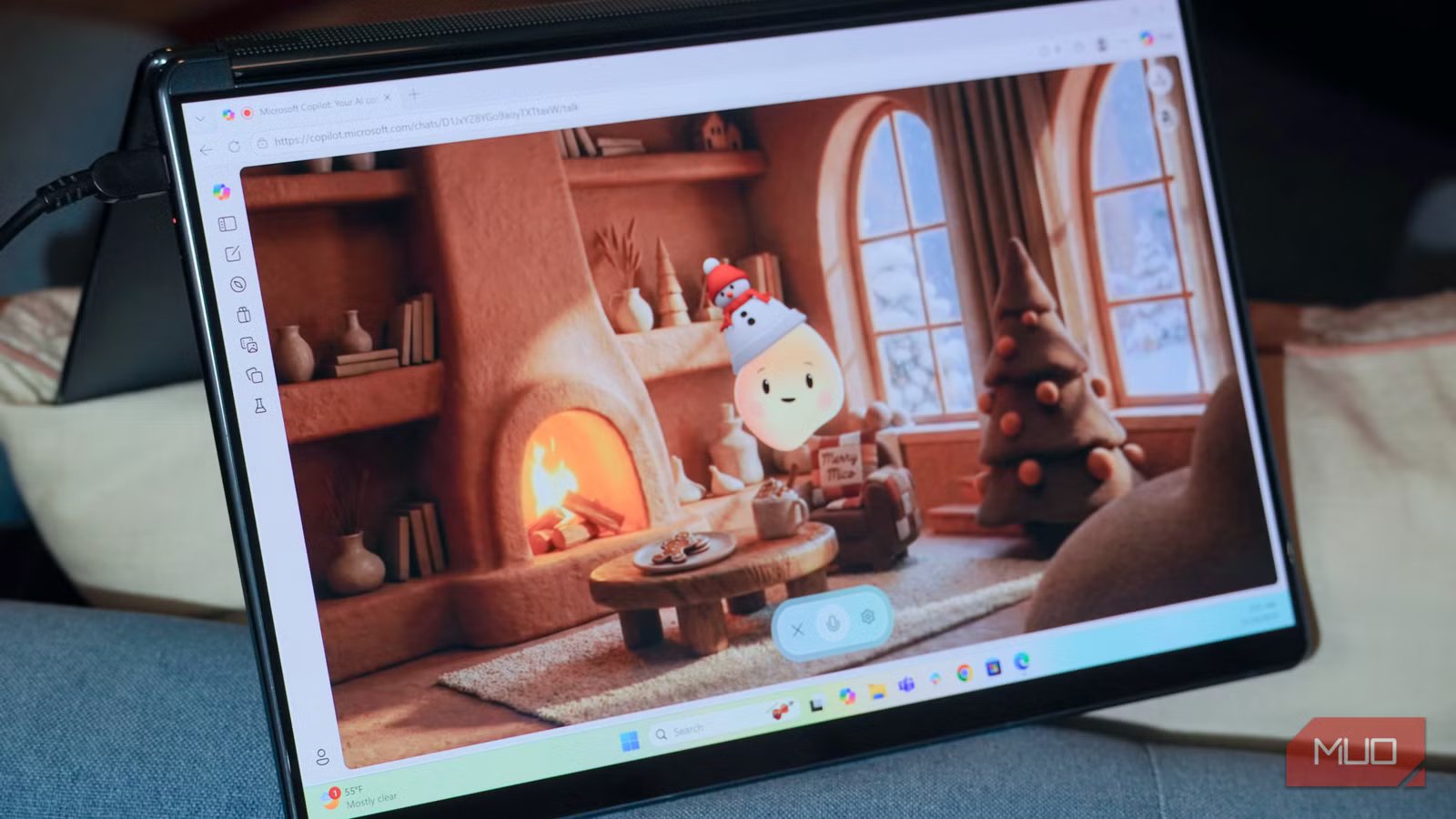
To be fair, I can see how Copilot may be useful for those with accessibility issues. Being able to dictate commands to your PC via your voice could be incredibly handy for folks with mobility issues, and a human-sounding voice that can read off your emails may be great for those with sight issues. There’s even a little “virtual pet” version of Copilot, but it freaks me out a little too much. Recall, on the other hand, just feels a bit too “Terminator” for me, and I would be turning that off as soon as possible.
Copilot is here to stay, at least until the AI bubble pops
This isn’t the first, and likely won’t be the last, voice assistant on Microsoft systems
Almost everywhere you look, there’s some new form of AI available. No matter if you’re searching the web, trying to find pictures, or even just using your phone. Some AI is waiting around the corner. But this isn’t the first time we’ve had a random voice assistant on our Windows PCs.
Remember Cortana? She was discontinued in 2023, and I wouldn’t be surprised to see Copilot replaced with something else in the future, too. Even YouTube is hopping on the AI trend with “mood-generated playlists”, and we’ll see more AI in the future. But for now, being able to take control and remove these options is still possible.
