

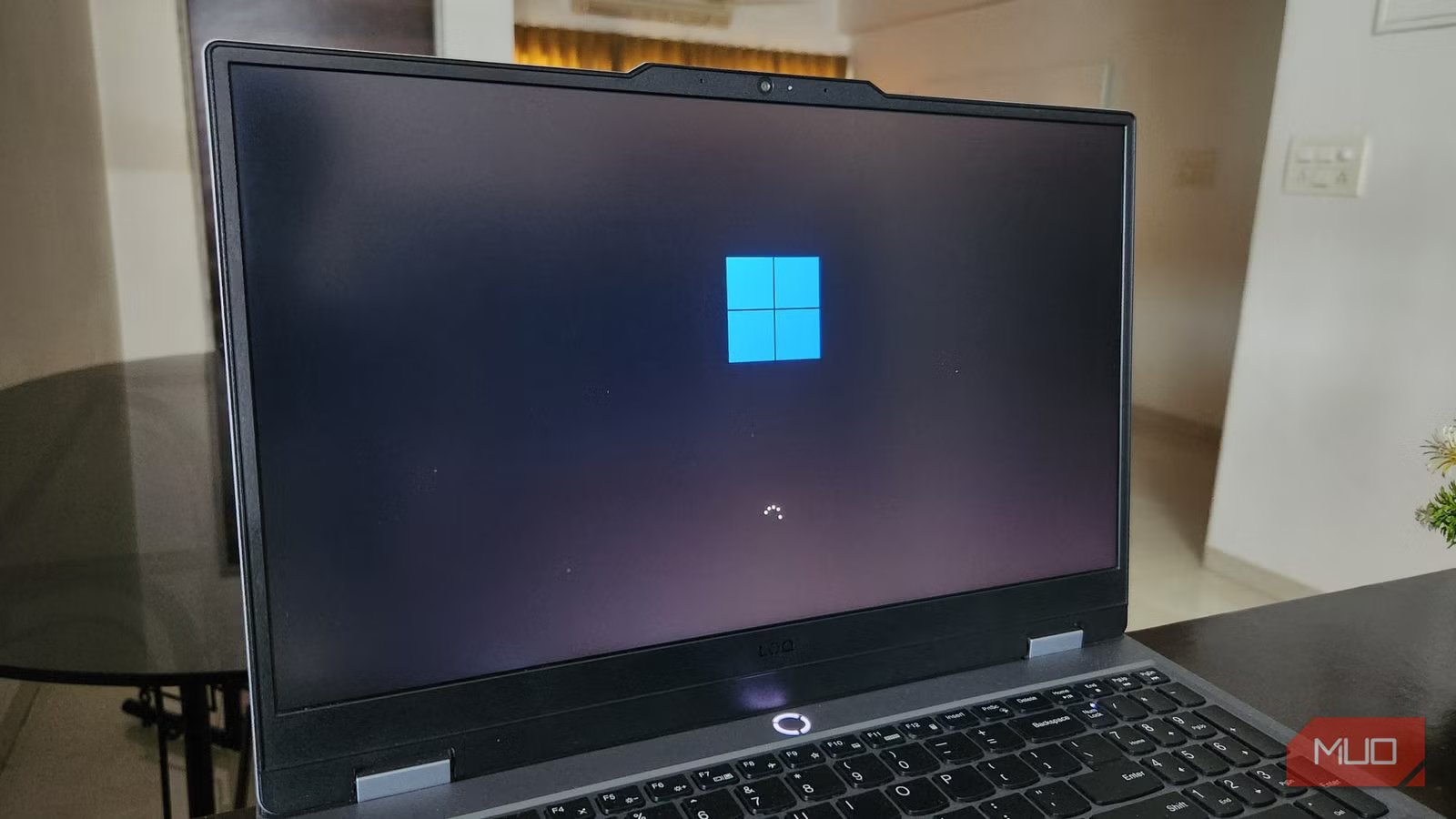
You click shut down after a long day, see the screen go dark, the keyboard lights fade out, the fans wind down, and you walk away thinking tomorrow starts with a clean slate. I hate to break it to you, but that fresh start you’re hoping to come back to is often more theater than reality.
Hidden in Windows’ power settings is a leftover feature that favors speed over a true reset. Known as Fast Startup, it blurs the line between a shutdown and hibernation, and leaving it enabled can work against you in ways you might not notice right away.
Fast Startup acts like a pause button rather than a true system shutdown
Your PC is sleepwalking, not sleeping
Tashreef Shareef / MakeUseOfCredit: Tashreef Shareef / MakeUseOf
When Microsoft rolled out Fast Startup during the Windows 8 era, it addressed a very real pain point. At the time, most PCs were still running on mechanical hard drives, and booting up meant listening to those spinning platters click and whir for what felt like an eternity before you could even open a browser. To ease that pain, Windows adopted a hybrid shutdown trick. Instead of wiping everything and starting from scratch, the system began saving a snapshot of its core kernel and loaded drivers into a special hibernation file on your drive. This file often sparks debate over whether to delete hiberfil.sys file in Windows.
That was actually a smart idea. When you power the PC back on, Windows skips a large portion of the startup routine and reloads the saved snapshot into memory. I used to recommend leaving it on because the speed boost felt quite tangible. But once you look a little closer, you’ll see that with this hybrid approach, your computer never really clears its operational throat between sessions.
A useful analogy is leaving your desk exactly as it was at the end of the day. You can sit back down and get to work right away the next morning, but the clutter, half-finished notes, and misplaced pens are all still there. On a PC, that clutter shows up as lingering memory leaks, background hiccups, and performance that slowly erodes over time. You can even see the lingering session in Task Manager when you use one of the ways to check your device’s uptime. The uptime counter keeps climbing for days or weeks, even if you shut down every night. If an app goes rogue or a background service crashes, a shutdown won’t clean up after it. The issue is preserved in the hibernation file and restored at the next startup.
Related
Yes, It’s Okay to Hibernate Your Windows PC
Don’t buy the myths.
The bigger issue is that the hardware world has moved on. Fast Startup was built for an era that no longer exists. The market is now saturated with SSDs and NVMe storage that can read and write data at absurd speeds, making a true cold boot really quick. At that point, the marginal time savings of Fast Startup no longer justify the cost. Skipping a clean initialization offers little benefit while eroding long-term system stability.
Disabling this feature resolves hidden update failures and hardware conflicts
Untangling the mess behind the scenes
Beyond the slow creep of performance issues, keeping your PC in this half-awake state can interfere with basic system maintenance. One of the strangest problems I see shows up with Windows updates that refuse to install properly. Many critical security patches require a full kernel restart to take effect properly. Fast Startup blocks that from happening, which can leave your system stuck in update limbo or, worse, behaving oddly as old drivers bump into newer software that expects a clean slate.
The trouble doesn’t stop at software. Hardware interactions can get messy, too. If you like experimenting with dual-boot setups, maybe Windows alongside Linux for development work, Fast Startup gets obstructive. When Windows saves its state during shutdown, it effectively locks the NTFS partition to prevent data corruption. Your other operating system may refuse to mount the drive, which is one of the most common reasons a dual-boot option is not showing, or you can’t access your files from the other side.
Even something as basic as accessing your BIOS or UEFI settings becomes harder than it should. Because the startup process is compressed, the window to press the right key is easy to miss. You often end up detouring through recovery menus to tweak a setting. Turning off Fast Startup restores your machine’s natural, predictable rhythm. When you tell your computer to power off, it actually powers off. All temporary files are dumped, all hardware connections are severed, and the RAM is completely flushed.
The good news is that reverting to a proper shutdown isn’t complicated, even if Microsoft has tucked the option out of sight. Here’s how to do it.
- Search for and open Control Panel –> Hardware and Sound –> Power Options.
- Select Choose what the power buttons do on the left-hand navigation pane.
- Click the administrative shield icon labeled Change settings that are currently unavailable to unlock the grayed-out options below.
- Uncheck the box next to Turn on fast startup (recommended) and click Save changes.
Once you save those changes and shut down, your PC will finally experience its first real slumber in what might be months or even years. Your machine does a great deal of work behind the scenes to support your day. So, allowing it a proper shutdown at night is one of the easiest ways to keep it stable, responsive, and ready for whatever comes next.
Sweet dreams are made of cold boots
You’ll likely notice some immediate improvements beyond just the absence of previous problems. Your computer will feel more responsive after each boot because nothing is being carried over from previous sessions. System uptime will reset correctly, which is particularly useful if you’re troubleshooting performance issues or if your organization tracks uptime for maintenance purposes. Windows updates will install as intended, dual-boot systems will function smoothly, and hardware will initialize reliably.
If you ever want to re-enable Fast Startup, you can repeat these steps and check the box again. But in my experience, you’re not likely to. The peace of mind knowing your computer is truly shutting down outweighs those few saved seconds that Fast Startup promised but rarely delivered without consequence.
