

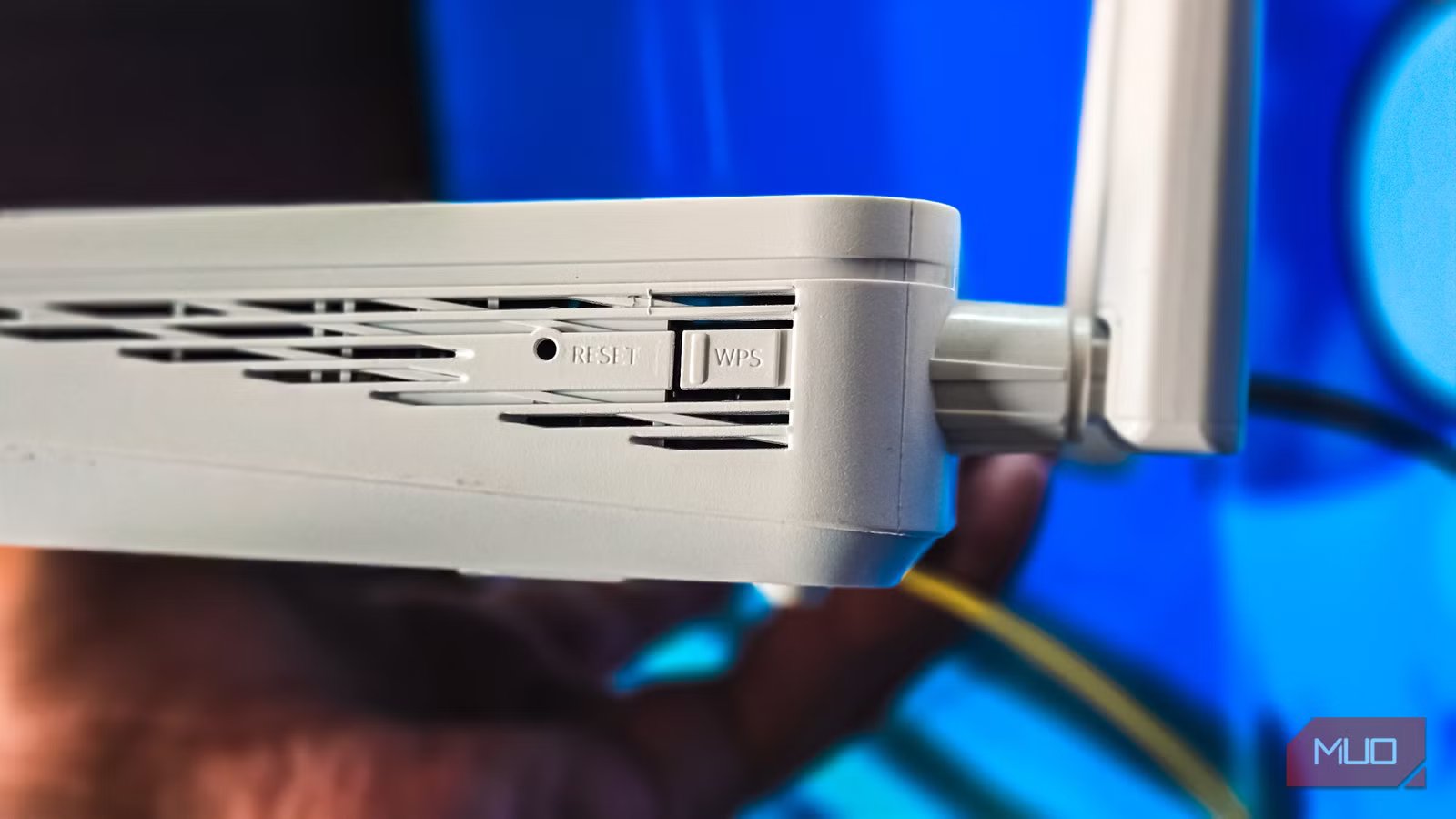
Both UPnP and WPS features on your router are similar in the sense that they let you automate network setup. While WPS simplifies adding a device to a Wi-Fi network without needing to type the WPA2/WPA3 password, UPnP simplifies port setup by letting devices auto-discover each other and automate port configurations. Another similarity between these features is a history of security issues that can facilitate unauthorized Wi-Fi access and malware attacks.
But after seeing how easily UPnP can silently expose devices to the internet and how quickly WPS PINs can be cracked, I disabled both as part of the router settings that I always change.
Why you should disable UPnP
It lets any device punch holes in your firewall
Tashreef Shareef / MakeUseOfCredit: Tashreef Shareef / MakeUseOf
UPnP, or Universal Plug and Play, is a protocol that lets devices on your home network automatically discover each other and open ports on your router without any manual setup. It’s the reason your gaming console or smart TV can connect to online services without you ever touching your router’s settings page. Sounds convenient, and it is — until you realize what that convenience actually means for your network security.
The core issue is that UPnP has no authentication. Your router trusts any device on the network that sends a UPnP request. If a device asks to open a port, the router just does it. That’s fine when it’s your Xbox requesting access for multiplayer. But if malware gets onto any device in your home, such as your phone, a cheap security camera, or an old tablet, it can use UPnP to quietly open ports and expose your network to the internet.
To disable UPnP, log into your router’s admin page (usually 192.168.1.1 or 192.168.0.1 in your browser), look for UPnP under the Advanced, NAT, or LAN settings, and turn it off. On TP-Link routers, it’s under Advanced > NAT Forwarding > UPnP. On Netgear and Linksys, check the Administration tab. The exact location varies, but it’s usually just a toggle.
Why WPS is still dangerous
A shortcut that bypasses your Wi-Fi password entirely
Tashreef Shareef / MakeUseOf
Another feature that I’ve now disabled on all my and family routers is WPS. WPS, or Wi-Fi Protected Setup, was designed to make connecting devices to your Wi-Fi easier. Instead of typing your password, you press a dedicated button on the router and then connect from your device within a two-minute window. Some routers also support a PIN-based method, where you enter an eight-digit code instead of your Wi-Fi password.
The button method sounds harmless, but it still opens a brief window where any nearby device can connect without knowing your password. In an apartment building or shared space, that’s a real risk. The PIN method is far worse. That eight-digit PIN is split into two halves that are validated separately, which means an attacker only needs to crack two four-digit codes instead of one eight-digit code. Brute-force tools can break this in hours, sometimes minutes, effectively making your Wi-Fi password meaningless.
Modern devices don’t even support WPS anymore. For instance, Android 10 and above use Wi-Fi Easy Connect as a WPS replacement. Similarly, iOS and macOS have dropped it entirely and now recommend configuring routers with WPA2 or better instead. That tells you a lot about where the industry stands on this feature. While many newer routers now ship with WPS disabled by default, older models still have it on.
That said, you can easily turn off WPS on any router. Go to your router’s admin page and look under Wireless Settings or Advanced Wireless. Find the WPS option and set it to disabled. If your router has a physical WPS button, disabling the setting in software will prevent it from doing anything, even if pressed. There’s no downside to turning it off, except that you’ll need to continue using your Wi-Fi password like you normally would, or use a QR code to share it with guests.
What to do instead
Manual setup takes more effort, but it’s worth it
Amir Bohlooli / MUO
If you disable UPnP, it can break automatic port forwarding for some things. If you host game servers, use peer-to-peer apps, or have smart home devices that rely on inbound connections, those will stop working until you manually forward the specific ports they need. Gaming consoles like Xbox and PlayStation use UPnP heavily, so you may need to look up which ports your console requires and add them manually in your router’s port forwarding section.
That said, most everyday internet use, including web browsing, streaming, video calls, and downloading, doesn’t need any inbound ports at all. These all work through outbound connections that your router handles normally. So for most people, disabling UPnP won’t change how their internet feels day to day.
If you must use UPnP, you can isolate devices that need UPnP onto a separate VLAN, keeping the rest of the network locked down. That’s more advanced and not something most consumer routers support out of the box, but it’s an option if you’re running something like an ASUS router with Merlin firmware or a dedicated setup.
As for WPS, there’s no real downside to disabling it. Every modern device can connect using a WPA2 or WPA3 password, and most phones let you share Wi-Fi credentials via QR codes. WPS was introduced as an easy fix for a genuine problem, but it doesn’t really exist anymore.
You can also run a quick external check on your network using a tool like ShieldsUP from GRC to see if any ports are unexpectedly open. It’s a basic scan, but it can tell you whether your router is leaking anything it shouldn’t be.
Two features that you must disable on your router
Disabling UPnP and WPS won’t make your network invincible, and I’m not going to pretend otherwise. Also, if you’re someone who hosts game servers or runs a lot of IoT devices, you’ll need to spend some time setting up manual port forwarding. But for the vast majority of home users, these two features create more issues than they solve.
I’ve had both disabled on my router for months now, and I haven’t run into a single situation where I wished they were back on. The few things that needed open ports, a media server and a couple of smart home devices, took five minutes each to configure manually.
