

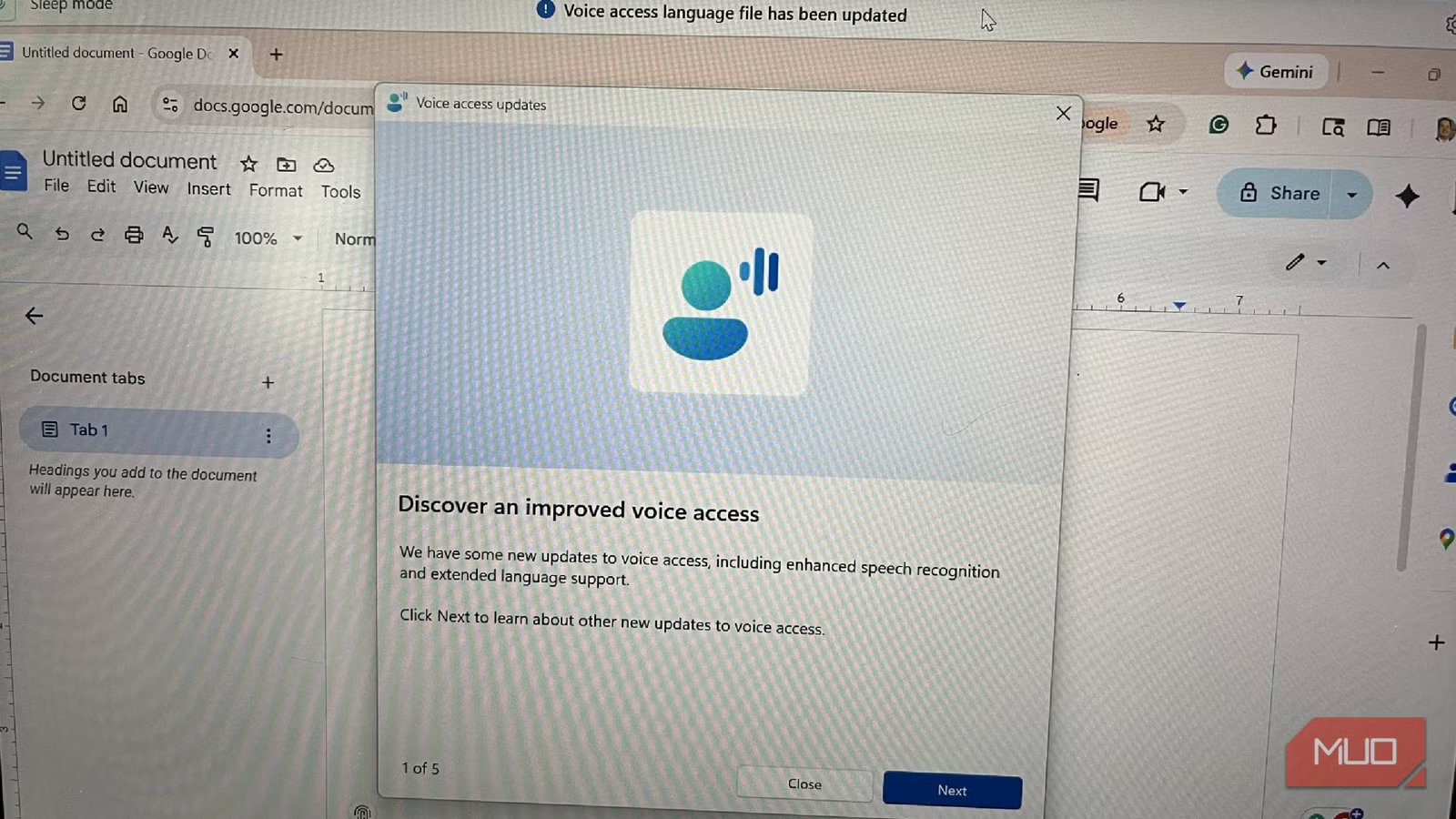
Voice commands are a feature that, if you’re interacting with them, you’re probably expecting something to go wrong at some point. It’s hard for software to perfectly pick up what you’re saying and to translate it exactly. If you have a smart home, you have probably used voice commands with some of your devices. For those who have tried to get their smart speaker to hear them exactly, you know how frustrating it can be when Alexa or Google doesn’t understand you.
The same goes with any smart assistant for phones or laptops. But if you’re a Windows 11 user, you can use your built-in microphone to do more with your computer. While it’s not perfect, the Windows 11 voice-to-text access is the best I’ve used. There are some great features with it and it can let you move around your laptop more efficiently.
Related
Everyone Should Try These 6 Windows Accessibility Features
Even if you don’t rely on them, many accessibility features are worth checking out.
Voice access makes your mic the star
Use it to maneuver around your device
Credit: Chris Hachey / MakeUseOf
Voice access and, therefore, voice-to-text doesn’t come enabled on your Windows computer. You have to enable it in Settings by searching for it in the Settings menu and toggling it on.
Using voice access means that it will live at the top of your screen whenever you’re using it. If you have voice access enabled, you can have the mic pick up anything that you want it to. You will have to wake it up first in order for it to work and you can do so by saying “Voice access wake up” or “Unmute” and this will turn the microphone on.
Once you have it enabled, your mic can move you around your laptop. If, for some reason, your mouse stops working or your touchpad begins acting up, you can use voice-to-text and voice access to accomplish a lot. If your Windows 11 laptop isn’t a touchscreen one, it’s a helpful feature that can still make the computer usable.
For those with mobility disabilities, voice access can control the computer fully. It doesn’t require the assistance of any additional software or devices, especially anything that needs to be connected to the internet. It can be used at any time, as long as it is enabled. The more you talk, Windows uses its AI software to listen, interpret, and act based on your commands.
Features of voice access include voice-to-text
Windows 11’s software works quickly and efficiently
There are plenty of times that I use it to move around my computer. When I’m jotting down ideas for a story, I can dictate them rather than type them out. It’s a nice way to keep my brain working but avoid having to stress out my fingers with typing.
The voice-to-text portion of voice access is my favorite. After ignoring this feature for years, I’ve come to rely on it. It lets me dictate in order to write emails, comment in documents, and type into browser searches. As a writer and an editor, I’m constantly moving around my laptop to either write, research, or edit. Voice access lets me do so whenever I please and in an efficient manner.
For those with mobility disabilities, voice access can control the computer fully.
I’ve had my wireless mouse die on me many times because I forget to charge it. The trackpad for one of my laptops doesn’t work great, so rather than relying on it, I will use voice access to perform tasks. You can give commands like “Show the grid” and it will populate a 3×3 grid with numbers 1 through 9 in them on the screen. You can control the pointer on your screen by telling it to move to a certain number. “Left click 9” will then show your pointer moving to the bottom right portion of the screen and clicking.
If you ask the screen to “show numbers”, it will number a bunch of clickable spots on the screen. Depending on what you have on the screen, it will show a few or a lot. But you can then tell the pointer to move to one of those numbers and it will click and highlight that item.
So, for example, if I wanted to use voice-to-text to comment on a specific section of a document, I would ask for the grid, then for it to move to a specific area, and then have it click on that area and then ask it to put text in that area. This also works for telling it to drag something from one grid to another.
Use voice access to open programs
All you have to do is ask
Credit: Chris Hachey / MakeUseOf
I love using voice access to open up programs. Telling it to open any program that you have on your computer will automatically start up that program, making your computer easier to use. If I’m midway through an editing session and I need some type of musical stimulation, I’ll tell it to “open Spotify” and then to click into the search bar and search for a specific artist via voice-to-text.
If you need to spell out an artist or band’s name, you can do so to make it understand you better. Once you’ve done that, you can actually tell it to add it to the dictionary and then you won’t have to spell it again in the future. This is true for anything you add to the dictionary.
If you want to create shortcuts to open programs or do pretty much anything else on your computer, you can do this with voice access. You can say “Open voice shortcuts” to voice access and it will bring you to the Settings menu, arguably the most useful menu in Windows. When you click Create new shortcut, you can then create an if/then automation, similar to what you can do with smart home devices. If you say a certain prompt, the computer will perform a task. This is an even more useful way to get around your computer.
Voice access lets you move freely around your Windows PC
Enabling voice access can give you a ton of flexibility when maneuvering around your PC. You can use your Windows computer hands-free by having voice access perform tasks for you. It’s the guide for making your computer live up to its fullest potential. With voice-to-text, you can dictate and have your computer understand you and write it down. Creating shortcuts helps you customize your laptop to suit your needs.
