

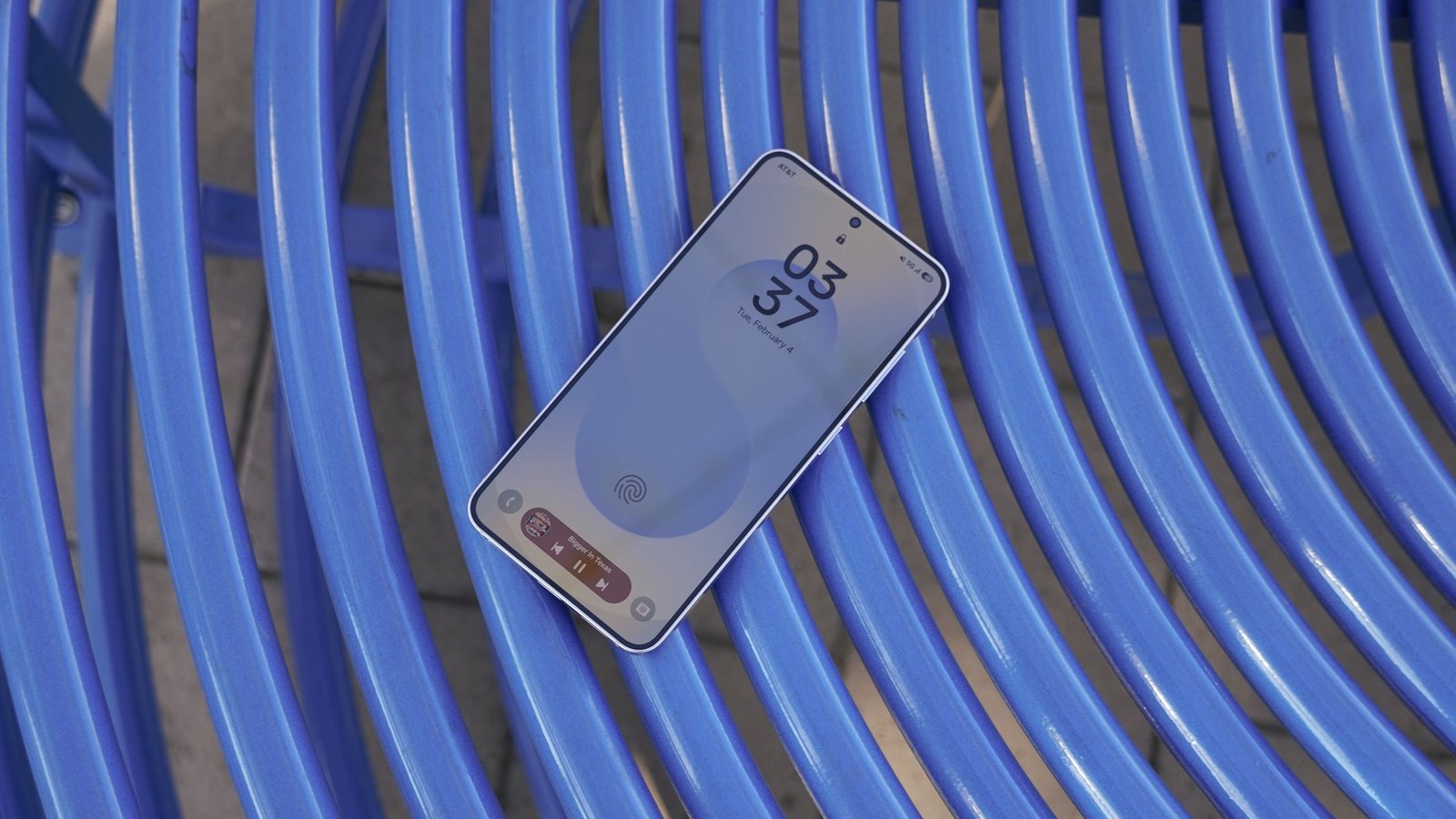
Samsung Galaxy phones come pre-loaded with a handful of “duplicate” apps. For example, the Samsung Galaxy S25 comes with Google Photos and Samsung Gallery, both pre-installed as photo and video gallery apps.
It usually makes sense to use Google Photos, but you shouldn’t write off Samsung Gallery too early. Samsung’s own gallery app offers a few exciting photo and video editing features unavailable in the Google Photos app, which is reason enough to keep it around.
You may like
What is Samsung’s Instant slow-mo?
(Image credit: Brady Snyder / Android Central)
Instant slow-mo is a feature in the Samsung Gallery app that lets users adjust the playback speed of their videos. The simple version of the feature applies a slow-motion effect to the video during playback when a user holds down on the screen. The more advanced alternative in the video editor lets you choose from four playback speeds — 1/4x, 1/2x, 1x, and 2x — that can be applied to specific portions of your video.
Opening the editor reveals a detailed timeline with handles that let you expand or trim the portion of the video for which the slow-mo effects will apply. This allows different portions of the same video to play back at different speeds for a greater cinematic effect. When you’re finished customizing the video, you can either save it and overwrite the original video or make a copy.
Either way, the video can always be reverted to its original state, so there’s no risk of messing up in the Instant slow-mo editor.
How to use Instant slow-mo in the video player
(Image credit: Brady Snyder / Android Central)
There are two ways to use Instant slow-mo in the Samsung Gallery app, and the first is simply to long-press a video while it’s playing. This shows a preview of what the video would look like slowed down. When you release your finger, you can download and save the Instant slow-mo clip to your camera roll. Here’s exactly how to do it:
1. Open the Samsung Gallery app and choose a video.
2. Tap the Play button to start video playback.
3. Touch and hold any portion of the video to start Instant slow-mo.
4. Release your finger to stop the Instant slow-mo feature, revealing a download button.
5. Tap the download button to save the Instant slow-mo clip.
(Image credit: Future)
After that, the slowed-down version of your video will be saved as a separate video in your Samsung Gallery app. The original video will still remain available, and you can use it to make more Instant slow-mo clips if you’d like.
How to use Instant slow-mo in the video editor
(Image credit: Brady Snyder / Android Central)
A more advanced version of the Instant slow-mo feature is available in the Samsung Gallery video editor. This version lets you manually select which parts of the video you want to slow down or speed up. It’s possible to mix slow-mo footage with normal footage for dramatic effect. Here’s how to use it:
1. Open the Samsung Gallery app and choose a video.
2. Tap the Edit icon in the toolbar.
3. Press the Speed icon and choose between four different speed options (1/3, 1/2, 1x, 2).
4. Move the handles on the video timeline to adjust how long the speed changes will be applied to the video.
5. Choose either Save or Save copy to finish.
(Image credit: Future)
Using this tool, you can customize exactly how long Instant slow-mo will be applied to your video, selecting the precise speed. The same setting can be used to apply double speed to your video, creating an entirely different effect. Since multiple speeds can be used throughout the same video, there are plenty of ways to remix your recordings using Instant slow-mo in the Samsung Gallery app.
Samsung’s Gallery app can speed up or slow down your videos
(Image credit: Brady Snyder / Android Central)
I use Google Photos as my primary gallery app on every Android phone, but it’s worth keeping Samsung’s Gallery app around for its niche features. Beyond the Instant slow-mo tool, Samsung’s Object Eraser and Audio Eraser are two other useful tools that come to mind. However, the one I end up using the most is the Create GIF feature. It can turn any video in your Samsung Gallery into a GIF with a single button press, and it’s a lifesaver for sharing content on the web.
Regardless of how you use tools like Instant slow-mo, you should know that your Samsung Galaxy S25 comes with exclusive photo and video editing tools in the Samsung Gallery app. Too many users switch to Google Photos outright and miss out on the helpful features you can only find in Samsung Gallery. Personally, I love how easy it is to view and save slowed-down versions of your favorite videos using Instant slow-mo.
The best small phone
Samsung’s Galaxy S25 is the greatest compact handset you can buy, and it’s filled with Galaxy AI tools and video editing features. Instant slow-mo is a great one that’s available on the Galaxy S25.
