

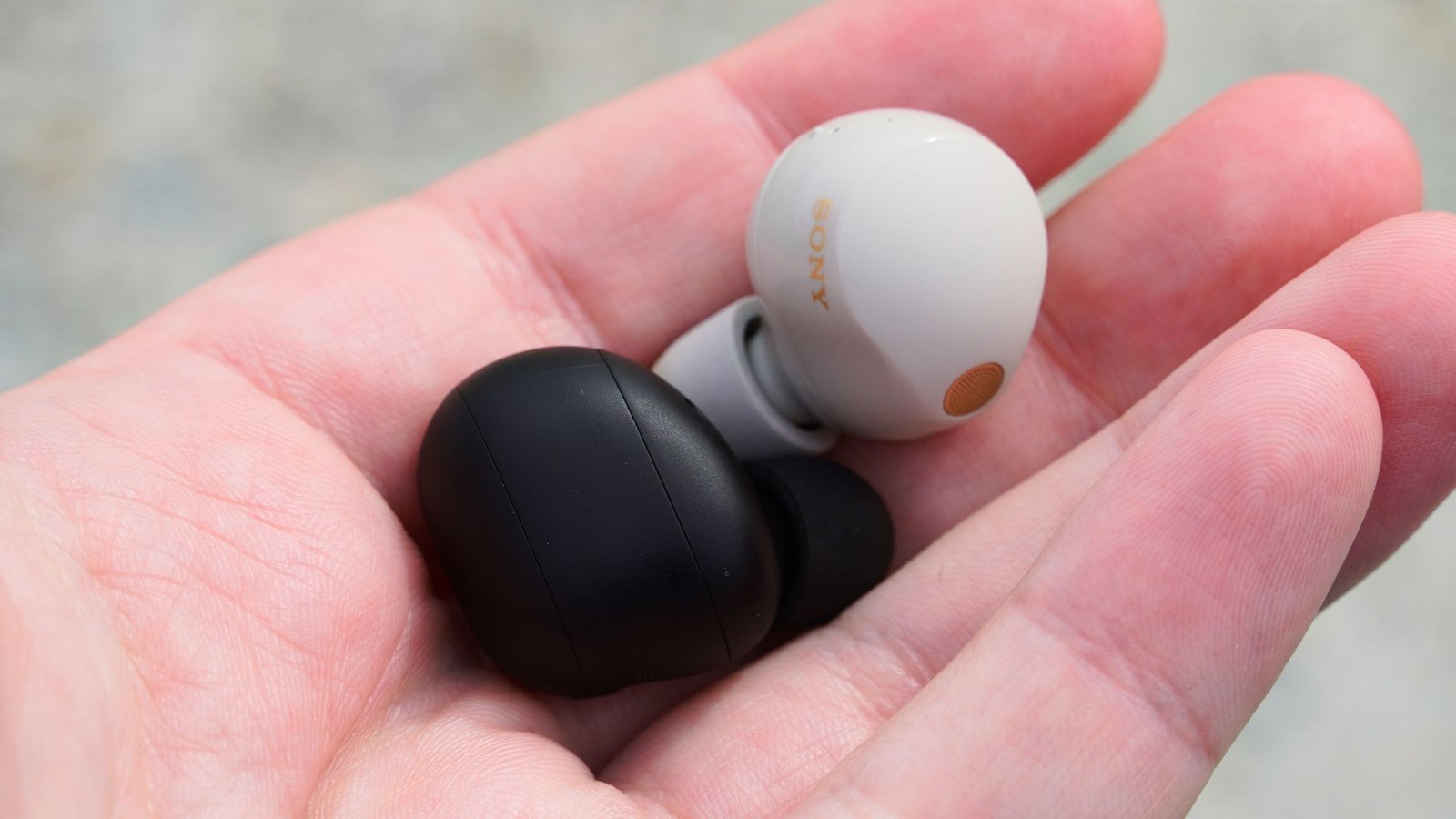
Everyone’s talking about high-resolution or high-fidelity audio now that multiple major streaming services — including Apple Music, Tidal, Amazon Music, and Spotify — support lossless quality. In simple terms, lossless audio is a recording that hasn’t lost any information during compression. However, it’s important to remember that Bluetooth audio codecs compress these recordings, even if they’re originally lossless.
There’s no way around that, unless you’re using a truly advanced (and rare) codec like Qualcomm’s AptX Lossless. That said, some Bluetooth codecs are better than others. If you have a pair of Sony earbuds or headphones, you can use LDAC, a high-quality Bluetooth codec that supports 32-bit/96kHz audio at up to 990 kbps.
You may like
What is LDAC, and why do I need it?
(Image credit: Apoorva Bhardwaj / Android Central)
LDAC is a Bluetooth audio codec that uses “efficient coding” and “optimized packetization” to transmit roughly three times as much data as other codecs, according to Sony. Although this is a Sony codec, it’s available widely on Android phones. It even appears on non-Sony headphones, like the Nothing Ear 3.
It’s worth noting that LDAC isn’t lossless, and it might not be the best Bluetooth audio codec for every situation. One of the things that makes LDAC unique is its ability to use variable bit rates during transmissions. It offers 330 kbps, 660 kbps, and 990 kbps, with the latter being the best-performing of the group. If your device and headphones don’t support LDAC 990 kbps, you might be better off using another codec.
Starting with Android 8 Oreo, LDAC support was added to the Android Open Source Project. Now, most Android phones are compatible.
How to enable LDAC for Sony headphones
(Image credit: Brady Snyder / Android Central)
Sony doesn’t make it easy for the average user to know whether LDAC is enabled on their headphones or earbuds. It’s hidden behind the Bluetooth Connection Quality setting, and LDAC isn’t mentioned by name.
Instead, you need to change your headphones’ quality settings to prioritize sound quality, allowing them to use LDAC in certain situations. Here’s how to do it:
1. Open the Sony Sound Connect app, or download it from the Google Play Store if you haven’t already installed it.
2. Scroll down to the Device settings tab for your headphones or earbuds.
3. Tap the Connection tab.
4. Press the Bluetooth Connection Quality page.
5. Select Prioritize Sound Quality to use LDAC.
(Image credit: Future)
Optionally, tap Add shortcut to the top screen of My Device to make this setting easier to find in the future. It’s worth noting that, according to the Sound Connect app, “a codec is auto-selected.” However, on the central My Device screen in Sound Connect, you can see that LDAC becomes available after adjusting this option.
What about DSEE Extreme?
(Image credit: Apoorva Bhardwaj / Android Central)
If you’re diving down the rabbit hole of advanced Sony audio features, you may have noticed a setting called DSEE Extreme. It stands for Digital Sound Enhancement Engine, and it can upscale low-resolution or compressed audio by default. According to Sony, DSEE Extreme makes “complex calculations and predictions to make low-resolution files sound almost like high-resolution audio.”
All things equal, a high-resolution audio file streamed with LDAC should sound better than a compressed file upscaled with DSEE Extreme. The latter may be desirable when lossless files are unavailable, though. Sony itself notes that DSEE isn’t meant for streaming audio that is already hi-res lossless. Crucially, the technology uses AI in an attempt to “accurately reproduce the original sound quality before the file was compressed.”
With all this in mind, LDAC is certainly preferable to DSEE Extreme, and it’s best to leave the latter off when streaming high-quality music.
When to use LDAC over AAC
(Image credit: Brady Snyder / Android Central)
The Prioritize Sound Quality setting for Sony headphones and earbuds isn’t the only option — users can stick with Prioritize Stable Connection or Low Latency instead. Stable connection is more reliable overall, especially when utilizing dual-device pairing. When this setting is active, you can expect to see AAC used as the Bluetooth audio codec instead of LDAC. Low latency uses Bluetooth Low Energy Audio, but this feature is in beta and only available with certain models.
It’s better to keep AAC if you’re not streaming in lossless audio or if your device doesn’t support the highest LDAC bitrate of 990 kbps. Otherwise, you will probably benefit from LDAC’s enhanced quality and reduced compression. It’s one of the perks of buying a pair of Sony headphones or earbuds, but it’s up to you to decide whether you can actually hear the difference.
