

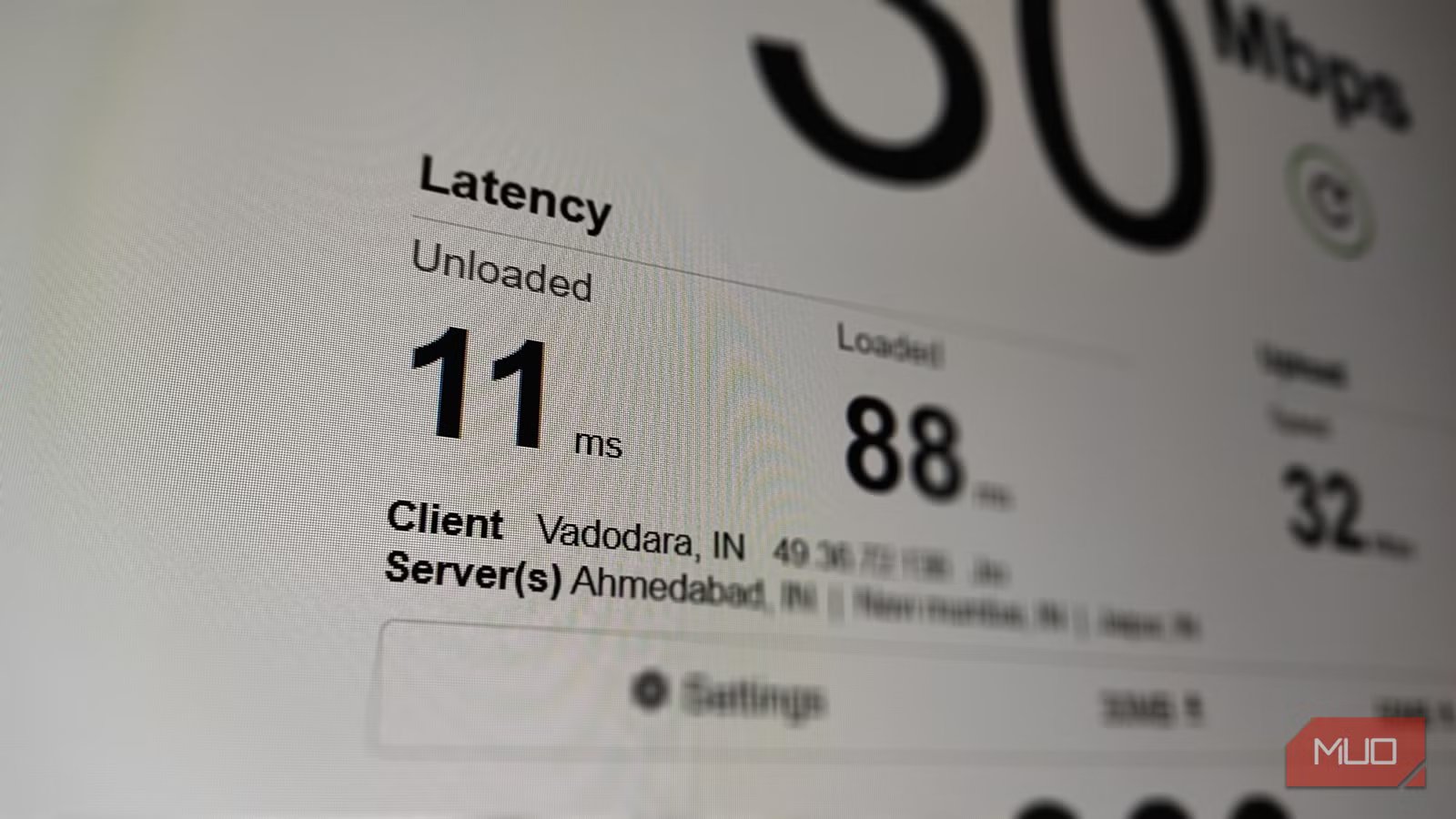
We almost always default to restarting the router when we encounter slow internet speeds. In a few cases, it may work. Sometimes, we also automatically believe that our ISP is throttling the internet; that is also not always true. We may simply be facing a unique problem that delivers a poor internet experience, even though the connection speed looks great in all the speed tests.
This was exactly what happened to me, and ultimately, the fix wasn’t what I was expecting. All I needed to do was align the Maximum Transmission Unit (MTU) with my actual connection limits. Once I was able to do that, the lag disappeared.
MTU defines the maximum IP payload that can traverse a link intact
Header overhead and segmentation rules determine real packet size
MTU represents the largest data packet in bytes that a network-connected device can allow without it being fragmented. This number is usually set to 1500 bytes for most Ethernet networks. 1500 isn’t an arbitrary number. Your router assumes it is safe based on Ethernet frame design constraints from decades ago, many of which are still used today.
However, the 1500 bytes isn’t purely the size of your data alone, because packets naturally carry extra data accounting for protocol overhead. In normal TCP traffic, the overhead typically includes 20 bytes for the IPv4 header and another 20 bytes for the TCP header. With this accounted for, what you actually have is a maximum allowance of 1460 bytes for your packet in a 1500 MTU environment. This explains the 1460 bytes of TCP’s Maximum Segment Size (MSS) on standard networks.
Where we begin to have problems is when a packet is larger than the MTU environment it has to pass through. The only way it can successfully pass is if the router fragments the packet into smaller pieces. This process is resource-intensive, requiring more CPU work and buffer space because each fragment is assigned its own IP header, and they must all be reassembled at the destination. The process itself isn’t reducing bandwidth; it is, however, adding to the complexity and sensitivity of packet delivery.
Real internet paths often reduce usable MTU below 1500
Encapsulation and access technologies shrink available payload space
You may assume that 1500 works everywhere, but this is incorrect. 1500 bytes is larger than the MTU used on several residential connections. Point-to-Point Protocol over Ethernet (PPPoE) is a common standard for some fiber deployments and several Digital Subscriber Line (DSL) options. Its extra overhead of 8 bytes lowers the effective MTU to 1492, forcing fragmentation if your router has to push 1500-byte packets through a 1492 tunnel.
As long as your data has to be wrapped in extra packaging, it will effectively eat into your actual payload’s space. VLAN, for example, introduces a 4-byte tag. Even though this tag is essential for identifying the traffic’s virtual network, it still shrinks the payload. Carrier-grade NAT (CGNAT) and DS-Lite also have the same effect. In the case of DS-Lite, moving traffic across an ISP’s network by tunneling IPv4 traffic inside IPv6 packets adds extra header overhead. VPNs make your original packet the payload of a new one, with the new packet requiring a new header.
All these cases are like adding extra packaging to a box that already has its own packaging without increasing the size of the path the box must pass through. It will only go through if it’s broken down.
On mobile networks, it’s even further complicated because LTE and 5G historically have a lower baseline than the 1500 bytes used by Ethernet. Depending on your carrier’s implementation, MTU values range between 1420 and 1480. Generally, the connection limit is equal to the smallest MTU anywhere along the route, and as long as the router can’t respect this limit, you will either get fragmentation or silent packet drops, a possible cause for slow internet.
Automatic MTU adjustment mechanisms do not always prevent failure
Path MTU discovery, ICMP filtering, and black hole behavior
Credit: Shimul Sood / MakeUseOf
There’s an auto-adjustment solution to prevent fragmentation that works great, at least on paper. It’s called Path MTU Discovery (PMTUD). Here is how it works: devices may set a “Don’t Fragment” bit when they send packets. This bit triggers the receiving router to respond with an ICMP Type 3 Code 4 message, “Fragmentation Needed,” if the packet size exceeds the downstream MTU.
The problem is that, in practice, several firewalls block ICMP by default. So, the large packets are dropped, and the firewall filtering causes the sender not to know that the packets were too large. Dropping the packets triggers TCP to retransmit and creates exponential backoff timers. This situation is called an MTU black hole, where large packets consistently fail even though traffic appears to flow.
Modern OSes try to mitigate some failures by implementing RFC 4821 Packetization Layer Path MTU Discovery (PLPMTUD) as a way of probing packet size without having to rely on ICMP. In some cases, fragmentation is not well handled by routers, ISP equipment, and VPN endpoints. These do not show up in speed test results, but the real effect is that latency variance continues to accumulate.
If your router applies MSS clamping, it may mask an MTU mismatch rather than fix it, which is why symptoms can be inconsistent rather than constant.
Measuring and correcting MTU restores clean end-to-end packet flow
As long as you understand the math, it’s easy to find the correct MTU. If you need to test with ping, note that the IPv4 header is 20 bytes and ICMP adds 8 bytes, for a combined header overhead of 28 bytes. So, starting with a payload of 1472 bytes, when you add the 28 bytes from IPv4 and ICMP, it totals 1500. Reduce the payload size from this point until you reach a value that produces no fragmentation. Your usable MTU will be 28 plus the highest successful payload.
Here is the Windows command:
ping 8.8.8.8 -f -l 1472
I use -f to set the Don’t Fragment bit and -l to indicate the payload size. The goal is to continue lowering the payload size until you get a consistent success reply. Below is the equivalent Linux command:
ping -M do -s 1472 8.8.8.8
On macOS, it’s a bit different since fragmentation flags aren’t handled the same way across versions. You will get more reliable path MTU probing by relying on tools like mtr via Homebrew.
Always test MTU against multiple destination IPs, not just 8.8.8.8, since black hole conditions can exist on specific routes and not others.
After figuring out what this consistent value should be, it’s best to set the MTU in your router’s WAN interface so that you don’t have to individually configure all your devices. Below is a table showing rough estimates you may expect on different connection types:
Connection type
Typical MTU you should expect
Standard Ethernet (cable / direct fiber, no PPPoE)
1500
PPPoE (DSL or some fiber ISPs)
1492
VLAN-tagged ISP connection
1496–1500 (depends on ISP implementation)
LTE / 4G / 5Gmobile networks
~1420–1480 (varies by carrier)
IPSec VPN (tunnel mode)
1380–1460 (depends on cipher and encapsulation)
WireGuard (parent MTU 1500)
~1420
WireGuard over PPPoE (1492 parent)
~1412
OpenVPN (UDP mode)
1300–1450 (highly configuration dependent)
Related
5 places you should never use a flat Ethernet cable (and where they actually work)
Before you run that flat cable, make sure it actually belongs there.
