

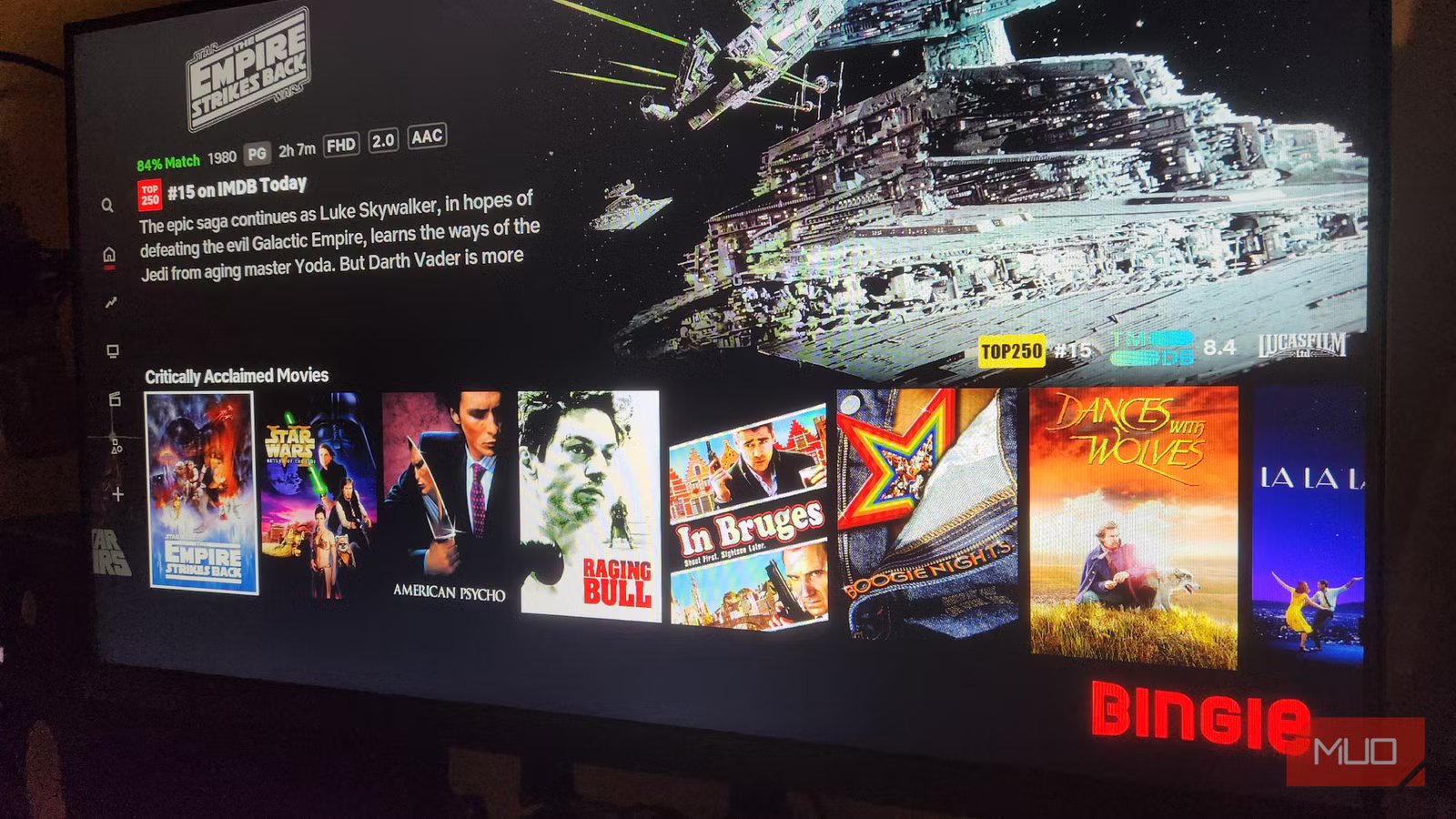
Kodi is my favorite media player app, but its default “skin” is a little pedestrian and bland. Luckily, the software is open-source, offering countless customization options so you can configure it to suit your visual preferences, as well as a host of add-ons that massively improve functionality.
I recently became aware of Kodi skins that closely resemble popular streaming services. These immediately appealed to me because of their aesthetics, familiarity, and functionality. As it turns out, all it takes is changing the default skin and configuring a few add-ons to display your library content just as it appears on Netflix or any other streaming service, so I decided to try it for myself.
OS
Windows, macOS, Linux, Android, iOS/iPadOS, tvOS, Android TV, Raspberry Pi, …
Developer
XBMC Foundation
Pricing model
Free, open-source
Initial release
June 29, 2004
Making Kodi look like Netflix
That modern, sleek look that we all know and love
The goal here was to recreate a dark, poster-heavy grid layout with category rows. There were several skins I could use to achieve this: Arctic Fuse, Arctic Zephyr Reloaded, Diggzflix, and Bingie. Perhaps more importantly, it had to mimic Netflix’s functionality, as I believe it has the best UI of any streaming service I use. Shows and menus should be properly categorized, and there should be a left-hand navigation for core features.
After trying a few, I decided to go with Bingie because it’s pre-configured to emulate the Netflix UI with minimal tweaking. Before I began, I made sure the Trakt and TMDb add-ons were installed in Kodi so that my TV show/movie artwork and metadata would be scraped and transferred to the new skin.
Related
I use these Kodi add-ons to get more out of my smart TV
Supercharge your smart TV with these must-have free Kodi add-ons.
Installing the Bingie skin from a zip file
With a little preparation, installation was a cinch
Before you begin, ensure that you enable unknown sources in Kodi Settings -> System -> Add-ons. Just below this, click Update official add-ons, then switch it to Any repositories. Now you’re all set to install Bingie.
1. Download the Bingie repository as a zip file, using the following link:
https://matke-84.github.io/repository.bingie/repository.bingie/repository.bingie-1.0.0.zip
2. Then upload the repository to Kodi:
- In the default Kodi skin, click Settings (gear icon) in the top left.
- Then click Add-ons > Install from zip file, then navigate to the file.
- Double-click on the zip file to upload it.
3. Next, we have to install Bingie from the repository:
- Revisit Add-ons > Install from repository.
- Locate the Bingie repository, then double-click the file to install it.
- Return to Add-ons -> Look and feel.
- Select Skin, then double-click Bingie to install it.
What I like about Bingie
Sleek, slick, and familiar, there’s little to complain about
Bingie was a pleasant surprise. After struggling to adapt my existing skin to be more user-friendly by using widgets and playing with settings, this skin does it all right out of the box. You can even change the theme slightly in settings to differentiate it from Netflix if you find it a little too familiar, but I think it works just fine.
The categories are right on point, thanks to the integration with Trakt/ TMDb, and it feels like my video library has come to life. They are much more refined than Netflix’s standard categories as well, with options like History and War, and Fantasy. Now I can navigate much more easily based on my mood, see which films I haven’t watched recently, and it even shows IMDb ratings, something Amazon Prime Video does, but Netflix does not.
TV shows are also well categorized, with metadata for each episode and the familiar “More Episodes” button to navigate through series, and even the familiar “Bingeworthy TV Shows” slider. I was surprised to see official trailers for obscure series when I clicked “Trailers and More,” very much in keeping with the Netflix we know so well.
What bothered me about Bingie
I have to nitpick to find faults in this Kodi skin
In the interest of giving a biased review, I looked for annoyances, but, truthfully, there was very little to complain about. One issue, as with many Kodi skins, is that I can’t navigate with the mouse on my computer. This is a pain while I’m sitting at my desk, as it slows navigation and makes menus feel sluggish.
Another issue was that I experienced a couple of crashes soon after installation, and Kodi hung on a couple of occasions while navigating between windows. After restarting Kodi, it appears to have settled down, and now during playback, everything is smooth as silk, with no glitchiness whatsoever.
A fun gimmick, or a genuinely useful alternative?
It’s difficult to say whether Bingie will work for me in the long run. I can see myself getting bored with the UI I’ve been using for years, but perhaps that’s exactly the point. Familiarity can indeed breed contempt, but it’s also nice to navigate, knowing exactly what to expect, and some of its features (episode summaries, IMDb ratings, detailed categorization) even put Netflix to shame.
For the most part, I will be using Kodi on my smart TV via my Amazon Fire TV Stick, and I fully expect Bingie to run smoothly, as my other Kodi skins do on this hardware. Ultimately, it comes down to whether any of the aforementioned “issues” would put me off using Bingie, and the answer is a resounding “no.”
