

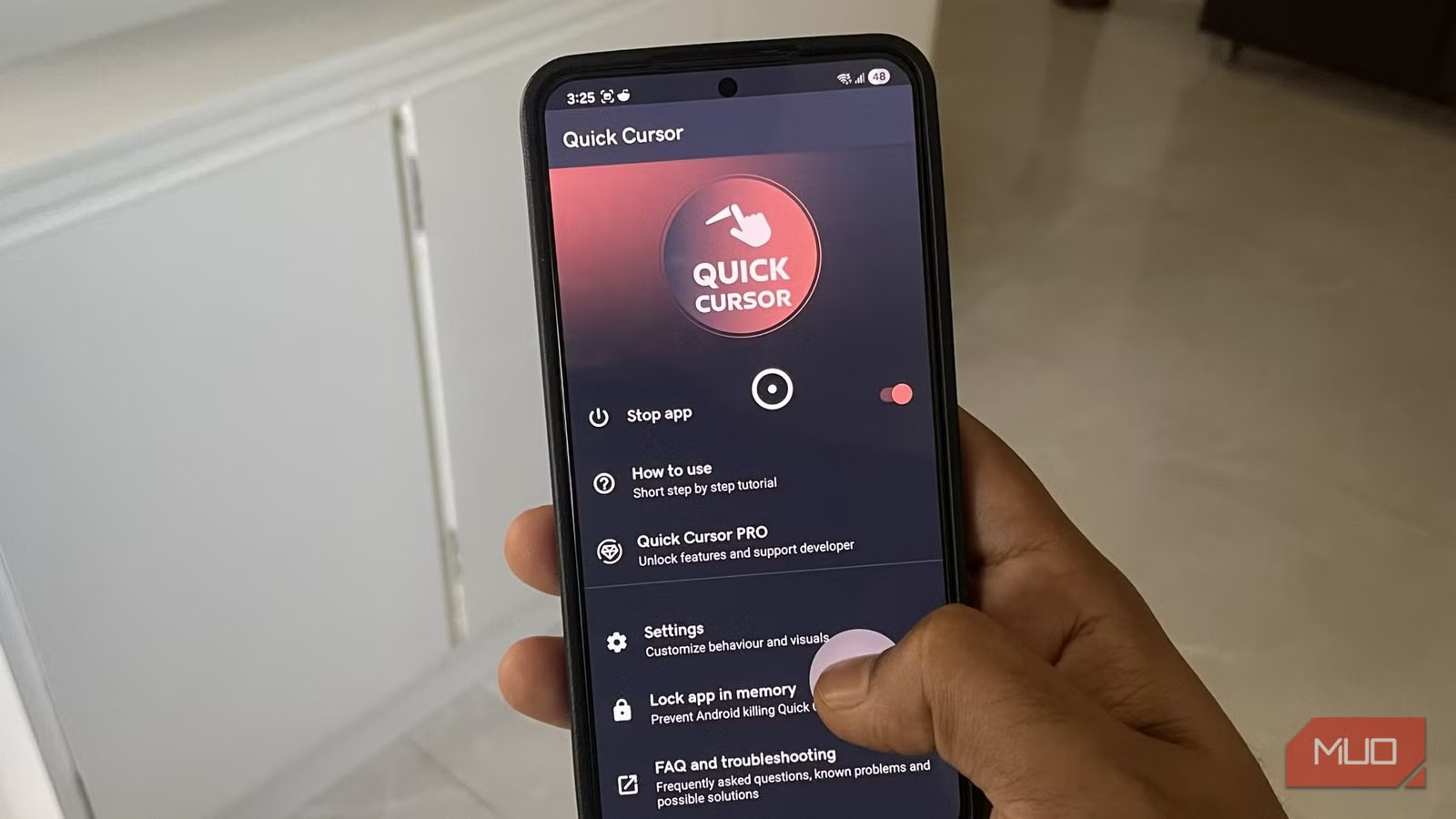
If you’ve ever tried to reach the top of a big phone with one hand, you know the little dance your fingers have to do. The bigger the screens, the worse it gets. Sure, Android has a one-handed mode, but it’s not the most elegant solution. It makes everything appear smaller, and you have to switch between two modes often.
Quick Cursor solves this in a clever way. Instead of shrinking the screen, it adds a trackpad at the bottom half of the screen. From there, you can control the upper part of the screen as if you were with your laptop’s trackpad.
OS
Android
Price model
Free, Pro version available
Quick Cursor brings the top of the screen within reach
Reach the entire screen without stretching
Screenshot by Pankil Shah — No attribution requiredScreenshot by Pankil Shah — No attribution requiredScreenshot by Pankil Shah — No attribution required
Quick Cursor solves the exact problem that makes giant phones awkward to use with one hand: reaching the top half of the screen. It basically adds a virtual cursor, so instead of stretching your thumb all the way to the top, you swipe on Quick Cursor’s trackpad. When you do, a cursor appears higher up on the screen and follows your movement. This way, you can tap buttons and open menus like usual.
The trackpad sits at the bottom of the screen along either side where your thumb naturally rests. The clever part is that you won’t even notice it most of the time. It stays completely invisible when you’re using your phone normally, so it never blocks your view or gets in your way when you tap on something.
The trackpad only activates when you actually swipe on it. Once it does, you’ll see both the trackpad and the cursor. You can then tap the trackpad to select something. And if you want to scroll or swipe in any direction, long-press the trackpad and choose the direction you want.
This may sound a little confusing, but it’s quite easy in practice. The app also walks you through how to actually use the trackpad, so you won’t have any problem getting used to it.
You can customize it to your liking
Plenty of options to tailor your experience
Quick Cursor gives you plenty of control over how it behaves. Once you understand how it works, dive into its settings menu, and you’ll see several options. Here, tap Cursor, and you’ll be able to change the cursor design and size. You can switch it to a mouse, arrow, a hand, or even crosshair. There are plenty of options, and you can even make it smaller or larger, depending on what feels comfortable.
There are also smart options for what happens when the keyboard opens. Normally, the keyboard takes up the lower part of the screen, which is also where the Quick Cursor trackpad lives. The app gives you a few ways to handle that. You can have the trackpad move above the keyboard, turn into a thinner version so it still fits, or be disabled completely. You can also leave it as it is, which shouldn’t be a problem if you aren’t using swipe typing.
If you like a bit of haptic feedback, Quick Cursor also vibrates when you tap a button or scroll using the cursor. And the settings menu includes options to customize the vibration duration and visual feedback, so the interaction feels just right.
Of course, Quick Cursor can sometimes get in the way, especially in apps and games that require swiping at the bottom half of the screen. Thankfully, you can decide where the feature should and shouldn’t work. With the blacklist and whitelist options, you can disable the cursor in certain apps, like games, PDF readers, or anything else where it might become a nuisance.
Related
This brilliant new Android keyboard makes typing effortless
I speak and this keyboard types, and it’s damn brilliant.
Quick Cursor can be your shortcut hub
Bring your most-used actions within reach
What makes Quick Cursor a joy to use is that it can also double as a powerful shortcut hub. For instance, you can customize the trackpad to open Quick Settings or copy text when you double tap it.
Then there are Tracker Actions, which let you trigger different shortcuts when you long press the cursor. You can set it to paste an item, capture a screenshot, turn on the flashlight, switch to the previous app, trigger split screen, and change volume. There are too many options, so you’ll likely find something you want to use. Besides, you can assign some of these actions to edges too.
You may need the Pro version to enjoy the app
Quick Cursor’s basic trackpad features are all available in the free version. But if you want to make the most of it, you’ll probably need to get its Pro version. Some of the extra features, such as assigning custom actions to the trackpad and customization options, are only available in the paid version. The lifetime license goes for around $6, which is reasonable for what the app does. If you’re not sure, though, there’s also an annual license that comes with a one-month free trial.
