

Cloud storage can easily get messy, but you may never notice it until the day you need a file and can’t remember where you saved it. My Google Drive had 15GB of data, on MEGA I had 20GB, and OneDrive had about 5GB. I still had Dropbox, which I had somehow kept over the years.
I had a lot of free storage, but also a lot of chaos when I needed important files. Rclone fixed it by converting all my free cloud storage into one big drive.
OS
macOS, Linux, Windows
Price model
Free
rclone is a command-line program that manages files on cloud storage. The tool gives an alternative to cloud vendors’ web storage interfaces.
Rclone treats every cloud provider the same
That’s what makes merging them possible in the first place
Once you set up cloud storage on rclone, it doesn’t matter which ones you use; the tool sees them all as remotes. This makes them abstract and allows the possibility of merging. Using rclone may initially feel daunting if you’re not used to the terminal; it’s primarily a command-line tool. However, once you run the rclone config command, the process is well-guided. The tool walks you through picking a provider, logging in, and naming it.
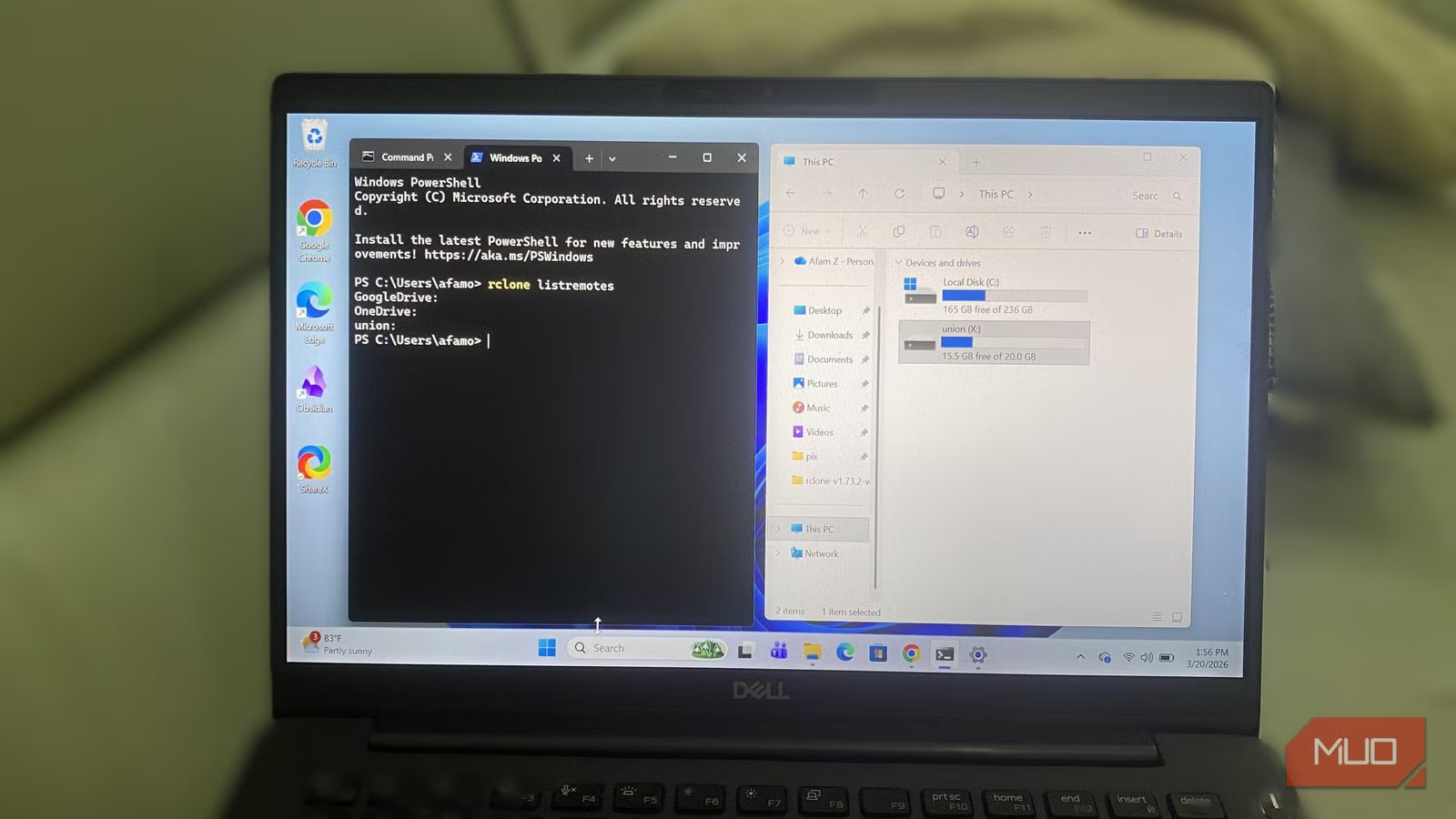
I had a smooth configuration for Google Drive and OneDrive. The tool opened a browser window where I signed in and granted access. I’ve used MEGA for several years, but since it doesn’t use OAuth, rclone accesses it using direct credentials instead.
It only gets slightly complicated when you start naming them. For multiple remotes, I named them drive1, drive2, and cloud, but had to go back and rename them with something more sensible and distinct so that I wouldn’t get confused later. After going through this initial setup, my storage was listed and accessible from the same location. The remotes were not yet unified, but there was already some good progress.
The union backend is what turns “multiple accounts” into one drive
Not metaphorically: your storage actually pools
Afam Onyimadu / MUO
Rclone connects everything; however, the real value comes from making all your storage act like a single pool. It’s able to do this thanks to Union. Rather than treat individual remotes as different destinations, they are combined into a single storage space. They become an actual merged filesystem.
Before I finally settled on Union, I tried alternatives, and there was a clear difference:
Approach
What it felt like
Why it didn’t work (or did)
Separate remotes
Still fragmented
Same problem as before
Combine backend
Neatly organized
Still siloed under the hood
Union backend
One continuous space
This is what I needed
What differentiates all these approaches is how files are distributed. You don’t get automatic storage optimization with rclone Union without giving direction via the upload policy. You can choose between any of the following:
- eplfs or epmfs (existing path, least/most free space) writes files to whichever remote already has files in that folder path.
- lfs (least free space) writes files to whichever remote has the least remaining space.
- mfs (most free space) writes files to whichever remote has the most remaining space.
- rand (random selection across remotes) rotates files across remotes evenly.
I stick to lfs because it’s a simple, predictable, and hands-off policy.
Rclone won’t write to a nearly full remote, even under lfs, because it skips drives below a minimum free space threshold automatically.
After the setup, I had a pooled backend consisting of several accounts and providers. This logical storage solved the structure problem I had, but it did not quite feel like a drive just yet.
Mounting Union remote
When it finally feels like one drive
Afam Onyimadu / MUO
At this point, I was interacting with rclone conceptually. I was running commands, checking config, and thinking in terms of remotes, but this changed as soon as I mounted the Union remote. I got something tangible: an actual drive on my system. It existed in File Explorer as a single drive letter that housed all my files. It did not have provider names or any kind of separation.
On macOS, the mount appears as a volume in Finder rather than a drive letter — same behavior, different presentation.
When I dragged files into this storage, the upload began, and small files were uploaded in seconds. I wasn’t deciding between Google Drive, OneDrive, or any other account. The file is uploaded to whichever remote has available space, and I could open it later without knowing where it was physically housed.
This new drive behaves like local storage. However, it isn’t, and this becomes evident when the internet connection is slow, with large files taking longer to transfer or sync. It was great for regular use, but apps such as database software or any applications that lock files while open may behave unpredictably with a mounted cloud drive.
If an app behaves strangely, try copying the file locally first, working on it, then moving it back to sidestep most compatibility issues.
Free cloud storage finally behaves like real storage
I use several free cloud storage services, and it always feels like juggling accounts. I search for files through multiple accounts, and I am often indecisive about which account gets which uploads. Rclone has sorted most of the friction, and I simply store my files. There has been a big difference since I started using rclone.
Before rclone
After rclone
Multiple apps and logins
One mounted drive
Constant decisions
Just save the file
Wasted free space
Fully utilized storage
Of all the changes it brought, the most significant was mental. I no longer care where files end up because I simply don’t have to. Now, as long as a file doesn’t need ultra-fast local access, it goes into the rclone drive. It’s a reliable and simple setup. Configuration takes just an afternoon; afterward, it eliminates much of the friction in your daily workflow.
Related
I replaced Google Drive with a self‑hosted cloud and the freedom is worth it
A self-hosted cloud is very liberating and surprisingly not as hard to set up.
