

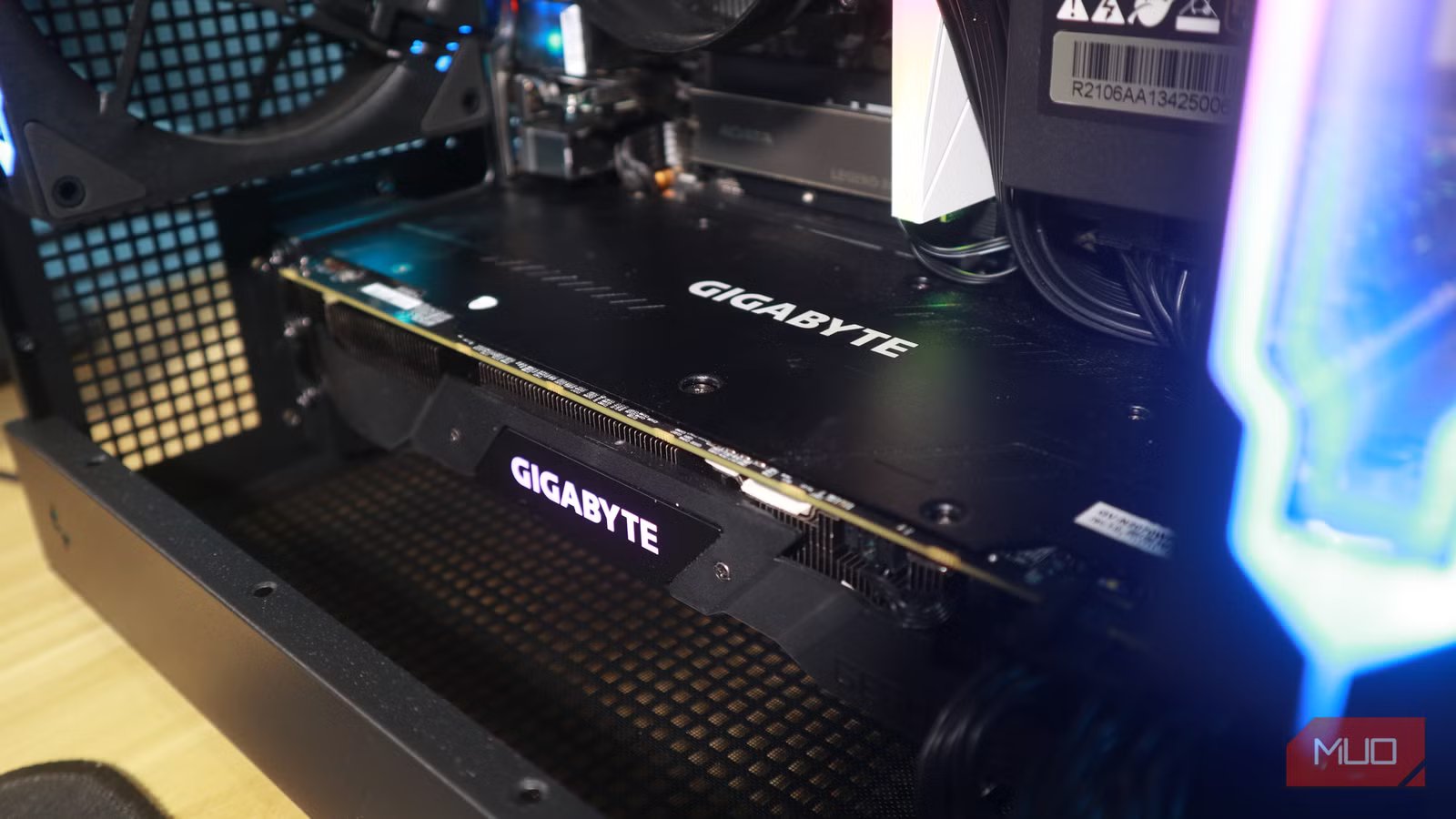
Buying new PC hardware seems almost impossible in 2026, thanks to the AI boom that has increased component prices to heights never seen before. Personally, if I were to build a new PC in times like these, I’d opt for a used GPU rather than buying a new one to stay within budget constraints. One great option might be the 5-year-old RTX 3060 that holds up well even when running some modern AAA games, but may struggle with 4K/AI-upscaled titles.
That said, buying a used GPU may seem daunting since it is one of the most fragile and expensive components in a PC, and you wouldn’t want to risk making the wrong purchase, potentially ending up with a faulty unit.
I’ve built multiple PCs over the years, both for myself and others, using newer and second-hand components alike. Specifically for GPUs, I have made a checklist to ensure it’s in working condition as advertised and that I stay on the safe side. Here are all the tests I highly recommend running before buying a used GPU.
Related
I’ll never buy these PC components new
You don’t need to spend a fortune to upgrade your hardware; you just need to be smart about what you buy.
Physical inspection should be your first step
Don’t overlook the basic step
Credit: Shaheer Khan/Make Use Of
I always start with a thorough physical inspection when buying a used GPU, and as simple as it sounds, it can reveal a lot about the hardware. A voided warranty sticker implies that the GPU has been opened, even if it’s for a thermal paste replacement or repair. Relatively new GPUs with removed/damaged warranty stickers are a cause for concern, as thermal paste needs to be replaced every 3 to 4 years.
Other than that, I recommend checking the GPU’s fans for unusual or rattling noises; that’s a clear red flag, as it signals physical damage or worn-out components. Even if the graphics card itself is ok, damaged fans would still impact overall cooling efficiency. Furthermore, any wear and tear or dust patterns indicating it was placed in a horizontal position should be a dead giveaway that the GPU was used for heavy workloads, since data centers and crypto-miners typically stack multiple units in this orientation.
Another thing to point out is that GPUs with blower-style fans are a favorite among users running compute-intensive workloads beyond gaming, so I recommend avoiding them to avoid potential risk. Transparency helps a lot, so just ask the buyer about the usage history of the card, whether it was used for gaming or for heavy workloads.
Run GPU-Z to check the firmware
Modded hardware isn’t good news
Credit: Shaheer Khan/MUO
Checking the VBIOS version for your graphics card is also another important step when buying a used GPU, and if it’s running anything other than stock, I highly advise steering clear of it. Usually, data centers and crypto miners opt for modded firmware that provides peak performance and efficiency for their workloads.
To check your GPU firmware, you’ll need to download GPU-Z, an indispensable tool every PC user should know. The tool provides real-time monitoring and detailed hardware information for your GPU.
Opening the tool, you’d find a section that lists the VBIOS version your GPU is running. From there, you can then cross-check it with the stock one listed in TechPowerUp’s VGA BIOS Database, which is filterable to different vendors, memory size, etc.
Many gamers also flash VBIOS to other GPU models to unlock higher power limits for overclocking, but the result is still the same: a risk of irreversible damage. Furthermore, it also voids the warranty, so you can’t really request repair or RMA (Return Merchandise Authorization) in that case.
HWiNFO64 can indicate excessive wear
Stress testing reveals the real performance
HWiNFO64 provides a complete overlay for all your PC components, listing temperature readings, power usage, and every other real-time information you’d need to monitor or diagnose your PC.
It’s especially useful for GPUs, giving a complete reading across the entire board from all the sensors, which wouldn’t be possible with any other tool. Then, the next step is to download a benchmarking tool, preferably FurMark or 3DMark, to stress test and find out whether the GPU has any issues under load.
During stress testing, I generally set the maximum Core/GPU temperature to 85 °C. Hotspot and memory junction temperatures run hotter, and even a 100°C should be fine under load. Anything higher can harm the card by wearing out components quickly, which means your clock speeds will drop and ultimately affect performance.
The worst scenario is that your system crashes or artifacts like visual glitches appear on screen during the stress test period, which would signal a dying GPU.
Related
5 signs that mean your PC parts are failing
Your PC doesn’t fail suddenly. It glitches, screams, and eats your files first.
The payoff justifies all these efforts
Even if all these steps may seem overwhelming, buying a used GPU is worth the effort, especially when seeing prices for new models going out of reach. These steps do require a bit of time and effort, but they’ll ultimately help you determine if you’re making the right purchase or not.
There are non-technical steps you can take, too. I recommend buying PC components from sites that offer buyer protection so they can cover you in case of a mishap. Also, ensure that the seller’s profile is legitimate, and that the ad itself shows the actual GPU, not just a rendering. Any listing that lists a price below the average or seems too good to be true is also a suspicious sign.
Lightweight, portable GPU monitoring utility by TechPowerUp. Displays GPU name, architecture, clock speeds, memory type, size, and bus width. Real-time sensor monitoring covers temperature, fan speed, load, and utilisation. Supports NVIDIA, AMD, and Intel graphics cards. Includes VBIOS backup and PCI-Express load testing. Free, no installation required.
