

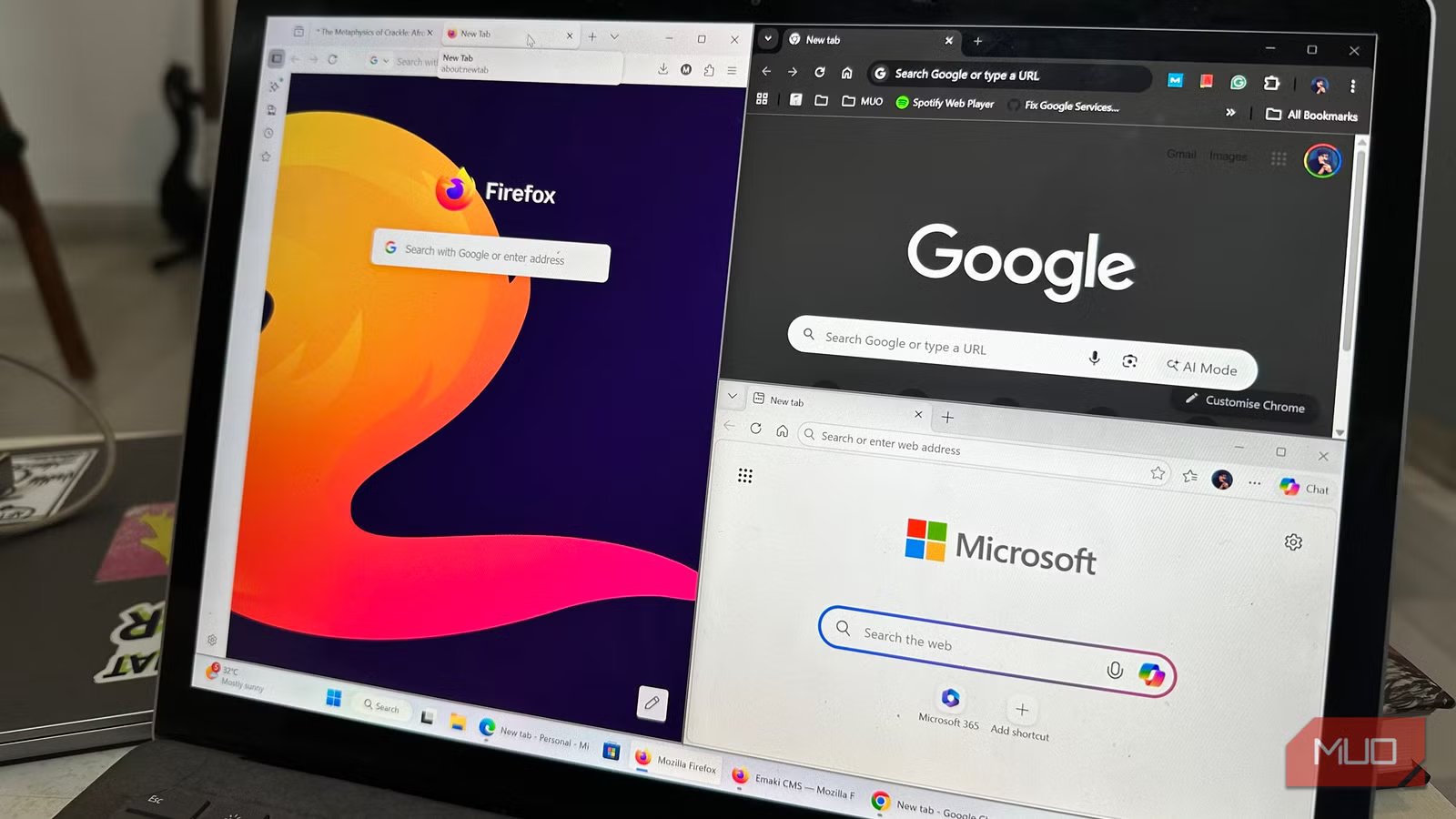
I had tunnel-visioned myself into using Acrobat for everything PDF-related, from reading to highlighting. It was as if I was justifying the cost by using the program. But, as it turns out, Firefox already had all the PDF manipulation features I needed. Also, seeing Adobe’s business practices, I’m better off without their tools, especially considering that the free version of Acrobat Reader is practically a running advertisement for Adobe’s paid features.
Firefox can do a shocking amount of what I was paying for
Adding text, annotating, adding images, highlighting for a total cost of $0
If you’ve used Adobe Acrobat, you’re probably aware that it takes its own sweet time to load. Add to that Adobe’s background processes which can use a sizable chunk of your CPU. My PDF usage is mostly related to filling up forms, signing, and highlighting: all of which can be done in Firefox. In fact, I find it far more convenient to open a downloaded PDF form in the browser, fill in the required info, save it, and email it.
Chrome, Edge, and Firefox all support core PDF annotations like comments and highlights. Firefox shines with native image insertion, reusable signatures (type/draw/image), and a more polished toolbar—no extensions needed. One such feature is the ability to save and reuse signatures: you can type in your name, use a stylus, use an image, or make a freehand signature using your mouse. Whenever you need to sign a document, you can use this saved signature. To save a signature in Firefox: open the PDF file, click on the Add signature button, and click Add new signature.
Another unique feature in Firefox is adding images to PDFs. Again, simply click the Add image icon and upload your image. You can even add alt text to the image if need be. In case you need to add text to the PDF, click the T (Text Box) icon in the editing toolbar, and click on the required area in the PDF. While you can’t choose a font, you can adjust the text size and color for your text.
Related
I put these 5 open-source extensions on every browser I touch
Browsing feels broken without these open-source tools.
In case you need to add comments, select the text, click the Comment icon, type in your comment, and click Add. Similarly, for highlighting: select the text, click the Highlight button, and choose a highlight color. For freehand drawing, click the Draw icon in the editing toolbar in the top-right corner. You can also view and hide highlights and comments by clicking their respective icons in the editing toolbar, then toggling the Show all switch.
The features go beyond editing
Firefox is a surprisingly good PDF reader and navigation tool too
It’s possible you don’t use tools like Adobe Acrobat for simply reading PDF docs. In this case too, Firefox surprised me with the breadth of its PDF reading and navigation capabilities. All the basic stuff you’d expect from a good PDF reader is there.
Open a PDF doc in Firefox, and you’ll see the navigation sidebar on the left. By default, this displays the page thumbnails. However, if the PDF supports it, you can also change this to Document outline, Attachments, or Layers. You can also jump to pages by typing the page number in the box above the navigation sidebar and pressing Enter.
But wait, there’s more. Click on the two arrows in the top-right corner of the screen (on the editing toolbar), and you’ll see a bunch of additional options. There’s the Presentation Mode that will make Firefox full-screen and strip away everything except the document itself. It’s a small but useful feature if you want to do some focused reading or present the document to someone else. This menu also contains options to change page spread, scrolling type, and orientation.
Most of these navigation features are available in Chrome and Edge too.
Where browsers fall short
Your web browser isn’t enough for heavy PDF workflows
Let me address the elephant in the room: editing the existing text and images in a PDF document. As of now, no popular web browser lets you edit, move, or delete the existing content in a PDF document. So, if you’re dealing with typos, wrong dates, or image editing, you’ll need to use one of those online PDF editors, or PDF editing software for that. Microsoft Edge does have an Adobe Acrobat integration, but you’ll need to shell out money if you want to use those features.
And yes, browsers like Firefox let you save and add signatures to documents, but these signatures are not legally binding.
Additionally, there aren’t any page management features in web browsers. You’ll still need other tools to merge or split PDF files, extract a section, or reorder the pages. Another big flaw is the lack of locking PDFs. If you’re sending out a sensitive PDF, you can’t add password protection to it using any major web browser.
Related
These Are the 7 Best Browsers That Aren’t Google Chrome
Chrome is excellent, but it’s not the only game in town.
