

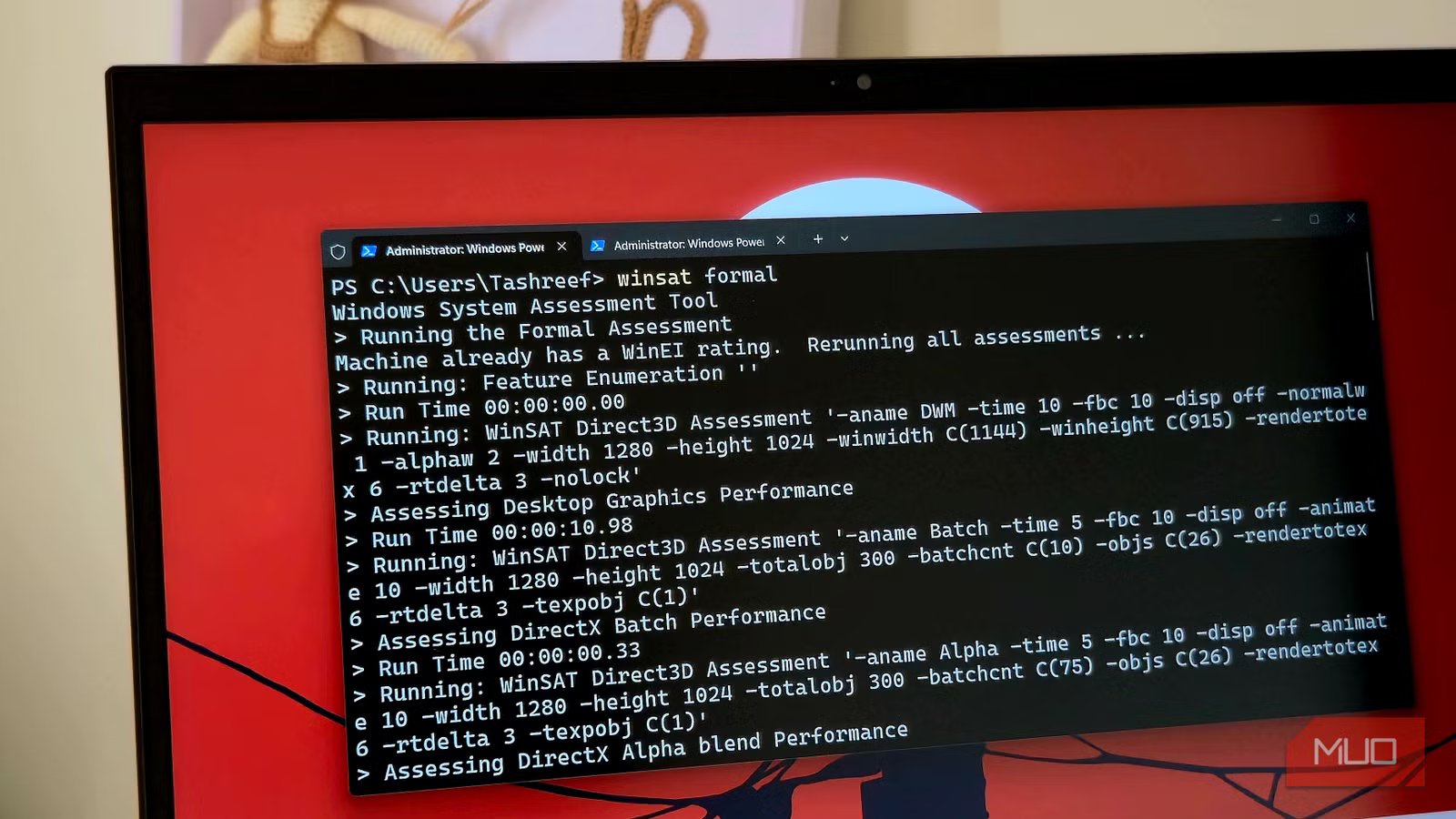
Most people open Windows Terminal once, see a black box with a blinking cursor, and decide that’s all there is to it. The default view doesn’t exactly invite curiosity. You type what you came to type, close it, and move on. What’s easy to miss is that the app they just dismissed is actually a full-blown command-line environment manager with a layered profile system that lets you give every shell its own identity, home base, and visual DNA.
Most people never get that far. Not because it’s complicated, but because nothing really points you in that direction. So this is that nudge.
Everything you assumed was just a black box turns out to have settings
When you launch Windows Terminal, you usually land in whatever default shell your system is set to use. For a lot of people, that’s PowerShell. You get a prompt and not much else.
What you don’t immediately notice is the small dropdown arrow next to the plus icon at the top of the window. It’s easy to overlook, but that’s where the app’s structure reveals itself.
Click it, and you’ll see a list of shells detected on your system. PowerShell, Command Prompt, any WSL distributions you’ve installed, maybe Git Bash if you have it set up. If you are still wondering why I use Windows Terminal instead of Command Prompt, this ability to consolidate all your environments into a single window is a huge part of the answer. Each of those entries is a separate profile, and each one can be configured independently.
Related
Finally, a Windows terminal that’s fast, colorful, and easy to use
A terminal that looks great, feels fast, and actually helps you get things done—on Windows.
This is the part the app never really explains. It just presents the list and leaves you to connect the dots. Every time you open a new tab from that menu, you’re not just launching a shell. You’re launching a profile with its own rules. That means every tab can start in a different place, run with different permissions, and look completely distinct from the others.
Below that list is the Settings option, which reveals a panel split into two key layers. At the top, you have global behaviors such as Startup, Interaction, Appearance, and Color scheme. But the real core is further down, where the Profiles section lives. That section is divided into Defaults and individual profiles.
Defaults act as a shared baseline. Any setting you change there applies across all profiles unless something overrides it. The individual profiles inherit from that base and then branch off where needed.
Think of Defaults as the template, and each profile as a tailored version. That relationship is what makes the system flexible without becoming repetitive.
Profiles are what turn identical tabs into purpose-built environments
Every shell deserves its own color scheme, and now you know where to find them
Once you understand that a profile backs every tab, the next step is shaping those profiles so they actually serve a purpose.
Start with the Defaults section. This is where you set the tone for everything. Font, size, spacing, color scheme. There’s a live preview pane at the top that updates as you make changes, making it easy to experiment without committing to anything.
The default font, Cascadia Mono, is already solid, but you can switch to any installed font. Small tweaks here make a bigger difference than you’d expect. Increasing the line height slightly, for example, makes dense output easier to scan over long sessions. In color schemes, you can assign a single scheme globally or define multiple and apply them per profile. Windows Terminal includes a handful of built-in themes, but you can also create a custom color scheme by specifying exact color values.
Now, this is where the idea of profile-per-shell tabs becomes obvious in practice. Instead of every tab looking identical, you can give each shell a distinct visual identity. A cooler palette for PowerShell, something darker and more subdued for WSL, maybe a warmer tone for Command Prompt. After a while, you stop reading tab titles and recognize where you are at a glance.
But appearance is only half of it; there’s more to configure when you move into individual profile settings.
Pick a profile, like PowerShell, and open it. You’ll see a settings page that mirrors the Defaults layout, but any change here applies only to that specific profile. The first setting that immediately changes how you work is the Starting directory. By default, most shells open in your user folder. It works, but it’s rarely where you actually want to start.
You can point each profile to a different location: a project folder, a scripts directory, or even a network path. Once set, every new tab using that profile opens exactly where you expect, without any extra navigation. There’s a small catch here. If the “Use parent process directory” option is enabled, it overrides your custom path. If your changes don’t seem to stick, that’s usually the reason.
Then there’s the Run this profile as Administrator toggle. Turning this on means that the profile always launches with elevated permissions. Instead of right-clicking and choosing “Run as administrator” every time, you just open that specific tab when you need it.
Once you see it, you stop using Terminal the old way
After a bit of setup, your tabs stop being interchangeable. One tab might always open in your main project folder, ready for development work. Another might be tied to WSL, with a different color scheme and Linux tools already in place. A third could be reserved for system-level tasks, always running as administrator. Yet another might be configured for quick command-line experiments in a clean, neutral environment.
None of this is particularly difficult to set up. The friction comes from the fact that Windows Terminal never clearly surfaces the idea. The feature is there, fully functional, but tucked behind a menu most people never explore. Once you spend a few minutes configuring it, though, the difference is immediate. You might even find yourself using Windows terminal commands that are weirdly fun just to see what your newly organized environment can do.
