

A few extra hours of battery can make all the difference when you’re away from a charger. And there’s a lot you can do to get there, from changing the power mode and lowering the screen refresh rate to disabling the screen saver and turning off USB ports when the screen is off. The problem is, these options are scattered across different parts of Windows, so changing them takes time and effort.
Thankfully, Windows has a dedicated menu called Energy Recommendations. It brings all the impactful settings into one place, so you don’t have to hunt them down.
It’s been there all along
Screenshot by Pankil Shah — No attribution required
It’s not just about what you’re doing on your PC that impacts power consumption. Streaming, gaming, and browsing with a dozen tabs open obviously chews through the battery. But what most people don’t realize is that how your PC is set up also makes a huge difference.
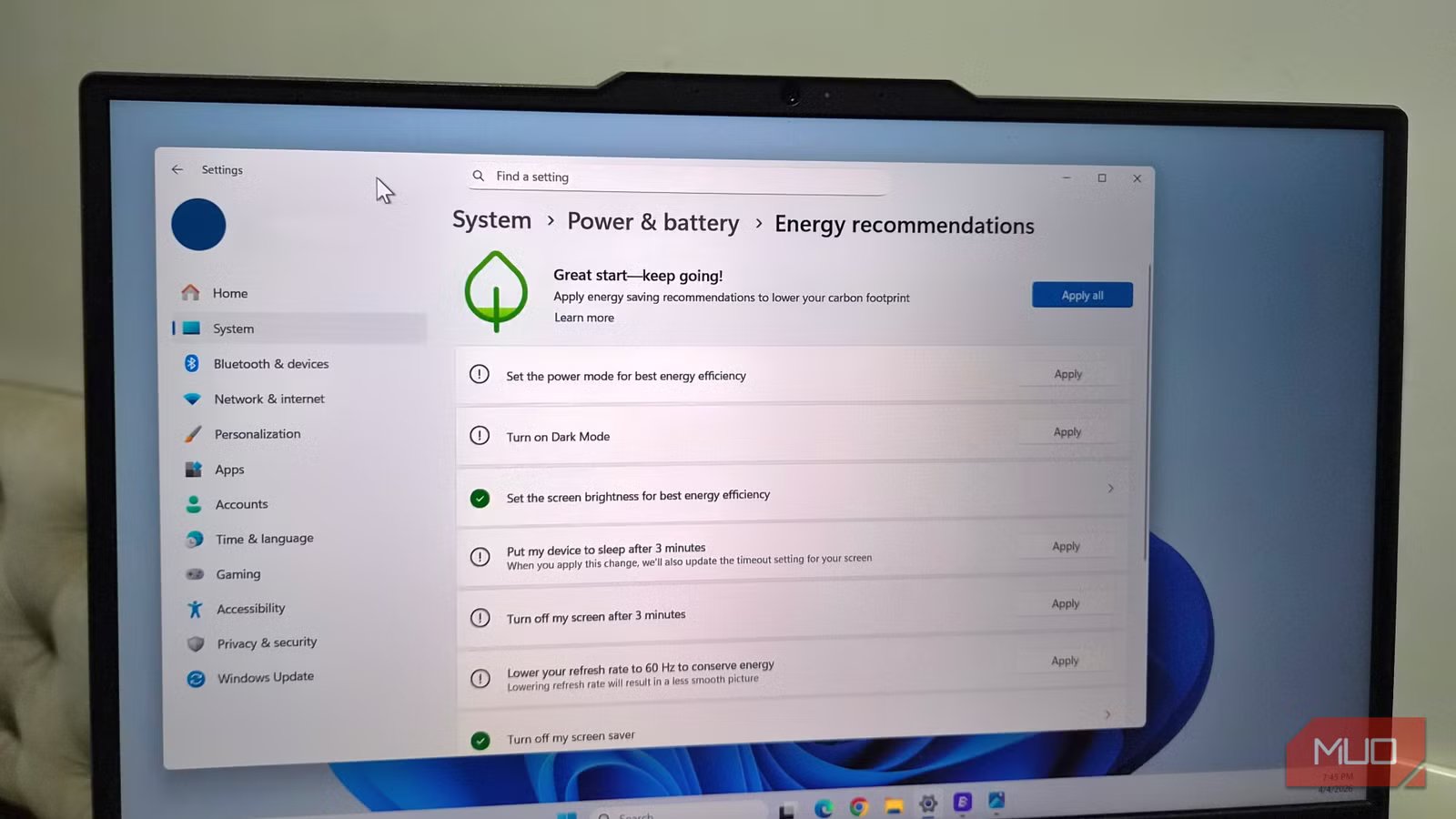
Windows’ Energy Recommendations is a dedicated section inside the Settings app that highlights all the options that have the biggest impact on your laptop’s battery. It also lets you tweak them from the same screen, so you don’t need to go hunting for these options.
You’ll find some obvious suggestions here, like switching to a more efficient power mode, lowering the screen refresh rate to 60Hz, and turning off the screen saver. But this menu also shows options that are easy to miss. For instance, lowering the brightness and using dark mode can save a lot of battery. Even disabling your USB ports when the screen turns off can reduce unnecessary power drain when you’re away from your PC. The biggest gains, though, come from things like faster sleep and screen off timers.
According to Microsoft, applying even one of these recommendations can lead to average battery savings of around 7%. So yes, even if you don’t plan to apply every recommendation, it’s still worth checking this menu out.
Unlock longer battery life with a single click
Less effort, more hours
Accessing the Energy Recommendations menu on your PC is as easy as it gets. Head to Settings > Power & battery > Energy recommendations. Here, you’ll see a list of suggestions, each with an Apply button next to it, so you can change the ones you want while leaving others. If you make any change and later decide it’s not for you, click the arrow next to it. This will take you to the page of that particular setting, where you can undo the change.
There’s even an Apply all button at the top that changes all the settings with a click. It’s the quickest way to squeeze out extra hours when you need your laptop to last. Note that the number of options you see in this menu can vary depending on the hardware. If your PC doesn’t have a high-refresh-rate display, for instance, you won’t see that option. This keeps the list relevant without overwhelming you with settings that don’t apply.
Of course, these recommendations aren’t just useful for battery life. The main reason Microsoft introduced them is to reduce energy consumption in general. Less wasted power means less strain on resources, which is something worth caring about.
Related
How to View Battery Cycle Count on a Windows Laptop
Learn how to check the battery cycle count on Windows 10, and what the cycle count reveals about battery health.
You don’t have to stop with just these tips
Go beyond the basics
Screenshot by Pankil Shah — No attribution required
The Energy Recommendations menu is a great starting point, but it’s not the finish line. If you want to reduce battery drain even more, there’s plenty more you can do. And no, it doesn’t have to be at the cost of performance.
For starters, background apps on your PC can be a big battery drain. Open Windows’ battery usage menu, and you’ll see which apps are consuming the most battery. What’s helpful is that Windows breaks usage down into active use and background activity. If you spot any app using too much battery, it’s best to prevent it from running in the background.
Windows also runs dozens of background services every time your PC boots. Of course, some of these are absolutely essential. But there are also others that simply use resources without benefiting you in a meaningful way. Services like Windows Search Indexer, Connected User Experiences and Telemetry, Windows Error Reporting, and Program Compatibility Assistant are the ones you can safely disable.
Beyond apps and services, you can even take advantage of your browser’s built-in power-saving modes. These often reduce battery drain by reducing inactive tabs, limiting background features, and optimizing performance. This can make a real difference if you spend most of your time inside a browser.
Finally, little things like disabling the keyboard backlight, disconnecting unused peripherals, and keeping the battery health in check can also help stretch your laptop’s battery life.
9/10
Brand
Ugreen
Battery Capacity
20000
Ports
USB-C x2, USB-A x1
Weight
14.8oz
The Energy Recommendations menu is incredibly handy for anyone who wants to tweak battery-related settings in a pinch. What I like about it is that it’s flexible. You can experiment with a few tweaks or go all in with one click when you need the most battery life.
