

Windows slows down over time. It’s a fact of life, like the moon rising and the changing of the seasons. Right on time, Windows will begin to feel like it’s losing its edge and becoming less snappy, and it becomes increasingly irritating to use.
There are a few good reasons why this happens. Patches, bloatware, hardware, software, and more all begin to pile up or start failing, and we always, always blame Windows.
But the thing is, it’s not always specifically Windows fault — something else is, something you can actually fix.
Related
These 5 changes instantly made my Windows PC faster
Everyone needs a performance boost sometimes
Your storage drive is physically wearing out
Tired cells
Credit: MakeUseOf
It doesn’t take a rocket scientist to figure out that over time, your hard drive or solid-state drive will slowly wear down. It’s one of the most active parts of your computer, responsible for tracking most of what you do every day on your machine, and is used thousands of times every day.
On a traditional hard drive, that wear is mechanical. The read/write heads move across spinning platters, and over time, that process becomes less reliable. Sectors go bad. Read errors increase. The drive keeps working, technically, but it works slower.
SSDs don’t have moving parts, but they degrade too. NAND flash cells have a finite number of write cycles, and as a drive ages and fills up, write performance in particular takes a hit. The drive your OS boots from five years ago simply isn’t performing the same as it was on day one.
While you shouldn’t panic about drive health statistics, your drive health will only go one way, and it’s not really fixable through secret settings or unique software. Drive wear is fixed, and your drive has a finite lifespan. The only real answer is to buy a new drive.
Storage capacity
2TB
Brand
Samsung
Transfer rate
Read: 7,450 MB/s, Write: 6,900 MB/s
DRAM
2GB
Your hardware hasn’t changed
Everything else has
Credit: Hannah Stryker / MakeUseOf
This where I’ve been running up against problems in recent years, with my aging hardware making life difficult for gaming and emulation at times. That’s because while my CPU from 2020 is decent, it’s aging, and my GPU? Well that’s a GTX 1070 from a decade ago, and it’s creaking.
That’s because hardware requirements are increasing, but my hardware is standing still.
Consider the requirements of modern browsers. You need a huge amount of RAM just to use Google Chrome properly. Windows 11 isn’t exactly lightweight and requires modern CPUs and motherboards with specific specs, and that’s before you get to the telemetry, security, updates, and so on. Even certain Linux distros need more RAM than you’d expect, with Ubuntu now requiring 6GB RAM as per our sister site, XDA Developers.
It all adds up to one problem: it feels like Windows is degrading, but it’s really your hardware holding it back.
Startup bloat is your easiest actual fix
And it makes a big difference
Want something you can actually control? Look at your bloated startup list, and start to strip it down.
Everytime you install software, like a new video player, cloud sync tool, game launcher, and so on, there is a chance it sneakily adds itself to your startup sequence. That means each time you boot your system, it loads as the operating system boots, slowing everything down.
They consume memory and CPU processing power during the startup, but it doesn’t stop there. All of those programs keep consuming resources, making your entire system feel slow. Furthermore, over years, this accumulates. What started as a clean boot sequence becomes a queue of a dozen applications fighting for resources before you’ve even opened a browser tab.
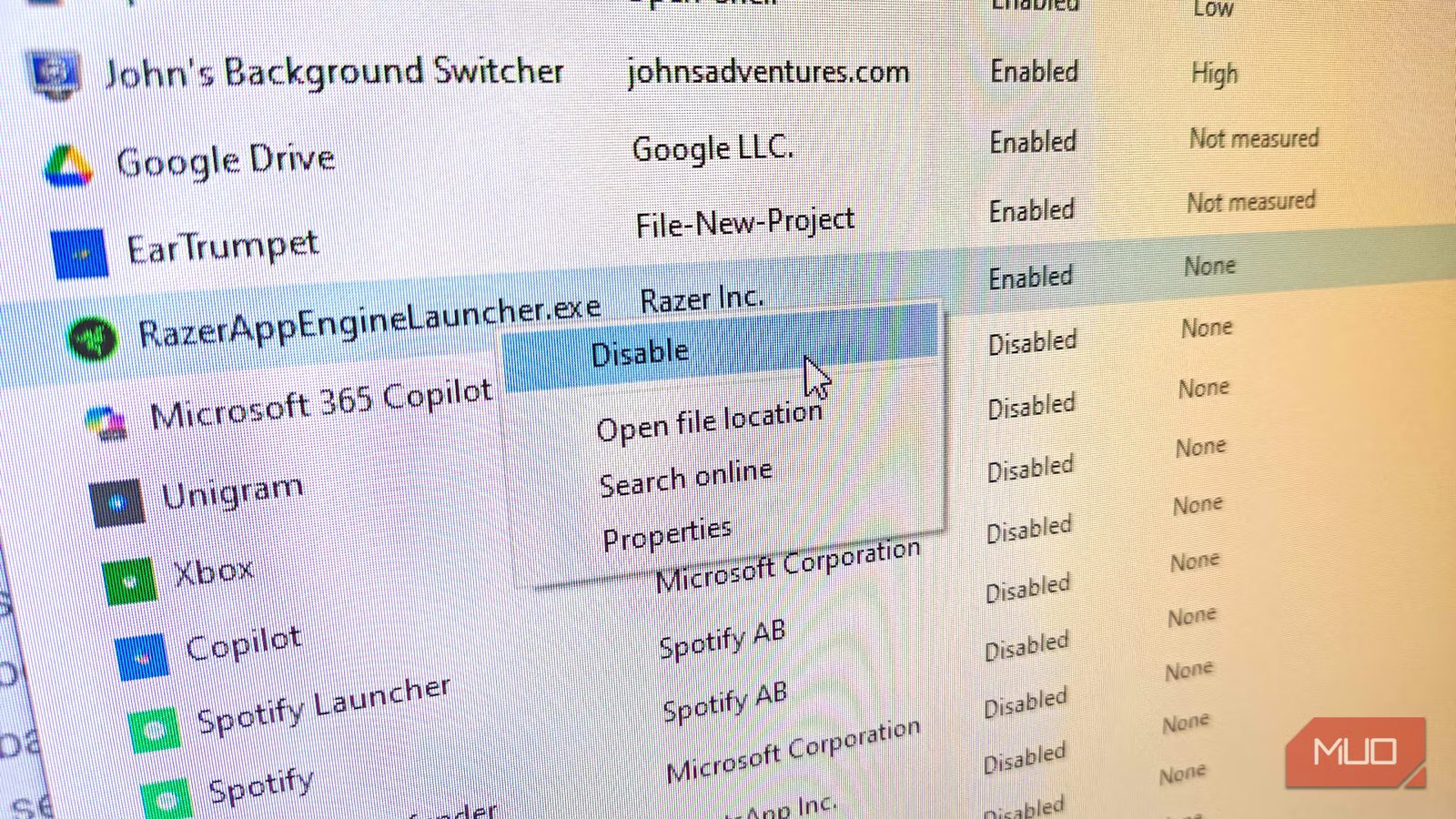
The good news is that cutting your system bloat and startup times is simple. For example, look at my Task Manager Startup apps list. I’ve cut it right down, but all of those programs were clambering for resources. That’s why it’s important to cut it all down.
- Press Win + X and select Task Manager
- Find the app you want to stop running at startup, right-click, and select Disable
Now, move through the list, and free your computer from bloat.
Related
6 ways to free up RAM in Windows when your PC starts slowing down
Freeing up vital memory on Windows only takes a moment, and your computer will feel much faster once you’re done.
Don’t reinstall Windows just yet
Of course, in all of these cases, you absolutely can head out and upgrade your SSD, buy a new CPU, a new GPU, and everything else.
But that doesn’t fix your PC right here and right now, which is what you really want.
