

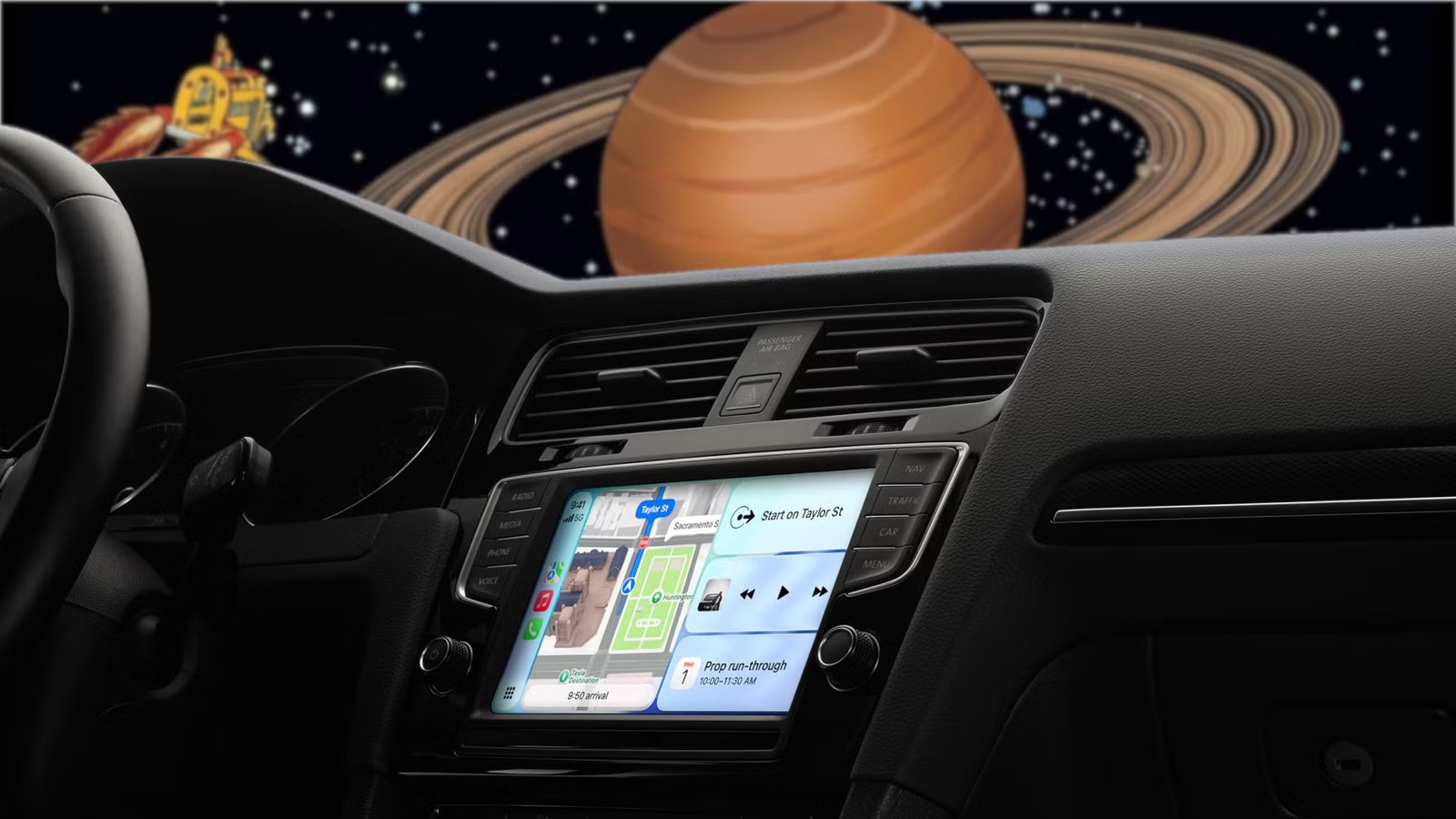
When you use CarPlay, you probably just start some music, enter a destination, and drive off. However, there is a lesser-known feature that can make your CarPlay experience a lot more personal and fun: setting a custom greeting or sound when it connects to your car.
How to add your custom sound to CarPlay
Add a custom sound to play when your iPhone connects to CarPlay
While it may seem hard to do at first, adding a sound—either personalized or prerecorded—to play when you first connect to CarPlay is fairly simple. To do so, all you need is a car that supports CarPlay and the Shortcuts app.
Setting up the automation
First, open the Shortcuts app and go to the Automations tab at the bottom of the screen. Then tap the plus sign in the top-right corner.
Next, scroll down until you find the CarPlay option, which is located under NFC, and select it.
Once you tap it, choose the option to run the automation when you connect to CarPlay. You can also set it to run when you disconnect, but in that case, the sound will play through your iPhone instead of your car’s speakers since it will be disconnected.
2026 Aston Martin Vantage Roadster Interior Console & Infotainment Showing Apple CarPlayCredit: Aston Martin
Under those options, you’ll see “Run After Confirmation” and “Run Immediately.” Select the latter so the automation runs automatically without needing your approval each time.
Furthermore, when you select “Run Immediately,” another option called “Notify When Run” will appear under it. Keep this turned off for a smoother experience and fewer notifications cluttering your lock screen.
After making your selection, you’ll be prompted to either create a new shortcut or run an existing one. If you haven’t created the shortcut with your sound yet, choose to make a new one. If you already have it set up, simply find and select the existing shortcut.
Putting together the shortcut
Once you have set up the automation, you’ll need to create the shortcut that runs when it’s triggered. This works like any other shortcut.
Credit: Nathaniel Pangaro / How-To Geek | Apple
Before creating the shortcut, make sure the sound you want to use is saved in the Files app. You’ll need to know its location when it’s time to select it.
In the shortcut editor, use the search bar at the bottom to type “File” and add that action. This lets you choose the audio you previously saved.
Credit: Nathaniel Pangaro / How-To Geek | Apple
Tap “File” in the action, then locate and select the sound file you want to use. If you just added the sound, the easiest way to find it is in the Recents tab at the bottom of the screen.
Next, search for “Play Sound” and add that action. It should appear directly below the File action.
Credit: Nathaniel Pangaro / How-To Geek | Apple
Make sure the Play Sound action is placed under the File action so they connect, as indicated by a line between them. This ensures the shortcut knows which audio file to play.
Once everything is added and set, the shortcut is ready to go. Before finishing, press the play button in the bottom-right corner to make sure everything works correctly.
Credit: Nathaniel Pangaro / How-To Geek | Apple
With this automation enabled, every time you connect to CarPlay, the sound will play automatically.
Using the CarPlay sound in the wild
Different ways to use the sound for yourself or on others
The hardest part of setting up this CarPlay automation is deciding which sound to play when it connects. I went through multiple options before settling on one.
Credit: Honda
Personally, I wanted something short, straight to the point, and fun to hear. I was fine with it lasting up to five seconds rather than a full minute.
When picking my sound, I thought of it like choosing notification sounds on an iPhone: calls can have longer tones, but text messages need something quick. I went the text message notification route.
I chose a sound from The Magic School Bus when Ms. Frizzle says, “Seatbelts, everyone!” during the opening theme song. It’s short, fun, and everyone who I’ve had in my car gets the reference.
I won’t lie—sometimes I forget the sound is enabled, and it jump-scares me when I start my car, since I’m not expecting it. That, of course, led me to cook up a more mischievous plan.
Since setting this up is easy, I decided to play a prank on my mother. The next time she connected her iPhone to CarPlay, a specific sound would play without her expecting it.
I decided to go with a harmless sound: the “tudum” that plays every time you open the Netflix app. It was short and perfect for a little jump scare.
I AirDropped the sound to her iPhone and quickly set up the automation in the Shortcuts app. Getting access to her phone was easy; I just told her I needed to check if it was up to date.
The hardest part was waiting for her to use the car. Luckily, I know she goes to the library to play mah-jongg every Wednesday night, so I pretended to get something in the garage to catch her reaction.
When she got in the car, she didn’t expect anything. But when the car started and her iPhone connected, a loud “tudum” blasted through the speakers. To say she was startled would be an understatement—she nearly jumped through the sunroof.
I heard her yell, “Nathaniel, what was that?” from the car. After I stopped laughing, I explained what had happened and turned off the automation so it wouldn’t play again when she connected to CarPlay.
To me, this prank was very funny. However, my mother did not find it so funny.
Keep customizing your CarPlay experience
While you can keep one sound enabled, you can also customize it for different occasions. You can set a specific sound for each season, play a “Happy Birthday” message for someone on their birthday, or set a sound to hype everyone up for a trip before the drive starts.
The choices are nearly endless, and all it takes is switching out the audio file within the Shortcut you created.
Adding a sound to CarPlay isn’t just a fun trick—it’s a great way to start your car ride differently from the way people have been doing it since CarPlay first arrived.
