

Chrome and memory. RAM and Chrome. The most enduring love-hate relationship between a browser and the folks that use it everyday, seeing it gobble up gigabyte after gigabyte and push systems to a crawl.
I’m a long-term Chrome user and even longer-term tab horder, so I understand the pain of Chrome seemingly not stopping in its quest to make your computer feel slow.
In fairness, it’s not always Chrome’s fault; I’ve just admitted I open more tabs than any person with a sense of self-control should.
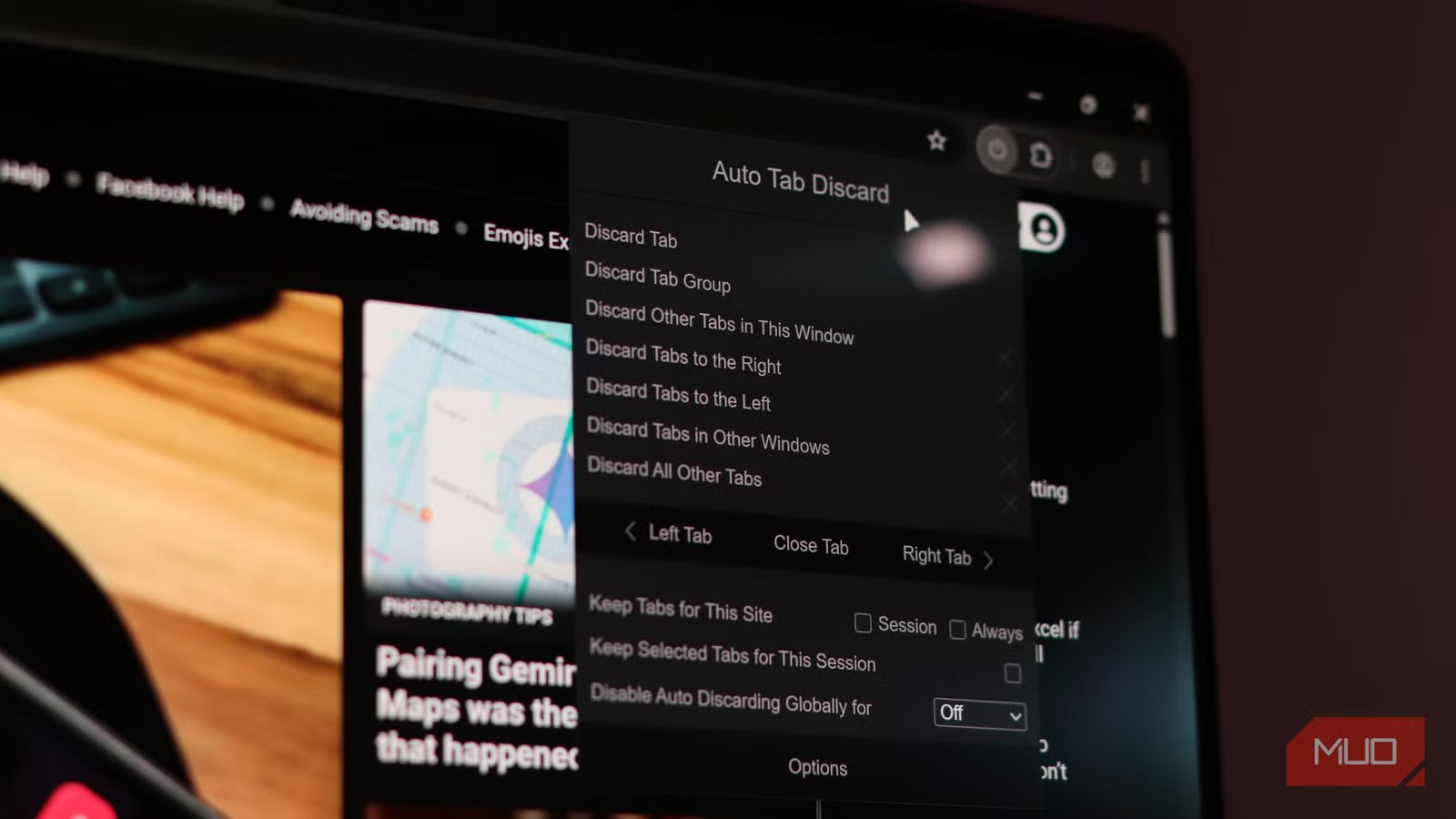
Chrome has a built in solution for this problem: Memory Saver. But over the years, I’ve consistently felt like this just doesn’t do what I want — so I’ve switched to this memory saving Chrome extensions instead: Auto Tab Discard.
Why Chrome’s Memory Saver feature doesn’t cut the mustard
It’s decent, but is limited
Credit: Gavin Phillips / MakeUseOf
Chrome’s Memory Saver was a long requested feature, that took Google years to finally bring to the browser. On paper, Memory Saver is just what we wanted: an integrated browser memory saving tool that automatically fixes Chrome when it’s consuming too many resources.
But there are some issues with how Memory Saver works that means it’s not always the best option.
The core problem is that Memory Saver is reactive. It only kicks in when your system is already under memory pressure — meaning Chrome waits until things are bad before it does anything about it. On a machine with 16GB of RAM, that threshold may never be reached at all, even with 30 tabs open and your fans spinning. You don’t get the memory back until Chrome decides you need it, and Chrome sets that bar surprisingly high.
Lack of customization is another issue, though I’ll conceed that not everyone wants to tinker with when their browser releases memory. Still, Memory Saver doesn’t have a timer feature, prioritize by tab age option, or to be more aggressive with specific domains you know to consume more memory over time.
In fairness, it does have the three Memory Saver options: Moderate, Balanced, and Maximum, but you still don’t get any level of customization.
That’s why Auto Tab Discard is so useful in comparison. You get all of these features and more, giving you much great domain over how Chrome handles memory.
Feature
Chrome Memory Saver
Auto Tab Discard
Automatic tab suspension
✅
✅
Proactive (timer-based)
❌
✅
Custom inactivity timer
❌
✅
Per-domain whitelisting
✅ (exclusions only)
✅ (full control)
Battery-aware suspension
❌
✅
Offline-aware suspension
❌
✅
Protects media tabs
✅
✅
Preserves tab state on reload
❌
✅
Free
✅
✅
Customization level
Low
High
Switching to Auto Tab Discard will save more memory
And it’s totally free
Auto Tab Discard is a free and open-source (Auto Tab Discard GitHub) that proactively sorts your tabs and memory. It uses a “native method” for tab discarding that means you can restore the tabs without losing any data, even preserving scroll position and other page data.
What I like about Auto Tab Discard is that it just works out of the box. If you don’t want to spend time tinkering with its extensive customization options, Auto Tab Discard’s default options work well.
It’ll discard inactive tabs after 10 minutes if the number of inactive tabs is more than 6. For someone like me who regularly keeps 30 tabs open across multiple windows, freeing up background memory like this is vital, especially when I’m working on a laptop.
Then you can customize the Discarding conditions, with options to ignore tabs when media is playing, is hosting paused media, pinned tabs, and more. Among these is one of the most useful Auto Tab Discard options, which stops the extension discard tabs when you have no internet connection and the tab isn’t cached.
Basically, your tabs won’t time out and remove content when you lose an internet connection, keeping them alive. It helps you keep tabs active and accessible, which is super useful in patchy connection areas. So, for me, it’s a lifesaver on train journeys when you’re heading into long tunnels, valleys without reception, and so on.
I also like that you can customize the action when you click on the Auto Tab Discard icon in your extension draw. By default, it’ll open the menu to show the full list of suspension options, but you can also set this to automatically discard a single tab, all tabs, all tabs in this window, and so on. It’s a level of customization that Chrome Memory Saver just doesn’t have.
Another useful feature is that the extension icon gives you a live count of how many tabs are currently suspended, and the options page has a full log. It’s a small thing, but I find it handy to see the memory saving impact. It can actually be a way for me to go, “Huh, I’ve got so many pointless tabs open,” then go and figure out what I actually want to keep open.
Related
Don’t Let Chrome Gobble RAM—Activate This Hidden Setting
Google Chrome is wonderful, but one of its biggest issues persists.
Chrome Memory Saver could be brilliant
But Auto Tab Discard is what you need
Chrome’s Memory Saver isn’t useless — for light users with a healthy tab count and plenty of RAM, it’s probably fine. But if you’re anything like me, and your tab bar is a graveyard of good intentions, it was never going to be enough. Auto Tab Discard gives you the control Chrome should have built in from the start, without costing you anything. Install it, set your timer, whitelist the tabs that matter, and forget about it. Your RAM will thank you.
