

If something goes wrong with your PC, be it sluggish performance, slow startup issues or even frequent crashes, Windows offers a few built-in tools to know what’s wrong. For instance, Task Manager can tell you if sluggish performance is due to high disk or memory usage by a process, and Startup apps lets you measure and fix slow startup issues. Event Viewer, on the other hand, helps you know why and when your system crashed.
But these tools only scratch the surface. You get the what, rarely the why. You could install third-party tools to fill that gap, but I didn’t have to. Microsoft’s own Sysinternals suite already has sharper alternatives to all three, built by the same people who know Windows internals better than anyone. Process Explorer, Autoruns, and Sysmon have replaced Task Manager, Startup apps, and Event Viewer on my setup for a while now.
Process Explorer shows you what Task Manager hides
A proper process tree with color-coded internals
Task Manager is fine for the basics. I can glance at the Processes tab, sort by memory or CPU, and kill whatever is eating my resources. It even has a tab that shows exactly why your PC is slow when you switch to the Performance view. But the moment I need to understand why a process exists or what it’s actually doing, Task Manager stops being useful.
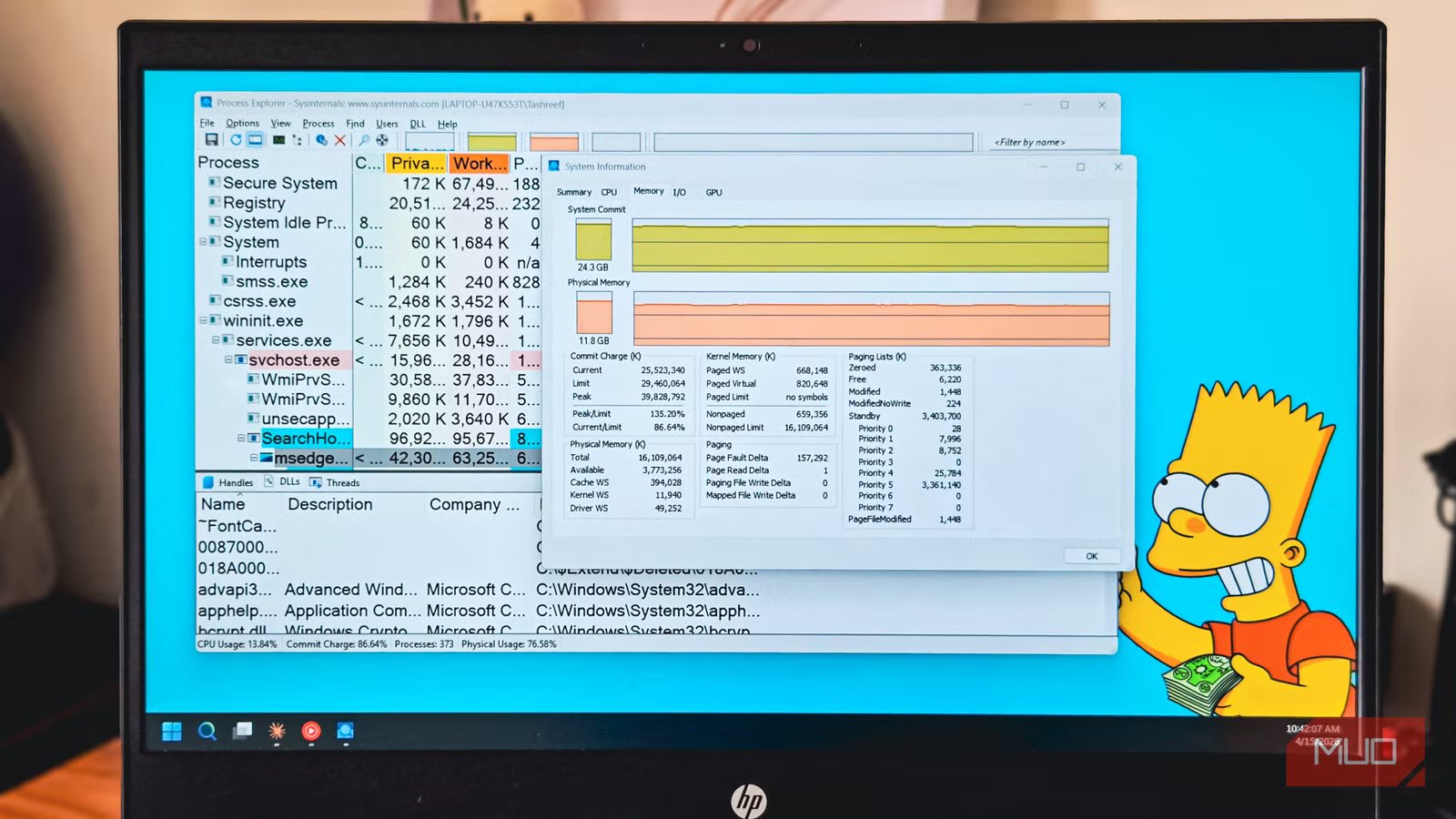
Process Explorer, a Sysinternals tool, fixes that by showing a real parent-child tree. It uses both the parent PID and the start time, so processes whose parents have already exited don’t get incorrectly attached to some new process that reused the same PID. So, if you are trying to trace a suspicious child back to its launcher, you can easily trust what you are seeing.
Each row in the process list is tinted by process type. Yellow flags .NET processes, pink marks services (with a dedicated Services tab showing which ones are hosted inside each svchost), cyan highlights UWP and WinRT processes, and fuchsia marks protected processes that even admin rights can’t peek into. The lower pane is where it really pulls ahead of Task Manager. You can open the Handles view to find which process is locking a file you can’t delete, then close just that handle instead of killing the whole process. The Modules view shows every DLL loaded into a process, with relocated ones highlighted, which is useful when something feels off.
OS
Windows
Developer
Microsoft Sysinternals
Process Explorer is a powerful, freeware Windows utility that provides a detailed, advanced view of running system processes, offering significantly more information and diagnostic capabilities than the default Windows Task Manager.
Autoruns finds every startup entry that Windows ignores
The full list of things loading at boot
Task Manager’s Startup apps tab (or the one under Settings > Apps > Startup) is a good starting point for boot time issues. It shows the usual suspects and even rates their startup impact, which is how I usually decide which startup apps to disable first. Disabling the worst offenders there usually shaves a few seconds off boot time.
The problem is that the Startup apps list is heavily curated. Windows hides most of the actual autostart locations from you, probably to keep people from breaking their systems. Services, scheduled tasks, registry Run keys, Active Setup entries, and Explorer extensions all load at boot, but almost none of them show up in Task Manager. So you clean up the visible list, feel good about it, and half your boot load is still doing its thing in the background.
Autoruns removes that smoke screen to offer better insights into these processes. Launch Autorun, and the Logon tab will show several entries that weren’t in Task Manager, many of them leftovers from uninstalled apps that never cleaned up their registry entries. On one of my machines, I found an Adobe updater, a custom entry trying to open Command Prompt at every boot, and a Google Chrome Active Setup entry that keeps reappearing. Yet, none of those were visible in the Startup apps tab.
You can uncheck entries instead of deleting them, which leaves a reversible trail in case I disable something you shouldn’t have. It’s recommended that you stick to obvious third-party leftovers, game launchers you don’t use, and abandoned updater services. Anything signed by Microsoft or tied to drivers, leave them alone. That rule has kept me out of trouble and noticeably sped up boot on every PC I’ve run it on.
OS
Windows
Developer
Microsoft (Sysinternals)
Autoruns is a powerful Sysinternals tool that reveals every program, service, and hidden entry that runs automatically when Windows starts.
Sysmon makes Event Viewer a lot more useful
Rich process, network, and file telemetry in Windows logs
Event Viewer is where you go when something has already gone wrong. For instance, if your PC crashed overnight, you can open Windows Logs > System, look for critical errors around the crash time, and try to match them with a driver or service. It works, but the default logs are vague. Which means, while you can see something went wrong, but its hard to say what.
Now, the alternative to the Event Viewer is a bit more technical than the other two, so fair warning. Sysmon (System Monitor) is a Sysinternals tool that plugs into the Windows logging pipeline and records the kind of events Windows doesn’t log by default. It involves process creation with full command lines and file hashes, network connections tied to specific processes, file creation and deletion events, and registry changes. All of it lands inside Event Viewer under Applications and Services Logs > Microsoft > Windows > Sysmon, so you keep using the same tool you already know.
Setting it up is a three-step job. You need to download Sysmon from the Sysinternals site, grab a prebuilt config file (SwiftOnSecurity’s template on GitHub is a good starting point), and install it from an admin command prompt with sysmon64 -accepteula -i sysmonconfig.xml. That’s it. Events start flowing into the Event Viewer immediately.
For the use case, you can use it to work backward after something went wrong. If a file appeared in a folder you didn’t touch, Sysmon’s Event ID 11 (file create) tells you which process wrote it. If your network usage spiked while you were away, Event ID 3 (network connection) shows you exactly which executable made the call and where it connected. It’s not a replacement for a proper EDR, and the log volume does grow fast, but for a single machine where you want to know what actually happened, it turns Event Viewer into something you can investigate with instead of just staring at.
OS
Windows (with a Linux version also available)
Developer
Microsoft (Sysinternals team)
Sysmon (System Monitor) is a Windows system service that logs detailed process creations, network connections, file changes, and registry activity to the Event Log for advanced security monitoring and threat detection.
When the built-in tools are as good as third-party alternatives
I haven’t uninstalled Task Manager, because you can’t, and I wouldn’t want to anyway. For a quick kill of a frozen app, Ctrl + Shift + Esc is still faster than anything else. Startup apps in Settings is fine for flipping off one launcher you forgot about. And Event Viewer on its own is enough for a one-off check after a blue screen.
The Sysinternals trio is what I reach for when those aren’t enough. Process Explorer when I need to see what a process actually is, Autoruns when I’m cleaning up a machine properly, and Sysmon when I want logs that can tell me a story later. They take a little more effort to learn, but they offer a lot more insights into what went wrong with your PC than just guesswork.
