

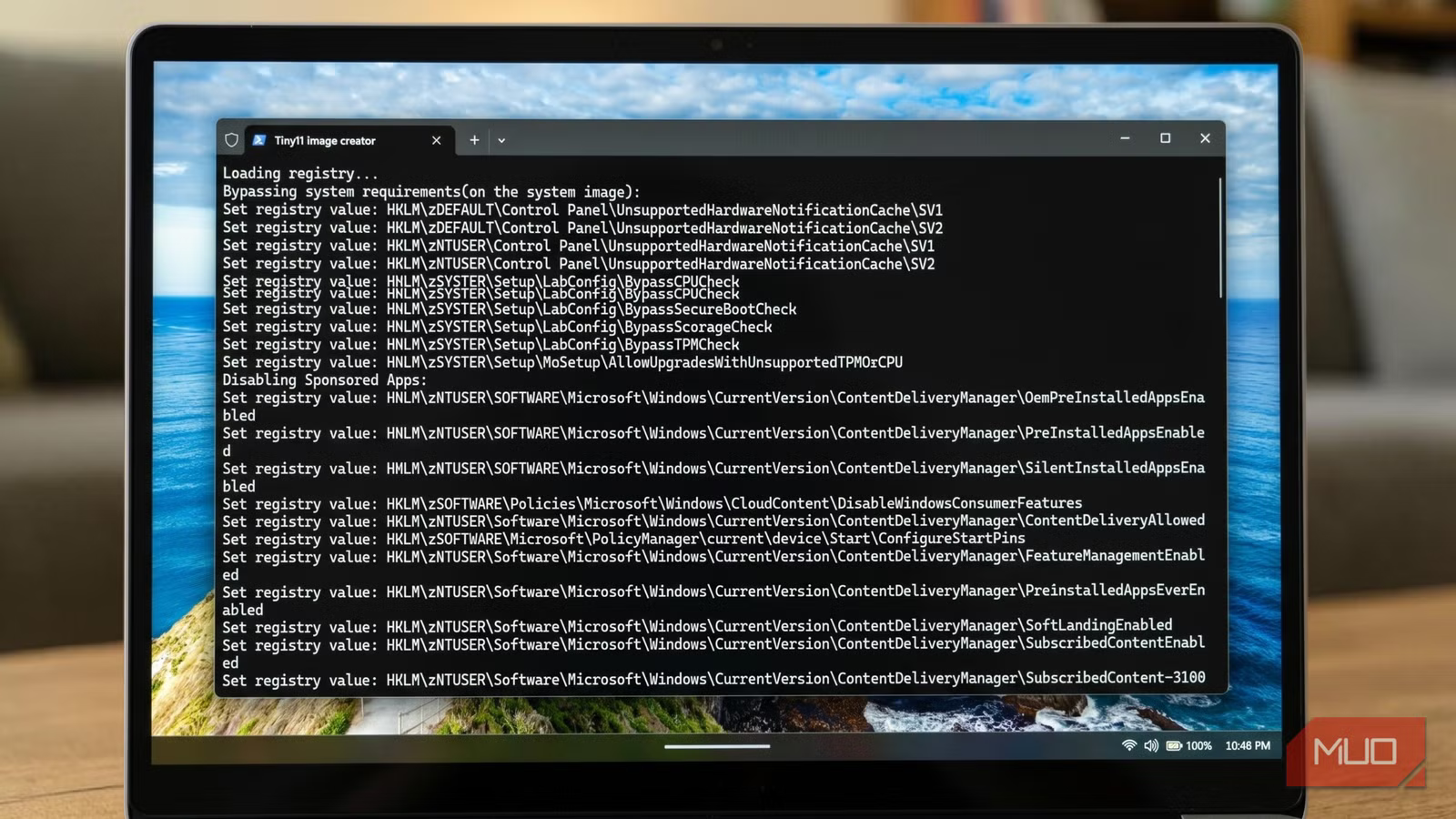
I have an old laptop I refuse to part with. Not out of nostalgia, but because the hardware is still capable, and I don’t want to surrender to the temptation to junk a machine just because Microsoft’s system requirements say so. The problem is that every time I install a fresh copy of Windows 11 on it, the OS boots sluggishly, idles with a hungry RAM appetite, and arrives pre-stuffed with apps I have never once opened. This makes quickly removing bloatware from Windows 11 a mandatory post-installation chore.
That frustration is what eventually led me to Tiny11 Builder, a free, open-source PowerShell script maintained by a developer known as NTDEV on GitHub.
Related
I just installed Windows 11 on a 10-year old PC — this method still works
You don’t need to worry about Windows 11 hardware requirements with Rufus.
Windows 11 comes with a lot of luggage didn’t pack
Background processes, telemetry, and other uninvited houseguests
Afam Onyimadu / MUO
A default Windows 11 installation is a generous host. Perhaps too generous. Before you have installed a single app of your own choosing, you are already sharing your machine with Clipchamp, Xbox Game Bar, News, Weather, the new Outlook client, Microsoft Teams, Copilot, OneDrive, Power Automate, Solitaire, Sound Recorder, Maps, Feedback Hub, and a few other uninvited guests. While it is true that not all Windows bloatware is bad and that some built-ins are great depending on your workflow, these apps sit in your start menu, consume storage, and, in some cases, run background processes you never authorized.
What makes this more galling is that Windows 11 does not make it easy to remove them. Some can be uninstalled through the Settings app with a few clicks. Others resist gracefully, leaving behind registry traces and scheduled tasks that try to reinstall themselves after updates. Microsoft’s September 2025 move to bake the new Outlook client and Teams into fresh installations seems to have been a deliberate escalation, one that Tiny11 Builder’s developer responded to by adding both apps to the removal list almost immediately.
Beyond the app clutter, the standard Windows 11 ISO itself, as of this writing, is around 8GB, and a clean installation on a real machine expands to roughly 36GB once updates and drivers are applied. For a device with limited storage, that footprint leaves very little room for anything else.
One PowerShell script and a much smaller ISO
It’s open-source, auditable, and built from files Microsoft gave you first
The whole process is approachable, even if you have never touched a PowerShell script in your life. Before you start, you need to download an official Windows 11 ISO directly from Microsoft’s software download page. This is critical: you want a clean, verified source, not a modified ISO from a random corner of the internet. Next, head to the Tiny11 Builder GitHub repository and download the latest version of the script. You can do this by clicking the green Code button, choosing Download ZIP, and then extracting the ZIP file to a location you can easily find.
After that, you need to mount the ISO. In Windows Explorer, right-click the downloaded ISO file and select Mount. Windows will assign it a drive letter, something like D: or E:. Make a note of it.
To run the script, open PowerShell as Administrator (right-click the Start button and choose “Windows PowerShell (Admin)” or “Terminal (Admin)”). Before running any script, you need to temporarily allow execution with this command:
Set-ExecutionPolicy Bypass -Scope Process The -Scope Process part is important because it restricts the policy change to your current session only, so it reverts automatically when you close PowerShell. Then, navigate to the folder where you extracted the Tiny11 Builder files and run the main script, pointing it at the mounted ISO. In my case, here’s what it looks like:
C:\Users\Oluwademilade\Downloads\tiny11builder-main.\tiny11maker.ps1 -ISO D -SCRATCH C Replace D with the drive letter of your mounted ISO and C with any drive that has at least 15GB of free scratch space. The script will ask you to select which Windows 11 edition you want to base your image on (Home, Pro, etc.), and then it gets to work. This is the part where you go make a cup of coffee, because it takes a while, particularly during the compression step.
Tiny11 Builder actually ships with two scripts. The standard one, tiny11maker.ps1, is the one to use for a regular daily-driver installation. It strips the bloat but leaves Windows fully serviceable, meaning you can still receive security updates, install language packs, and add features later. The second script, tiny11Coremaker.ps1, goes considerably further, removing the Windows Component Store and disabling Windows Update entirely. That version is designed for virtual machines and development sandboxes, not for a computer you actually rely on.
When the script finishes, you will find a file called tiny11.iso in the same folder. That is your custom Windows installation image, ready to be flashed to a USB drive with a tool like Rufus. This makes for a perfect setup if you are installing on an older machine, as you can seamlessly configure Rufus to bypass TPM and Secure Boot requirements in Windows 11 right before creating your installation media.
Leaner, faster, and honest about its limits
There’s more to know in the fine print
The finished ISO is around 5.9GB, compared to Microsoft’s original 8GB. After a clean install with updates applied, the standard Tiny11 image uses roughly 29GB of disk space, saving significantly more space than a stock Windows 11 installation. On a machine with a modest 128GB SSD, that gap translates into meaningful breathing room.
The day-to-day experience feels noticeably snappier on older hardware, particularly during startup and when the system is idling. On a modern, well-specced machine, the raw benchmark differences between Tiny11 and standard Windows 11 are modest enough to fall within the margin of error on tests like Cinebench and Geekbench. The gains become most visceral on machines with older CPUs or limited RAM, where fewer background processes make an outsized difference.
There are a few things worth being clear-eyed about, though. The standard Tiny11 image removes Microsoft Edge completely, though some traces remain in the Settings app. It also removes OneDrive, which is worth knowing in advance if you rely on it. Copilot, the new Outlook client, and Teams are gone, too, which is exactly the point for most people using this tool, but something to plan around if you use any of them. The developer also notes that Outlook and Dev Home have occasionally reappeared after updates, describing it as an ongoing battle, though the latest script release is more aggressive about preventing it.
Security updates do work on the standard build, which is the version worth using. The Core variant disables Windows Update entirely, making it unsuitable for any machine that handles sensitive information or connects to the internet regularly.
A smaller Windows is still Windows
Whether your motivation is rescuing old hardware, reclaiming storage on a cramped drive, or simply wanting a Windows installation that feels like it belongs to you rather than to Microsoft’s marketing team, Tiny11 Builder is one of the more thoughtful tools the open-source community has produced. It does not ask you to trust a prebuilt ISO from a stranger. It hands you a script, points it at Microsoft’s own files, and lets you see exactly what gets removed.
