

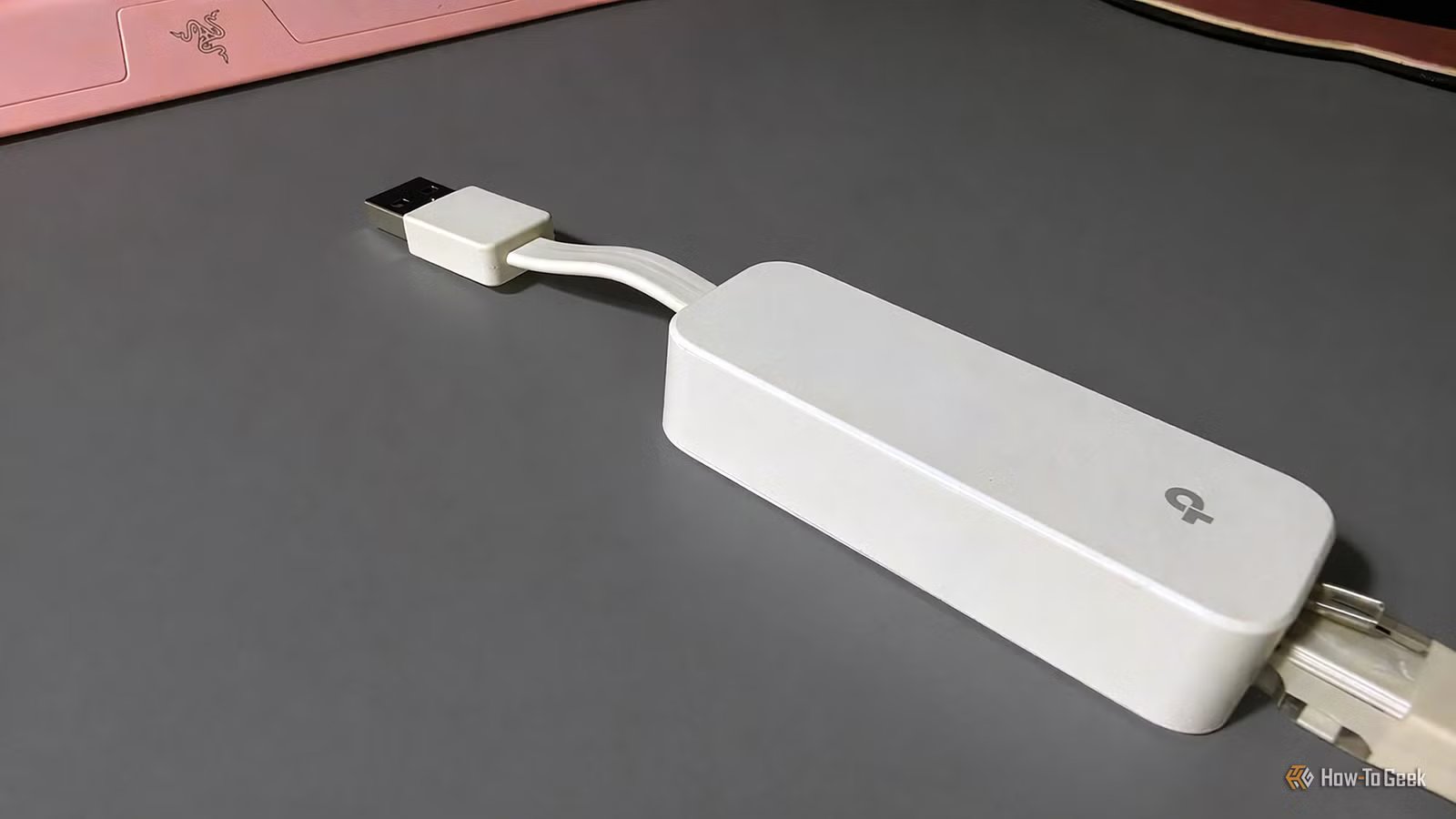
I’ve covered routers and various networking matters here at How-To Geek quite extensively. You’ve seen me advocate for buying your own router and suggest ways to fix bottlenecks that break fiber internet connections. I’m no stranger to networking gear, and yet, my favorite purchase cost me all of $10.
For those of us who don’t have a second Ethernet port or can’t be bothered to move their PC case around all the time in order to reach said port (read: me), an Ethernet to USB adapter can be a real lifesaver. No, I’m not joking. Here’s how I make use of mine.
Why a boring $10 adapter is my favorite networking gadget
It’s my little source of peace of mind
So, why am I gushing about some totally boring adapter? Let’s start with a bit of backstory.
I haven’t had the greatest luck when it comes to getting a stable internet connection at my home. An old ISP even demanded $1,000 to let me break the contract despite the fact that my internet would go down 20-50 times a day (through no fault of my own, mind you).
Seeing as I work from home, having such an unreliable connection wasn’t exactly ideal, which prompted me to get a cheap backup connection from a different ISP. Desperate times, desperate measures, yadda yadda.
Quiz
8 Questions · Test Your Knowledge
Home networking & Wi-Fi
Think you know your routers from your repeaters — put your home networking know-how to the ultimate test.
Wi-FiRoutersSecurityHardwareProtocols
Begin
What does the ‘5 GHz’ band in Wi-Fi offer compared to the ‘2.4 GHz’ band?
ALonger range but slower speedsBFaster speeds but shorter rangeCBetter wall penetration and faster speedsDLower interference but identical speeds
That’s right! The 5 GHz band delivers faster data rates but loses signal strength more quickly over distance and through walls. It’s ideal for devices close to the router that need maximum throughput, like streaming 4K video.
Not quite — the 5 GHz band actually offers faster speeds at the cost of range. The 2.4 GHz band travels farther and penetrates obstacles better, which is why smart home devices and older gadgets often prefer it.
Continue
Which Wi-Fi standard, introduced in 2021, is also known as Wi-Fi 6E and extends into a new frequency band?
A802.11acB802.11axC802.11beD802.11n
Correct! 802.11ax is the technical name for Wi-Fi 6 and Wi-Fi 6E. The ‘E’ variant extends the standard into the 6 GHz band, offering a massive swath of new, less-congested spectrum for faster and more reliable connections.
The answer is 802.11ax — that’s Wi-Fi 6 and Wi-Fi 6E. Wi-Fi 6E adds support for the 6 GHz band, giving it far less congestion than the crowded 2.4 GHz and 5 GHz bands. 802.11be is actually the upcoming Wi-Fi 7 standard.
Continue
What is the default IP address most commonly used to access a home router’s admin interface?
A192.168.0.1 or 192.168.1.1B10.0.0.1 or 172.16.0.1C255.255.255.0 or 255.0.0.0D127.0.0.1 or localhost
Spot on! The vast majority of consumer routers use either 192.168.0.1 or 192.168.1.1 as the default gateway address. Typing either into your browser’s address bar will bring up the router’s login page — just make sure you’ve changed the default password!
The correct answer is 192.168.0.1 or 192.168.1.1. These are the most common default gateway addresses for home routers. The 255.x.x.x addresses are subnet masks, and 127.0.0.1 is your own machine’s loopback address, not a router.
Continue
Which Wi-Fi security protocol is considered most secure for home networks as of 2024?
AWEP (Wired Equivalent Privacy)BWPA (Wi-Fi Protected Access)CWPA2 with TKIPDWPA3 (Wi-Fi Protected Access 3)
Excellent! WPA3 is the latest and most robust Wi-Fi security protocol, introduced in 2018. It uses Simultaneous Authentication of Equals (SAE) to replace the older Pre-Shared Key handshake, making it far more resistant to brute-force attacks.
The answer is WPA3. WEP is completely broken and should never be used, WPA is outdated, and WPA2 with TKIP has known vulnerabilities. WPA3 offers the strongest protection, and if your router supports it, you should enable it right away.
Continue
What is the primary difference between a mesh Wi-Fi system and a traditional Wi-Fi range extender?
AMesh systems only work with fiber internet connectionsBRange extenders create a seamless single network while mesh systems create separate SSIDsCMesh nodes communicate with each other to form one seamless network, while extenders create a separate networkDMesh systems are always wired, while extenders are always wireless
Exactly right! Mesh systems use multiple nodes that talk to each other intelligently, handing off your device seamlessly as you move around your home under one SSID. Traditional range extenders typically broadcast a separate network and can cut bandwidth in half as they relay the signal.
The correct answer is that mesh nodes form one intelligent, seamless network. Range extenders are actually the ones that often create separate SSIDs (like ‘MyNetwork_EXT’) and can significantly reduce speeds. Mesh systems are far superior for large homes with many devices.
Continue
What does DHCP stand for, and what is its main function on a home network?
ADynamic Host Configuration Protocol — it automatically assigns IP addresses to devicesBDirect Hardware Control Protocol — it manages router firmware updatesCDistributed Hosting and Caching Protocol — it speeds up web browsingDDynamic Hypertext Communication Protocol — it secures data transmissions
Perfect! DHCP (Dynamic Host Configuration Protocol) is the unsung hero of home networking. Every time a device joins your network, your router’s DHCP server automatically hands it a unique IP address, subnet mask, and gateway info so it can communicate without manual configuration.
DHCP stands for Dynamic Host Configuration Protocol, and its job is to automatically assign IP addresses to devices on your network. Without it, you’d have to manually configure a unique IP address on every single phone, laptop, and smart device — a tedious nightmare!
Continue
What is ‘QoS’ (Quality of Service) used for in a home router?
AEncrypting all traffic leaving the routerBPrioritizing certain types of network traffic over othersCAutomatically switching between 2.4 GHz and 5 GHz bandsDBlocking malicious websites using a DNS filter
That’s correct! QoS lets you tell your router which traffic gets priority. For example, you can prioritize video calls or gaming over a family member’s file download, ensuring your Zoom meeting doesn’t freeze just because someone is downloading a large update.
QoS — Quality of Service — is actually about traffic prioritization. By tagging certain data types (like VoIP calls or gaming packets) as high priority, your router ensures latency-sensitive applications get bandwidth first, even when the network is congested.
Continue
What does the ‘WAN’ port on a home router connect to?
AOther computers in your home network via EthernetBA wireless access point for extending Wi-Fi coverageCYour modem or ISP-provided gateway to the internetDA network-attached storage (NAS) device
Correct! WAN stands for Wide Area Network, and the WAN port is where your router connects to the outside world — typically to your cable modem, DSL modem, or ISP gateway. The LAN ports on the other side connect to devices inside your home network.
The WAN (Wide Area Network) port connects your router to your ISP’s modem or gateway — essentially your entry point to the internet. The LAN (Local Area Network) ports are for connecting devices inside your home. Mixing them up can cause your network to not function at all!
See My Score
Challenge Complete
Your Score
/ 8
Thanks for playing!
Try Again
Setting up this secondary connection wasn’t exactly financially sound (after all, I just added a $10 subscription to my monthly expenses), but it did give me the peace of mind I needed. I knew that no matter what happened, I’d have a steady connection to fall back on. And yes, I could always use my phone as a hotspot, but the quality of that connection just wasn’t good enough for what I’d want to have.
But, as I’m not a huge fan of using Wi-Fi on my desktop, it was a bother to constantly swap Ethernet cables around whenever my internet disconnected, which happened a lot with my old ISP and still happens on occasion with my current provider. My PC case weighs a ton and the Ethernet ports are obviously at the back, so the laziness got the better of me and I decided to simply plug in the secondary Ethernet cable at the front through a USB adapter.
I had no idea it’d turn out to be so useful.
It’s not just about a backup connection
One cable can narrow down many problems
Credit: Patrick Campanale / How-To Geek
What surprised me most is that this adapter stopped being just a convenient way to swap to my backup connection. It quickly became one of my favorite troubleshooting tools, because plugging into Ethernet is one of the fastest ways to figure out whether the problem is actually my internet, my PC, or my networking setup as a whole.
When something goes wrong, I don’t always want to dig through Windows settings, restart my router 10 times over, or dive into a deep troubleshooting session. Truth be told, I usually don’t have the time for all that. A USB Ethernet adapter gives me exactly that, because it lets me try a fresh wired connection without relying on my motherboard’s Ethernet port or my Wi-Fi card.
This makes it easier to narrow things down. If the connection works fine through the adapter, I know I’m probably not dealing with a full ISP outage, and I can start looking at my usual Ethernet path, from the cable itself to the router. If it doesn’t work on either connection, I know that the ISP is most likely at fault. On those occasions, I plug the cable into the router for my backup connection, of course.
It keeps paying for itself in more situations than you’d think
I get a lot more use out of this thing than I ever thought I would
Credit: Hannah Stryker / How-To Geek
Although I first bought this adapter out of sheer laziness, I ended up using it for other, unrelated annoyances, too. It’s not just my PC that I now use it for.
It comes in handy on devices that don’t have Ethernet, or ones that make wired networking more of a chore than it ever needs to be. It also comes in handy when I just want a simple, direct connection to just about any device without involving Wi-Fi at all. I’ve used it with my TV, with some gaming consoles, and even with a mini PC.
It can also help when you’re setting up or testing a router, or maybe you just want one less variable in the mix. Having a cheap adapter nearby is so much easier than having to crawl underneath your desk and fiddle with the Ethernet port at the back. It’s pure convenience, really.
Buy once, and keep it close
I’d spend that money again any day of the week
Credit: Nick Lewis / How-To Geek
I actually spent more than $10 when I first bought this adapter, but that’s how much it costs now. I spent closer to $30 at the time, and I’d spend it again in a heartbeat, because this little piece of tech paid for itself many times over. It’s convenient, reliable (in my experience), and useful in more ways than one.
Time to assemble your spare cable army
Figuring out just how much use I get out of this unassuming Ethernet/USB adapter gave me an itch to stock up on other useful backups. I picked up a couple of USB hubs just the other day, knowing that my current ones have seen better days. I also have a backup Ethernet cable at home in case of potential failure. Those are small expenses, but they make life easier, so I find them worth the money.
