

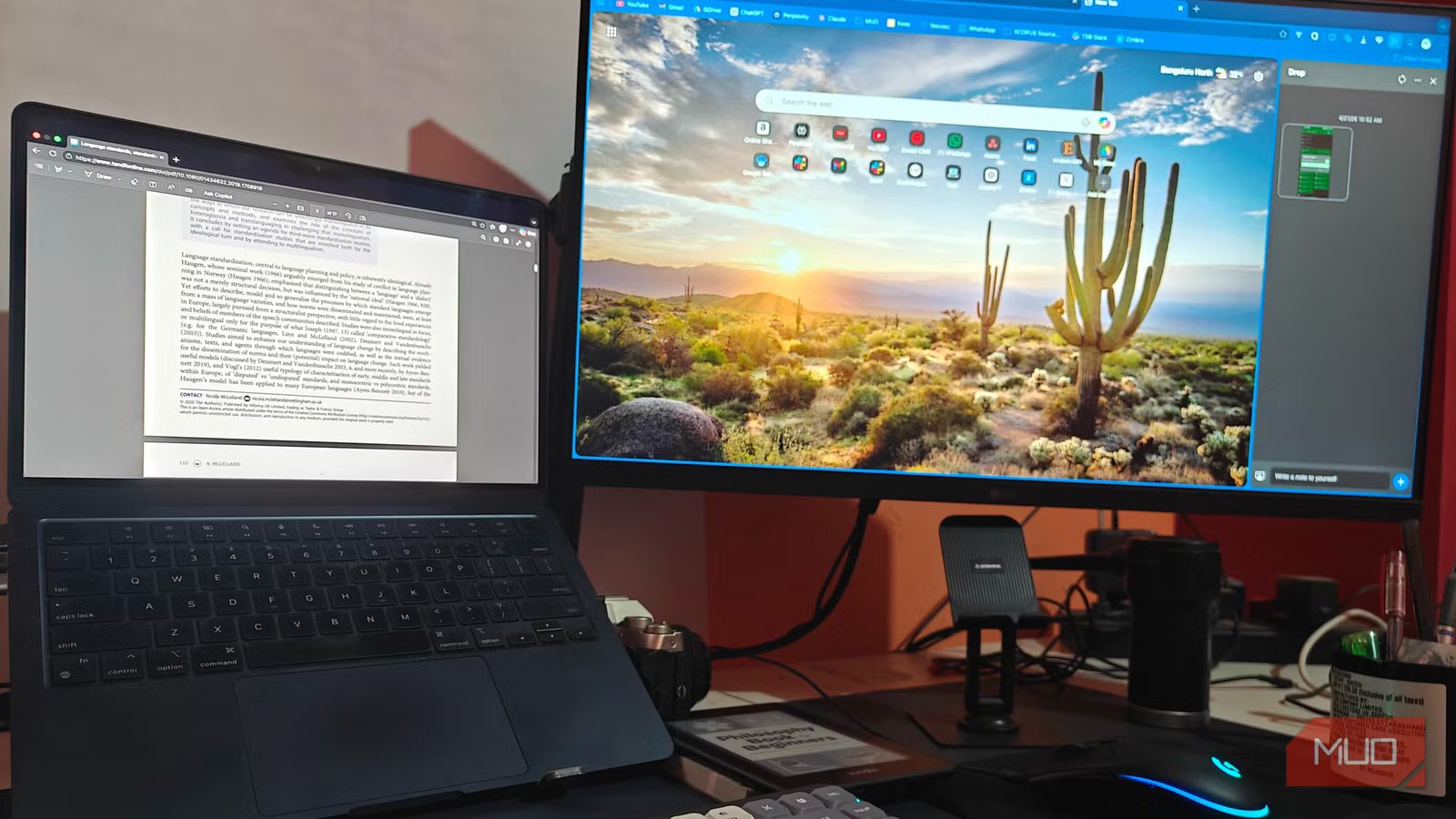
After using Arc as my default browser on my Mac for over three years, I recently shifted to Microsoft Edge. I chose Edge because it seemed to offer a clean browsing experience on Mac and support for Chrome extensions. I have already been using Edge on Android, and the experience was pretty great! So, I thought it would be nice to have the same browser on my Mac as well.
A couple of weeks into the shift, I am happy with what Edge offers. There was a surprise, though. I knew Edge had a number of great features, but I didn’t expect them to almost replace standalone apps on my Mac. Given that most of my work is done in a web browser, the following Microsoft Edge features have been a game-changer.
Related
4 Microsoft Edge Features I Wish Google Chrome Had
Chrome is great, but I don’t always want to download extensions to get useful functionality I can find elsewhere.
Edge’s built-in reader quietly took over my documents
I stopped opening PDF apps after this
Arc used to have the standard PDF reader built into Chromium, and it offered a decent experience. However, I found Edge’s built-in reader utility to be far better, and it quietly replaced the many PDF reader apps I had relied on. As you can guess, when I deal with PDF files on the web, it is more convenient to open them within the browser. The reader utility built into Microsoft Edge does more than I expected.
At its core, the built-in utility is a native PDF reader. It can automatically load PDF documents you open on-page or files you have downloaded to your Mac. You can use it to open local PDF files as well, but that option may be a little inconvenient. No matter what you open, Microsoft Edge offers a smooth UI design for reading and annotating PDF documents.
Related
This free PDF tool made me ditch Adobe Acrobat, PDFgear, and PDF24
I didn’t expect this app to stick, but it did.
For starters, you get the standard annotation tools, including Highlight, Draw, Text, and Erase. These work flawlessly, and I haven’t had any performance issues even when opening large PDFs. The additional options for Read Aloud and Translate are also great from a productivity standpoint. Edge also lets you choose between multiple viewing modes, including Page View and Full-screen View.
Equally, if not more, impressive is the Ask Copilot function that Edge brings to the PDF reader. It lets you use Microsoft Copilot to interact with the PDF, such as generating summaries and asking questions. This feature ensures that I don’t need another PDF chat app or website. It is also worth noting that the built-in reader can open Office documents, which comes in handy when I want to quickly preview a DOCX file.
Overall, the built-in reader in Microsoft Edge offers an impressive enough reading experience that keeps me from reaching for dedicated PDF readers.
Drop replaced my quick-transfer apps
I send files to myself without thinking
Drop is another impressive feature I’ve come to love since moving to Microsoft Edge. Because I use Android and a Mac as my daily devices, I have to rely on apps like Blip or LocalSend to quickly transfer files between my devices. While that is alright, a file transfer system that works within web browsers sounded so great, and Drop on Edge does deliver that basic promise.
Related
This is the cleanest way to share files between your phone and Windows
No cables, no complicated setup, and no waiting around for uploads.
The process is pretty simple: You open the drop interface on any of the edge browsers you have opened, and you can simply attach a file or write a note yourself. This option also lets you capture a screenshot on your computer and instantly share it with your other devices. Depending on your settings, Edge can automatically download or open the files you send from another device. Drop has also become an easier way to share text-based information between devices. It comes in handy when I want to transfer a snippet from my Android to my Mac.
While this feature works great for me, there are some caveats. For instance, Drop uses an internet connection to transfer data, so your connection speed can affect the experience. As a result, it may not be the best option for super-large files either.
Nevertheless, the drag-and-drop interface of Drop suits my workflow almost all the time. Not having to leave the browser interface to send something or access previously sent files is a total boost.
Web Capture handles full pages without complaints
It’s been great for most web page captures
I also rely heavily on Web Capture after switching to Microsoft Edge. Since I spend a substantial amount of time testing and writing about web apps, I need high-quality screenshots of web pages. Arc used to have a built-in screenshot utility, or I relied on third-party apps like CleanShot X or extensions like Awesome Screenshot. Thanks to Edge’s built-in screenshot option, I don’t have to do that anymore.
I don’t want to frame this feature as a complete alternative to screenshot tools out there, but whenever I have to capture a web page for any purpose, this tool gets the job done. The three screenshot options, including the ability to capture the entire page or a scrolling screenshot, come in quite handy when I want to get a full picture of the web page. The included annotation options are also pretty great for starters. I especially love the mosaic function, which lets me blur sensitive information from the screenshot right away.
Other options, such as adding numbers and stamps to the content, are pretty great. Being able to access all these options without loading an entire app makes this feature more handy, especially from an efficiency perspective.
There are times when Edge will still send you back to apps
I don’t want to give you the impression that these features are enough for everyone and everything. There are times when you’ll have to go back to standalone apps. For instance, while the built-in reader is great for most things PDF reading, you’d need something like Acrobat or PDFgear for advanced editing or digital signature. Similarly, while Drop is an intuitive way to share files between devices, you may need something like LocalSend to handle super-large files.
Despite all this, the beauty of these features is that you can access them from Edge’s main interface. For people (like myself) who spend a lot of time on web browsers, this feature makes a huge difference to productivity. It is icing on the cake that these features don’t hog much of RAM either.
OS
Windows, Android, iOS
Developer
Microsoft
Price model
Free
