

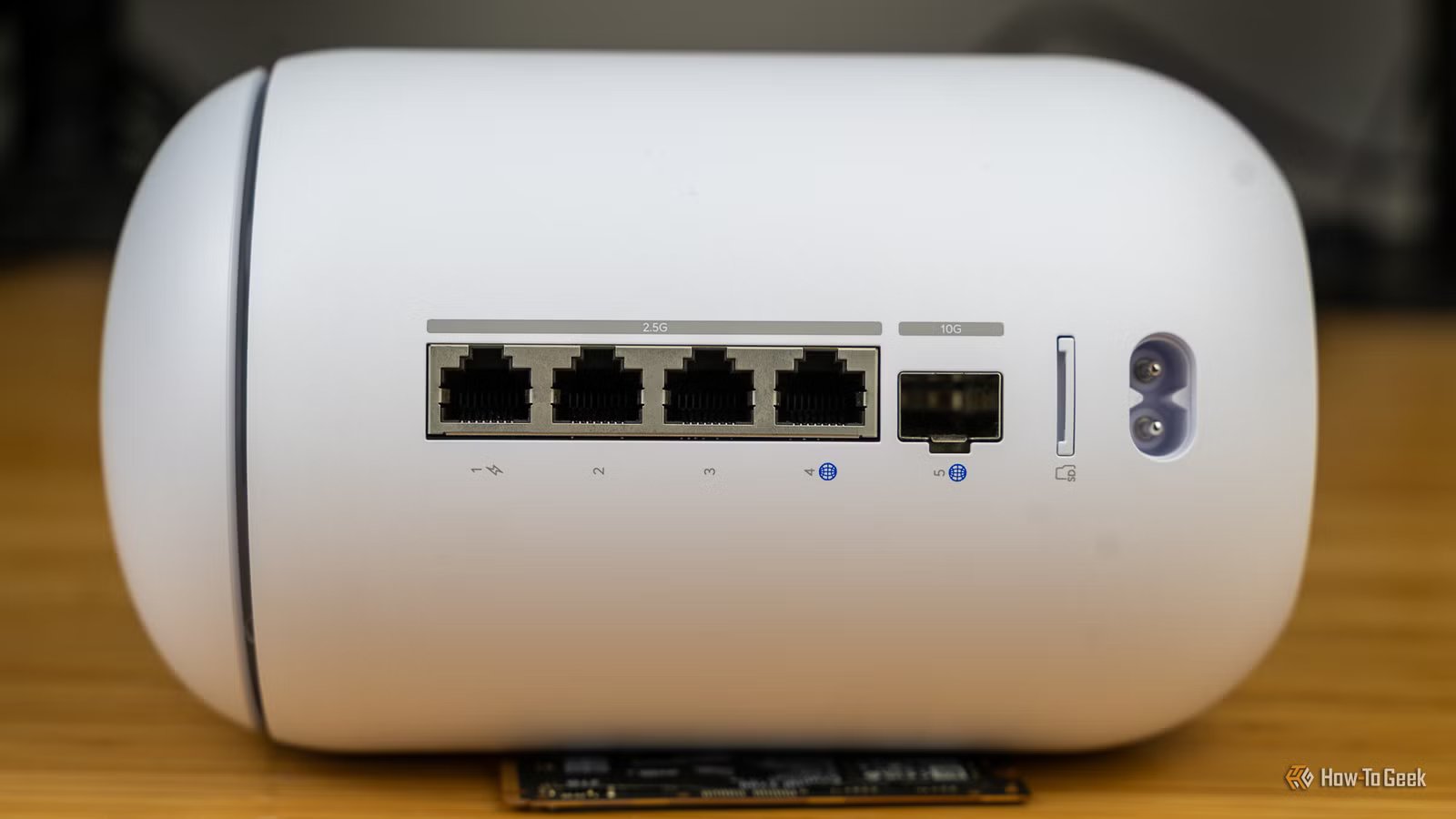
Routers range from affordable to outrageously expensive, with some flashy gaming routers priced at well above $600. But the best way you can truly improve your connection doesn’t cost any money, although it does cost some amount of compromise. For some, that compromise can be a lot more significant than for others.
Here’s the one thing I did that massively improved my connections on some devices, and it didn’t cost me a penny.
I thought I needed a better router, but that wasn’t the case at all
The router gets a lot of flak in these situations, but it isn’t always the culprit
When your connection starts acting up, the router and the ISP are often the two things you might think of first. In my case, I usually blame the ISP, but that’s just because my old ISPs have been super unreliable, so it’s an easy guess to make.
If your TV is constantly buffering, your games lag or disconnect, or your calls freeze for a few seconds at a time, I get it—blaming the router is not at all a stretch. But often, the router is not the main thing to blame.
In a lot of homes, it’s not that the router is too weak, but rather that it’s badly placed or the Wi-Fi is doing too much heavy lifting at once. I don’t have a robust net of smart home devices, but even my home has several devices connected via Wi-Fi at any given time. A lower-quality router, especially one rented from an ISP, may not be able to juggle this many connections over wireless.
Quiz
8 Questions · Test Your Knowledge
Home networking & Wi-Fi
Think you know your routers from your repeaters — put your home networking know-how to the ultimate test.
Wi-FiRoutersSecurityHardwareProtocols
Begin
What does the ‘5 GHz’ band in Wi-Fi offer compared to the ‘2.4 GHz’ band?
ALonger range but slower speedsBFaster speeds but shorter rangeCBetter wall penetration and faster speedsDLower interference but identical speeds
That’s right! The 5 GHz band delivers faster data rates but loses signal strength more quickly over distance and through walls. It’s ideal for devices close to the router that need maximum throughput, like streaming 4K video.
Not quite — the 5 GHz band actually offers faster speeds at the cost of range. The 2.4 GHz band travels farther and penetrates obstacles better, which is why smart home devices and older gadgets often prefer it.
Continue
Which Wi-Fi standard, introduced in 2021, is also known as Wi-Fi 6E and extends into a new frequency band?
A802.11acB802.11axC802.11beD802.11n
Correct! 802.11ax is the technical name for Wi-Fi 6 and Wi-Fi 6E. The ‘E’ variant extends the standard into the 6 GHz band, offering a massive swath of new, less-congested spectrum for faster and more reliable connections.
The answer is 802.11ax — that’s Wi-Fi 6 and Wi-Fi 6E. Wi-Fi 6E adds support for the 6 GHz band, giving it far less congestion than the crowded 2.4 GHz and 5 GHz bands. 802.11be is actually the upcoming Wi-Fi 7 standard.
Continue
What is the default IP address most commonly used to access a home router’s admin interface?
A192.168.0.1 or 192.168.1.1B10.0.0.1 or 172.16.0.1C255.255.255.0 or 255.0.0.0D127.0.0.1 or localhost
Spot on! The vast majority of consumer routers use either 192.168.0.1 or 192.168.1.1 as the default gateway address. Typing either into your browser’s address bar will bring up the router’s login page — just make sure you’ve changed the default password!
The correct answer is 192.168.0.1 or 192.168.1.1. These are the most common default gateway addresses for home routers. The 255.x.x.x addresses are subnet masks, and 127.0.0.1 is your own machine’s loopback address, not a router.
Continue
Which Wi-Fi security protocol is considered most secure for home networks as of 2024?
AWEP (Wired Equivalent Privacy)BWPA (Wi-Fi Protected Access)CWPA2 with TKIPDWPA3 (Wi-Fi Protected Access 3)
Excellent! WPA3 is the latest and most robust Wi-Fi security protocol, introduced in 2018. It uses Simultaneous Authentication of Equals (SAE) to replace the older Pre-Shared Key handshake, making it far more resistant to brute-force attacks.
The answer is WPA3. WEP is completely broken and should never be used, WPA is outdated, and WPA2 with TKIP has known vulnerabilities. WPA3 offers the strongest protection, and if your router supports it, you should enable it right away.
Continue
What is the primary difference between a mesh Wi-Fi system and a traditional Wi-Fi range extender?
AMesh systems only work with fiber internet connectionsBRange extenders create a seamless single network while mesh systems create separate SSIDsCMesh nodes communicate with each other to form one seamless network, while extenders create a separate networkDMesh systems are always wired, while extenders are always wireless
Exactly right! Mesh systems use multiple nodes that talk to each other intelligently, handing off your device seamlessly as you move around your home under one SSID. Traditional range extenders typically broadcast a separate network and can cut bandwidth in half as they relay the signal.
The correct answer is that mesh nodes form one intelligent, seamless network. Range extenders are actually the ones that often create separate SSIDs (like ‘MyNetwork_EXT’) and can significantly reduce speeds. Mesh systems are far superior for large homes with many devices.
Continue
What does DHCP stand for, and what is its main function on a home network?
ADynamic Host Configuration Protocol — it automatically assigns IP addresses to devicesBDirect Hardware Control Protocol — it manages router firmware updatesCDistributed Hosting and Caching Protocol — it speeds up web browsingDDynamic Hypertext Communication Protocol — it secures data transmissions
Perfect! DHCP (Dynamic Host Configuration Protocol) is the unsung hero of home networking. Every time a device joins your network, your router’s DHCP server automatically hands it a unique IP address, subnet mask, and gateway info so it can communicate without manual configuration.
DHCP stands for Dynamic Host Configuration Protocol, and its job is to automatically assign IP addresses to devices on your network. Without it, you’d have to manually configure a unique IP address on every single phone, laptop, and smart device — a tedious nightmare!
Continue
What is ‘QoS’ (Quality of Service) used for in a home router?
AEncrypting all traffic leaving the routerBPrioritizing certain types of network traffic over othersCAutomatically switching between 2.4 GHz and 5 GHz bandsDBlocking malicious websites using a DNS filter
That’s correct! QoS lets you tell your router which traffic gets priority. For example, you can prioritize video calls or gaming over a family member’s file download, ensuring your Zoom meeting doesn’t freeze just because someone is downloading a large update.
QoS — Quality of Service — is actually about traffic prioritization. By tagging certain data types (like VoIP calls or gaming packets) as high priority, your router ensures latency-sensitive applications get bandwidth first, even when the network is congested.
Continue
What does the ‘WAN’ port on a home router connect to?
AOther computers in your home network via EthernetBA wireless access point for extending Wi-Fi coverageCYour modem or ISP-provided gateway to the internetDA network-attached storage (NAS) device
Correct! WAN stands for Wide Area Network, and the WAN port is where your router connects to the outside world — typically to your cable modem, DSL modem, or ISP gateway. The LAN ports on the other side connect to devices inside your home network.
The WAN (Wide Area Network) port connects your router to your ISP’s modem or gateway — essentially your entry point to the internet. The LAN (Local Area Network) ports are for connecting devices inside your home. Mixing them up can cause your network to not function at all!
See My Score
Challenge Complete
Your Score
/ 8
Thanks for playing!
Try Again
Figuring this out can be a major shift, and this brings us to the compromise part of this article: you can actually fix a lot of connection problems by simply switching to a wired connection on some devices. This will improve the connection both on the devices that will now use wired (because, obviously, wired still is better than Wi-Fi), and the ones that get the remaining wireless bandwidth, as they’ll no longer have to fight quite as many connections for it.
The first things that should leave Wi-Fi are the ones that never move
Your couch gadgets are mooching off the airwaves
Credit: Patrick Campanale / How-To Geek
The truth is that I used Wi-Fi on many less-important (to me) devices out of sheer laziness. It is a lot easier to type in the Wi-Fi password on your TV than it is to run an Ethernet cable all the way from your router to the TV set. The main issue with extra cabling is obviously convenience and aesthetics, because you don’t want a cable running the entire length of your living room. It’s a pain, I agree.
But it can be such a game-changer, and yes, a TV is the perfect target for your first Wi-Fi to Ethernet swap. In general, any devices that sit in one place should be upgraded to Ethernet, both for the sake of limiting network congestion and just to improve their connection, too.
Your desktop PC, game console, smart TV, or streaming box can easily switch to Wi-Fi without really harming the convenience factor. It’s not like you move your TV around on a daily basis. Besides, those devices often do a lot of downloading in the background. Your console may be updating games; your TV is streaming 4K video; your desktop deserves Ethernet simply because it’s way better, period.
The only limitation is the distance from your router. Doing this can be mildly annoying or completely impractical, but if it fits your home, it’s a huge upgrade that won’t cost you anything if you already have an Ethernet cable at home.
This works because it fixes contention, not just speed
It fixes the main problem with Wi-Fi networks
Credit: Jordan Gloor / How-To Geek
The biggest benefit here is not just that Ethernet is faster on paper. It’s that every device you move off Wi-Fi gives the rest of your wireless network a little more room to breathe.
Sometimes, your connection may be bogged down by network congestion, and it might have little to do with what’s going on at your home and more to do with the ISP. But more often than not, the ISP should (hopefully) be ready for peak-hour network traffic, but your router might not be. Sharing airtime with phones, tablets, PCs, smart devices, TVs, and so on can be a lot to ask for.
Move one or two of them to Ethernet, and that just might fix any stability issues over Wi-Fi for the rest of them. It certainly helped me, and it fixed annoying buffering problems on my TV, too.
Don’t buy a new router until you’ve done the free stuff
You might save yourself a lot of money
Credit: Hannah Stryker / How-To Geek
Fixing connection problems often comes down to troubleshooting. Before you ever consider replacing your router, look for hidden bottlenecks across your network first. Even upgrading to fiber may not fix a connection that has issues somewhere else, be it bad router settings, poor Wi-Fi coverage, or an aging Ethernet cable.
Wi-Fi is great, but not perfect
I’m not a fan of using Wi-Fi on my PC. In fact, whenever I do use it for any reason, I spend most of my time complaining about how bad it is by comparison. But the convenience of Wi-Fi makes it impossible to ditch on some devices, which is fair. Just make sure you don’t stack up too many all on the same connection, because that’s just a hop and a skip away from poor performance across your entire network.
Supported standards
802.11.be, 802.11ac, 802.11ax, 802.11g, 802.11n
Speeds
6500 Megabits Per Second
If you’ve tried everything and your old router just doesn’t cut it anymore, this Wi-Fi 7 gaming router is a solid replacement. It offers two 2.5GbE ports and excellent wired and wireless performance.
